How to Add an AI Chatbot to Your Canva Website in 5 Minutes (No Code)
Most Canva websites lose visitors who have simple questions about hours, products, or services. Until now, adding a chatbot required complex coding or sending customers to third-party sites. This guide shows how to embed a fully native AI assistant that answers questions 24/7 while keeping visitors engaged on your Canva design.
The Canva Chatbot Problem
Canva websites have transformed how small businesses create professional online presences - but they've always lacked one critical feature: real-time customer interaction. When visitors have questions about your hours, products, or services, they typically have three bad options:
1) Hunt through your design hoping to find the information
2) Click away to email or social media (where they might get distracted)
3) Leave your site entirely when they can't find what they need
83% of customers expect immediate answers to basic questions when visiting a business website. Without a chatbot, Canva sites force visitors to work harder than they should to get simple information.
Jotform's Native Canva Solution
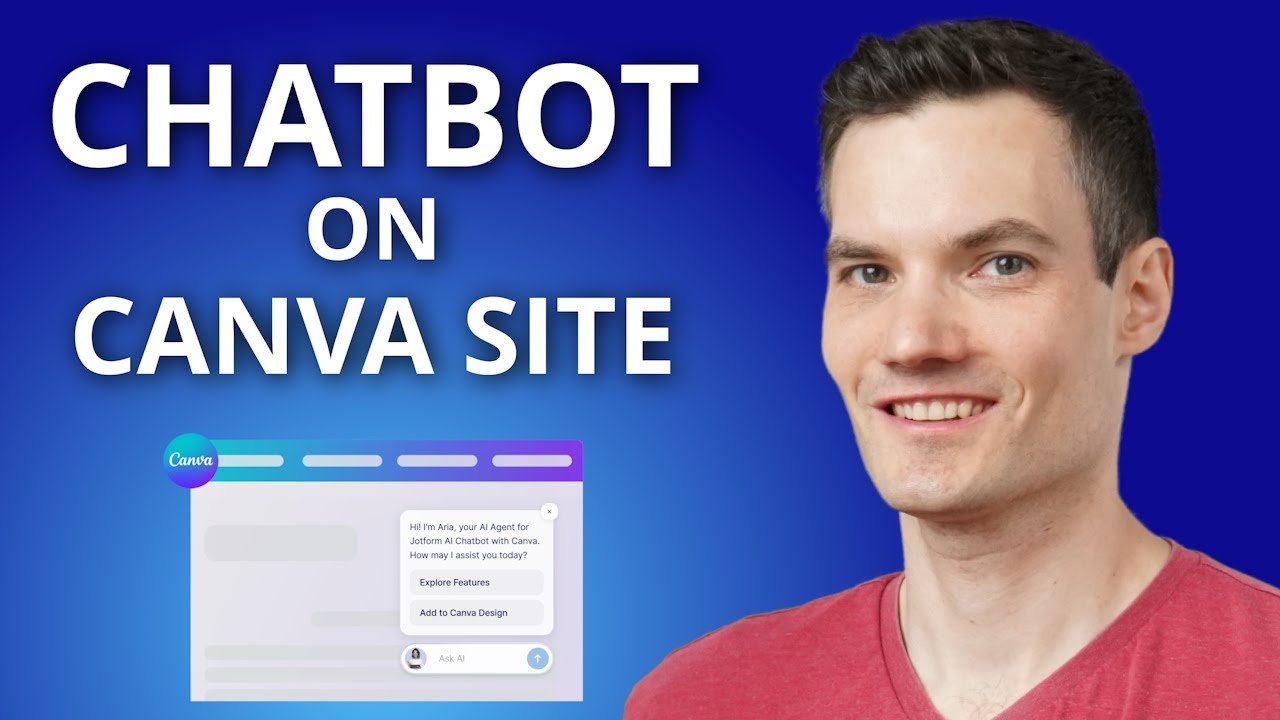
Jotform's AI Chatbot app solves this problem by integrating directly into Canva's interface as an official app. Unlike external chatbot solutions that require iframes or redirects, this implementation:
- Appears as a native element in your Canva design
- Automatically learns from your page content
- Matches your brand colors and style
- Processes questions without leaving your site
The chatbot uses the text from your Canva design as its initial knowledge base. For the Kevin Cookie Company example in the tutorial, this means it could immediately answer questions about cookie varieties, delivery policies, and business hours without any additional setup.
5-Minute Setup Process
Adding the chatbot to your Canva design requires no technical skills and follows this simple workflow:
Step 1: Open Your Canva Design
Navigate to the Canva website or page where you want the chatbot to appear. In the tutorial example, this was the homepage for Kevin Cookie Company.
Step 2: Access the Jotform App
Click the Apps icon in the left sidebar, search for "Jotform AI chatbot," and select the official app.
Step 3: Create or Connect Chatbot
Choose whether to create a new chatbot or connect an existing Jotform chatbot. For first-time users, "Start as guest" provides immediate functionality.
Step 4: Position the Chatbot
Drag the chatbot element to your preferred location on the page. Use standard Canva editing tools to resize and align it with your design.
Pro Tip: Place the chatbot near common question triggers like "Contact Us" sections or product descriptions where visitors naturally look for more information.
Customizing Your Chatbot Design
One major advantage of the Jotform integration is the ability to match the chatbot perfectly to your brand aesthetic directly within Canva:
Layout Options: Choose between bubble, card, minimal, and chat styles to control how prominently the chatbot appears on your page.
Color Customization: Adjust the background, text, and accent colors using Canva's color picker to align with your brand palette.
Positioning Flexibility: Move the chatbot anywhere on your page like any other Canva element - no fixed positions or restrictive containers.
In the tutorial example at 2:45, you can see how changing from the default bubble style to the chat layout made the assistant more visible while maintaining a clean design.
Advanced Features Beyond Basic Q&A
While the basic setup provides immediate value, Jotform's advanced settings (accessible through the "Continue" button) unlock powerful business automation:
- Expanded Knowledge: Add PDFs, website links, or custom Q&A pairs to train the chatbot beyond your Canva content
- Form Connections: Integrate with Jotform forms for lead capture, surveys, or customer feedback
- Booking Systems: Connect to scheduling tools to let customers book appointments directly through the chat
- Behavior Rules: Control response tone, set operating hours, and define conversation boundaries
These features require a Jotform account but still don't need any coding. The tutorial demonstrates adding a website as a knowledge source at the 4:10 mark.
Tracking Customer Conversations
All chatbot interactions are logged in your Jotform account, providing valuable insights into customer needs:
Conversation History: Review every question asked and response given, with timestamps
Common Questions: Identify frequent inquiries that might indicate missing or unclear information on your site
Response Accuracy: Monitor whether the chatbot provides correct, helpful answers to improve its knowledge base
The tutorial shows the conversation view at 5:30, where you can see the example question about delivery hours and the chatbot's response.
Business Benefits of Canva Chatbots
Adding AI chat to your Canva website delivers measurable advantages:
24/7 Availability: Answer customer questions outside business hours without staff involvement
Reduced Bounce Rate: Keep visitors engaged on your site instead of leaving to find answers elsewhere
Lead Generation: Capture contact information through natural conversation rather than static forms
Operational Efficiency: Automate responses to common questions, freeing up staff for complex inquiries
For service businesses like the cookie company in the example, this could mean fewer missed orders from customers wondering about delivery times after hours.
Watch the Full Tutorial
See the complete 5-minute setup process in action, including how to customize colors, reposition the chatbot, and test questions. At 4:10, watch how to expand the chatbot's knowledge by connecting additional sources in Jotform.
Key Takeaways
Canva websites no longer need to be passive brochures - with Jotform's AI chatbot, they can actively engage visitors 24/7 with no coding required.
In summary: The Jotform AI chatbot installs directly into Canva in minutes, learns from your content automatically, matches your brand design perfectly, and scales from basic Q&A to lead capture and bookings - all while keeping visitors on your site instead of sending them elsewhere for answers.
Frequently Asked Questions
Common questions about this topic
Yes, the Jotform AI chatbot works on both Canva designs and published Canva websites. Once added to your design, it will appear live on your published site just like any other Canva element.
The chatbot processes questions in real-time and can reference content from your website pages. Unlike external chat widgets that load separately, this implementation maintains Canva's visual consistency and performance.
- Appears identical on both design view and live site
- No iframe loading delays or cross-domain issues
- Maintains Canva's mobile responsiveness
Absolutely. The chatbot offers four layout styles (bubble, card, minimal, and chat) with full color customization to match your brand.
You can change the background color, text color, button style, and positioning directly within Canva's editor without needing design skills. The tutorial shows this customization process starting at 2:15.
- Four professional layout options
- Color picker integration with Canva's palette
- Real-time preview of changes
The chatbot automatically learns from your Canva page content to answer basic questions about your business. For the Kevin Cookie Company example shown in the tutorial, it could answer questions about business hours, product offerings, delivery policies, and location.
You can expand its knowledge by connecting additional sources in Jotform like PDF documents, website URLs, or custom Q&A pairs. This is demonstrated at the 4:10 timestamp in the video.
- Answers based on your page content by default
- Can learn from uploaded documents and websites
- Handles follow-up questions contextually
Yes, through Jotform's advanced settings, you can connect the chatbot to lead capture forms, booking systems, and automation workflows.
This allows the chatbot to not just answer questions but also collect contact information, schedule appointments, or trigger follow-up actions in your CRM. These features require a Jotform account but still don't need any coding.
- Integrates with Jotform's form builder
- Can transfer from chat to booking flow seamlessly
- Connects to 100+ apps through Zapier
All conversations with your Canva chatbot are saved in your Jotform account. You can review the full history of questions asked and responses given through the conversation view in Jotform's dashboard.
This helps you identify common customer inquiries and improve your chatbot's knowledge base. The conversation log shown at 5:30 in the tutorial demonstrates this tracking capability.
- Complete chat history with timestamps
- Exportable to CSV for analysis
- Searchable by question type or date
No coding is required. The entire setup happens through Canva's visual interface and Jotform's no-code tools.
You can have a basic chatbot working in under 5 minutes as shown in the tutorial, with more advanced configurations available through simple point-and-click options. Even connecting to external systems like calendars or CRMs uses Jotform's pre-built integrations.
- 100% visual configuration
- No HTML, JavaScript, or API knowledge needed
- Template-based advanced features
Yes, if you've already created a chatbot in Jotform, you can log into your account from within Canva to connect it.
This lets you maintain one central chatbot configuration that works across multiple platforms while still appearing native to your Canva design. Any updates made in Jotform will automatically reflect in your Canva implementation.
- Single configuration for multiple channels
- Centralized knowledge management
- Consistent branding across platforms
GrowwStacks specializes in implementing AI chatbots and automation solutions for Canva-based businesses. We can configure your Jotform chatbot with industry-specific knowledge, connect it to your CRM and booking systems, and design custom conversation flows that convert visitors into customers.
Our team handles the entire setup so you get a turnkey solution tailored to your business needs. We'll ensure your chatbot matches your brand perfectly, answers your most common customer questions accurately, and integrates seamlessly with your existing tools.
- Custom chatbot configuration for your industry
- CRM and calendar integration
- Free 30-minute consultation to plan your implementation
Get a Custom Canva Chatbot for Your Business
Every unanswered question on your website represents lost revenue and frustrated customers. Let GrowwStacks implement a tailored AI chatbot that works 24/7 to engage visitors and capture leads - all without leaving your Canva design.