🚀 Auto-Post to Facebook with Make.com (Google Drive + AI) | Save 1–2 Hours Every Week
Staring at a blank Facebook post editor every morning? This automation pulls content from your Google Drive, generates perfect captions with AI, and posts automatically - while you focus on running your business. No more wasted hours or forgotten posts.
The Manual Posting Problem
Most small business owners know they should post consistently on Facebook - but between client work, operations, and everything else, social media often falls through the cracks. You might start strong on Monday morning, but by Wednesday, you're staring at a blank post editor, out of ideas and out of time.
The hidden cost? 1-2 hours per week spent brainstorming, writing captions, finding images, and manually posting - time that could be spent serving clients or growing your business. Even when you do post, inconsistent timing and last-minute content can hurt your engagement.
Social media managers charge $500-$1500/month for what this automation handles automatically. For businesses posting 3-5 times weekly, that's 4-8 hours monthly reclaimed instantly.
How the Automation Works
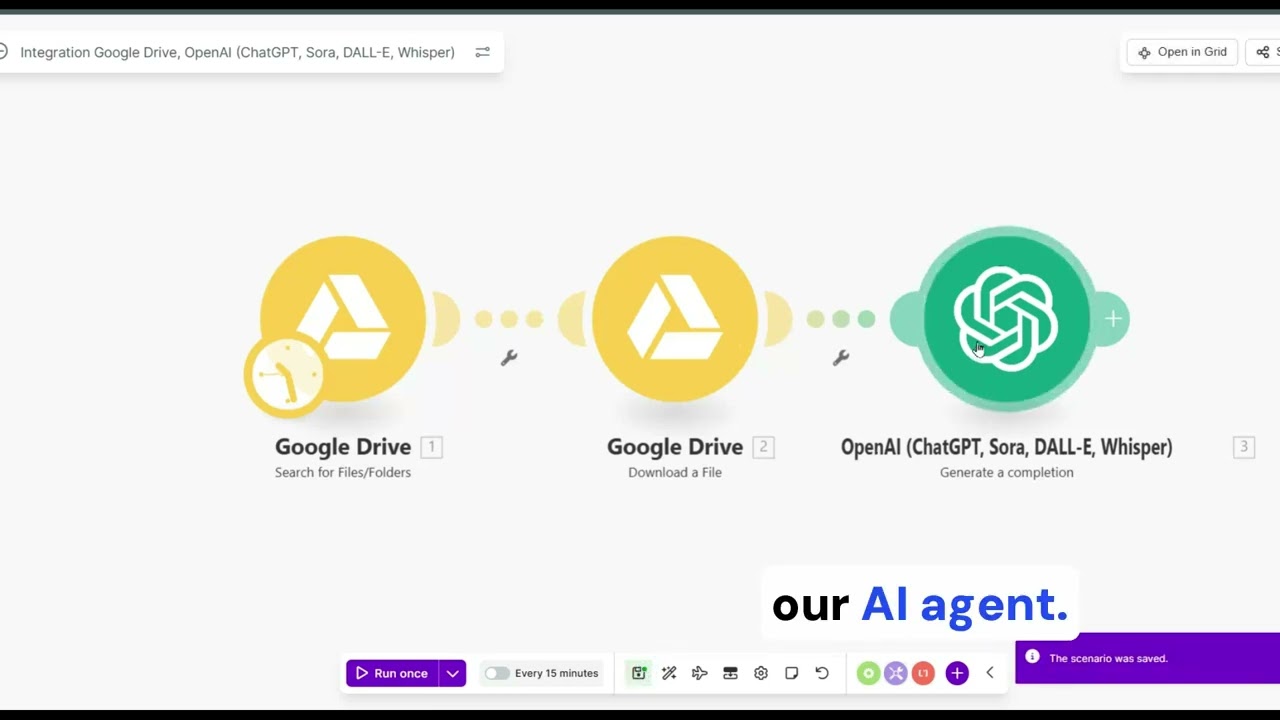
This Make.com workflow solves three core problems: content storage, caption creation, and consistent posting. Here's the magic sequence:
- Pulls one file from your designated Google Drive folder
- Sends the filename to OpenAI to generate a branded caption
- Posts the image/video with AI-generated caption to Facebook
- Cleans up by deleting the posted file (prevents duplicates)
The entire process runs automatically on your schedule - daily, weekly, or whenever you add new content to your Drive folder. No more copying, pasting, or trying to be clever at 7 AM.
Step 1: Google Drive Setup
Your content hub is a simple Google Drive folder. Whenever you have a post idea, just save the image/video with a descriptive filename - the AI will use this to craft your caption.
In Make.com, you'll:
- Create a new scenario and add the Google Drive "Search Files" module
- Connect your Google account and select your content folder
- Set the limit to "1" so it processes one file at a time
Pro Tip: Name files descriptively (e.g., "Springfield-Junk-Removal-January.jpg") - the AI uses these names to generate context-rich captions.
Step 2: AI Caption Generation
After grabbing a file, the workflow sends the filename to OpenAI's GPT module. This is where the magic happens:
- Add an "OpenAI Create Completion" module to your scenario
- Choose your preferred model (GPT-3.5 works well for captions)
- Create a system prompt that defines your brand voice and post style
- Insert the filename variable into your prompt template
- Set response format to JSON for clean data handling
At 2:45 in the video, you'll see how testing the prompt with a sample filename instantly generates a perfect, on-brand caption ready for Facebook.
Step 3: Facebook Posting
With your content downloaded and caption ready, the workflow posts to Facebook automatically:
- Add Facebook's "Upload a Photo" module and connect your page
- Map the downloaded file from Google Drive to the photo field
- Insert the AI-generated caption into the post text
- Configure error handling in case of posting issues
The video shows how the module automatically pulls in your file and caption - no manual uploads or copying required. Your post goes live with zero daily effort.
Step 4: Cleanup and Optimization
To prevent reposting the same content, the workflow includes smart cleanup:
- Add a "Delete File" module from Google Drive
- Use the file ID from earlier in the workflow
- Optionally add a delay before deletion for troubleshooting
This ensures your content folder only contains unpublished material. For extra efficiency, you can:
- Add random delays between steps to vary posting times
- Include automatic liking/commenting on your new posts
- Set up notifications for successful posts or errors
Advanced Customizations
Once the core workflow runs smoothly, consider these upgrades:
- Multi-platform posting: Duplicate the Facebook module for Instagram or LinkedIn
- Content variations: Use AI to create multiple caption versions for A/B testing
- Scheduling: Add a Schedule module to control exact posting days/times
- Content recycling: Instead of deleting, move posted files to an archive folder for reuse later
Enterprise Tip: At 6:20 in the video, you'll see how to add conditional logic - like only posting weekdays or excluding certain file types.
Watch the Full Tutorial
See the complete workflow build from start to finish, including troubleshooting tips for common errors. The video walks through each click and configuration, making it easy to replicate.
Key Takeaways
This automation transforms social media from a time-suck to a set-and-forget system. By combining Google Drive storage, AI captioning, and Facebook's API, you maintain consistent posting without the daily grind.
In summary: 1) Store content in Drive, 2) AI writes captions, 3) Make.com posts automatically, 4) System cleans up. Reclaim 1-2 hours weekly while improving your posting consistency and quality.
Frequently Asked Questions
Common questions about this topic
This automation saves 1-2 hours per week by eliminating manual posting. Businesses posting daily can reclaim 4-8 hours monthly that would otherwise be spent creating and scheduling content.
The time savings compound as you scale posting frequency. For example, a business posting 5x weekly might spend 5-10 hours monthly just on posting logistics - all recoverable with this workflow.
- No more daily caption brainstorming
- Eliminates manual uploads and scheduling
- Reduces context-switching between tasks
The workflow handles images, videos, and text posts. The AI generates captions based on your file names and content, making it versatile for different post types while maintaining brand voice consistency.
For example, a real estate agent could automate property photos, neighborhood videos, and market update graphics - all with automatically generated, on-brand captions tailored to each content type.
- JPEG/PNG images with AI captions
- MP4 videos with contextual descriptions
- Text posts using Drive text files as prompts
No coding required. Make.com uses a visual workflow builder with pre-built modules for Google Drive, OpenAI, and Facebook. The tutorial walks through each step with click-by-click instructions.
The interface works like flowchart software - you drag, drop, and connect modules. At 1:30 in the video, you'll see how simple it is to connect Google Drive to OpenAI without writing a single line of code.
- Visual interface - no syntax to learn
- Pre-built connectors for major platforms
- Error handling through checkboxes, not code
The system uses your file names as seed prompts. For example, a file named "Springfield-Junk-Removal.jpg" would generate a caption about junk removal services in Springfield. You can customize the AI prompt template.
At 3:15 in the video, the demo shows how changing the filename instantly produces different caption styles - from professional to conversational - while staying on-brand.
- File names provide context clues
- System prompt defines your brand voice
- JSON output ensures clean formatting
Yes, you can add a Schedule module to control posting times. The workflow can also include random delays to vary posting times automatically for optimal engagement.
For example, you might configure posts to go live weekdays between 9-11 AM, with random timing within that window to mimic natural posting patterns.
- Exact time scheduling available
- Random delays prevent robotic consistency
- Time zones automatically handled
Make.com includes error handling. If a post fails, the workflow can retry, notify you, or skip to the next file. The original content remains in Google Drive until successfully posted.
At 5:50 in the video, you'll see how the system catches and displays errors - like when the demo forgot to include the filename variable in the AI prompt.
- Automatic retries for temporary issues
- Email/SMS notifications for critical failures
- Content preservation until successful posting
Absolutely. You can duplicate the Facebook posting module for multiple pages or use an iterator to cycle through your business pages. Each gets unique AI-generated captions.
For agencies managing client pages, this means one workflow can handle all accounts - just add each page's credentials and customize the AI prompts per brand.
- Duplicate modules for each page
- Iterators handle dynamic page lists
- Separate AI prompts per brand voice
GrowwStacks builds custom Make.com automations tailored to your content workflow. We'll configure your AI prompts, set up error handling, and train your team - typically completing implementations in 2-3 business days with a free initial consultation.
Our experts handle the technical setup while you focus on creating great content. We'll design a system that matches your posting frequency, brand guidelines, and business objectives.
- Custom AI prompt engineering for your brand
- Multi-platform posting configurations
- Ongoing support and optimization
Stop Wasting Hours on Manual Facebook Posts
Every minute spent copying, pasting, and scheduling is time stolen from revenue-generating work. Let GrowwStacks build your custom automation - we'll have your Facebook posting on autopilot within 48 hours.