Automate Any Workflow in 5 Minutes With Zapier - The Ultimate Crash Course
Most business owners waste 8+ hours per week on repetitive tasks they could automate. This Zapier tutorial shows you how to connect apps, build workflows, and add AI - all in less time than your next coffee break. No coding required.
Zapier Basics: Triggers and Actions
Every automation starts with a trigger - the event that kicks off your workflow. In our example, we're using a new file appearing in a specific Google Drive folder. The moment Zapier detects this trigger, it will execute your predefined actions automatically.
Actions are what Zapier does in response to the trigger. We'll send a Slack notification with the file details, but you could also create calendar events, update spreadsheets, or trigger follow-up processes. The power comes from chaining multiple actions together.
Key insight: Zapier handles the busywork so you can focus on high-value tasks. The average professional saves 8 hours per week by automating just 3-5 repetitive workflows.
Setting Up Your First Trigger
Before building anything, prepare test data that will trigger your automation. In our case, we need a sample file in the target Google Drive folder. This lets you verify each step works before relying on the automation.
When configuring the trigger, you'll specify exactly what event to watch for. For Google Drive, this means selecting the specific drive and folder to monitor. Zapier will then poll this location for changes according to your schedule.
Connecting Your Apps
Zapier integrates with over 5,000 apps, but you'll need to connect your specific accounts. The connection process uses OAuth for security - you'll log in once to grant Zapier limited access to your apps.
Once connected, these accounts appear in dropdown menus throughout Zapier. You can connect multiple accounts for services like Slack (different workspaces) or Google Drive (multiple organizations).
Pro tip: Create a dedicated "Automation" folder in Drive and Slack channel for bot notifications. This keeps automated content separate from human collaboration.
Configuring Actions
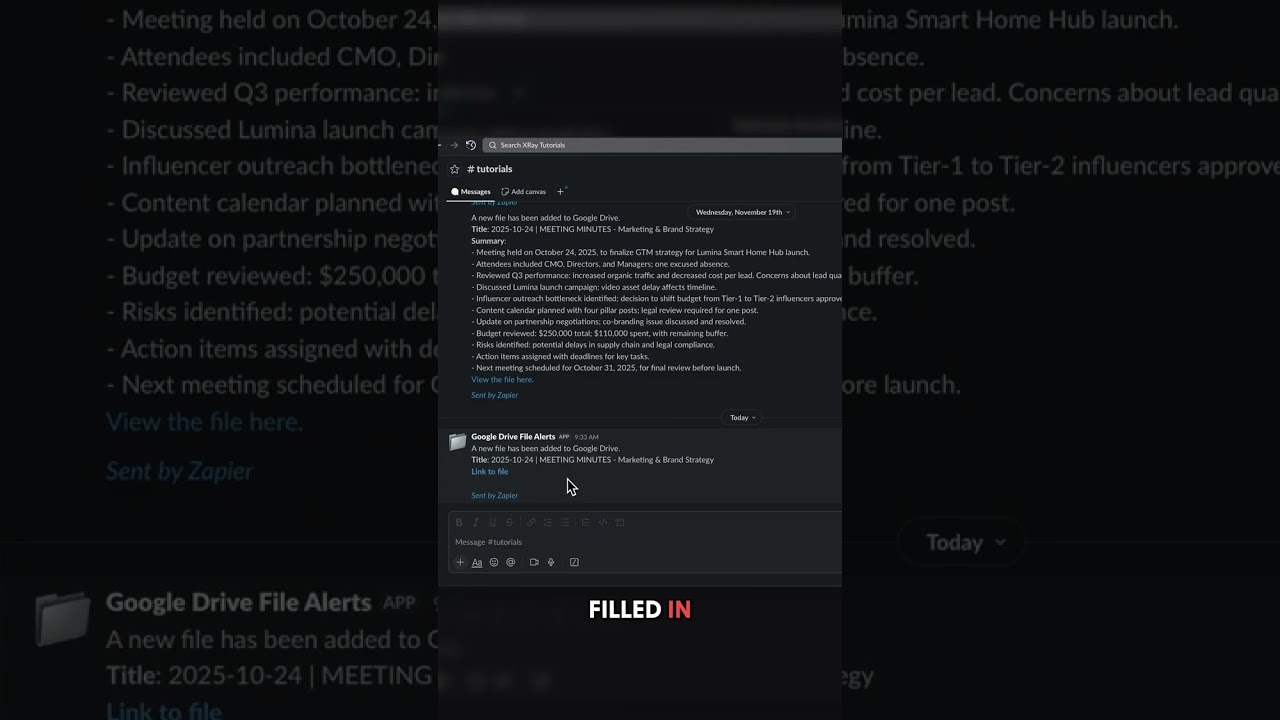
After the trigger, we add a Slack message action. The action configuration shows available fields with tooltips explaining each one. For Slack, we need to select the channel and compose our message.
Zapier's magic comes from dynamic fields - click the plus button or type "/" to insert variables from previous steps. We include the document title and a direct link pulled from our Google Drive trigger.
Testing Your Workflow
Always test before enabling your Zap. The test runs your trigger with sample data and executes the actions exactly as configured. Check that the Slack message appears with all expected information.
Testing confirms your automation works with real data before you turn it on. If something fails, Zapier shows exactly where the problem occurred so you can fix it.
Adding AI to Your Automation
Zapier now includes AI actions that process data between steps. We add an AI step to summarize document contents with a simple prompt. The AI analyzes the file and outputs a concise summary.
AI steps work with text-based content from emails, documents, or web pages. Use them to extract key points, rewrite content, or analyze sentiment without switching apps.
Time saver: Adding AI to review documents can save 15-30 minutes per file that would normally require manual reading and summarization.
Using Filters to Control Flow
Filters let you add conditions to your automation. We add a filter to only process Google Docs files by checking the MIME type. This prevents the workflow from running on unsupported file types like images.
When the filter fails (like when someone uploads a PNG), Zapier stops the workflow gracefully. You can set up notifications for filtered items or route them to different workflows.
Watch the Full Tutorial
See the complete workflow in action from trigger to AI processing in our 3-minute video tutorial. At 1:45, we demonstrate how to insert dynamic fields into your Slack message using Zapier's variable system.
Key Takeaways
Zapier turns hours of manual work into automated workflows that run in the background. With triggers, actions, and now AI, you can connect nearly any business apps without writing code.
In summary: 1) Start with a trigger event 2) Connect your apps 3) Configure actions 4) Test thoroughly 5) Add AI and filters for smarter workflows. The initial 5-minute setup saves hours every week.
Frequently Asked Questions
Common questions about this topic
The first step is setting up a trigger - the event that starts your automation. For example, a new file added to a specific Google Drive folder.
You'll need test data ready to verify the trigger works before proceeding with the rest of your Zap. This prevents errors when the automation goes live.
- Identify the repetitive task you want to automate
- Determine what event should start the process
- Prepare sample data that matches your trigger conditions
Yes, Zapier now includes AI actions where you can process data with AI. In the tutorial, we add an AI step to summarize document contents.
You can write simple prompts to extract insights, rewrite content, or analyze data between your apps. The AI handles text from emails, documents, or web pages.
- Summarize long documents automatically
- Extract key information from unstructured text
- Rewrite content in different styles or tones
Use Zapier's filter step to check file properties before continuing. For example, you can filter to only process Google Docs by checking the MIME type.
This prevents the automation from running on unsupported file types like images or slides. The filter evaluates each item and only continues if conditions are met.
- Filter by file type (Google Docs, Sheets, etc.)
- Check for specific keywords in filenames
- Verify file size or other metadata
Zapier integrates with over 5,000 apps including Google Workspace, Slack, Microsoft 365, and most business software.
Nearly every SaaS application offers Zapier integration, allowing you to connect your existing tools without coding. New apps are added weekly.
- All major productivity suites
- CRM and marketing platforms
- Ecommerce and payment systems
Zapier provides a test mode for each step. After setting up a trigger, click Test to verify it finds your sample data.
For actions like sending Slack messages, the test will actually perform the action so you can confirm it works before enabling the full automation.
- Test triggers with sample data
- Verify action outputs match expectations
- Check for errors at each step
Yes, you can chain multiple actions in a single Zap. After your trigger, add as many steps as needed - like sending a Slack notification, creating a spreadsheet row, then generating an AI summary.
Zapier processes them sequentially. Each action can use data from previous steps through variables.
- Chain up to 100 actions in premium plans
- Each step can use data from previous steps
- Add delays between actions if needed
Triggers start your automation by detecting an event (like a new email). Actions are what Zapier does in response (like creating a task).
Every Zap needs at least one trigger and one action, but can have multiple of each. Triggers watch for events, while actions perform tasks.
- Triggers: New email, form submission, calendar event
- Actions: Send message, create record, update status
- Filters can sit between them to add conditions
GrowwStacks helps businesses implement Zapier automations tailored to their specific workflows. We'll audit your processes, design multi-step Zaps that save hours per week, and handle all the technical setup.
Whether you need simple notifications or complex multi-app workflows with AI processing, our automation experts will build a solution that fits your exact needs.
- Free consultation to identify automation opportunities
- Custom Zapier workflows built for your business
- Ongoing support and optimization
Ready to Automate Your Workflows?
Every hour spent on repetitive tasks costs your business money and momentum. Let GrowwStacks build custom Zapier automations that save your team 10+ hours per week.