Automate Canva to LinkedIn Posts with Make.com — No-Code Social Media Workflow
You know LinkedIn demands consistent posting, but between designing in Canva, writing captions, and manual posting, it eats hours each week. This Make.com automation pulls designs from Canva, captions from Google Sheets, and publishes scheduled posts automatically — while you focus on running your business.
The Manual Posting Problem
Most business owners know LinkedIn demands consistent posting — 3-5 times per week minimum for algorithm visibility. But between designing graphics in Canva, crafting captions, and manually posting at optimal times, the process consumes 5+ hours weekly. The result? Either inconsistent posting that hurts your reach, or valuable time stolen from revenue-generating activities.
This automation solves three core frustrations: 1) Wasting time jumping between Canva, spreadsheets, and LinkedIn, 2) Forgetting to post consistently, and 3) Manual errors like posting the wrong image with a caption. By connecting these platforms through Make.com, you maintain complete creative control while eliminating the busywork.
Social media managers spend 28% of their time just on content distribution — not creation or strategy. This workflow reclaims that time while ensuring perfect post consistency.
How the Automation Works
The workflow acts as your digital social media assistant, coordinating between three platforms automatically. Each morning (or at your scheduled time), it: 1) Checks your Google Sheet for new post content, 2) Pulls the corresponding design from Canva, 3) Publishes to LinkedIn with the correct pairing, and 4) Marks the post as complete in your sheet.
Unlike social media scheduling tools, this solution gives you spreadsheet control over captions and direct access to your Canva designs. No more downloading/uploading images or copying/pasting text. The entire process happens behind the scenes while you focus on your business.
Key components: 1) LinkedIn Company Page, 2) Google Sheet with captions (column B) and status tracking (column E), 3) Canva folder with numbered designs, 4) Make.com scenario coordinating everything.
Step 1: Google Sheets Setup
Your Google Sheet serves as the command center. Column B contains post captions, while column E tracks status (blank = unpublished, "Posted" = complete). The automation only processes rows where E is empty and B has content — this prevents duplicates.
At 2:15 in the tutorial video, you'll see the critical filter setup in Make.com's Google Sheets module. This configuration checks for "Column E does not exist" AND "Column B exists" before processing a row. Without this, the automation might repost old content or skip new posts.
Technical Implementation:
- Connect Make.com to your Google Sheet
- Set the "Search rows" module to filter for blank status cells
- Limit to 1 result per run (for LinkedIn posting best practices)
- Order by row number to maintain your posting sequence
Step 2: Canva Integration
The automation matches each Google Sheet row to a specific Canva design. Since Google Sheets start numbering at row 1 (header) and row 2 (first data), while Canva designs start at 1, the workflow uses a simple calculation: Google Sheet row number - 1 = Canva design number.
At 3:45 in the video, notice how the "Export design" module pulls the correct image by calculating this offset. Your Canva designs should be named or ordered sequentially (1.jpg, 2.jpg, etc.) in a dedicated folder. The automation exports them as high-quality JPGs before posting.
Pro Tip: Create all post designs in one Canva batch, using consistent dimensions for LinkedIn's ideal 1200x627px ratio. The automation handles the rest.
Step 3: LinkedIn Posting
With the design exported from Canva and caption pulled from Google Sheets, Make.com publishes to your LinkedIn Company Page through their API. The LinkedIn module (shown at 5:20 in the video) maps these elements together automatically.
Critical configuration points: 1) Selecting your Company Page (not personal profile), 2) Mapping the Canva image to the post media field, and 3) Pulling the caption text from column B of your Google Sheet. The automation maintains all formatting (hashtags, line breaks) from your original spreadsheet.
Why This Beats Native Scheduling:
- No manual uploading of Canva designs
- Caption edits update automatically (just change the Google Sheet)
- Full control over posting times without daily logins
Step 4: Status Updates
The final component (shown at 6:40) prevents duplicate posts by updating your Google Sheet. After successful LinkedIn posting, the workflow marks column E as "Posted" for that row. This ensures the automation skips it on future runs while processing new content.
This status tracking serves three purposes: 1) Prevents reposting the same content, 2) Provides an audit trail of published posts, and 3) Lets you manually override if needed (clear the "Posted" status to republish). The entire history remains visible in your sheet.
Error Handling: If LinkedIn posting fails, the status won't update, allowing the automation to retry next run. This built-in resilience prevents lost posts.
Scheduling the Workflow
With the components connected, you set the automation schedule in Make.com (demonstrated at 7:15). Most businesses choose daily morning runs, but you could configure multiple daily posts if needed. The workflow only processes rows meeting your criteria, so empty or marked rows don't affect performance.
For optimal LinkedIn engagement, schedule your posts for when your audience is most active (typically 8-10am or 12-2pm in their timezone). The automation runs independently, so you can batch-create a month's worth of posts in one sitting, then let Make.com handle daily publishing.
Maintenance Tips:
- Keep your Canva designs numbered sequentially
- Add new post captions to the next empty row in Google Sheets
- Check the "Posted" column periodically for any errors
- Adjust schedule seasonally based on audience analytics
Watch the Full Tutorial
See the complete workflow in action from 2:15-3:00 where we configure the critical Google Sheets filter that prevents duplicate posts. The video demonstrates each integration point and shows real-time posting to LinkedIn.
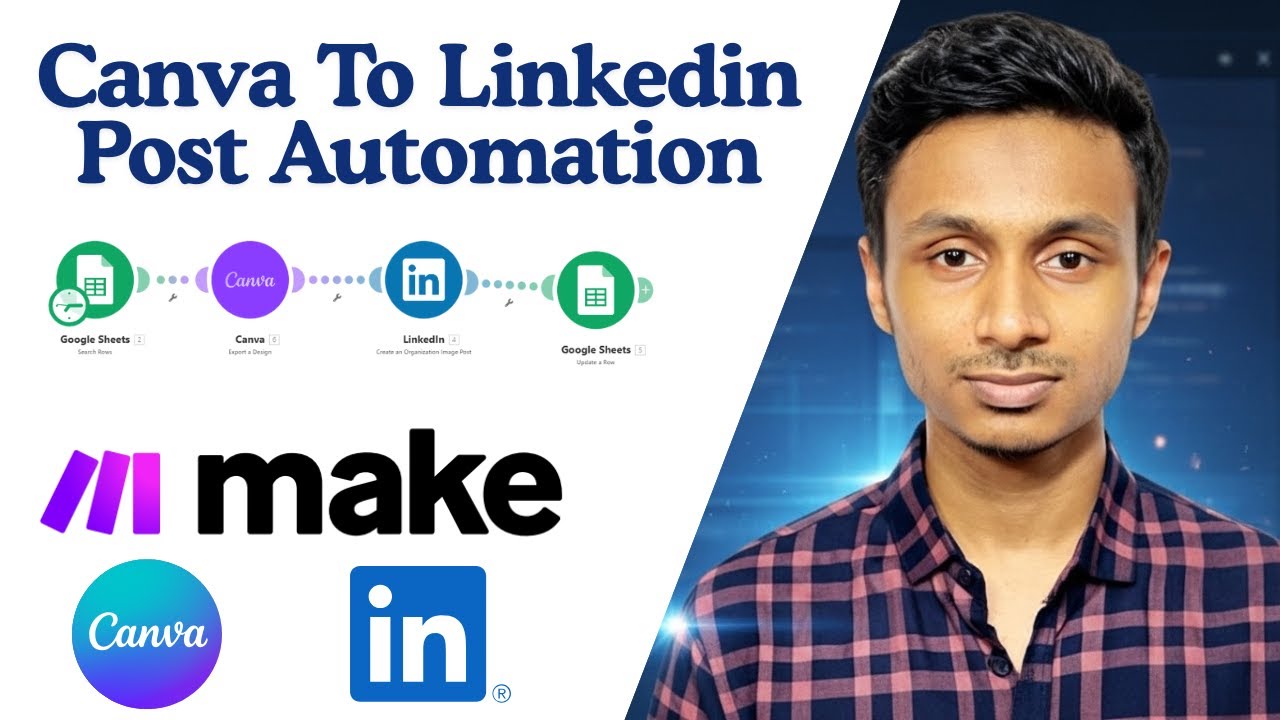
Key Takeaways
This automation transforms LinkedIn from a time-consuming chore to a set-and-forget marketing channel. By connecting Canva's design power with Google Sheets' organizational flexibility through Make.com, you maintain creative control while eliminating manual busywork.
In summary: 1) Store captions in Google Sheets column B, 2) Number Canva designs sequentially, 3) Let Make.com handle daily posting, 4) Status tracking prevents duplicates. The result? Consistent LinkedIn presence without the daily time investment.
Frequently Asked Questions
Common questions about this topic
You need three components: 1) A LinkedIn company page you manage, 2) A Google Sheet with post captions in column B and status tracking in column E, 3) A Canva folder with pre-designed post images.
The automation coordinates these elements automatically. Your Google Sheet serves as the content calendar, Canva stores the visuals, and Make.com handles the daily posting logistics.
- LinkedIn Company Page admin access required
- Google Sheet with specific column structure
- Canva designs numbered to match your sheet rows
The workflow checks column E in your Google Sheet before posting. If the status cell is empty and column B has content, it publishes that post and marks it as 'Posted' in column E.
This two-factor check ensures only new, unpublished content gets processed. The status update happens after successful LinkedIn posting, creating a reliable audit trail.
- Status column acts as a completion flag
- Empty status + existing content = ready to post
- Automatically updates after successful publication
Yes. In Make.com, you can set the scenario to run daily at your preferred posting time. The automation checks your Google Sheet each run and publishes any new posts that meet the criteria.
For optimal engagement, schedule runs during your audience's peak activity periods. The timezone is based on your Make.com account settings.
- Daily, weekly, or custom schedules available
- Multiple daily runs possible for frequent posters
- Timezone-aware scheduling
The workflow exports designs as JPGs from Canva by default, but you can configure it for PNGs if needed. The quality setting can be adjusted from 70-100% depending on your needs.
LinkedIn recommends JPG for photographic content and PNG for graphics with text. The automation maintains Canva's original dimensions unless resized in the export settings.
- Default JPG export at 100% quality
- PNG option available for text-heavy designs
- Quality settings adjustable per workflow
The workflow is designed to publish one post per run by default, but you can modify it to handle multiple posts. For high-volume accounts, we recommend keeping it at one post per run to maintain LinkedIn's posting limits.
Enterprise accounts can scale by running multiple scenarios or increasing the Google Sheets row limit per execution. The status tracking prevents duplicates regardless of volume.
- Default: 1 post per scheduled run
- Configurable for multiple daily posts
- LinkedIn API limits apply (typically 25/day)
Make.com includes error handling. If any step fails (like Canva export or LinkedIn posting), the Google Sheet status won't update, allowing the workflow to retry the same post on the next scheduled run.
Failed runs trigger notifications if configured. The workflow maintains atomicity — either all steps complete successfully, or none do, preventing partial posts.
- Status only updates after full success
- Failed posts retry automatically
- Error notifications available
This specific workflow is designed for LinkedIn Company Pages. Personal profiles require different API permissions and would need a modified version of this automation.
Company Pages offer more reliable API access and better suit business use cases. For personal profiles, consider LinkedIn's native scheduling or third-party tools with profile support.
- Optimized for Company Pages
- Personal profiles require different authentication
- API limitations apply to personal accounts
GrowwStacks specializes in custom LinkedIn automation solutions. We'll configure your Canva templates, Google Sheet structure, and posting schedule, then deploy the Make.com workflow tailored to your needs.
Our team handles the technical implementation so you can focus on content creation. We offer ongoing maintenance and can scale the solution as your posting needs evolve.
- Custom workflow configuration
- Template setup for Canva and Google Sheets
- Ongoing support and optimization
Get Your LinkedIn Automation Running This Week
Stop wasting hours each week on manual posting. Our automation experts will build your custom Canva-to-LinkedIn workflow in 3 business days or less.