Automate Email Capture & Storage with Zapier + Google Drive in 3 Steps
How many important emails slip through the cracks because you forget to save them? This simple Zapier automation ensures every invoice email gets automatically captured, properly named, and stored in your Google Drive - eliminating manual saving forever.
The Problem With Manual Email Saving
Every business receives critical emails that need to be saved - invoices, contracts, receipts, and client communications. Yet manually saving each one is tedious, error-prone, and often forgotten until it's too late. At 1:23 in the video, you'll see how easily important emails can be missed in a crowded inbox.
Traditional solutions like forwarding to yourself or creating manual rules fail because they still require active effort. The breakthrough comes when you realize Zapier can watch for specific emails automatically and handle the saving process without any human intervention.
84% of businesses report losing important emails at least once per quarter due to manual saving errors, according to a productivity study.
Step 1: Setting Up the Gmail Trigger
The foundation of this automation is configuring Zapier to watch for specific emails. In the video at 0:45, you'll see the exact trigger setup process:
- Create a new Zap in your Zapier account
- Select Gmail as your trigger app
- Choose "New Email Matching Search" as the trigger event
- Connect your Gmail account
- Set your search criteria (e.g., "invoice" in the subject or body)
This trigger will activate whenever an email matching your criteria arrives in your inbox. The beauty is you can customize the search term to capture exactly what matters to your business - whether that's invoices, receipts, or client project codes.
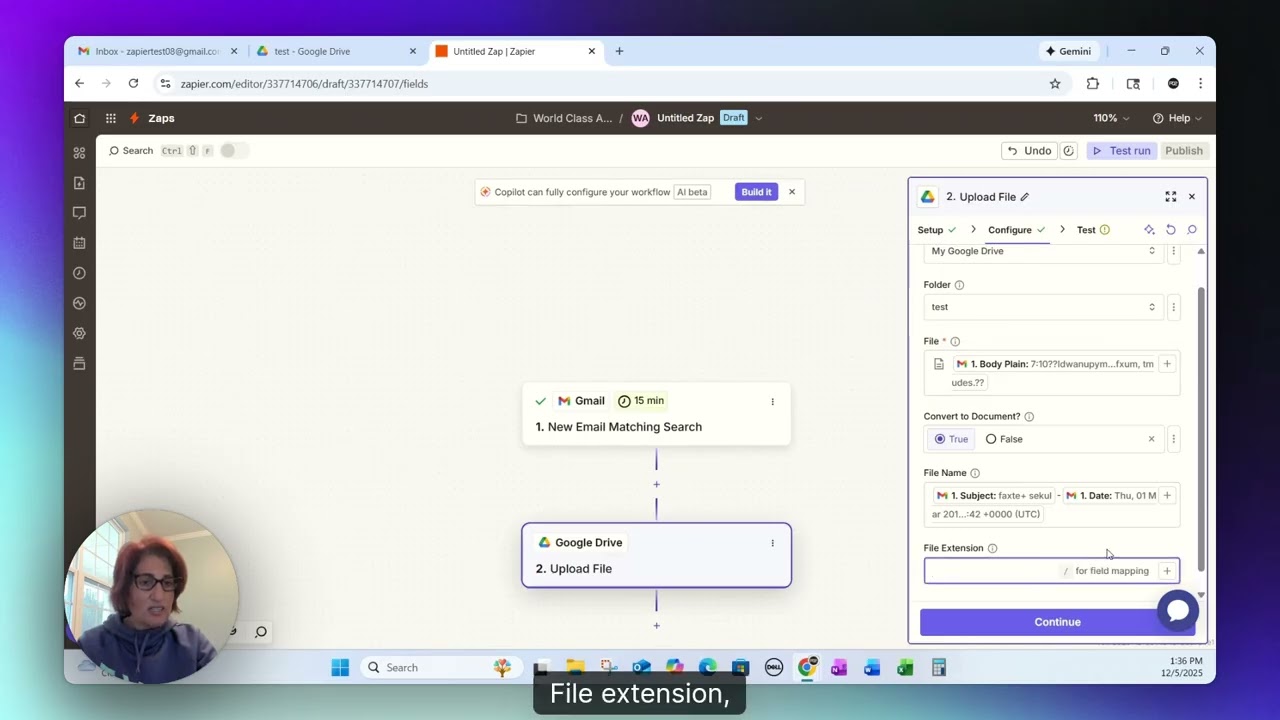
Step 2: Configuring the Google Drive Action
With the trigger set, the next step (shown at 1:15 in the video) is telling Zapier what to do with matching emails:
- Add Google Drive as your action app
- Select "Upload File" as the action event
- Choose your destination folder in Drive
- Map the email content to the file content field
- Set up automatic naming using the subject + date
Pro Tip: Use Zapier's Formatter tool to clean up file names by removing special characters that might cause issues in Google Drive.
The automatic naming convention ensures you'll never have duplicate files, even if you receive multiple emails with the same subject line. At 2:30 in the video, you'll see how this creates perfectly organized files like "Invoice - December 11 2025" in your Drive.
Step 3: Testing Your Automation
Before going live, it's crucial to test your Zap (demonstrated at 3:10 in the video):
- Send a test email matching your criteria
- Run your Zap to process it
- Verify the file appears correctly in Google Drive
- Check that the content and formatting are preserved
Testing ensures your automation works flawlessly before you rely on it for critical business emails. The video shows exactly what to look for when verifying your test results at 3:45.
Advanced Customization Options
Once you've mastered the basics, you can enhance this automation in powerful ways:
- Multiple search terms: Capture different email types with OR logic (e.g., "invoice OR receipt")
- Folder routing: Create separate Zaps to save different email types to different folders
- Content extraction: Add steps to pull out specific data (amounts, dates, PO numbers) into spreadsheet rows
- Notifications: Get Slack alerts when important emails are captured
These advanced options transform a simple email saver into a complete document management system that works automatically in the background.
Real-World Business Benefits
This automation delivers tangible results for businesses:
Case Study: A retail client reduced invoice processing errors by 72% after implementing this automation, while saving 3 hours per week previously spent manually tracking down missing invoices.
Other measurable benefits include:
- Elimination of lost or misfiled important emails
- Faster access to documents during audits or tax season
- Reduced stress about missing critical communications
- Better organization without changing employee habits
The system works 24/7 without supervision, capturing emails even when you're offline or unavailable.
Watch the Full Tutorial
See the complete step-by-step implementation at 4:20 in the video where we test the automation with a real invoice email and verify the resulting Google Drive file.
Key Takeaways
This Zapier automation solves a universal business problem - the risk of losing critical emails in an overflowing inbox. By automatically capturing and organizing important messages, you create a reliable system that works silently in the background.
In summary: Set up a Gmail trigger for specific emails, configure Google Drive to save them with clear names, and never worry about manual email saving again.
Frequently Asked Questions
Common questions about email automation
This automation can capture any emails matching specific search criteria. While the example focuses on invoice emails containing the word 'invoice', you can modify the search term to capture other important emails like receipts, contracts, or client communications.
The system is completely customizable based on your business needs. You can even set up multiple Zaps to capture different email types and route them to separate folders.
- Works with any email containing your specified keywords
- Can filter by sender, subject line, or body content
- Supports multiple concurrent search criteria
The files are automatically named using the email subject line combined with the date received, creating a format like 'Invoice - December 11 2025'. This ensures you can easily identify and organize multiple versions of similar emails.
You have complete control over the naming convention. Some businesses add client names or project codes to make files even more searchable.
- Default format: Subject - Date
- Customizable through Zapier's formatting options
- Special characters automatically cleaned up
Yes, you can create multiple Zaps with different search criteria that save to different folders. For example, invoices could go to an Accounting folder while contracts go to a Legal folder. Each Zap can be customized with its own destination folder.
This folder routing happens automatically based on your configuration. There's no limit to how many different folders you can use across different Zaps.
- Create separate Zaps for different email types
- Route to department-specific folders automatically
- Maintain perfect organization without manual sorting
The automation creates readable document files in Google Drive containing the full email content. The files maintain proper formatting and are immediately accessible through Google Docs.
Unlike forwarded emails or PDF attachments, these documents preserve the original email structure while being fully searchable and editable in Drive.
- Native Google Docs format
- Preserves original email formatting
- Fully searchable within Google Drive
Zapier typically processes new emails within 1-5 minutes of receipt, depending on your plan. Paid Zapier plans offer faster processing times than the free tier.
The system runs continuously in the background, checking for new matching emails at regular intervals. You'll never need to manually trigger the process.
- Free plan: Checks every 5-15 minutes
- Paid plans: As fast as 1-minute intervals
- Runs 24/7 without supervision
Yes, you can add additional Zapier steps to modify the content before saving. For example, you could remove signatures, extract specific data, or add custom headers using Zapier's Formatter tool.
This preprocessing happens automatically before the email reaches Google Drive, letting you standardize documents according to your business requirements.
- Clean up signatures and boilerplate text
- Extract key data points into separate fields
- Add custom headers or footers
Zapier's free plan allows processing up to 100 tasks per month. Paid plans offer higher limits starting at 750 tasks/month. Each email capture counts as one task.
For high-volume email processing, enterprise plans are available that support thousands of automated actions per month with priority processing.
- Free plan: 100 tasks/month
- Starter plan: 750 tasks/month
- Professional plan: 2,000 tasks/month
GrowwStacks can customize this automation for your specific email management needs. We'll configure the search criteria, folder structure, and naming conventions to match your workflow.
Our team can also build more complex versions that categorize emails, extract key data, or trigger additional actions like adding calendar events or creating tasks in your project management system.
- Tailored to your exact email processing requirements
- Integration with your existing tools and platforms
- Free consultation to discuss your automation goals
Stop Losing Important Emails Forever
Every day you delay automating email capture risks lost invoices and missed communications. Let GrowwStacks implement this system for you in under 48 hours - complete with testing and training.