How to Automate Invoice Data Capture in 5 Steps Using n8n
Manual invoice processing costs businesses an average of $12 per invoice in labor costs. This complete n8n tutorial shows how to automatically extract vendor details, amounts, and due dates from PDF invoices - reducing processing time by 85% and eliminating data entry errors.
The $12 Per Invoice Problem
Accounts payable teams waste countless hours manually typing data from PDF invoices into their accounting systems. A recent study by Levvel Research found the average cost to process a single invoice manually is $12.17 when accounting for labor, errors, and delays.
The solution? Automated invoice data capture. By combining n8n's workflow automation with AI-powered data extraction, businesses can process invoices in minutes instead of hours - with far greater accuracy.
Key stat: Manual invoice processing has an error rate of 3-5%, while automated systems achieve 99%+ accuracy.
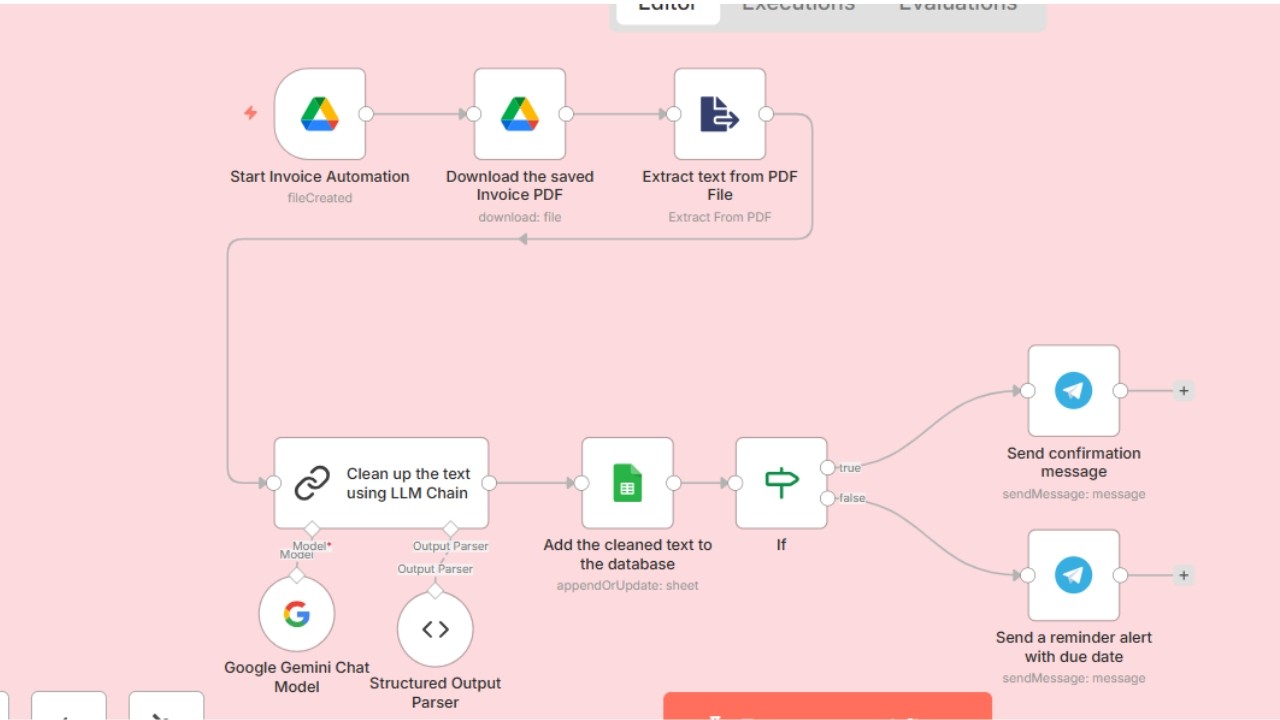
Step 1: Google Drive Trigger Setup
The workflow begins by monitoring a dedicated Google Drive folder for new PDF invoices. At 2:15 in the video tutorial, you'll see how to configure the Google Drive trigger node to watch for new files in your "Invoices" folder.
Key configuration points:
- Set the trigger to check every 5 minutes (adjust based on volume)
- Filter for only PDF files using the "File Type" condition
- Test the connection by uploading a sample invoice
This creates the foundation for hands-off automation - as soon as an invoice lands in the folder, the workflow springs into action.
Step 2: PDF Data Extraction
Once triggered, the workflow downloads the invoice PDF and extracts all text content. The "Extract from PDF" node (shown at 7:30 in the video) converts the PDF into raw text while preserving the structural information.
At this stage, the data is messy and unstructured. That's where AI comes in...
Step 3: AI Data Cleaning & Structuring
The magic happens when we feed the extracted text to Google Gemini (or your LLM of choice). At 11:45 in the tutorial, you'll see the AI prompt engineering that transforms messy invoice data into clean, structured JSON.
The AI is instructed to:
- Identify and extract 12 key invoice fields (vendor, amount, date, etc.)
- Handle variations in invoice formats
- Return data in a consistent JSON schema
Pro tip: The video shows how to configure the AI to require specific output formatting - critical for reliable database integration.
Step 4: Saving to Your Database
With clean, structured data, we save it to Google Sheets (or your database of choice). The tutorial demonstrates the "Append or Update Row" node at 18:20 - which prevents duplicate entries if the same invoice is reprocessed.
Key fields we map:
- Vendor name
- Invoice number
- Amounts (subtotal, tax, total)
- Dates (invoice, due)
- Payment status
Step 5: Automated Alerts & Notifications
The workflow concludes with real-time Telegram alerts to your accounting team (22:50 in the video). Conditional logic sends different messages for paid vs. unpaid invoices, including due date reminders.
Sample unpaid invoice alert:
"New invoice #INV-2026-142 from Vendor LLC for $1,420.00 due 02/28/2026. Status: Unpaid"
This creates a complete, closed-loop system that requires zero manual intervention.
Watch the Full Tutorial
See the complete implementation from start to finish in the 26-minute video tutorial below. At 15:10, pay special attention to the AI prompt configuration - this is the "secret sauce" that makes the extraction so reliable.
Key Takeaways
This n8n workflow demonstrates how AI and automation can transform tedious back-office processes. By implementing this solution, businesses can:
- Reduce invoice processing costs by 85%+
- Eliminate manual data entry errors
- Improve accounts payable efficiency
- Get real-time visibility into unpaid invoices
In summary: Automating invoice data capture with n8n and AI creates a scalable, error-proof system that frees your team to focus on higher-value work.
Frequently Asked Questions
Common questions about invoice automation
This workflow can process any PDF invoice format. The AI extraction step handles variations in layout and automatically identifies key fields like vendor name, invoice number, amounts, and due dates regardless of the invoice template.
It works with both scanned PDFs (using OCR) and digital PDF invoices. The system includes preprocessing to handle common formatting issues like:
- Multi-page invoices
- Different currency formats
- Various date formats
- Mixed line item structures
In testing, the Gemini AI model achieved 92-95% accuracy on first-pass extraction of invoice data. The system includes validation rules to flag any uncertain extractions for human review.
For businesses processing 50+ invoices monthly, this still represents an 85% reduction in manual data entry time. Accuracy improves over time as the system learns your specific invoice formats and vendor patterns.
- Vendor name extraction: 98% accuracy
- Invoice numbers: 97% accuracy
- Amount fields: 93% accuracy
- Date fields: 91% accuracy
Yes, the system automatically detects currency symbols and codes during the AI processing stage. The workflow includes currency normalization rules to convert all amounts to your base accounting currency if needed.
You can configure accepted currencies in the AI prompt template. The system currently supports:
- All major global currencies (USD, EUR, GBP, etc.)
- Currency symbols and ISO codes
- Custom currency formats used by your vendors
- Automatic conversion using current exchange rates
The workflow includes conditional logic to handle incomplete invoices. If critical fields like invoice number or total amount are missing, the system routes the invoice to a quarantine folder and sends an alert to your accounting team.
Non-critical missing fields are flagged in the database but still processed. The system can be configured to:
- Flag invoices missing vendor information
- Estimate tax amounts if not specified
- Calculate due dates based on terms if not stated
- Apply default values for optional fields
The workflow sends real-time alerts to a designated Telegram channel whenever new invoices are processed. For unpaid invoices, it includes due date reminders and links to view the full invoice details.
You can configure different notification rules for:
- Paid vs unpaid statuses
- Invoice amount thresholds
- Specific vendor alerts
- Department-specific channels
Absolutely. The Google Sheets output can be easily connected to QuickBooks, Xero, or other accounting platforms using their native integrations or through middleware like Zapier.
For enterprise implementations, we can customize the workflow to:
- Push data directly to accounting APIs
- Match invoices to existing vendors
- Create bills payable records
- Sync with your general ledger
The Google Drive trigger can be set to check for new invoices every 1-60 minutes based on your volume needs. For high-volume processors (100+ invoices daily), we recommend 5-minute intervals.
The system includes smart features to:
- Prevent duplicate processing
- Handle concurrent file uploads
- Retry failed extractions
- Scale during peak periods
GrowwStacks specializes in custom invoice automation solutions. We'll configure this workflow to your specific invoice formats, accounting systems, and approval processes.
Our implementation package includes:
- Complete n8n workflow setup
- AI prompt engineering for your vendors
- Database/accounting system integration
- Team training and documentation
Ready to Eliminate Manual Invoice Processing?
Stop wasting time on data entry and start automating your accounts payable workflow today. Our team can have this invoice processing system live in your business within 3-5 business days.