Automate Invoicing with Zapier in 3 Minutes [No Code]
Are you still wasting hours each week manually creating and sending invoices? This Zapier automation connects your project management tool to Stripe or QuickBooks, sending invoices automatically the moment work is completed. Never chase payments or forget to bill clients again.
The Manual Invoicing Problem
Most service businesses lose 2-5 hours every week to manual invoicing. Between creating documents, entering line items, calculating totals, and remembering to send them, the process eats valuable time that could be spent serving clients or growing the business.
The worst part? Delayed invoices mean delayed payments. Every day an invoice sits unsent is another day before you get paid. Studies show invoices sent immediately upon project completion get paid 14 days faster on average.
The hidden cost: Beyond the time wasted, manual invoicing leads to errors in amounts, missed invoices, and frustrated clients. Automation eliminates these problems while ensuring you get paid promptly for every completed project.
How Zapier Solves It
Zapier acts as a bridge between your project management tool (like ClickUp, Asana, or Trello) and your invoicing system (Stripe, QuickBooks, etc.). When a project status changes to "completed," Zapier automatically:
- Pulls all relevant client and project details
- Creates a properly formatted invoice
- Sends it to the client immediately
The entire process happens in seconds without any manual intervention. At 2:15 in the video tutorial, you'll see how the test invoice appears in Stripe moments after the project status changes.
Step-by-Step Setup
Step 1: Create Your Zap
Log into Zapier and click "Create Zap." This starts a new automation workflow that will connect your project management tool to your invoicing system.
Step 2: Set the Trigger
Choose your project management app (like ClickUp) as the trigger. Select "Task Status Changed" as the trigger event, then specify which status change should initiate the invoice (typically "Project Completed").
Step 3: Connect Your Invoicing App
Add your accounting software (Stripe, QuickBooks, etc.) as the action app. Choose "Create Invoice" as the action event.
Step 4: Map the Fields
Connect the data from your project management tool to the invoice fields. This includes client details, project descriptions, amounts, due dates, and any notes.
Step 5: Test and Activate
Run a test with a sample project to ensure the invoice generates correctly, then turn on your Zap to start automating.
Pro Tip: At 3:45 in the video, you'll see how to set human-readable due dates like "7 days from today" that Zapier automatically converts to proper dates.
Customization Options
While the basic setup takes just minutes, you can customize nearly every aspect of your automated invoices:
- Branding: Add your logo and custom colors through your invoicing app's template settings
- Payment Terms: Set standard net-15, net-30, or custom terms per client
- Line Items: Break down services, products, taxes, and discounts
- Approval Flow: Optionally create drafts for manual review before sending
At 5:10 in the tutorial, you'll see how to configure advanced options like automatic payment collection and invoice footers.
Real Time Savings
Here's what businesses typically save by automating invoices:
| Task | Manual Time | Automated Time |
|---|---|---|
| Create Invoice | 8-15 minutes | 0 minutes |
| Send Invoice | 2-5 minutes | 0 minutes |
| Payment Follow-up | 5-10 minutes | 0-2 minutes |
For a business sending 20 invoices/month, that's 5-10 hours saved - enough time to take on another client or enjoy some well-earned downtime.
Common Mistakes to Avoid
While setting up invoice automation is straightforward, watch out for these pitfalls:
- Incomplete Data Mapping: Ensure all required invoice fields are populated from your project management tool
- Wrong Trigger Events: Double-check that you're using the correct status change to initiate invoices
- Missing Tests: Always test with sample projects before going live
- Overcomplicating: Start with basic automation, then add complexity once the core flow works
The video at 4:30 shows how to troubleshoot common errors like missing client information.
Watch the Full Tutorial
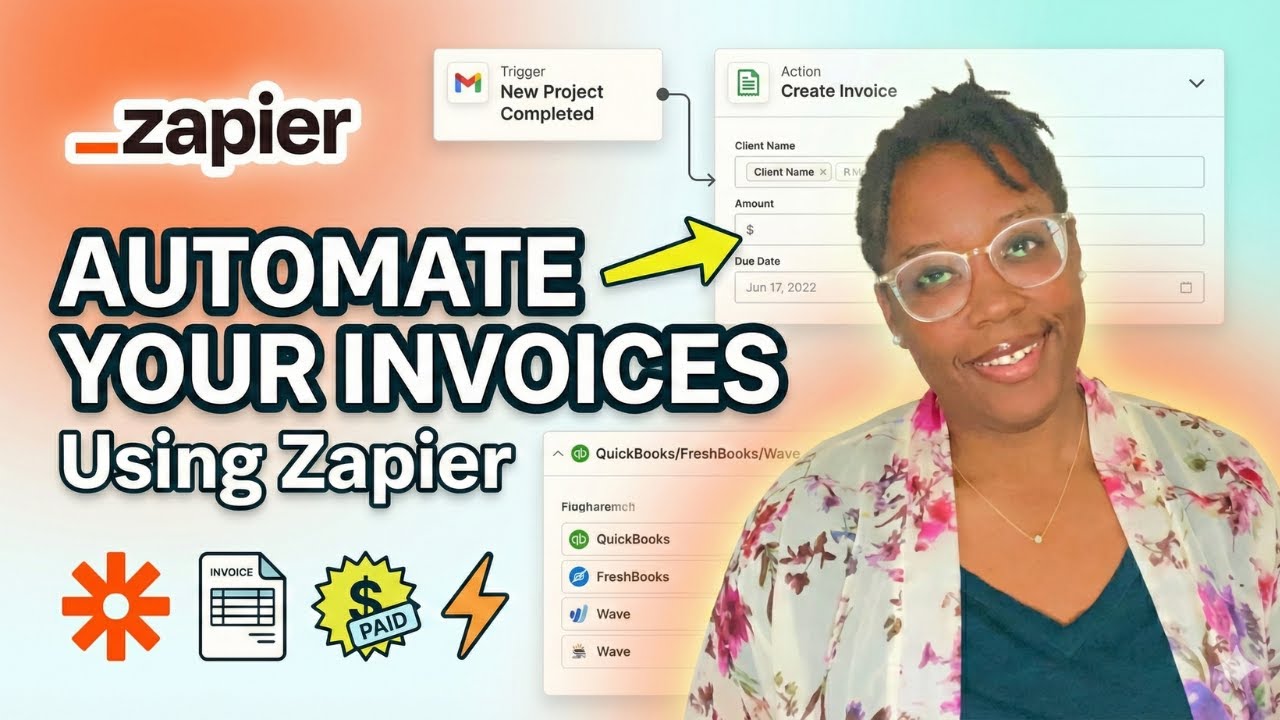
See the exact step-by-step process demonstrated in the video tutorial below. At 2:45, you'll see how the test invoice appears instantly in Stripe when the project status changes.
Key Takeaways
Automating your invoicing process with Zapier eliminates manual work, reduces errors, and ensures you get paid faster. Once set up, the system runs flawlessly in the background while you focus on delivering great work to your clients.
In summary: Connect your project management tool to Stripe/QuickBooks via Zapier. Set "project completed" as the trigger. Map all invoice fields once. Then enjoy hands-free invoicing forever.
Frequently Asked Questions
Common questions about Zapier invoice automation
This workflow works with any project management tool that integrates with Zapier, including ClickUp, Asana, Trello, Monday.com, and more.
The trigger activates when a task status changes to 'completed' or similar. Each tool may use slightly different terminology, but the core functionality remains the same.
- ClickUp: Task status changes
- Asana: Task completed
- Trello: Card moved to Done list
Zapier connects to all major invoicing platforms including Stripe, QuickBooks, FreshBooks, Wave, Xero, and Zoho Invoice.
The setup process is similar for each platform. You'll select "Create Invoice" as the action event, then map your project details to the appropriate invoice fields in your accounting software.
- Stripe: Great for online payments
- QuickBooks: Ideal for full accounting integration
- Wave: Best free option for small businesses
Most businesses save 2-5 hours per week by automating invoices.
The system eliminates manual data entry, reduces errors, and ensures invoices go out immediately when work completes. This not only saves time but also improves cash flow by getting you paid faster.
- Saves 8-15 minutes per invoice creation
- Eliminates 2-5 minutes per invoice sending
- Reduces payment follow-up time by 50-80%
Yes. The Zapier workflow lets you map all invoice fields including line items, quantities, taxes, due dates, and payment terms.
You can also add custom notes or memos that appear on every invoice. For example, you might include standard payment instructions or thank you messages that get added automatically.
- Customize line item descriptions
- Set default tax rates
- Add automatic payment terms
While this specific workflow triggers on project completion, Zapier can also automate recurring invoices using schedule triggers.
For subscription services or retainers, you can set up a separate Zap that runs weekly/monthly to generate recurring invoices. The setup is slightly different but equally simple.
- Use "Schedule by Zapier" as the trigger
- Set your desired frequency (weekly, monthly, etc.)
- Map static invoice details instead of project data
You can configure the workflow to create draft invoices first, then add a manual approval step before final sending.
This adds one extra click while still saving most of the manual work. The approval can happen via email notification or directly in your accounting software.
- Set "Create Draft Invoice" as the action
- Add a manual approval step
- Finalize with "Send Invoice" action
When properly configured, automated invoicing is more reliable than manual processes.
It eliminates human errors like forgetting to send invoices or entering wrong amounts. Zapier provides logs of all transactions, and most accounting software offers invoice tracking features.
- 99.9% uptime for Zapier workflows
- Complete audit trail of all invoices
- Instant error notifications if issues occur
GrowwStacks specializes in building custom automation workflows for businesses. We can implement this exact invoicing automation for your specific tools and processes.
Our team handles all the technical setup including:
- Connecting your project management and accounting tools
- Mapping all data fields correctly
- Testing the workflow thoroughly
- Training your team on maintenance
Book a free consultation to discuss your specific invoicing needs.
Ready to Stop Wasting Time on Manual Invoicing?
Every week you delay automation costs you hours of valuable time and delays payments. Let GrowwStacks implement this Zapier workflow for your business in under 48 hours.