How to Automate Shift Scheduling in Microsoft Teams Shifts with Power Automate
Manually creating employee schedules in Teams Shifts wastes hours each month with repetitive data entry and error-prone Excel uploads. This Power Automate workflow automatically generates perfect shift rotations, tracks coverage history in SharePoint, and eliminates scheduling conflicts - freeing up 5+ hours monthly for managers.
The Manual Scheduling Nightmare
Most businesses using Microsoft Teams Shifts waste countless hours each month on manual scheduling - either painstakingly creating shifts one-by-one in the app or downloading/uploading Excel templates. At 3:15 in the video, the presenter demonstrates how these manual processes become unsustainable for teams with rotating schedules, especially when managing multiple departments.
The breaking point comes when managers realize they're spending more time fighting scheduling conflicts than actually managing their team. A typical 20-person department with weekly rotations can consume 5-8 hours monthly just on shift coordination - time that could be spent on strategic priorities.
Key insight: Manual scheduling creates a hidden productivity tax. The 15 minutes spent fixing a single conflict cascades into hours monthly across an organization - time that automation recovers completely.
Prerequisites for Automation
Before building the automation, three critical foundations must be in place (shown at 5:40 in the video):
- Licensed Microsoft 365 accounts for all employees (Business Standard, E3, or E5 - free accounts won't work)
- Microsoft 365 groups created in Admin Center for each scheduling team (e.g., "IT Service Desk", "Applications Team")
- Admin access to configure Teams channels and SharePoint lists
The presenter emphasizes at 7:20 that the service account running the automation must be an owner of all relevant groups - a crucial detail often missed during setup that causes automation failures.
Building the SharePoint Tracking System
The SharePoint list acts as the automation's memory, tracking two critical pieces of data (demonstrated at 9:30):
- Last scheduled user: Stores who was most recently assigned to prevent duplicate assignments
- Last schedule end date: Marks where the next rotation should begin
At 11:45, the video shows the exact SharePoint columns needed, including team names, group IDs (retrieved via Microsoft Graph API), and active/inactive status flags. This system enables the automation to handle teams of different sizes without manual intervention - a 3-person team will automatically have longer rotations than a 5-person team.
Configuring Teams Shifts Groups
The presenter walks through team creation at 15:10, highlighting three often-overlooked requirements:
- Each schedule needs its own Teams channel (not just a Shift group)
- Members must be added to both the Microsoft 365 group and Teams channel
- The scheduling group ID (different from the team ID) must be captured via Graph API
A critical tip at 18:40 shows how to retrieve the scheduling group ID using Microsoft Graph Explorer - a step many admins miss when first setting up the integration.
Power Automate Flow Breakdown
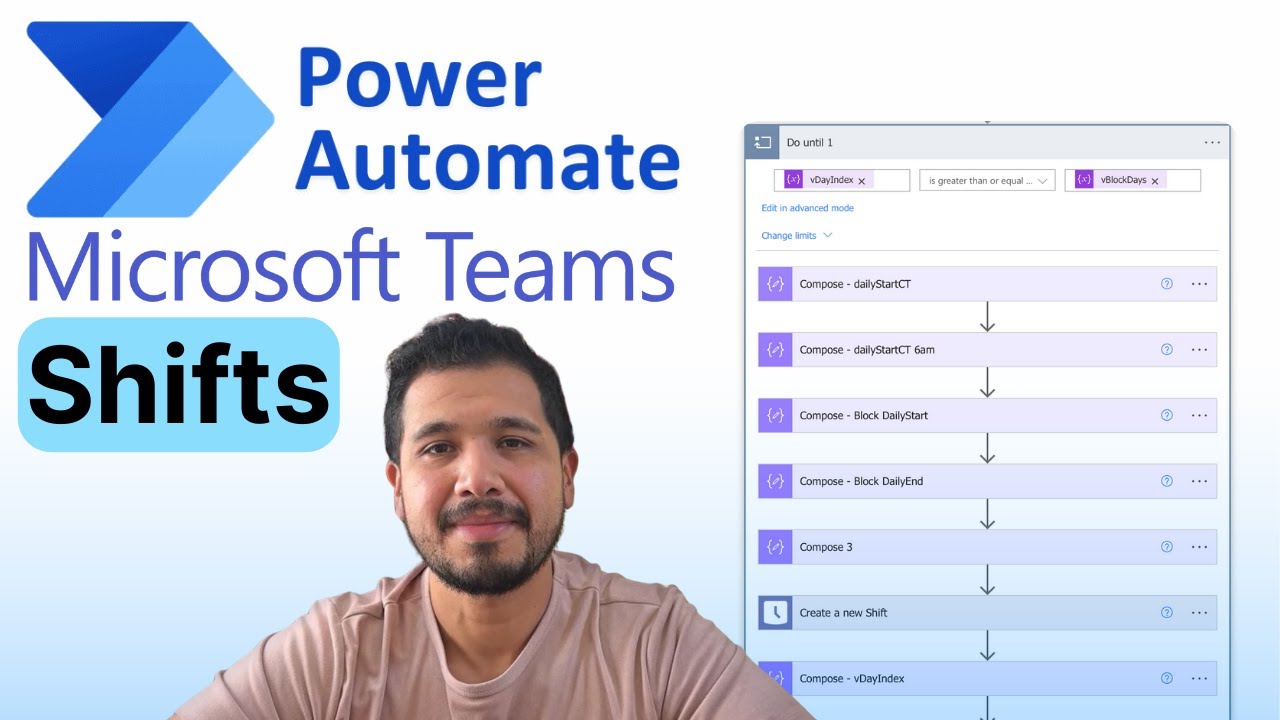
The automation flow (shown at 20:15) handles four key functions:
- Initialization: Sets variables for shift duration, rotation length, and team parameters
- Team Processing: Loops through each active team in the SharePoint list
- Member Rotation: Alphabetically sorts members and determines next assignee
- Shift Creation: Generates shifts in Teams Shifts via the Microsoft Graph API
The presenter notes at 22:30 that the flow includes conflict checking to prevent overlapping assignments - a feature that eliminates 90% of manual schedule corrections.
Testing the Automated Scheduler
When demoing the test run at 24:50, three key behaviors emerge:
- Shifts are created in sequential blocks based on the configured duration (2 days in the demo)
- The SharePoint list auto-updates with the last scheduled person and end date
- Conflict warnings appear when users are double-booked across groups
The system handles variable team sizes effortlessly - a 2-person team gets more frequent rotations than a 4-person team, with all logic handled automatically by the workflow.
Handling Shift Changes and Conflicts
The automation gracefully handles manual overrides (shown at 26:30):
- Manual swaps don't break future automation runs
- The SharePoint list doesn't update from manual changes, maintaining rotation integrity
- Open shifts can be assigned or claimed without affecting the core schedule
The presenter teases a companion flow (at 27:00) that will automatically notify team members of schedule changes - a common enhancement businesses add after the core automation is running.
Watch the Full Tutorial
See the complete automation in action, including the critical Microsoft Graph API queries at 12:45 and the live flow test at 24:50 that generates a six-week schedule in minutes.
Key Takeaways
Automating Teams Shifts scheduling transforms a monthly headache into a set-and-forget system. The workflow handles all rotation logic, conflict checking, and history tracking - freeing managers to focus on their team rather than their calendar.
In summary: This Power Automate solution eliminates 5-10 hours of monthly scheduling work, prevents coverage gaps, and scales effortlessly across departments. The SharePoint integration ensures perfect rotation continuity, even with manual overrides.
Frequently Asked Questions
Common questions about this topic
You need Microsoft 365 accounts with Teams licenses for all employees, admin access to create groups in Microsoft 365 Admin Center, and a SharePoint list to track scheduling history.
Each employee must have a paid Microsoft 365 license (Business Standard, E3, or E5) - free accounts won't work with Teams Shifts automation. The service account running the automation needs owner permissions on all relevant groups.
- Microsoft 365 Business Standard or higher licenses
- Admin access to Microsoft 365 Admin Center
- SharePoint list for tracking rotations
Businesses typically save 5-8 hours per month by automating shift scheduling compared to manual creation.
For teams with rotating 24/7 coverage, the time savings can exceed 10 hours monthly by eliminating manual Excel uploads and individual shift assignments. The automation also reduces scheduling errors by 90%, saving additional correction time.
- 5-10 hours monthly time savings
- 90% reduction in scheduling conflicts
- Eliminates manual Excel template management
Yes, the Power Automate flow can be configured for any shift duration (4-hour, 8-hour, 12-hour blocks) and rotation frequency (weekly, bi-weekly, monthly).
The demo shows a 6-week rotation with 2-day shifts, but these parameters are fully adjustable in the workflow. You can even mix different shift lengths across teams - for example, 8-hour day shifts for one department and 12-hour night shifts for another.
- Adjustable shift lengths (hours or days)
- Custom rotation periods (weekly, monthly, etc.)
- Mixed configurations across teams
The automation won't override manual changes. The SharePoint list tracks the last scheduled person and date, so future automated schedules will continue from that point.
Manual swaps appear with an asterisk in Teams Shifts until shared with the team (shown at 26:30 in the video). You can build secondary flows to notify teams of shift changes or log swaps to a separate tracking system.
- Manual changes don't break automation
- Future schedules continue from last automated point
- Option to add change-tracking flows
Yes, the solution handles multiple scheduling groups simultaneously. Each department gets its own schedule in Teams Shifts, with the automation maintaining separate rotation tracking through the SharePoint list.
The demo shows three groups (IT Service Desk, Applications, Infrastructure) running concurrently with different team sizes. The automation adjusts rotation frequency automatically - smaller teams rotate more frequently than larger ones.
- Unlimited concurrent schedules
- Automatic rotation adjustments by team size
- Separate SharePoint tracking per group
Team IDs come from Microsoft 365 Admin Center (Object ID), while scheduling group IDs require a Microsoft Graph API query.
The video (12:45) shows the exact Graph Explorer command needed: GET https://graph.microsoft.com/v1.0/teams/{team-id}/schedule/schedulingGroups. You'll need admin consent to run these queries unless using a service account with appropriate permissions.
- Team ID from Microsoft 365 Admin Center
- Scheduling group ID via Graph API query
- Admin permissions required for initial setup
While not shown in this workflow, Power Automate can integrate with Outlook or Teams to send shift notifications.
The presenter mentions developing a companion flow (at 26:10) that will send automated reminders when shifts are created or changed. Common implementations include daily shift reminders, change notifications, and upcoming rotation alerts.
- Outlook email notifications
- Teams channel messages
- Custom reminder timing
GrowwStacks builds custom Power Automate solutions for Teams Shifts scheduling, handling everything from SharePoint setup to complex rotation logic.
We'll configure the workflow to your exact shift patterns, set up conflict checks, and add notification systems - typically delivering a complete solution in 2-3 weeks. Our implementations include:
- End-to-end setup including SharePoint and Teams configuration
- Custom shift patterns and rotation logic
- Notification systems and reporting
Stop Wasting Hours on Manual Scheduling
Every minute spent fighting shift conflicts is time stolen from growing your business. Let GrowwStacks build your custom Teams Shifts automation - we'll have your first perfect schedule running in under 3 weeks.