How to Automate Typeform Submissions to Rows Using Zapier
Manually copying form responses to spreadsheets wastes hours every week. This simple Zapier integration automatically transfers Typeform submissions to your Rows spreadsheet - eliminating data entry errors while saving you 5-10 hours per month.
The Manual Data Transfer Problem
Every time someone submits your Typeform, you face the same tedious task: copying their responses into a spreadsheet. This manual process isn't just time-consuming - it's error-prone. Missed entries, typos, and outdated records cost businesses an average of 15 hours per month in cleanup and verification.
The solution? Automating the entire transfer process with Zapier. By connecting Typeform directly to Rows, you eliminate human error while reclaiming those lost hours for meaningful work.
Manual data entry costs: For a form receiving 30 submissions daily, manual transfer consumes 2.5 hours/week. Over a year, that's 130 hours - more than three full work weeks wasted on copy-paste.
Setting Up Your Rows Spreadsheet
Before connecting your systems, prepare your Rows spreadsheet to receive automated submissions. At 1:15 in the video, you'll see how to create column headers that match your Typeform fields.
Create columns for each data point you want to capture - typically name, email, and any custom questions from your form. Pro tip: Add a "Timestamp" column to track when submissions arrive automatically.
Best practice: Structure your Rows spreadsheet exactly like your Typeform's response data. This 1:1 mapping makes the Zapier setup process smoother and reduces configuration errors.
Connecting Typeform to Zapier
Zapier acts as the bridge between Typeform and Rows. At 2:30 in the tutorial, you'll see how to set up Typeform as your trigger - the event that starts your automation.
Select "New Submission" as your trigger event, then connect your Typeform account. Zapier will test the connection by pulling in a sample submission to verify everything works.
Authorizing the Rows Connector
The crucial step shown at 3:45 is authorizing Rows in Zapier. You'll need your Rows API key, found under Workspace Settings → API.
Once authorized, select your target spreadsheet and worksheet. Zapier will automatically detect your column headers, preparing them for field mapping in the next step.
Mapping Fields from Typeform to Rows
Field mapping determines where each piece of Typeform data lands in Rows. At 4:20, the tutorial shows how to match form fields to spreadsheet columns.
For each Rows column, select the corresponding Typeform field from the dropdown. Test with a sample submission to verify all data transfers correctly before going live.
Testing Your Integration
Always test your Zap before relying on it. Submit a test form response and verify it appears in Rows within minutes (shown at 5:00).
Check that all fields mapped correctly, data formats appear as expected, and no information is missing. Fix any mismatches before activating your automation.
Scaling and Advanced Uses
Once basic submissions work, enhance your integration. Add filters to process only certain responses, or include calculation fields that auto-populate in Rows.
For high-volume forms, consider adding a Google Sheets step to archive all submissions before filtering relevant data to Rows. This creates a complete audit trail.
Watch the Full Tutorial
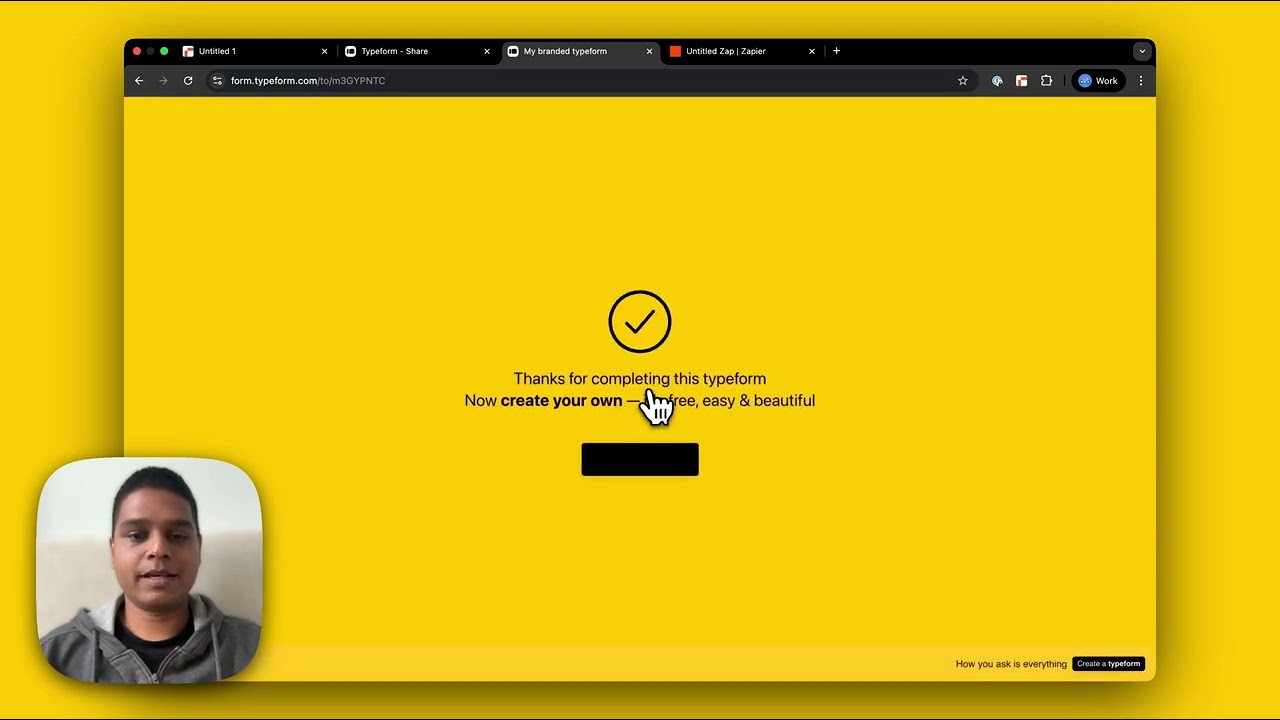
See the complete Typeform-to-Rows integration in action between 2:15-4:30 in the video, including the authorization process and field mapping demonstration.
Key Takeaways
Automating Typeform-to-Rows transfers eliminates one of the most common productivity drains in small business operations. No more wasted hours copying data or fixing entry mistakes.
In summary: Connect Typeform to Rows through Zapier in under 10 minutes. Map your form fields to spreadsheet columns once, then enjoy perfectly transferred data for every future submission - automatically.
Frequently Asked Questions
Common questions about this topic
You can transfer all standard Typeform response fields including text answers, multiple choice selections, email addresses, names, and any custom fields you've set up in your form.
The Zapier connector maps each form field to a corresponding column in your Rows spreadsheet automatically.
- Supports all standard Typeform field types
- Handles file uploads (stores as links)
- Transfers hidden field data
Submissions typically appear in Rows within 1-2 minutes of form submission.
Zapier processes triggers nearly instantly, and the transfer time depends mainly on your internet connection speed and API response times.
- Free Zapier plan: slight delay during peak times
- Paid plans: near-instant processing
- Large files may take longer
No advanced technical skills are required. The process involves selecting Typeform as your trigger, Rows as your action, and mapping form fields to spreadsheet columns through a simple visual interface in Zapier.
No coding is needed for basic integrations. The most technical step is copying your Rows API key during authorization.
- 100% no-code solution
- Step-by-step Zapier guidance
- Simple field matching interface
Yes, the integration can process multiple submissions simultaneously without issues.
Zapier automatically queues and processes submissions in order, ensuring no data is lost even during high-volume periods.
- Handles spikes in form traffic
- Processes submissions sequentially
- Built-in error retry system
If you add or remove columns in Rows after setting up the integration, you'll need to update your Zap in Zapier to reflect these changes.
The integration won't automatically adapt to structural changes in your spreadsheet. Major changes may require creating a new Zap from scratch.
- New columns require re-mapping
- Deleted columns break the Zap
- Renaming columns is usually safe
Zapier's free plan allows for 100 tasks per month, while paid plans offer higher limits.
Each form submission counts as one task. For most small to medium businesses, the free or starter plan provides sufficient capacity.
- Free: 100 tasks/month
- Starter: 750 tasks/month
- Professional: 2,000 tasks/month
Yes, Zapier allows you to set up filters based on form responses before they're sent to Rows.
For example, you could filter to only transfer submissions from specific countries or those that meet certain criteria.
- Filter by answer values
- Conditional logic available
- Multi-step filtering possible
GrowwStacks specializes in setting up and optimizing automation workflows like Typeform-to-Rows integrations.
Our team can configure your Zapier connection, handle complex field mappings, set up error handling, and ensure your data flows smoothly between systems. We offer free consultations to assess your specific needs.
- Custom automation setup
- Error handling implementation
- Ongoing support available
Stop Wasting Time on Manual Data Entry
Every hour spent copying form responses is an hour not spent growing your business. Let GrowwStacks implement this Typeform-to-Rows automation for you - typically completed in under 2 business days.