How to Automate WhatsApp Business Templates with Twilio and Zapier
Struggling with WhatsApp's 24-hour messaging window? This 3-step API workflow lets you send compliant business templates anytime. Learn how to bypass restrictions and automate customer conversations at scale while staying within Meta's policies.
Understanding WhatsApp Template Restrictions
WhatsApp's business messaging policies create a common frustration for companies trying to automate customer communication. The platform enforces a strict 24-hour window after customer-initiated contact, during which free-form messages can be sent. Outside this window, only pre-approved template messages are permitted.
This restriction exists to prevent spam but creates operational headaches for legitimate businesses. Manual template sending becomes impractical at scale, especially when needing to initiate conversations with new customers. The solution lies in Twilio's Conversations API combined with Zapier's automation capabilities.
Key limitation: WhatsApp requires the first message to any new contact to be a registered template. Standard send message actions in automation tools will fail unless you're responding within 24 hours of customer contact.
The 3-Step API Process
To bypass WhatsApp's restrictions, we use Twilio's Conversations API in three sequential steps. This approach creates a compliant messaging thread before delivering your template. Each step requires specific API endpoints and data formatting that we'll break down in detail.
The process begins by establishing a conversation container in Twilio, then adding participants (both your business number and the customer), and finally sending the approved template through this structured channel. This method works globally and complies with Meta's WhatsApp Business policies.
Step 1: Create a Conversation
The foundation of our automation is creating a conversation object in Twilio. This serves as the container for all subsequent messaging. In Zapier, we use a Custom API Request action with these specifications:
API Request Details
- Method: POST
- URL: https://conversations.twilio.com/v1/Conversations
- Headers: Basic Auth with your Account SID and Auth Token
- Body (JSON):
{ "FriendlyName": "Customer Name", "MessagingServiceSid": "YOUR_MESSAGING_SERVICE_SID" }
The MessagingServiceSid connects this conversation to your WhatsApp Business account. Find this in your Twilio console under Messaging > Services. The FriendlyName helps identify the conversation in logs and reports.
Step 2: Add a Participant
With the conversation created, we now add the message recipient as a participant. This step requires careful phone number formatting to ensure WhatsApp delivery.
Critical Formatting Note
WhatsApp numbers must be formatted with whatsapp: prefix and URL-encoded plus signs:
- Original number: +14155551234
- Formatted for API: whatsapp:%2B14155551234
The API request uses form-urlencoded data (not JSON) with these parameters:
Identity=whatsapp:%2B14155551234 MessagingBinding.Address=whatsapp:%2BYOUR_BUSINESS_NUMBER MessagingBinding.ProxyAddress=whatsapp:%2BYOUR_TWILIO_NUMBER
At 2:45 in the video tutorial, you'll see how to automate the number formatting in Zapier using a simple find/replace step before the API call.
Step 3: Send the Template
The final step delivers your pre-approved template through the established conversation channel. This requires your template's Content SID from Twilio's Template Builder.
Template Requirements
- Must be approved by Meta for your business account
- Can include dynamic variables (like customer names)
- Must match the category registered during approval
The API request sends the template content and any variables:
{ "Author": "system", "Body": "", "ContentSid": "YOUR_TEMPLATE_SID", "ContentVariables": "{\"1\":\"John\"}" } Pro Tip: Create multiple templates for different use cases and countries. The video at 7:20 shows how to manage template variations for different regulatory requirements.
Template Categories and Compliance
WhatsApp templates fall into categories that determine their permissible content and geographic availability. Choosing the wrong category is a common reason for template rejection or delivery failures.
Key Categories
- Marketing: Promotional content (restricted in US)
- Utility: Transactional messages (fewer restrictions)
- Authentication: Security codes and verification
The video at 8:30 demonstrates how to check and modify template categories in Twilio's console. For US messaging, utility templates often work better despite their stricter content rules.
Compliance Note: Template approval takes 24-72 hours. Always test new templates before campaign launches and monitor delivery reports for errors.
Watch the Full Tutorial
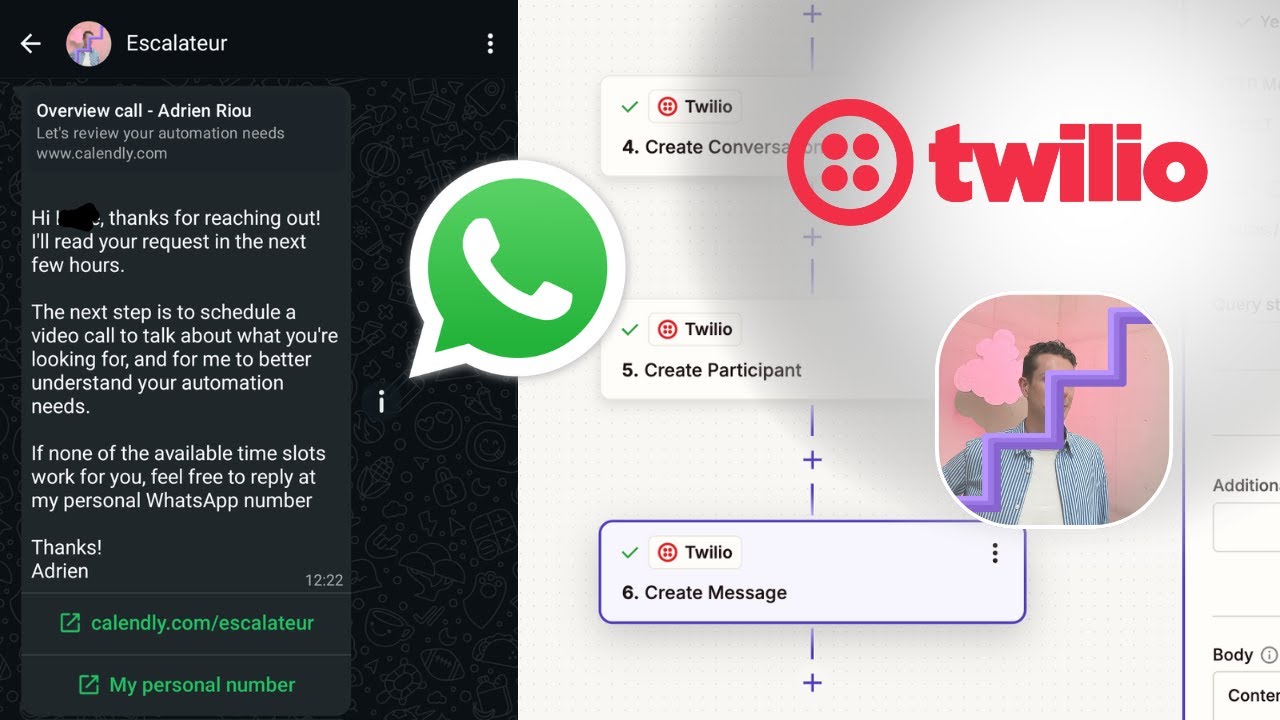
See the complete workflow in action, including how to format phone numbers (2:45), configure template variables (5:10), and handle US-specific restrictions (7:20). The video demonstrates each API call with real Twilio and Zapier screens.
Key Takeaways
Automating WhatsApp business templates requires working within Meta's strict policies while leveraging Twilio's API infrastructure. This 3-step conversation method provides a compliant path to initiate customer messaging at scale.
In summary: 1) Create conversation, 2) Add participant with properly formatted numbers, 3) Send approved template with Content SID. Always verify template categories match your use case and target country regulations.
Frequently Asked Questions
Common questions about WhatsApp template automation
WhatsApp requires the first message to any new contact to be a pre-approved template message. The standard send message action only works within 24 hours of a customer-initiated conversation.
This workflow creates a compliant conversation thread first, allowing template delivery outside the 24-hour window. It's the only way to automate initial outreach while following Meta's policies.
- First messages must use approved templates
- Standard actions work only in 24-hour windows
- Conversation API bypasses this limitation
Your messaging service SID appears in the Twilio console under Messaging > Services. This connects your WhatsApp Business number to the conversations API.
If you don't see a messaging service, create one and connect it to your WhatsApp sender. The setup wizard guides you through linking your number and configuring basic settings.
- Navigate to Messaging > Services in Twilio
- Copy the Service SID from your active service
- Create new service if none exists
WhatsApp numbers require specific formatting with whatsapp: prefixes and URL-encoded plus signs. The plus symbol (+) becomes %2B in API requests.
For example, +14155551234 formats as whatsapp:%2B14155551234. Zapier can automate this conversion with a simple find/replace step before the API call.
- Prefix numbers with
whatsapp: - Replace + with %2B
- Apply to both sender and recipient numbers
Marketing templates allow promotional content but face restrictions in countries like the US. Utility templates are for transactional messages like appointments or deliveries.
Utility templates have stricter content rules (no promotions) but wider geographic availability. Always check Meta's template policies for your target countries before submission.
- Marketing: Promotional content, some restrictions
- Utility: Transactional only, fewer restrictions
- Authentication: For security codes
Most templates receive approval within 24-72 hours. Complex templates or those requiring manual review may take longer during peak periods.
Always submit templates well before campaign launch dates. Approval times aren't guaranteed and can vary based on template complexity and volume.
- Standard approval: 1-3 business days
- Complex templates: Up to 5 days
- No expedited review available
Yes, this workflow works with WhatsApp numbers globally. However, template categories and content rules vary by country.
Some nations require additional business verification for WhatsApp Business accounts. Always check local regulations before launching campaigns.
- Works with all WhatsApp-enabled numbers
- Template rules vary by country
- Some regions require business verification
Replies open a 24-hour messaging window where you can send free-form messages without template restrictions.
After 24 hours of inactivity, you'll need to send another approved template to re-initiate the conversation. Automated systems should track these windows.
- Replies open 24-hour messaging window
- Free-form messages allowed during window
- After 24 hours, templates required again
GrowwStacks builds custom WhatsApp automation solutions that handle template registration, conversation management, and compliance monitoring.
We'll configure your Twilio-Zapier integration, create approved message templates, and set up automated workflows for your specific use case. Our solutions scale from simple notifications to complex conversational flows.
- End-to-end WhatsApp automation setup
- Template creation and approval
- Compliance monitoring
- Free 30-minute consultation
Automate Your WhatsApp Business Messaging
Manual template sending wastes hours each week and risks missing critical communication windows. Let GrowwStacks build a custom WhatsApp automation that works within Meta's policies while saving your team 10+ hours monthly.