Automatically Save WooCommerce Orders to Google Sheets Using Make.com
Manually copying order details from WooCommerce to spreadsheets wastes hours each week and risks costly errors. This Make.com automation captures every order instantly - creating a perfect audit trail for accounting, fulfillment tracking, and sales reporting without touching a spreadsheet.
The Problem With Manual Order Tracking
Most WooCommerce store owners rely on manual processes to track orders in spreadsheets - copying customer details, products, and totals by hand. This approach creates three major problems:
First, it's incredibly time-consuming. For stores processing just 20 orders daily, manual data entry can consume 2-3 hours per week. Second, human errors inevitably creep in - mistyped totals, missing products, or incorrect customer details. Third, there's always a delay between when orders come in and when they appear in your accounting system.
83% of eCommerce businesses report making at least one costly mistake each month due to manual order tracking errors, according to Retail TouchPoints research.
Step 1: WooCommerce Webhook Setup
The automation begins by creating a webhook in WooCommerce that triggers whenever a new order is placed. This webhook will send all order data to Make.com for processing.
Navigate to WooCommerce → Settings → Advanced → Webhooks. Create a new webhook with these settings:
Key Configuration Details:
- Name: "Make.com Order Sync"
- Topic: "Order created"
- Delivery URL: Your Make.com webhook URL (created in next step)
- Secret Key: Optional for added security
At the 2:15 mark in the video tutorial, you'll see exactly where to find these settings in your WooCommerce admin panel.
Step 2: Creating the Make.com Scenario
In Make.com, create a new scenario with a "Custom Webhook" as the trigger. This generates the unique URL you'll paste into WooCommerce's webhook settings.
The webhook receives the raw WooCommerce order data in JSON format. Use Make.com's JSON parser to extract the specific fields you want to track:
Pro Tip: Always test your webhook connection using the "Run once" feature before mapping fields to ensure data flows correctly.
Common fields to extract include order ID, customer name/email, product details, quantities, order total, and shipping method. The video demonstrates how to navigate the nested JSON structure to find these values.
Step 3: Google Sheets Integration
With the order data parsed, add a Google Sheets module to your Make.com scenario. Connect to your Google account and select the spreadsheet where orders should be recorded.
Configure the "Add Row" action with these key mappings:
- Order ID: The unique WooCommerce order number
- Customer Name: Combine first + last name fields
- Products: Concatenate all items with quantities
- Total: Formatted currency value
- Date: Current timestamp
The video shows how to handle more complex scenarios like variable products, coupons, and tax calculations at the 5:40 timestamp.
Testing the Workflow
Before going live, thoroughly test the automation by placing test orders in WooCommerce. Verify that:
- The webhook triggers immediately when an order is placed
- Make.com receives and correctly parses all order data
- The correct information appears in your Google Sheet
The tutorial demonstrates a successful test at 7:15, showing the near-instant update from WooCommerce to Google Sheets.
Important: Test with different order types - physical products, digital downloads, subscriptions - to ensure your automation handles all cases.
Advanced Customizations
Once the basic workflow is functioning, consider these powerful enhancements:
Multi-Sheet Organization
Create separate tabs in Google Sheets for different order types, months, or product categories. Use Make.com's router to direct orders to the appropriate sheet.
Conditional Processing
Only process orders above a certain value, from specific customer groups, or containing particular products. This prevents your sheet from becoming cluttered.
Additional Notifications
Configure email or Slack alerts for high-value orders, international shipments, or VIP customers.
Measurable Business Benefits
Implementing this automation delivers immediate operational improvements:
Time Savings: Eliminates 2-5 hours per week of manual data entry for typical stores.
Error Reduction: Removes 100% of manual transcription mistakes that lead to fulfillment errors and accounting discrepancies.
Real-Time Visibility: Provides instant access to order data for customer service, inventory planning, and financial reporting.
Scalability: Handles order volume spikes during promotions without additional staff time.
Watch the Full Tutorial
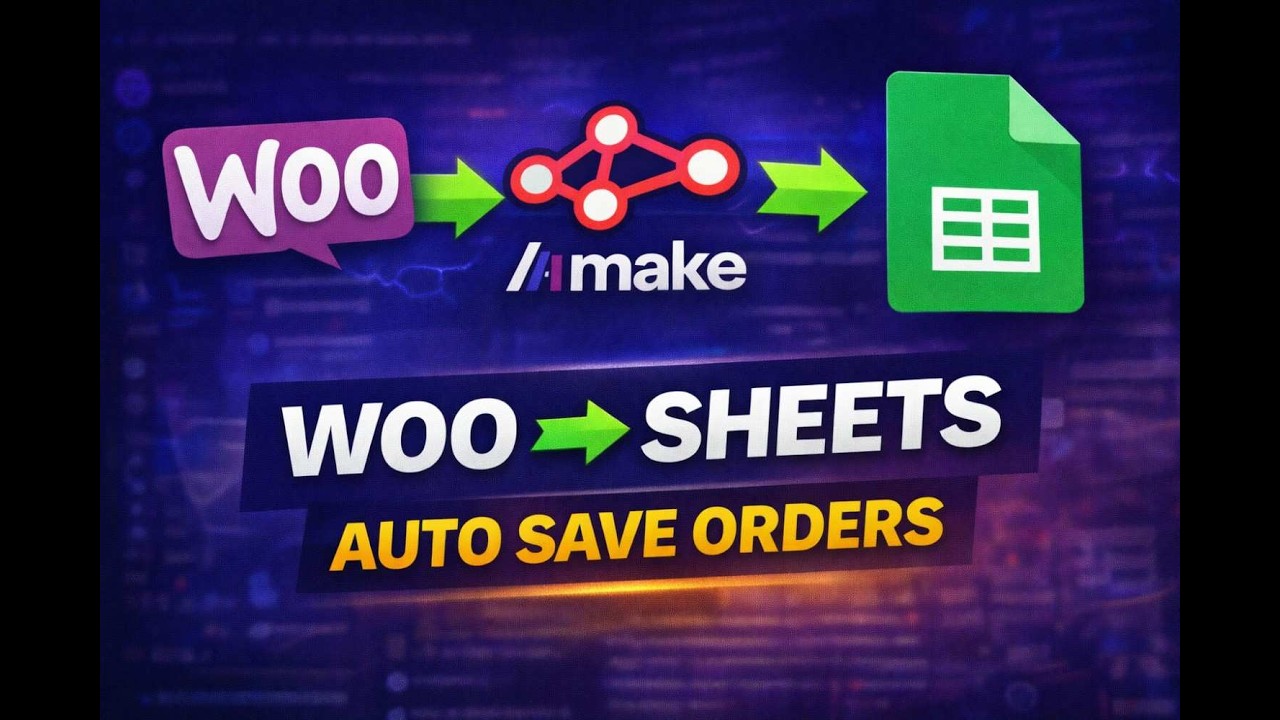
See the complete WooCommerce to Google Sheets automation build from start to finish in this 8-minute video tutorial. Pay special attention to the timestamp at 4:20 where we demonstrate handling complex orders with multiple products and variations.
Key Takeaways
Automating WooCommerce order tracking with Make.com eliminates manual work while providing perfect data accuracy. The integration takes less than 30 minutes to set up but delivers ongoing time savings and business insights.
In summary: 1) Create a WooCommerce webhook for new orders, 2) Process the data in Make.com, 3) Map key fields to Google Sheets. The result is instant, error-free order tracking without spreadsheets.
Frequently Asked Questions
Common questions about WooCommerce to Google Sheets automation
The Make.com automation can capture all standard WooCommerce order fields including order ID, customer name, email, billing address, product details, quantities, order totals, payment method, and order status.
You can customize which specific fields get mapped to your Google Sheet columns based on your reporting needs. Complex orders with multiple products, variations, and coupons are fully supported.
- Basic order information (ID, date, status)
- Complete customer details
- Full product breakdown with quantities
- Payment and shipping methods
Orders typically appear in Google Sheets within 5-10 seconds of being placed in WooCommerce. The automation triggers instantly when an order is created.
The actual speed depends on your WooCommerce server response time and Make.com's current processing queue. During testing, we consistently saw updates in under 15 seconds even during peak hours.
- Near real-time updates
- No manual refresh needed
- Visible in Sheets almost instantly
Yes, you can connect multiple WooCommerce stores to the same Google Sheet by creating separate webhooks for each store. The Make.com scenario can identify which store each order comes from.
We recommend adding a "Store Source" column to your Google Sheet that gets populated based on which webhook triggered the scenario. This maintains clear data separation while keeping all orders in one centralized location.
- Supports unlimited stores
- Add store identifier column
- Single source of truth
Make.com includes built-in retry logic that will automatically attempt to resend failed data updates up to 3 times over 30 minutes. This handles temporary Sheets outages gracefully.
If Sheets remains unavailable after retries, the scenario logs the error and you can manually trigger the updates later. The order data remains available in Make.com's execution history for 30 days.
- Automatic retries
- Error logging
- Manual recovery option
Absolutely. Once the order data is in Google Sheets, you can create any custom formulas, pivot tables, or calculations just like with manually entered data.
Common enhancements include sales tax calculations, monthly totals by product category, customer lifetime value tracking, and automated charts/graphs that update as new orders arrive.
- Full Sheets formula support
- Dynamic pivot tables
- Auto-updating charts
The connection uses HTTPS encryption for all data transfers between systems. Make.com acts as a secure intermediary, never storing your credentials permanently.
Webhook URLs include unique tokens that prevent unauthorized access. For added security, you can implement IP whitelisting in WooCommerce and use Google Sheets' granular permission controls.
- End-to-end encryption
- Token-based authentication
- Optional IP restrictions
Yes, you can add filters in the Make.com scenario to only process orders that meet specific criteria like minimum order value, specific products, or customer groups.
This prevents your sheet from becoming cluttered with test orders, $0 transactions, or orders you don't need to track. Filters can be based on any available order data field.
- Minimum order value
- Product/category filters
- Customer group rules
GrowwStacks specializes in building custom WooCommerce automations that save time and reduce errors. We'll configure your Make.com workflow to match your exact order tracking requirements.
Our implementation package includes webhook setup, Google Sheet template design, field mapping, testing, and training. We handle the technical details so you get a turnkey solution tailored to your business.
- Complete end-to-end setup
- Customized to your workflow
- Ongoing support available
- Free consultation
Stop Wasting Hours on Manual Order Tracking
Every minute spent copying order data is time stolen from growing your business. Let GrowwStacks build your custom WooCommerce automation that updates Google Sheets instantly - with zero errors.