Build Your First AI Agent in Microsoft Copilot Studio (Beginner to Pro Guide)
Most project managers waste 8-12 hours weekly compiling status reports manually. This step-by-step guide shows how to build an AI agent that automatically generates project insights, calculates backlog hours, and drafts email reports - all using natural language commands. No coding required.
What Is Microsoft Copilot Studio?
Project managers and operations teams face a growing challenge: the need to provide real-time insights while drowning in manual data compilation. Microsoft Copilot Studio emerges as the solution - a low-code platform that transforms business data into actionable AI agents.
Unlike generic chatbots, Copilot Studio agents understand your specific business context. The demo shows how a project reporting agent can access Dataverse tables, perform calculations like backlog hours, and even draft Outlook emails - all through natural language commands.
Key differentiator: Copilot Studio sits between no-code tools like Power Virtual Agents and developer-centric platforms like Microsoft Foundry. It provides enterprise-grade security with maker-friendly interfaces, making AI agent creation accessible to business teams.
AI Agent Architecture Explained
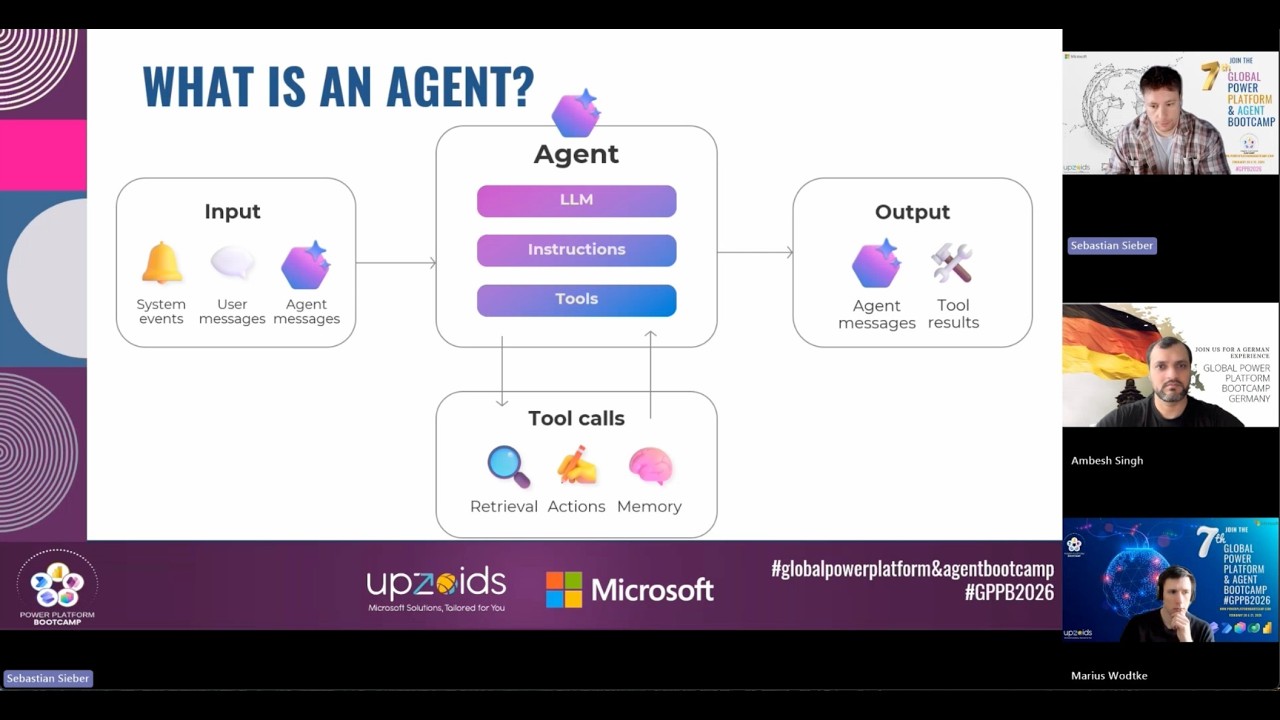
At 8:30 in the video, Sebastian breaks down the core components of a Copilot Studio agent. Think of it as an intelligent workflow orchestrator that transforms inputs (questions, system events) into outputs (answers, actions) using business data.
The project reporting agent demonstrates this perfectly. When asked "What's my project status?", it:
- Authenticates the user via Microsoft Entra ID
- Queries the Dataverse Project table
- Calculates metrics like backlog hours using glossary terms
- Formats the response based on instruction guidelines
- Optionally drafts an Outlook email with the report
This architecture means your agents grow smarter as your business data evolves, without requiring constant manual updates to dialog trees or scripts.
Step 1: Create Your First Agent
Starting at 12:15 in the demo, we see the critical first steps for agent creation. Many beginners make the mistake of using the basic creation flow - Sebastian shows the "Advanced Create" option that ensures proper solution architecture.
Pro Tip: Always define your solution and schema name during creation (like "Project Overview Agent"). This can't be changed later and affects how your agent integrates with other Power Platform components.
The agent creation interface provides:
- Model selection (GPT-4.1 by default, upgradable to GPT-5)
- Initial instructions framework
- Knowledge source connections
- Tool integration points
At this stage, focus on naming and describing your agent's purpose clearly - this becomes part of its "identity" when interacting with users or other agents.
Step 2: Connect Business Data Sources
The real power comes from connecting your agent to business data. At 18:40, the demo shows how to add Dataverse tables as knowledge sources - in this case, the Project table containing all relevant metrics.
Copilot Studio supports multiple data connection types:
Critical implementation note: Large knowledge sources (SharePoint libraries with 1000+ documents) may take hours to index. Plan your testing schedule accordingly.
The glossary feature (shown at 22:15) is particularly powerful for business calculations. By defining "backlog hours = effort - effort completed", the agent can perform dynamic math without pre-calculated fields in Dataverse.
Step 3: Configure Agent Instructions
At 25:50, we see the instructions panel - the "brain" of your agent. This is where you define:
- Purpose ("Help project managers track status")
- Behavior guidelines ("Use professional tone with bullet points")
- Skills ("Retrieve project data, calculate metrics")
- Step-by-step processes (shown in the project reporting flow)
The demo shows how adjusting instructions changes agent behavior. The initial vague prompt ("Provide casual updates") led to inconsistent results, while the structured instructions at 30:15 created reliable, formatted reports.
Advanced technique: Use Power FX formulas in instructions for dynamic behavior. For example, you could calculate priority scores based on multiple project metrics.
Step 4: Add Tools & Actions
Starting at 34:20, the demo adds Outlook integration to automate email drafting. This transforms the agent from an information provider to an action taker. Copilot Studio offers several tool types:
- Connectors: 200+ Power Platform connectors (Dataverse, Outlook, etc.)
- Custom Prompts: Reusable AI prompts for consistent responses
- Flows: Trigger Power Automate workflows for complex actions
- REST APIs: Connect to custom line-of-business systems
The email drafting tool shows several best practices:
- Using "Create draft" instead of "Send" for user review
- Setting high importance flag for critical communications
- Dynamically generating the body from the agent's analysis
Step 5: Test & Deploy Your Agent
At 40:10, we see the testing panel where you validate agent behavior before deployment. Key testing considerations:
- Test knowledge retrieval with various phrasings ("my projects" vs "current initiatives")
- Verify calculations match source system values
- Check tool permissions (like Outlook access)
Deployment options shown at 43:30 include:
Security first: Always use Microsoft Entra ID authentication for organizational agents. The demo warns about the risks of "no authentication" publishing.
For the project reporting agent, ideal channels would be Teams (for PM access) and automated triggers (for scheduled reports). The recurring trigger setup at 45:50 shows how to automate weekly status updates.
Real-World Example: Project Reporting Agent
The complete project reporting agent built in the demo (starting at 15:00) showcases a practical business application. Here's what it automates:
- Data Retrieval: Pulls project details from Dataverse
- Calculations: Computes backlog hours, completion percentages
- Analysis: Identifies budget variances, timeline risks
- Reporting: Formats professional updates with key metrics
- Action: Drafts Outlook emails for manager review
Business Impact: For a PM managing 5 projects, this agent saves 6-8 hours weekly on status reporting while improving accuracy. The automated email drafting alone eliminates 2-3 hours of repetitive work.
This pattern applies to countless use cases - HR onboarding, sales enablement, IT support. The key is starting with a well-defined process you want to enhance with AI assistance.
Watch the Full Tutorial
See the complete Microsoft Copilot Studio walkthrough from Global Power Platform Bootcamp Germany. At 22:30, pay special attention to the glossary setup for dynamic calculations - this technique unlocks powerful business logic without custom coding.
Key Takeaways
Microsoft Copilot Studio democratizes AI agent creation for business teams. The project reporting example demonstrates how to transform manual processes into intelligent automation.
In summary: Start with a high-impact use case, connect your business data, configure clear instructions, add practical tools, and deploy securely through Microsoft 365 channels. The platform handles the AI complexity while you focus on business outcomes.
Frequently Asked Questions
Common questions about Microsoft Copilot Studio agents
Microsoft Copilot Studio is a low-code platform for building AI agents that automate business processes. It allows users to create intelligent assistants that understand natural language, integrate with company data sources like Dataverse and SharePoint, and perform tasks like generating reports, answering employee questions, and automating workflows.
Unlike general AI chatbots, Copilot Studio agents are purpose-built for specific business functions with built-in security and governance. They can take actions (like creating records or sending emails) rather than just providing information.
- Purpose-built for business processes (not general chat)
- Integrates with Microsoft 365 data and services
- Provides enterprise security and compliance
Copilot Studio provides multiple ways to connect agents to business data. You can add knowledge sources from Dataverse tables (like the Project table shown in the demo), SharePoint document libraries, OneDrive files, or uploaded PDFs/Word documents.
For the Dataverse integration shown, you simply select your table and the agent automatically gains the ability to query that data. The platform handles the complex AI retrieval augmented generation (RAG) process behind the scenes, including security trimming based on user permissions.
- Direct Dataverse table connections for structured data
- Document libraries for policy/guideline reference
- File uploads for specific knowledge bases
Yes, agents can perform actions through tools integration. The demo shows how to connect Outlook to automatically draft status report emails. Other actions include creating/updating records in Dataverse, triggering Power Automate flows, calling REST APIs, or even performing calculations using glossary terms (like calculating backlog hours from project data).
These tools transform agents from passive chatbots into active workflow participants. The key difference is that Copilot Studio agents can both understand business context through your data and take appropriate actions based on that understanding.
- Outlook email drafting and sending
- Dataverse record creation/updates
- Power Automate workflow triggering
Copilot Studio offers enterprise-grade security including mandatory Microsoft Entra ID authentication for all organizational agents. You can disable web search to prevent external data leakage, set moderation levels for content filtering, and configure disclaimers.
All data connections respect existing Dataverse and M365 permissions. The platform also provides activity monitoring to track agent usage and identify potential security concerns. As shown in the demo, you should always use Microsoft authentication rather than the "no authentication" option for business agents.
- Entra ID authentication integration
- Data access follows existing permissions
- Activity monitoring and analytics
Agents can be published to multiple channels including Microsoft Teams, SharePoint pages, and directly within Microsoft 365 Copilot. The demo shows how to configure these channels in the publish section. For Teams deployment, agents appear as apps that users can @mention.
You can also set up recurring triggers (like weekly project reports) or event-based triggers (like updating records) to automate agent actions without user initiation. This makes agents valuable for both interactive and background automation scenarios.
- Teams integration for conversational access
- SharePoint embedding for self-service
- Automated triggers for scheduled actions
Copilot Studio is the evolution of Power Virtual Agents with enhanced AI capabilities. While both allow low-code bot building, Copilot Studio adds native integration with large language models (GPT-4/GPT-5), more sophisticated natural language understanding, and deeper M365 data connectivity.
The instructions feature shown in the demo provides more nuanced control over agent behavior than traditional dialog trees. Copilot Studio also supports multi-agent orchestration for complex workflows and offers better enterprise management features.
- Native LLM integration (vs rules-based)
- Deeper M365 data connectivity
- Multi-agent orchestration capabilities
Yes, Copilot Studio includes a built-in testing panel (shown on the right side in the demo) where you can immediately test changes. The platform maintains test sessions so you can validate conversational flows end-to-end.
For the project reporting agent example, you would test knowledge retrieval, calculations, and email drafting before publishing. Analytics post-deployment help identify areas needing refinement based on real user interactions. Always test with different user personas to ensure your agent handles various question phrasings effectively.
- Interactive testing panel for immediate validation
- Session persistence for multi-turn testing
- Analytics for continuous improvement
GrowwStacks specializes in building custom AI agents that solve specific business challenges like the project reporting automation shown in this guide. Our Microsoft-certified team handles the entire process: identifying high-impact use cases, designing conversational flows, integrating with your data sources, and deploying secure agents across your organization.
We've helped clients automate 40-60% of routine reporting tasks using Copilot Studio. Our implementation approach focuses on measurable ROI - we start with a free consultation to identify your best automation opportunities, then build a pilot agent you can test within 2 weeks.
- Free consultation to identify automation opportunities
- End-to-end agent development and deployment
- Ongoing optimization and support
Automate Your Business Processes with AI Agents
Manual reporting and data tasks are draining your team's productivity. Let GrowwStacks build you a custom Copilot Studio agent that handles these workflows automatically - freeing up 10+ hours per week for strategic work.