Build a Local AI Chatbot with RAG Using n8n, Ollama & Qdrant
Most businesses want AI chatbots but worry about data privacy and API costs. This step-by-step guide shows how to build a fully local RAG (Retrieval-Augmented Generation) chatbot using n8n for workflow automation, Ollama for local LLMs, and Qdrant vector database - no cloud services required.
Why Local RAG Matters for Businesses
Most companies exploring AI chatbots hit two major roadblocks: data privacy concerns with cloud APIs and unpredictable costs from commercial LLM services. The solution? A fully local RAG (Retrieval-Augmented Generation) system that keeps all data and processing on your own infrastructure.
Retrieval-Augmented Generation combines the best of both worlds - the creative power of large language models with the accuracy of document retrieval. When a user asks a question, the system first searches your knowledge base for relevant information, then uses that context to generate a precise answer. This reduces hallucinations and ensures responses are grounded in your actual business data.
Key advantage: Our implementation using n8n, Ollama and Qdrant requires zero cloud services - all components run locally, giving you complete control over data privacy and eliminating API costs. The embedding-gamma model shown in the tutorial is just 622MB, making it suitable even for mobile deployments.
Setting Up Ollama for Local LLMs
Ollama provides an easy way to run open-source language models locally on your own hardware. In the tutorial, we install two critical models: embedding-gamma for creating document embeddings (vector representations), and Gemma 31B as our primary chat model.
The installation process is straightforward - Ollama provides copy-paste commands for each model. For the embedding-gamma model (timestamp 0:45 in the video), we simply run:
ollama pull embedding-gamma This downloads the 622MB model to your local machine. Similarly, we install the larger Gemma 31B model for chat capabilities. The key benefit here is flexibility - you can choose different model sizes based on your hardware capabilities and accuracy requirements.
Installing Docker & Qdrant Vector Database
Qdrant serves as our vector database - the "memory" that stores all document embeddings for fast retrieval. We deploy it using Docker for easy setup and management (timestamp 3:12 in the video).
After installing Docker Desktop, we pull the Qdrant image and run it with:
docker pull qdrant/qdrant docker run -p 6333:6333 -p 6334:6334 qdrant/qdrant This makes Qdrant available at localhost:6333 with a web UI for monitoring. The database will store all our document vectors, enabling fast semantic search when the chatbot needs to retrieve relevant information.
Performance tip: For production use, consider adding volume mounts to persist data between container restarts. The tutorial shows the basic setup, but Qdrant offers many configuration options for scaling.
Creating the n8n RAG Workflow
n8n serves as the orchestration layer that ties everything together. We create two main workflows (timestamp 6:30 in the video):
1. Document Ingestion Workflow
This workflow handles uploading and processing documents into Qdrant:
- Form Trigger: Creates an upload interface for PDFs and other documents
- Document Loader: Processes the uploaded files into usable text
- Embedding Model: Uses Ollama's embedding-gamma to create vector representations
- Qdrant Node: Stores the vectors in our local database
2. Chatbot Workflow
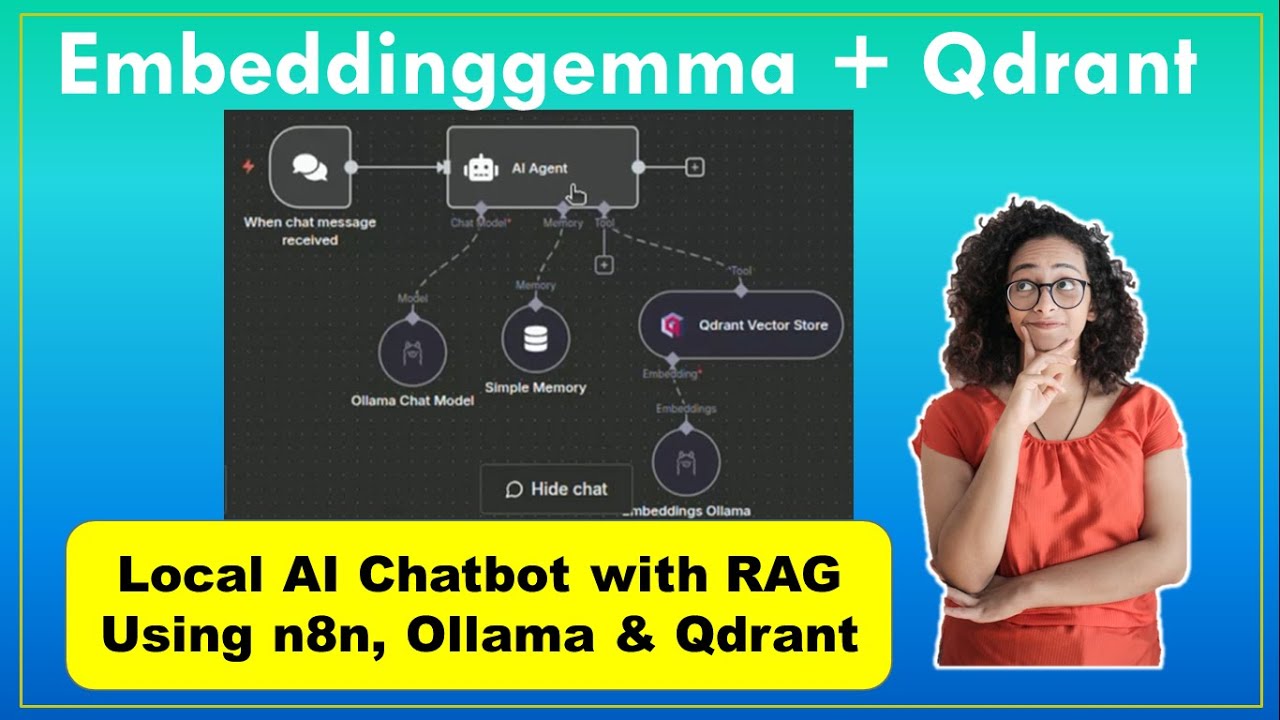
The second workflow powers the actual chatbot interface:
- AI Agent: Manages the conversation flow and tool usage
- Chat Model: Uses Ollama's Gemma or LLaMA model for response generation
- Qdrant Tool: Retrieves relevant documents when needed
- Memory Node: Maintains conversation context
Uploading Documents to Your Knowledge Base
With our infrastructure in place, we can now populate the knowledge base (timestamp 9:45 in the video). The tutorial uses a PDF with flower shop information as an example, but this could be any business documentation:
- Product catalogs
- HR policies
- Technical documentation
- Customer support FAQs
The n8n form node allows multiple file uploads, and the document loader processes them into chunks suitable for embedding. After running the workflow, we can verify in Qdrant's web UI that our documents are properly indexed and ready for querying.
Building the AI Agent Chatbot
The AI agent (timestamp 11:20) is where the magic happens. We configure it to:
- Use Ollama's chat model (initially Gemma 31B, then switching to LLaMA 3 when we discover Gemma doesn't support tools)
- Incorporate the Qdrant database as a tool for document retrieval
- Include a memory component for conversation continuity
A critical step is setting the system message to instruct the agent to use Qdrant when appropriate: "You are a helpful assistant. Please use the Qdrant vector store tool to answer user questions." This ensures the RAG functionality is properly utilized.
Testing and Refining Your Chatbot
With everything connected, we test the chatbot by asking about information from our uploaded documents (timestamp 12:50). The question "When is the flower shop open on Tuesday?" triggers:
- The AI agent identifies the need for factual information
- Qdrant searches the vector database for relevant document chunks
- The chat model generates a response using the retrieved context
This end-to-end flow demonstrates the power of RAG - the chatbot answers based on actual business data rather than generic knowledge. You can refine performance by adjusting chunk sizes, similarity thresholds, and prompt engineering.
Watch the Full Tutorial
For a complete walkthrough of each step, including the Docker installation process and n8n workflow configuration details, watch the full tutorial video below (especially from 3:12 for the Qdrant setup and 6:30 for the n8n workflow creation).
Key Takeaways
This tutorial demonstrates how to build a powerful, fully local AI chatbot using open-source tools. The RAG approach ensures accurate, data-grounded responses while keeping all processing on your infrastructure.
In summary: Combine n8n for workflow automation, Ollama for local LLMs, and Qdrant for vector search to create private, cost-effective AI assistants that leverage your business knowledge without relying on cloud services.
Frequently Asked Questions
Common questions about this topic
RAG combines information retrieval with text generation. The system first retrieves relevant documents from a knowledge base (like Qdrant vector database), then uses that context to generate more accurate and relevant responses.
This approach reduces hallucinations and improves answer quality compared to standalone LLMs. In our implementation, n8n orchestrates the entire RAG pipeline locally without any cloud dependencies.
- Eliminates hallucinations by grounding responses in documents
- Allows easy knowledge updates by modifying the document store
- Works with smaller LLMs since they don't need to memorize facts
Ollama provides an easy way to run open-source LLMs like Gemma and LLaMA locally on your own hardware. This eliminates API costs, ensures data privacy since processing stays on-premises, and allows customization of models for specific use cases.
The embedding-gamma model mentioned in the tutorial is only 622MB, making it suitable even for mobile devices. You can choose different model sizes based on your hardware capabilities and accuracy requirements.
- No per-query costs like commercial APIs
- Complete data privacy - no information leaves your network
- Ability to fine-tune models on your specific data
Qdrant is an open-source vector search engine that can be self-hosted via Docker. It offers high performance for similarity searches, supports filtering, and has a simple HTTP API.
In the tutorial, Qdrant stores document embeddings created by Ollama's embedding model, enabling fast semantic search for the RAG system. It handles all the vector math efficiently so n8n can focus on workflow orchestration.
- Designed specifically for vector similarity search
- Lightweight and easy to deploy with Docker
- Integrates seamlessly with n8n via HTTP API
Yes, the n8n document loader node used in the workflow supports various file types including PDF, Word, Excel, and plain text. The binary data loader shown in the tutorial can be configured to handle different formats.
You would simply adjust the "accepted file type" parameter in the form node to specify additional extensions. The rest of the workflow remains the same since the document loader normalizes all inputs to text.
- PDF, DOCX, XLSX, PPTX, TXT supported
- Configure via form node's accepted file types
- All documents get converted to embeddings the same way
The AI agent uses Qdrant as a tool for document retrieval. When a user asks a question (like "When is the flower shop open on Tuesday?"), the agent first queries Qdrant for relevant document chunks, then uses that context to generate an accurate response.
This is visible in the workflow when the Qdrant node activates during question processing. The system message we configure ("Please use the Qdrant vector store tool to answer user questions") ensures the agent knows when to perform retrieval.
- Qdrant serves as the agent's "memory"
- Automatically triggered based on question type
- Retrieved documents become context for the LLM
The hardware requirements depend on the models used. The embedding-gamma model requires minimal resources (622MB), while the Gemma 31B model shown needs more substantial hardware.
For production use, we recommend at least 32GB RAM and a modern CPU (or GPU for better performance). The tutorial demonstrates it can run on standard developer machines, but larger deployments may need more resources.
- Embedding model: Lightweight (622MB)
- Chat models: Vary by size (7B to 70B parameters)
- Qdrant: Efficient but benefits from fast storage
The system message parameter in the AI agent node controls behavior. In the tutorial, we set it to "You are a helpful assistant. Please use the Qdrant vector store tool to answer user questions."
You can modify this to change tone, add constraints, or specify response formats. The memory node also affects conversation continuity. For advanced customization, you can fine-tune the Ollama models on your specific data.
- Edit system message for different personas
- Adjust memory settings for conversation history
- Fine-tune models on your domain-specific data
GrowwStacks specializes in building custom AI automation solutions like this RAG chatbot for businesses. We handle all the technical complexity so you get a turnkey solution.
Our team can help select optimal models for your use case, design the knowledge base structure, implement the n8n workflow, and deploy the solution on your infrastructure. We offer free consultations to discuss your specific requirements.
- Custom RAG chatbot tailored to your business
- End-to-end implementation and deployment
- Free 30-minute consultation to assess your needs
Ready to Deploy Your Own Local AI Chatbot?
Manual chatbot development takes weeks of trial and error. Our team at GrowwStacks can have your custom RAG solution up and running in days, not weeks.