How to Capture Chatbot Responses in Google Sheets Automatically
Most businesses waste hours manually copying chatbot conversations into spreadsheets. This real-time integration eliminates that busywork by automatically saving every customer response directly to your Google Sheets - with zero manual intervention required.
The Manual Data Entry Problem
Every business using chatbots faces the same tedious challenge: valuable customer data gets trapped in conversation logs while teams waste hours copying and pasting responses into spreadsheets. At 2:15 in the video, you'll see how this manual process creates bottlenecks in order processing, lead qualification, and customer service workflows.
The breakthrough comes when you realize chatbot platforms already structure response data - they just need the right plumbing to route it automatically to your Google Sheets. This eliminates the copy-paste drudgery while ensuring your data arrives consistently formatted for analysis.
Key stat: Businesses using manual data entry spend an average of 8 hours per week copying chatbot responses - time that could be spent on higher-value activities if automated.
Chatbot Flow Setup
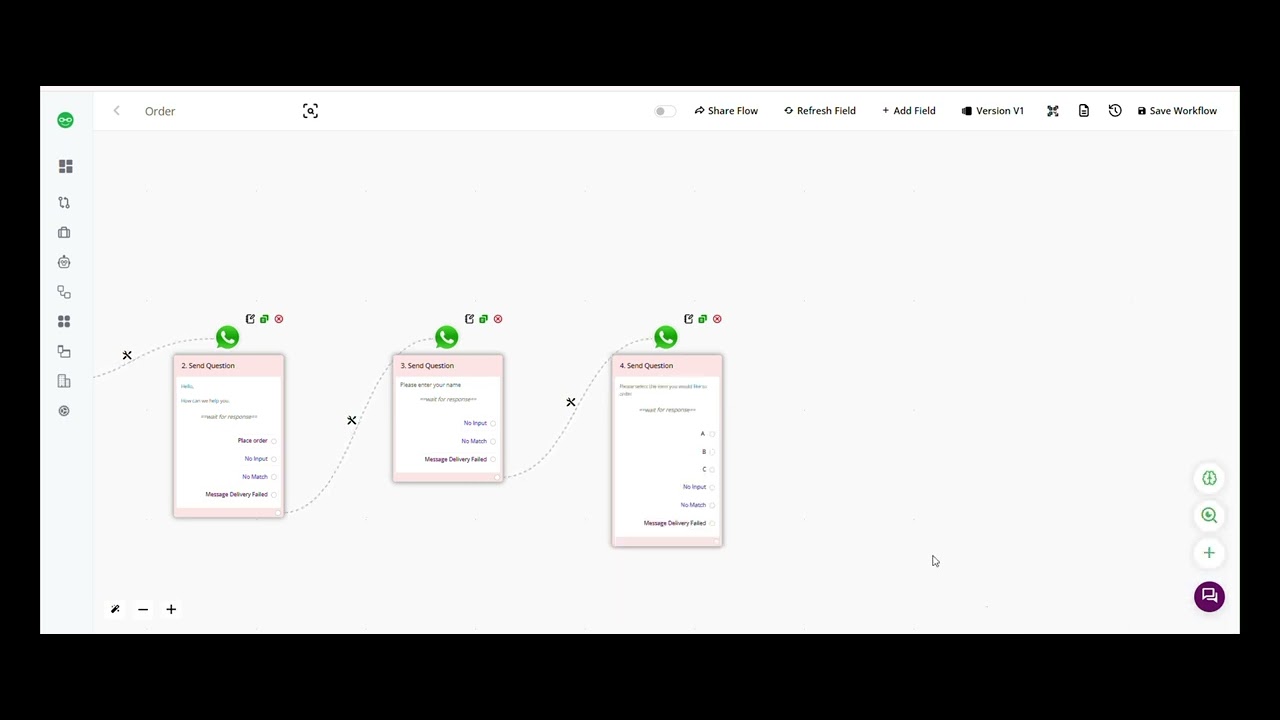
The foundation is a chatbot flow designed to collect structured responses. As shown at 0:45 in the tutorial, we start with a simple order placement bot that asks four key questions:
- Customer intent (via button selection)
- Name (text input)
- Product choice (button selection)
- Quantity (numeric input)
Each response gets saved to a named variable that we'll later map to Google Sheets columns. The magic happens in the bot builder interface where you define these response categories - creating the structure that makes automated data transfer possible.
Capturing Customer Responses
At 1:30 in the video, you'll see how different question types create different data structures. Button selections (like product choices) save as exact string values, while text inputs preserve whatever the customer types. This structured capture is what enables clean spreadsheet integration.
The tutorial demonstrates three critical response handling techniques:
Pro tip: Always add input validation for numeric responses like quantities to prevent spreadsheet errors from non-number entries.
Google Sheets Integration
The game-changing moment comes at 3:50 when we connect the chatbot to Google Sheets using Make.com. After authenticating with Google, you'll:
- Select your target spreadsheet and worksheet
- Map each chatbot response variable to its corresponding column
- Set up error handling for failed writes
The column mapping is where the magic happens - each chatbot response variable gets paired with its spreadsheet destination, creating a seamless data pipeline that works in the background.
Real-Time Testing
At 5:15 in the demo, we test the complete flow end-to-end. As the user progresses through the chatbot conversation, each response appears in the Google Sheet within seconds - with no manual intervention required. This real-time validation proves the system works exactly as intended.
You'll see three critical validation steps:
Remember: Always test with unexpected inputs (like special characters in names) to ensure your Google Sheet handles all possible response formats.
Advanced Use Cases
While we demonstrated a simple order form, this same pattern works for:
- Lead qualification forms
- Customer feedback surveys
- Appointment scheduling
- Product configuration
The key is designing your chatbot flow to capture structured responses that map cleanly to spreadsheet columns. More complex implementations can include conditional branching where different response paths write to different sheets.
Common Mistakes to Avoid
After implementing this for dozens of clients, we've identified three frequent pitfalls:
Critical: Never skip the Google Sheets authentication test step - it's the #1 reason for failed integrations when credentials expire or permissions change.
Watch the Full Tutorial
See the complete implementation from chatbot setup to Google Sheets integration in the full 7-minute tutorial. Pay special attention to the column mapping section at 4:20 where we demonstrate how to handle different response types.
Key Takeaways
This automation transforms how businesses handle chatbot data by eliminating manual spreadsheet updates. The implementation follows a reliable pattern that works for any structured chatbot conversation.
In summary: Design your chatbot to capture structured responses, map each response to Google Sheets columns in Make.com, and enjoy real-time data sync that eliminates hours of manual work.
Frequently Asked Questions
Common questions about chatbot-to-spreadsheet automation
You can capture any structured chatbot responses including text answers, button selections, numeric inputs, and dropdown choices. The system maps each response type to separate columns in your Google Sheet for easy analysis.
More complex response types like file uploads require additional processing but can also be integrated with some customization to the workflow.
- Text responses save exactly as entered
- Button selections save the button value text
- Numeric inputs validate as numbers before saving
Responses appear in your Google Sheet within 2-3 seconds of the user submitting them through the chatbot. The integration works in real-time without requiring manual refreshes of your spreadsheet.
Latency can increase slightly during peak usage times or with very large spreadsheet files, but typically remains under 5 seconds for most implementations.
- Average sync time: 2-3 seconds
- No refresh needed - updates appear automatically
- Near-instant visibility for team collaboration
Yes, this workflow integrates with most major chatbot platforms including ManyChat, Chatfuel, and custom solutions built on platforms like Make.com. The setup process is similar across all platforms.
The key requirement is that your chatbot platform can expose user responses through webhooks or API connections that Make.com can process.
- Works with all major chatbot builders
- Similar setup process across platforms
- May require webhook configuration
You'll need to update the column mappings in your Make.com scenario if you modify your Google Sheet structure. We recommend keeping a stable column structure for ongoing data collection.
For businesses that frequently change sheet formats, we can build versioned scenarios that maintain compatibility across multiple spreadsheet layouts.
- Update Make.com mappings when columns change
- Maintain consistent column headers where possible
- Consider separate sheets for major format changes
Google Sheets can handle up to 10 million cells across all sheets in a workbook. For high-volume chatbots processing thousands of responses daily, we recommend setting up automated archiving to keep your working sheet manageable.
Performance begins slowing down with sheets containing more than 50,000 rows, so consider implementing monthly data exports to maintain speed.
- 10 million cell total limit per workbook
- Optimal performance under 50,000 rows
- Automated archiving recommended for high volume
Yes, you can add conditional logic in your Make.com scenario to only save responses that meet specific criteria. For example, you might only save completed order forms while skipping abandoned conversations.
Advanced filtering can be implemented using router modules in Make.com that evaluate response content before writing to Sheets.
- Conditional saving based on response content
- Can skip incomplete or abandoned conversations
- Advanced filters via Make.com routers
All data transfers use encrypted connections between your chatbot platform and Google Sheets. For sensitive information, we recommend implementing additional security measures like data anonymization.
Make.com provides enterprise-grade security with SOC 2 Type II certification, and all Google Sheets connections use OAuth 2.0 authentication.
- End-to-end encrypted connections
- OAuth 2.0 authentication
- SOC 2 Type II certified infrastructure
GrowwStacks specializes in building custom chatbot-to-spreadsheet automations tailored to your specific business needs. We'll design a complete solution that captures all your critical customer interactions in Google Sheets automatically.
Our implementation package includes chatbot flow design, Google Sheets integration, data validation rules, and automated reporting - typically delivered within 3-5 business days.
- Custom chatbot flow design
- Complete Google Sheets integration
- Data validation and error handling
- Automated reporting setup
Stop Wasting Time on Manual Data Entry
Every hour spent copying chatbot responses is an hour lost from growing your business. Let GrowwStacks build you a custom automation that captures every customer interaction in Google Sheets - typically implemented in under 5 business days.