Complete Google Cloud OAuth Setup for n8n Beginners (2026 Guide)
Struggling to connect n8n with Google Drive, Sheets, or Gmail? Most beginners hit the same roadblock - missing or incorrect OAuth credentials. This step-by-step guide walks you through the entire process in Google Cloud Console, from creating your first project to enabling APIs and connecting them to n8n.
Why Proper OAuth Setup Matters
Every n8n user working with Google services eventually faces the same frustration - trying to connect to Google Drive, Sheets, or Gmail only to be blocked by authentication errors. The root cause is almost always incomplete or incorrectly configured OAuth credentials.
OAuth acts as a secure bridge between n8n and Google's services. Without it, n8n has no way to prove it has permission to access your Google data. The process involves three key components: a client ID (your application's identifier), a client secret (your application's password), and properly enabled APIs.
85% of n8n Google integration failures stem from missing or incorrect OAuth setup. Taking the time to configure this properly the first time saves hours of troubleshooting later.
Step 1: Create a Google Cloud Project
Your journey begins in the Google Cloud Console. This is where you'll create and manage all the components needed for n8n to authenticate with Google services.
Navigate to console.cloud.google.com and either sign in or create an account if you don't have one. Once logged in:
- Click the project dropdown in the top navigation
- Select "New Project"
- Give your project a descriptive name (like "n8n-Google-Integration")
- Click "Create"
The project creation might take a few moments. Once complete, you'll see your new project selected in the top navigation bar. This project will house all your n8n authentication components.
Step 2: Configure OAuth Consent Screen
Before creating credentials, you need to set up what Google calls the "OAuth consent screen." This determines what users see when n8n requests access to their Google data.
In your Google Cloud project:
- Navigate to "APIs & Services" > "OAuth consent screen"
- Select "External" user type (since n8n will be accessing data from outside Google)
- Enter an app name (like "n8n Integration")
- Add your email as the user support email
- Under "Developer contact information," add your email again
- Click "Save and Continue"
Important: Even though you're the only user now, selecting "External" ensures your setup will work when you want to share workflows with team members later.
Step 3: Create OAuth Credentials
Now for the most crucial part - generating the client ID and client secret that n8n will use to authenticate.
- Go to "APIs & Services" > "Credentials"
- Click "Create Credentials" > "OAuth client ID"
- Select "Web application" as the application type
- Give your credential a name (like "n8n-Google-Auth")
- Under "Authorized redirect URIs," add the n8n callback URL (found in n8n's Google node credentials setup)
- Click "Create"
Google will display your client ID and client secret. Copy these immediately - especially the client secret, which you won't be able to see again after leaving this page. Store them securely.
The Critical Step Most Beginners Miss
Here's where many n8n users get stuck. Even with perfect credentials, your integration won't work until you enable the specific Google APIs you want to use.
For each Google service you want n8n to access (Drive, Sheets, Gmail, etc.):
- Navigate to "APIs & Services" > "Library"
- Search for the API (e.g., "Google Drive API")
- Click on the API in the results
- Click "Enable"
Repeat this for every Google service your n8n workflows will use. Without this step, n8n will have credentials but no permission to access the actual services.
Pro Tip: Enable all the Google APIs you might need upfront. It's easier than interrupting your workflow later to enable additional services.
Connecting Credentials to n8n
With your Google Cloud project fully configured, it's time to connect everything to n8n.
- In n8n, navigate to the credentials section
- Select "OAuth2 API" as the credential type
- Name your credential (e.g., "Google-Drive-Access")
- Paste your client ID and client secret
- Select the appropriate scopes for your use case
- Click "Connect"
n8n will open a Google authentication window. After granting permissions, your n8n instance will be connected to Google's services with the proper OAuth credentials.
Testing and Troubleshooting
Even with everything set up correctly, you might encounter some initial hiccups. Here's how to test and troubleshoot your connection:
- Create a simple n8n workflow with a Google node (like Google Drive)
- Select your OAuth credentials from the dropdown
- Try a basic operation like listing files in your Drive
If you get errors, check:
- Are the correct APIs enabled in Google Cloud Console?
- Did you copy the client ID and secret correctly?
- Is the redirect URI in Google Cloud Console matching what n8n expects?
- Have you added your email as a test user in the OAuth consent screen?
Most issues can be resolved by double-checking these elements. The video tutorial at 4:35 shows a live example of troubleshooting a common authentication error.
Watch the Full Tutorial
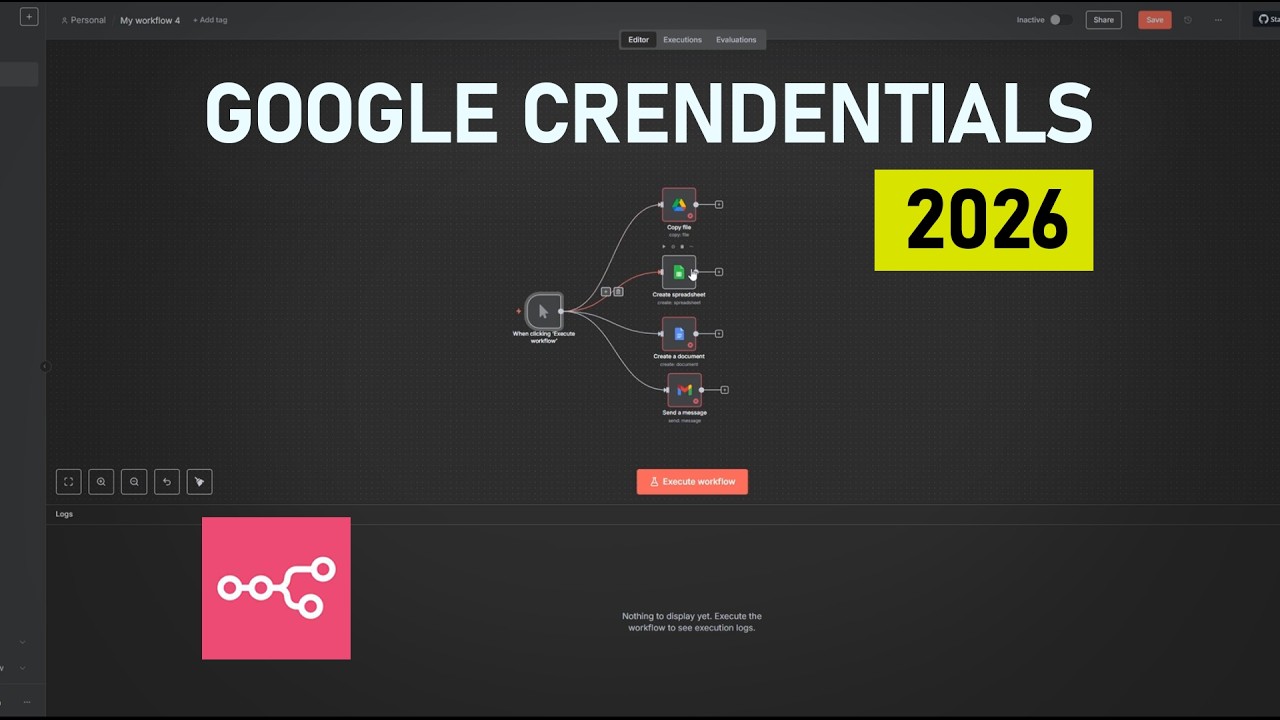
For a complete walkthrough with visual guidance, watch the video tutorial below. At 3:12, you'll see the exact moment when the OAuth credentials are created in Google Cloud Console, and at 5:47, we demonstrate enabling the Google Drive API - the step most beginners forget.
Key Takeaways
Setting up Google OAuth for n8n might seem daunting at first, but breaking it down into these clear steps makes the process manageable. The most important things to remember:
In summary: Create a Google Cloud project, configure the OAuth consent screen, generate credentials, enable the necessary APIs, and connect everything to n8n. Missing any of these steps will prevent your automation from working.
With your Google services now properly connected to n8n, you're ready to build powerful automations that leverage Google Drive, Sheets, Gmail, and more. This foundational setup opens the door to countless workflow possibilities.
Frequently Asked Questions
Common questions about Google OAuth setup for n8n
OAuth credentials are required for n8n to securely access your Google services like Drive, Sheets, and Gmail. Without proper OAuth setup, n8n won't be able to authenticate with Google's APIs.
The credentials establish a trusted connection while keeping your login information secure. Google's OAuth system allows n8n to access only the specific services you authorize, following the principle of least privilege.
- OAuth is more secure than sharing passwords
- You can revoke access at any time
- Scopes limit what n8n can access
The client ID identifies your application to Google's servers, while the client secret proves your application's identity. Think of the client ID like a username and the client secret like a password.
Both are required for OAuth authentication. The client secret should be kept confidential and stored securely. Google allows you to have up to two active client secrets per client ID, which is useful for rotation.
- Client ID: Public identifier for your application
- Client secret: Private key for authentication
- Both are required for OAuth to work
Google requires you to explicitly enable each API service you want to use, even after setting up OAuth credentials. This is a security measure that ensures applications only access the specific Google services they need.
For example, if you want to use Google Drive with n8n, you must enable the Google Drive API in your Cloud Console project. This applies to all Google services - Sheets, Gmail, Calendar, etc. Each requires its own API to be enabled.
- APIs are disabled by default for security
- Each Google service has its own API
- Enabling is a one-time process per project
If you lose your client secret, you'll need to generate a new one in the Google Cloud Console. The old secret will become invalid. This is why it's crucial to save your client secret securely when you first create it.
To create a new client secret, navigate to your OAuth credentials in Google Cloud Console, click the edit pencil, then "Add new secret." You can then update n8n with the new secret. The old one will stop working after a short grace period.
- Client secrets can't be recovered after creation
- You can have two active secrets at once
- Rotation is recommended for security
Yes, you can use the same OAuth credentials across multiple n8n instances. However, for production environments, it's recommended to create separate credentials for each instance.
Separate credentials allow for better security management and make it easier to revoke access for specific instances if needed. Each set of credentials can be tracked and managed independently in Google Cloud Console.
- Technically possible to share credentials
- Not recommended for production
- Separate credentials improve security
Google requires apps to go through a verification process before they can be used by the general public. Testing mode allows you to use the app with a limited number of test users while you're developing and testing your integration.
To make the app available to more users, you'll need to submit it for Google's verification process. This involves providing information about your app's security practices and may require a fee for certain types of apps.
- Testing mode has a 100-user limit
- Verification is required for wider use
- Some sensitive scopes require additional review
OAuth credentials don't expire automatically, but Google may require you to renew them if they detect suspicious activity or if you make significant changes to your app. It's good practice to review your credentials annually.
Client secrets can be rotated periodically for enhanced security. Google allows you to have two active client secrets simultaneously, making rotation seamless - create a new one, update your systems, then delete the old one.
- Credentials don't auto-expire
- Annual review is recommended
- Secret rotation improves security
GrowwStacks helps businesses implement automation workflows, AI integrations, and scalable systems tailored to their operations. Whether you need custom Google integrations with n8n, complex automation workflows, or a full multi-platform automation system, our team can design, build, and deploy a solution that fits your exact requirements.
We offer a free 30-minute consultation to discuss your automation goals and how n8n can streamline your business processes. Our experts handle the technical setup so you can focus on your business, not configuration details.
- Custom n8n workflows for your business
- Expert Google Cloud and OAuth setup
- Free initial consultation to assess your needs
Ready to Automate Your Google Workflows with n8n?
Manually connecting Google services is just the beginning - imagine what you could automate with properly configured OAuth credentials. Our team at GrowwStacks can have your n8n instance fully integrated with Google services in under 48 hours.