Create a WhatsApp AI Chatbot that Reaches Out For You
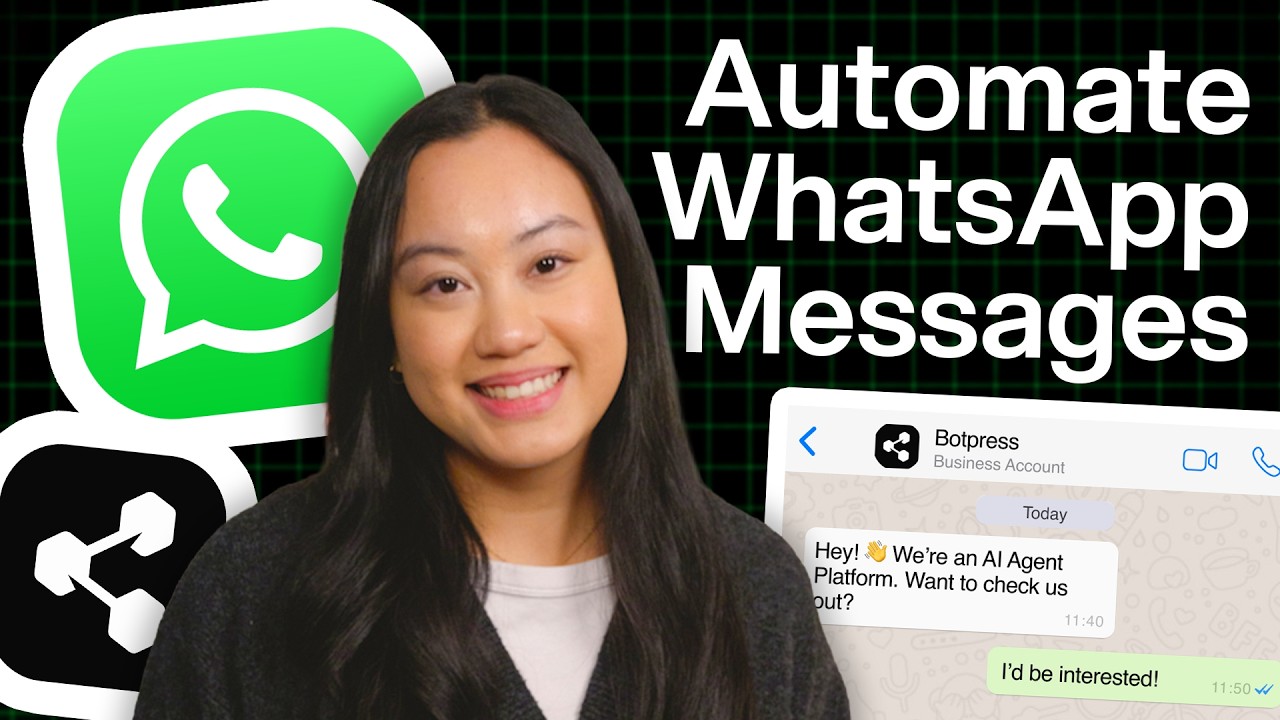
Most businesses waste time waiting for leads to message them first. What if your chatbot could initiate conversations with potential customers automatically? This BotPress tutorial shows you how to build a proactive WhatsApp chatbot that contacts leads for you - perfect for appointment reminders, order updates, and lead nurturing.
Why Proactive Chatbots Convert Better
Traditional chatbots sit passively on websites, waiting for visitors to initiate conversations. This reactive approach misses opportunities - studies show that proactive messaging can increase engagement rates by 3x compared to waiting for users to message first.
With WhatsApp's 2 billion+ users worldwide, businesses are discovering that proactive chatbots can:
- Follow up with leads who abandoned carts or forms
- Send appointment reminders and order updates
- Nurture leads through automated sequences
- Provide timely customer service notifications
Key insight: WhatsApp requires special message templates for proactive conversations. Unlike reactive chats where you can send any message, proactive messages must use pre-approved templates that follow strict guidelines.
Setting Up Your BotPress Account
BotPress provides a visual interface for building chatbots without coding. To get started:
- Sign up for a free BotPress account at botpress.com
- Create a new bot in BotPress Studio
- Delete the default autonomous nodes (we'll build our own flow)
- Rename your bot (e.g., "WhatsApp Lead Generation Bot")
At the 2:15 mark in the video tutorial, you'll see how to clean up the default interface and prepare your workspace. The key advantage of BotPress is its visual flow builder - you'll create your chatbot by connecting nodes that represent different actions and decision points.
Connecting to WhatsApp Business API
To connect your bot to WhatsApp, you'll need:
- A verified Meta Business account
- WhatsApp Business API access (either directly or through a provider)
- The WhatsApp integration installed in BotPress
In BotPress, navigate to the integrations hub and install the WhatsApp connector. This will allow your bot to send and receive WhatsApp messages. The configuration requires:
- Your Meta Business account credentials
- The phone number you want to use for the bot
- A verified WhatsApp Business profile
Note: WhatsApp strictly enforces messaging policies. Your account could be banned if you send unsolicited messages or violate their terms. Always use approved message templates for proactive conversations.
Creating Approved Message Templates
WhatsApp message templates are pre-approved message formats for proactive conversations. To create one:
- Go to WhatsApp Manager in your Meta Business account
- Navigate to Message Templates
- Click "Create Template"
- Select the appropriate category (e.g., "Utility")
- Define your message body with variables
- Submit for approval (takes 1-2 days)
In our example at 6:30 in the video, we created an "Address Update" template with variables for the customer name, address, and contact email. The template looks like this:
Hi {{1}}, your delivery address has been updated to {{2}}. Contact {{3}} for any inquiries. Once approved, you can use this template to message customers proactively. Remember that recipients must have your number saved or have messaged you first within the last 24 hours.
Triggering Messages with Make.com
To initiate proactive messages, we'll use Make.com (formerly Integromat) to trigger our bot:
- Create a new scenario in Make.com
- Add an HTTP request module
- Paste your BotPress webhook URL (found in the webhook integration)
- Set method to POST with JSON body
- Include the phone number and any variables in the JSON payload
At 9:45 in the video, you'll see how to test this setup by sending a sample payload to your bot. The webhook triggers your BotPress flow, which then sends the WhatsApp message using your approved template.
Pro tip: You can trigger these messages from any system - CRMs, spreadsheets, or even customer actions on your website. The key is formatting the webhook payload correctly with all required variables.
Handling User Responses
When users reply to your proactive messages, you'll want your bot to continue the conversation intelligently. Here's how to set this up:
- Add a "Start Conversation" node in BotPress with your WhatsApp template
- Create a conversation handler node for replies
- Use an "Execute Code" card to preserve conversation context
- Build response logic based on common user replies
At 12:20 in the video, we demonstrate how to test the conversation flow. The key challenge is maintaining context - WhatsApp treats proactive messages and replies as separate conversations unless you explicitly link them using conversation IDs.
Scaling to Multiple Contacts
To message multiple contacts automatically:
- Create a table in BotPress with contact information
- Add a "Find Records" card to retrieve contacts
- Set up a loop with a counter variable
- Add conditions to stop after the last contact
At 16:50 in the video, we show how to loop through a table of five contacts. In a real implementation, you could:
- Connect to a CRM like HubSpot or Salesforce
- Pull contacts from a Google Sheet
- Segment your audience based on behavior
- Personalize messages using multiple variables
Important: Respect WhatsApp's rate limits when messaging multiple contacts. Sending too many messages too quickly can trigger spam filters.
Watch the Full Tutorial
See the complete implementation from start to finish in our 14-minute video tutorial. At 7:15, we demonstrate how to create and submit a WhatsApp message template, and at 11:30 you'll see the conversation handling in action.
Key Takeaways
Proactive WhatsApp chatbots can transform how you engage with leads and customers. Unlike traditional bots that wait passively, these solutions initiate meaningful conversations at scale.
In summary: With BotPress, Make.com, and WhatsApp's Business API, you can build chatbots that reach out to customers automatically while complying with messaging policies. The key components are approved message templates, proper conversation handling, and integration with your contact data.
Frequently Asked Questions
Common questions about WhatsApp proactive chatbots
Reactive chatbots wait for users to message first, while proactive chatbots initiate conversations. Our tutorial shows how to build the proactive type that can message potential leads first.
Proactive chatbots are particularly valuable for businesses that need to:
- Follow up with leads who showed interest but didn't complete an action
- Send time-sensitive notifications and reminders
- Nurture relationships through sequenced messaging
No coding required. BotPress provides a visual interface for building chatbots, and we'll show you how to connect it to WhatsApp using pre-built integrations.
The most technical parts are:
- Setting up the Meta Business account (guided in our tutorial)
- Configuring the webhook connection to Make.com
- Creating variables for personalization
Costs vary based on your message volume and setup:
BotPress offers a free tier for basic chatbots. WhatsApp Business API costs start at $0.005 per message for template messages (which this tutorial uses). You'll need a Meta Business account, which is free to create.
- BotPress: Free to $50/month based on features
- WhatsApp: $0.005-$0.01 per message
- Make.com: Free to $29/month based on operations
Yes, but with important restrictions. WhatsApp requires message templates for proactive messages, and recipients must have your number saved or have messaged you first within a 24-hour window.
Key limitations to be aware of:
- Template messages must be approved by Meta first
- You can't send promotional content in proactive messages
- There are strict rate limits to prevent spam
Any business with leads to follow up can benefit from proactive WhatsApp chatbots. They work particularly well for:
Common use cases include:
- eCommerce stores (order confirmations, shipping updates)
- Service providers (appointment reminders, follow-ups)
- Real estate agents (property updates, open house invites)
- Consultants (meeting reminders, document requests)
The tutorial includes a section on using BotPress tables to store contact lists. For larger-scale implementations:
Recommended approaches:
- Integrate with CRMs like HubSpot or Salesforce
- Use Make.com to pull contacts from spreadsheets
- Implement proper rate limiting to stay within WhatsApp's guidelines
Message templates are pre-approved message formats for proactive conversations. Meta requires them to prevent spam and ensure quality messaging experiences.
Key aspects of templates:
- Must be submitted and approved before use
- Can include variables for personalization
- Fall into categories like utility, authentication, or marketing
GrowwStacks specializes in building custom WhatsApp automation solutions tailored to your business needs.
Our WhatsApp chatbot services include:
- Complete setup of BotPress and WhatsApp Business API
- Integration with your existing CRM or database
- Custom conversation flows for your specific use case
- Ongoing maintenance and optimization
Ready to Automate Your Lead Generation?
Every day you wait to implement proactive messaging is another day of missed opportunities. GrowwStacks can have your WhatsApp chatbot up and running in days, not weeks.