Gemini + Antigravity CLI = Insane AI Development Workflow
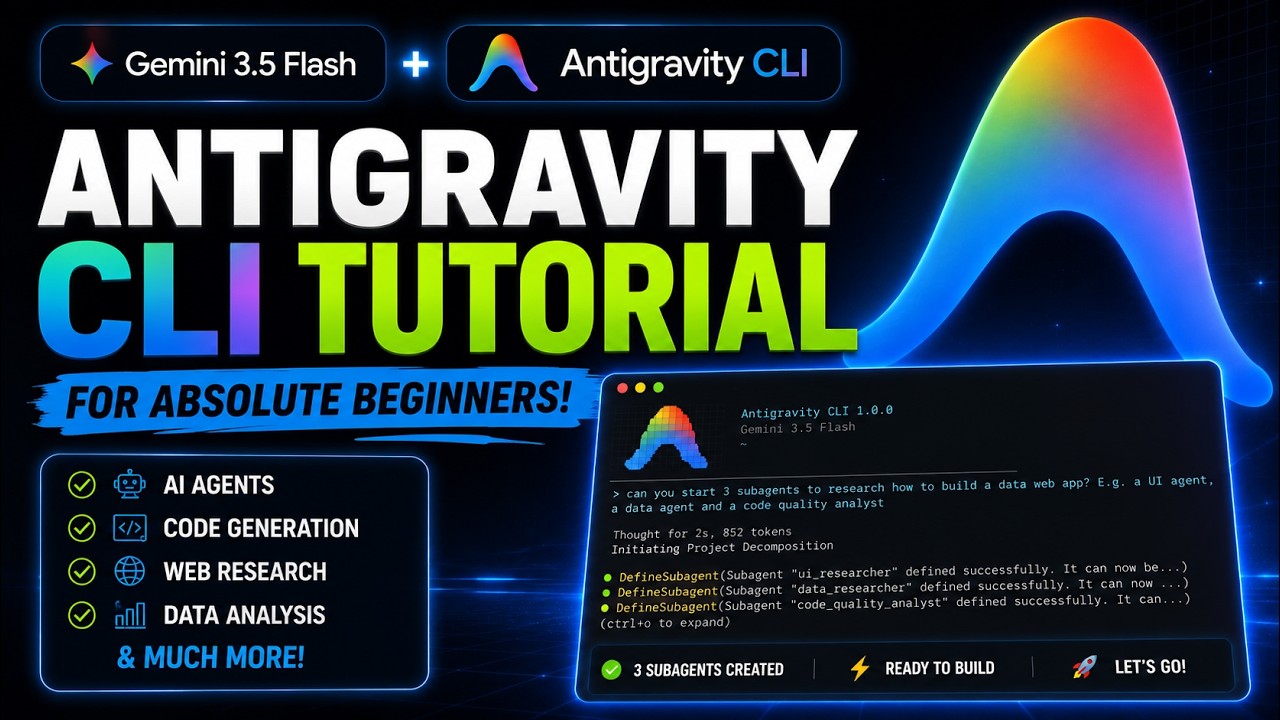
Google just sunsetted Gemini CLI and replaced it with something far more powerful. Antigravity CLI combines terminal efficiency with AI-assisted coding to help developers build better software faster. Learn how to install, configure, and supercharge your workflow with this game-changing tool.
Antigravity CLI: Google's New AI Coding Assistant
Google recently consolidated its AI coding tools under the Antigravity brand, sunsetting Gemini CLI in favor of this more powerful alternative. Developers now have three distinct products: Antigravity 2.0 (agent-first coding platform), Antigravity ID (VS Code-like editor), and Antigravity CLI (terminal-based tool).
The CLI version offers several advantages over its predecessor, including support for multiple AI models (Gemini, Claude, GPT-4), 35 built-in tools, and the ability to run background tasks while continuing to work. At the 4:30 mark in the video, you can see how seamlessly it handles complex coding tasks while maintaining an interactive session.
Key transition: As of June 18, , Gemini CLI will no longer be supported. All existing functionality migrates to Antigravity CLI with additional features and improved performance.
Step-by-Step Installation Guide
Getting started with Antigravity CLI takes just minutes. The installation process is similar across platforms but we'll focus on the MacOS workflow shown in the tutorial.
Step 1: Download and Install
Visit antigravity.google and navigate to the CLI section. Copy the installation command for your OS (Windows, Linux, or Mac). For Mac users, the command is:
curl -sSL https://cli.antigravity.google/install.sh | bash Step 2: First Run
After installation completes (typically 2-3 minutes), launch Antigravity CLI with:
AGY The first run will prompt you to select a theme, agree to terms, and authenticate with your Google account.
Pro Tip: If you're migrating from Gemini CLI, your existing configurations and preferences will automatically transfer during first run.
First Run and Configuration
Upon launching Antigravity CLI, you'll see a clean interface showing your email, plan type, and current AI model. The default model is Gemini 3.5 Flash (High), but you can switch models easily.
To change models, type /model and select from available options including Gemini variants, Claude 2.1, Claude Opus, and GPT-4. The video demonstrates this model-switching process at the 7:15 timestamp.
Model selection strategy: Use Gemini 3.5 Flash for quick tasks, Claude Opus for complex reasoning, and GPT-4 for creative solutions. Each model has strengths for different development scenarios.
The CLI offers 35 built-in tools accessible via slash commands. Type / to see the full list including directory management, custom agents, artifact handling, and more. These tools form the backbone of Antigravity's powerful workflow capabilities.
Real-World Workflow Example
The tutorial demonstrates Antigravity CLI's capabilities by revamping a habit tracker application's homepage. Starting with a basic design, the AI completely transforms the UI in under a minute.
Key steps in the workflow:
- Navigate to project directory
- Launch Antigravity CLI with
AGY - Provide prompt requesting UI improvements
- Review the AI's proposed changes
- Approve implementation
At the 12:30 mark, you can see the dramatic before-and-after transformation, adding playful cartoonish elements, neo-brutalist aesthetics, and interactive widgets - all from a single prompt.
Workflow efficiency: The entire redesign process - from analysis to implementation - took just 50 seconds, demonstrating Antigravity CLI's ability to accelerate UI development.
Advanced Features and MCP Integration
Antigravity CLI supports Microservice Control Protocols (MCPs) that extend its functionality. The tutorial demonstrates integrating Test Sprite, an AI-powered testing tool.
To add an MCP:
- Obtain the MCP configuration from the service provider
- Paste into Antigravity CLI
- Prompt the AI to add the MCP
Once added, you can invoke MCP features directly through prompts. For example, Run five important front-end tests using Test Sprite triggers automated testing of your application.
MCP ecosystem: The growing library of MCPs turns Antigravity CLI into a customizable platform. Popular integrations include testing tools, security scanners, and deployment automation.
Automated Testing with Test Sprite
The video's most compelling demonstration shows Antigravity CLI working with Test Sprite to automatically:
- Analyze application functionality
- Create test cases
- Execute tests while recording the process
- Generate detailed reports
At 22:45, you can see the test results showing four passed tests and one failed test (due to missing deletion functionality). The AI provides screen recordings of each test execution and clear explanations of failures.
Continuous testing: By connecting Test Sprite to your GitHub repository, it automatically runs tests on every pull request, blocking merges that introduce failures.
This integration demonstrates how Antigravity CLI can orchestrate complex development workflows while maintaining high code quality standards.
Watch the Full Tutorial
For a complete walkthrough of Antigravity CLI's capabilities, watch the full tutorial video. Pay special attention to the 15:30 mark where the presenter demonstrates the powerful planning mode that lets you discuss changes with the AI before implementation.
Key Takeaways
Google's Antigravity CLI represents a significant leap forward in AI-assisted development tools. By combining terminal efficiency with powerful AI capabilities, it enables developers to:
- Accelerate coding tasks with AI assistance
- Maintain workflow in their preferred environment
- Integrate specialized tools via MCPs
- Implement quality checks through automated testing
In summary: Antigravity CLI isn't just another coding assistant - it's a complete workflow accelerator that brings AI power to your terminal while keeping you in control of the development process.
Frequently Asked Questions
Common questions about Antigravity CLI
Antigravity CLI is Google's new terminal-based AI coding assistant that replaces Gemini CLI. It offers enhanced features like 35 built-in tools, multi-model support (including Gemini, Claude, and GPT-4), and deeper integration with Google's developer ecosystem.
The main differences include a more powerful command set, better project analysis capabilities, and the ability to run background tasks while continuing to work. Antigravity CLI also introduces MCP (Microservice Control Protocol) integration for extending functionality.
- 35 tools vs Gemini CLI's 15
- Support for Claude and GPT-4 models
- Background task processing with /BTW command
Installing Antigravity CLI is straightforward. Visit antigravity.google, navigate to the CLI section, and copy the installation command for your OS (Windows, Linux, or Mac). Paste this command in your terminal and run it.
The installation takes 2-3 minutes. After installation, run the AGY command to start the CLI and authenticate with your Google account. First-time setup includes selecting a theme and agreeing to terms of service.
- Windows: Uses a PowerShell installation script
- Mac/Linux: Uses curl with bash installer
- Requires Python 3.10+ and Node.js 18+
Antigravity CLI supports all major programming languages including JavaScript, Python, Java, C++, and more. It's particularly strong with web technologies (HTML/CSS/JavaScript) and has special optimizations for Google's own frameworks like Angular and Flutter.
The AI can analyze and modify code in any language present in your project directory. For less common languages, you may need to specify file extensions or provide additional context about the language's syntax.
- Excellent support for JavaScript/TypeScript
- Strong Python and Java capabilities
- Can work with any language given proper context
Yes, Antigravity CLI complements existing IDEs rather than replacing them. While it runs in terminal, you can use it alongside VS Code, IntelliJ, or other editors. Many developers keep Antigravity CLI running in a separate terminal window while working in their primary IDE.
For Google's full IDE experience, you would use Antigravity ID, which provides deeper integration with visual editing features. The CLI version is designed for developers who prefer terminal workflows.
- Works well with VS Code terminal integration
- Can be called from IDE build scripts
- Use Antigravity ID for full IDE experience
Planning mode lets you discuss changes with the AI before implementation. Activate it with /planning command. In this mode, the AI analyzes your request, proposes solutions, and creates a detailed plan without modifying code.
You review the plan, request adjustments if needed, then approve for implementation. This prevents unwanted changes and ensures alignment with your goals. The video demonstrates planning mode at 15:30 when discussing database options.
- Safety feature for complex changes
- Creates revamp-plan.md artifact
- Explicit approval required for implementation
MCPs (Microservice Control Protocols) are third-party integrations that extend Antigravity's capabilities. Examples include Test Sprite for automated testing, security scanners, and deployment tools.
You add MCPs by pasting their configuration into Antigravity CLI. Once added, you can invoke MCP features directly through prompts, like running specific tests or generating reports. The tutorial shows Test Sprite integration starting at 19:45.
- Extend functionality with specialized tools
- Configuration via JSON snippets
- Manage with /mcp command
Antigravity CLI follows strict security protocols. It requests explicit permission before running terminal commands, modifying files, or accessing sensitive operations. You can grant one-time permissions or set persistent rules.
All activity is logged, and you can review/revoke permissions at any time using the /security command. The CLI runs with the same permissions as your user account and doesn't elevate privileges.
- Granular control over file access
- Command execution requires approval
- Activity logs available via /logs
GrowwStacks helps development teams integrate Antigravity CLI into their workflows. We provide customized installation, team training, workflow optimization, and MCP integration services.
Our experts can configure Antigravity CLI for your specific tech stack and automate repetitive coding tasks. We'll help you establish best practices for AI-assisted development while maintaining code quality and security standards.
- Team onboarding and training programs
- Custom workflow automation setups
- Ongoing support and optimization
Ready to Supercharge Your Development Workflow?
Manual coding is slow and error-prone compared to AI-assisted development. Our team at GrowwStacks can help your developers adopt Antigravity CLI and achieve 2-3x productivity gains within weeks.