How to Turn Google Calendar Into a Free CRM Using Make.com
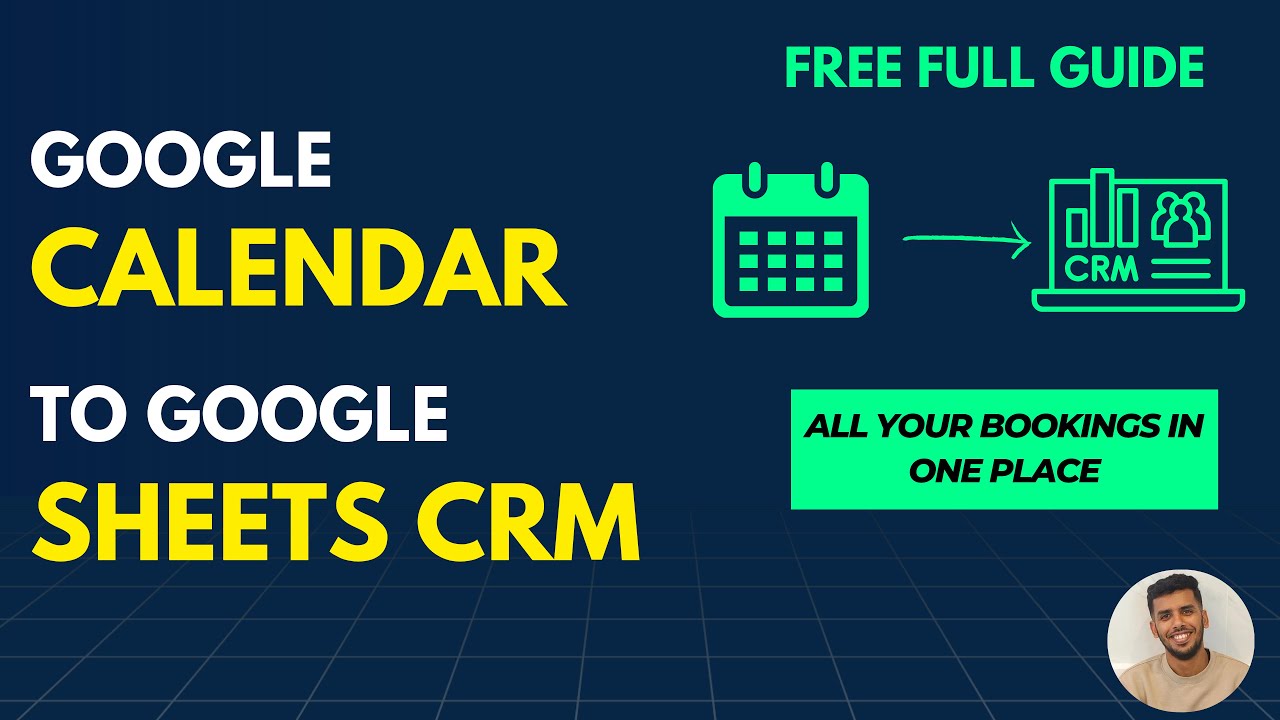
Most service businesses lose track of client meetings that get rescheduled or cancelled. This free automation syncs every Google Calendar booking to Google Sheets - creating a permanent CRM record with client details, meeting notes and status updates.
The Calendar CRM Problem
Client meetings disappear into the calendar void. You book a discovery call, the prospect cancels last minute, and weeks later you can't remember who they were or why they reached out. Without a CRM, you're losing valuable lead data with every cancelled appointment.
The Google Calendar scheduling tool makes booking easy, but provides no permanent record. At month-end, you have no way to track:
- How many initial consultations actually happened
- Which industries your leads come from
- Your cancellation/no-show rate
- Which referral sources convert best
Service businesses lose 27% of potential revenue from unrecorded client interactions according to Salesforce research. This automation captures every meeting detail automatically.
Make.com Automation Overview
This solution uses Make.com's free tier to connect Google Calendar to Google Sheets with two synchronized workflows:
- New Booking Capture: Triggers when someone schedules through your calendar link
- Update Tracker: Runs when appointments get rescheduled or cancelled
The system requires:
- A Google Calendar with scheduling enabled
- A Google Sheet formatted as a basic CRM
- Make.com account (free tier works)
No coding required: The entire setup uses Make.com's visual workflow builder with pre-built connectors for Google services.
Step 1: Capture New Bookings
The first workflow watches your Google Calendar for new events. At 3:12 in the video tutorial, you'll see how to:
- Create a new Make.com scenario
- Select Google Calendar as the trigger
- Choose "Watch Events" with these settings:
- Calendar: Your primary calendar
- Event type: All events
- Limit: 1 event per cycle
On the free plan, Make checks for new events every 15 minutes. Paid plans reduce this to 5 minutes or real-time syncing.
Pro Tip: Always test with manual runs before activating the schedule. Create a test appointment and use the "Run Once" button to verify the data flows correctly.
Step 2: Format CRM Data
Raw calendar data needs transformation to become useful CRM records. At 7:45 in the video, the tutorial shows how to:
- Connect Google Sheets as the destination
- Map calendar fields to CRM columns
- Use Sheets formulas to extract:
- Client name from "Booked by" line
- Meeting reason from description
- Formatted date/times
The provided Google Sheets formulas automatically parse the calendar description to create clean CRM records without manual data entry.
Step 3: Track Changes & Cancellations
The second workflow (shown at 14:30) handles appointment updates:
- Create a cloned scenario
- Change trigger to "Watch Updated Events"
- Enable "Show Deleted Events" to catch cancellations
- Add filter to exclude new bookings
- Configure Sheets to update existing records
This ensures your CRM always reflects the current status - whether a meeting got rescheduled to new times or cancelled entirely.
Key Benefit: The system maintains a complete history of all appointment changes, helping you identify flaky clients or scheduling patterns.
Real-World Use Cases
This automation works for multiple business scenarios:
- Consulting Firms: Track discovery call conversion rates
- Health Practices: Monitor patient no-shows
- Recruiters: Measure interview completion rates
- Real Estate: Follow up with cancelled property tours
At 18:20 in the video, you'll see how to extend the basic setup with:
- Custom fields for lead scoring
- Automated follow-up reminders
- Integration with email/SMS tools
Watch the Full Tutorial
See the complete step-by-step implementation at 5:10 where we configure the Google Sheets formulas, and at 12:45 where we test the cancellation tracking.
Key Takeaways
This free automation solves three critical problems for service businesses:
- Permanently records every client interaction
- Tracks cancellations and reschedules automatically
- Creates analyzable data from calendar appointments
In summary: Never lose track of another client meeting. This Make.com workflow turns Google Calendar into a fully-functional CRM with zero coding and no additional software costs.
Frequently Asked Questions
Common questions about this topic
Calendar appointments disappear after meetings happen - you lose track of who booked, cancelled or rescheduled.
A CRM gives you permanent records to analyze meeting patterns, follow up with no-shows, and measure conversion rates from initial contact to closed deals.
- Identifies your most reliable clients
- Tracks cancellation trends
- Provides data for follow-up sequences
Absolutely. The same Make.com workflow can connect to HubSpot, Salesforce or other CRMs.
The Google Sheets version shown here is completely free and works well for solopreneurs or small teams getting started with basic CRM tracking.
- No monthly CRM costs
- Easy to customize fields
- Accessible from anywhere
On the free plan, Make checks every 15 minutes. Paid plans reduce this to 5 minutes or real-time syncing.
For most businesses, 15-minute delays are acceptable since you'll still capture all appointments before they occur.
- Free tier: 15 minute intervals
- Pro tier: 5 minute intervals
- Enterprise: Near real-time
The workflow includes a second automation that watches for updates.
When someone changes their appointment time or cancels, it updates the CRM record automatically - no manual tracking required.
- Updates time changes instantly
- Flags cancelled appointments
- Maintains historical records
Yes. The tutorial shows basic fields like name, email and meeting reason, but you can add custom columns for lead scores, notes, or follow-up dates.
Google Sheets formulas extract these details automatically from the calendar description.
- Add custom dropdown menus
- Create calculated fields
- Build dashboards with charts
Yes. The automation connects to any Google Calendar you have access to, including shared team calendars.
Each team member's appointments will sync to the CRM with their details preserved.
- Works with shared calendars
- Tracks individual team members
- Maintains privacy controls
Most scheduling tools sync with Google Calendar, so this workflow still works.
For direct integrations, Make.com has connectors for Calendly, Acuity Scheduling and others that can skip the calendar middleman.
- Works with Calendly → Google Calendar
- Direct Acuity Scheduling integration
- Custom connectors available
GrowwStacks builds custom CRM automations that sync your scheduling tools with Google Sheets, Notion or paid CRMs.
We'll configure the workflow to match your exact fields, add error handling, and set up reporting dashboards - all within 48 hours.
- Custom field mapping
- Error handling setup
- Dashboard reporting
Stop Losing Client Meeting Data
Every cancelled or forgotten appointment costs you potential revenue. Let GrowwStacks build you a custom CRM automation that tracks every interaction automatically.