How to Automatically Backup Your Entire n8n Server (Workflows, Credentials & Database)
What happens when your n8n server crashes and you lose all your automations? Most users only backup workflows, leaving credentials and database vulnerable. Hostinger's built-in VPS backups protect everything - with automatic scheduling and one-click restoration when disaster strikes.
Why Most n8n Backups Fail
Most n8n users rely solely on workflow exports or cloud sync tools like Google Drive to protect their automations. While these methods save your workflow JSON files, they completely miss three critical components: credentials, database entries, and server configuration.
When disaster strikes - whether from hardware failure, accidental deletion, or corrupted updates - you're left with workflows that can't run because all the connecting pieces are missing. API keys, database connections, and custom packages disappear, forcing you to rebuild everything from scratch.
Workflow exports only protect 20% of your n8n environment. The other 80% - credentials, database, and configuration - requires full server backups to prevent catastrophic data loss.
Hostinger's Built-in Backup System
Hostinger VPS plans include automatic backup capabilities that most users never discover. Unlike manual exports, these backups capture your entire server state - including the n8n application, its database, credentials, and all supporting files.
The system uses R2 storage with these key features:
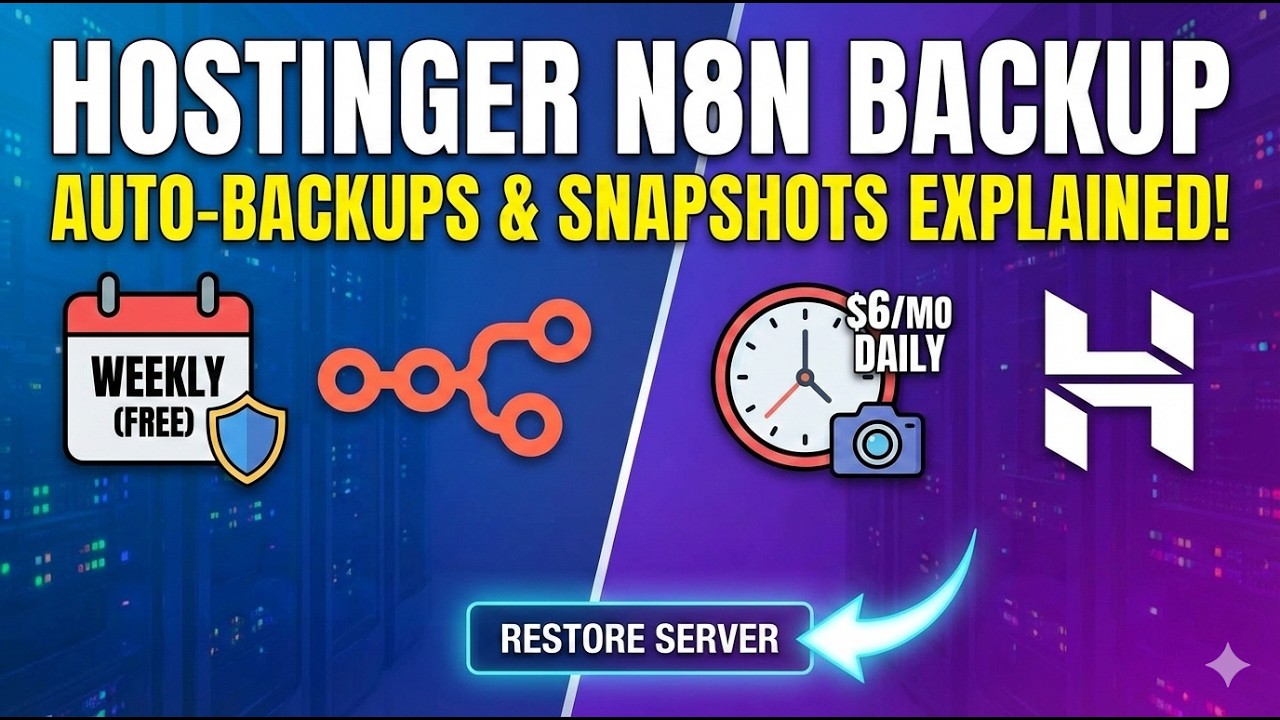
- Weekly backups included free on all plans (daily available for upgrade)
- 36-minute average restore time for complete server recovery
- Backup size tracking with clear storage allocation
- Geographically distributed storage for redundancy
Accessing backups requires just three clicks in Hostinger's control panel: VPS → Manage → Backups. Each entry shows the backup date, size, and estimated restoration time so you can plan recovery operations.
Setting Up Automatic Backups
Configuring Hostinger's backup system takes less than two minutes. In your VPS management panel (panel.hostinger.com):
- Navigate to your VPS and click Manage
- Select the Backups tab
- Click Manage Schedule
- Choose between weekly (free) or daily (premium) backups
- Save your settings
Production servers should always use daily backups. The small additional cost prevents potentially losing a week's worth of workflow modifications and data. For personal projects, weekly backups provide sufficient protection.
Once enabled, Hostinger handles everything automatically. You'll receive email confirmations after each successful backup, and can monitor storage usage directly in the panel.
When to Use Snapshots
While scheduled backups protect against hardware failures, snapshots serve a different purpose: creating recovery points before making significant changes to your n8n environment.
Create manual snapshots when:
- Upgrading n8n to a new major version
- Installing new packages or LLM integrations
- Making structural changes to critical workflows
- Modifying server configuration or dependencies
Unlike backups which run on a schedule, snapshots require manual initiation through Hostinger's interface. The process takes about 5-10 minutes depending on your server size, and creates an exact point-in-time copy you can revert to if updates cause issues.
The Restoration Process
When disaster strikes, Hostinger makes recovery straightforward. From the Backups tab:
- Select the backup or snapshot you want to restore
- Click the Restore button
- Confirm the operation when prompted
The system will display an estimated completion time (typically 30-40 minutes) and send an email when finished. Your server will reboot into the restored state exactly as it existed when the backup was created.
Restoration is an all-or-nothing operation. Unlike workflow exports where you can pick individual items to restore, Hostinger backups return your entire server to the saved state. This ensures all components remain synchronized.
Comprehensive Backup Strategy
The most secure approach combines both methods:
- Hostinger VPS backups for complete server protection (weekly/daily)
- Manual snapshots before major changes (version updates, etc.)
- Workflow exports for individual workflow version control
This layered approach gives you multiple recovery options depending on the failure scenario. For routine workflow modifications, use n8n's built-in versioning. For server-wide issues, revert to a Hostinger backup or snapshot.
At 2:15 in the tutorial video, we demonstrate how quickly you can create a snapshot before testing a major n8n update - a practice that's saved countless hours of troubleshooting for production servers.
Watch the Full Tutorial
See the complete Hostinger backup system in action, including a live demonstration of creating snapshots and restoring from backup. The video walks through every step shown in this article with additional troubleshooting tips.
Key Takeaways
Protecting your n8n server requires more than just workflow exports. Hostinger's built-in backup system provides complete protection with minimal setup.
In summary: Enable automatic weekly/daily backups for baseline protection, create snapshots before major changes, and combine with workflow exports for granular version control. This three-layer approach ensures you never lose critical automations.
Frequently Asked Questions
Common questions about n8n server backups
Manual workflow exports only save your n8n workflows as JSON files. Hostinger's VPS backups capture everything - workflows, credentials, database entries, installed packages and server configuration.
If your server crashes, a full restore brings back your complete n8n environment exactly as it was, not just individual workflows. This includes all your API connections, custom nodes, and environment variables.
- Workflow exports: Just the JSON workflow definitions
- Hostinger backups: Entire server state including dependencies
- Use both methods for comprehensive protection
For production servers running client workflows, daily backups are recommended. For personal/hobby projects, weekly backups are sufficient.
The frequency should match how often your workflows and data change. Businesses automating critical processes should consider the maximum acceptable data loss when setting backup schedules.
- Production: Daily backups (premium feature)
- Development: Weekly backups (included free)
- Always snapshot before major changes
A full VPS restore typically takes 30-40 minutes. The exact time depends on your server size and backup volume.
Hostinger estimates show restoration times directly in your backup management panel so you can plan downtime accordingly. Larger servers with more data may take slightly longer, while smaller installations often complete in under 30 minutes.
- Average restore time: 36 minutes
- Progress indicators during operation
- Email notification upon completion
Yes, Hostinger stores backups in secure R2 storage with encryption. Your credentials and sensitive data remain protected.
Backups are only accessible through your Hostinger account with proper authentication. The system uses industry-standard encryption both in transit and at rest, ensuring your automation data stays private.
- Encrypted storage (AES-256)
- Requires account authentication
- No external access to backup files
Use scheduled backups for regular protection against hardware failures. Create manual snapshots before making major changes like n8n version updates, installing new packages, or modifying critical workflows.
Snapshots give you a precise recovery point before potentially disruptive operations. Think of them as "undo points" for your server, while scheduled backups are your safety net against unexpected disasters.
- Backups: Automatic protection
- Snapshots: Manual before changes
- Combine both for complete coverage
No, Hostinger backups restore the entire server state. For individual workflow recovery, use n8n's built-in workflow exports or cloud sync options alongside your VPS backups.
This limitation is why a layered backup strategy works best. Use Hostinger for complete disaster recovery, and maintain separate workflow version control for day-to-day changes and individual file restoration needs.
- Full server restore only
- Workflow exports for individual files
- Git versioning for advanced users
Backup size depends on your n8n installation and data. A typical n8n server backup ranges from 1-5GB.
Hostinger displays each backup's size in your management panel, and basic plans include enough storage for several backup rotations. The system automatically manages storage, keeping your most recent backups while removing older ones according to your retention settings.
- Typical size: 1-5GB per backup
- Visible in management panel
- Automatic storage management
GrowwStacks helps businesses implement secure backup strategies for critical automation infrastructure like n8n servers. We configure Hostinger VPS environments with optimal backup schedules, implement monitoring for backup success, and design disaster recovery plans.
Our team can also migrate existing n8n installations to Hostinger with zero downtime, ensuring your automations remain operational throughout the transition. We'll handle the technical setup so you can focus on your business.
- Custom backup strategies for your n8n environment
- Hostinger VPS configuration and optimization
- Free consultation to assess your backup needs
Never Lose Your n8n Automations Again
One server crash could wipe out months of workflow development and critical business data. GrowwStacks implements bulletproof backup systems for n8n servers - configured in hours, protecting you for years.