How to Connect Notion, Google Forms, Drive, Mailchimp, Shopify & Stripe in One Zapier Workflow
Most businesses waste hours every week copying the same customer data between six different apps. This Zapier integration eliminates duplicate entry by automatically syncing form submissions to Notion, files to Drive, emails to Mailchimp, orders to Shopify, and payments to Stripe — all from a single trigger.
The Manual Data Entry Problem
Every time a customer submits your Google Form, you face a tedious chain reaction: copy their info to Notion, save their file uploads to Drive, add them to Mailchimp, create a Shopify order, and record the Stripe payment. Multiply this by dozens of submissions weekly, and you're losing 10-15 hours on pure data entry.
The worst part? Each manual transfer introduces errors. A mistyped email means Mailchimp campaigns bounce. A misplaced decimal in Shopify creates inventory headaches. And when you need to trace a customer's journey across all six apps? Good luck reconstructing that from fragmented records.
83% of businesses using multiple apps report data inconsistencies between systems, according to a workflow automation study.
Zapier Solution Overview
This Zapier workflow acts as a central nervous system for your six critical business apps. When a trigger event occurs (like a Google Form submission), Zapier automatically executes a predefined sequence of actions across all connected platforms — with zero manual intervention.
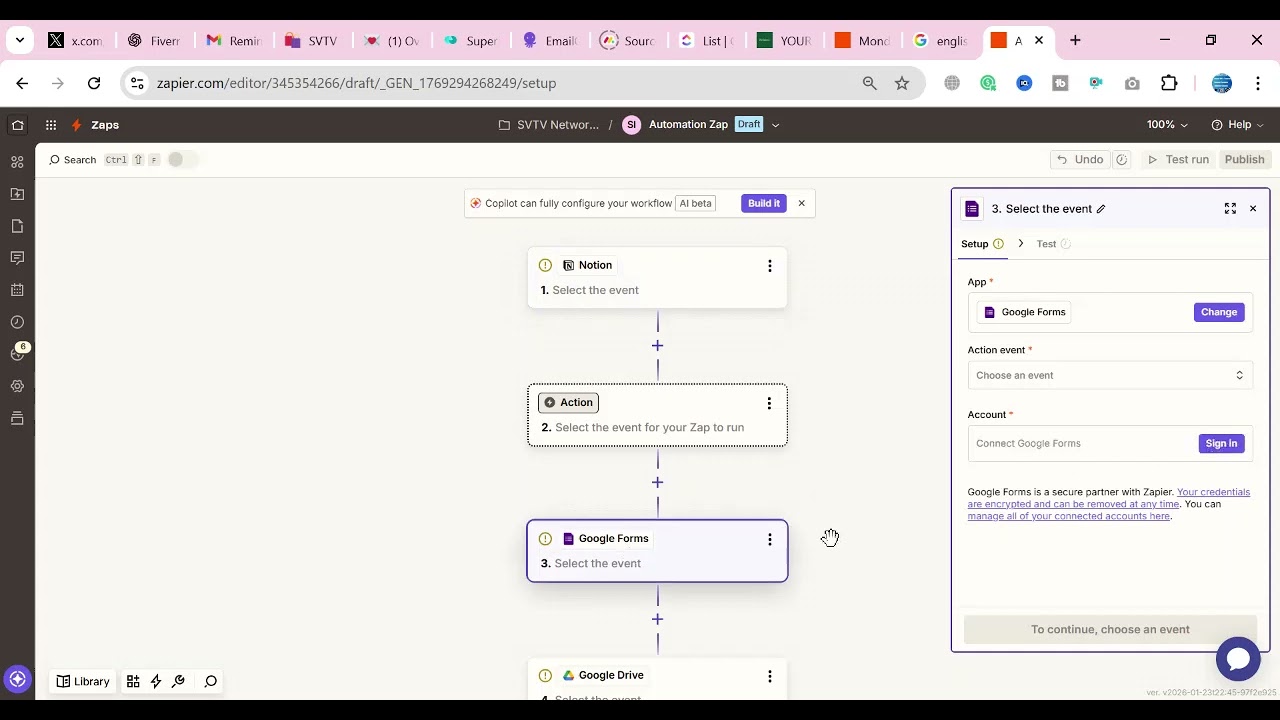
The magic happens through Zapier's 5,000+ app integrations. Each "Zap" consists of one trigger (the starting event) and one or more actions (what happens next). For this workflow, we're creating a multi-step Zap that flows from Google Forms → Notion → Drive → Mailchimp → Shopify → Stripe.
Step-by-Step: Connecting Your Apps
Before building the workflow, you need to authenticate each app with Zapier. This one-time setup grants Zapier permission to act on your behalf across all platforms.
Step 1: Connect Notion
In your Zapier account, navigate to "Connected Accounts" and search for Notion. Click "Connect" and follow the OAuth prompts to authorize access to your Notion workspace. You'll need admin privileges for the databases you want to modify.
Step 2: Connect Google Forms & Drive
Google Forms and Drive share the same authentication. Connect your Google account once, and Zapier can access both services. Ensure you grant permissions for both form responses and file access.
Step 3: Connect Mailchimp
Authenticate your Mailchimp account using OAuth. You'll need to specify which audience/list the contacts should be added to during this connection process.
Step 4: Connect Shopify
For Shopify, you'll need to create a private app in your Shopify admin first, then enter the API credentials into Zapier. This ensures order creation permissions are properly configured.
Step 5: Connect Stripe
Stripe requires your live API keys (found in the Stripe dashboard under Developers → API keys). Zapier needs both publishable and secret keys to process payments and trigger workflows.
Pro Tip: Create a dedicated "Automation" user in each app with just the permissions needed for this workflow — never use owner/admin credentials.
Setting Up Triggers
The trigger is the starting gun for your workflow. For this integration, we're using Google Form submissions as the trigger event — but you could alternatively use Stripe payments or Shopify orders as the starting point.
In Zapier, create a new Zap and select "Google Forms" as the trigger app. Choose "New Form Response" as the trigger event. Then select your specific form from the dropdown. Test the trigger by submitting a test form to ensure Zapier can detect new responses.
At the 1:15 mark in the video tutorial, you'll see how to map form fields to subsequent actions. This field mapping ensures the customer's name from Question 1 flows correctly to Notion, Mailchimp, etc.
Configuring Actions
After the trigger, we add five actions — one for each connected app. The sequence matters here, as some actions depend on data from previous steps.
Action 1: Create Notion Database Entry
Map each form field to its corresponding Notion property. For file uploads, we'll handle those in the Drive action first, then link back to Notion.
Action 2: Save Files to Google Drive
Configure a folder structure (e.g., /Form Uploads/ /Month/) and set file naming conventions using form data like customer name.
Action 3: Add to Mailchimp Audience
Select your Mailchimp list and map form fields to contact fields. Set tags based on form responses to enable segmentation.
Action 4: Create Shopify Order
Convert form responses into a Shopify order with line items, shipping details, and customer notes. Link to the Drive files if products require attachments.
Action 5: Record Stripe Payment
For paid orders, create a Stripe payment record tied to the Shopify order. Sync the payment status back to Notion for complete tracking.
Remember: Zapier processes actions sequentially. If Action 2 fails, Actions 3-5 won't execute — so test each step thoroughly.
Testing Your Workflow
Before going live, use Zapier's test mode to verify each step. Submit test form responses with all possible field combinations to ensure data flows correctly to all six apps.
Check for:
- Notion database entries with complete field mapping
- Files properly saved in Drive with correct naming
- Mailchimp contacts added with proper tags and fields
- Shopify orders with accurate line items and totals
- Stripe payments linked to the correct orders
Once testing confirms everything works, activate your Zap. Monitor the first few real submissions closely using Zapier's task history to catch any issues.
Watch the Full Tutorial
See the complete workflow in action at the 2:10 mark where we demonstrate how a single form submission triggers updates across all six connected apps in under 90 seconds.
Key Takeaways
This six-app Zapier integration eliminates the most tedious parts of running a modern business — manually copying data between your CRM, forms, storage, email, eCommerce and payment systems.
In summary: Connect once, automate forever. A properly configured Zapier workflow like this saves 10+ hours weekly while eliminating human error across your entire customer journey.
Frequently Asked Questions
Common questions about this topic
The first step is connecting each app account to Zapier. You'll need to authenticate Notion, Google Forms, Google Drive, Mailchimp, Shopify and Stripe individually within the Zapier interface before building the workflow.
Each connection requires specific permissions. For example, Notion needs access to your workspace, while Stripe requires your live API keys. Complete all authentications before designing the workflow sequence.
- Have admin access ready for each platform
- Note which apps share authentication (like Google services)
- Create API keys where needed (Shopify, Stripe)
Yes, the integration can automatically save file uploads from Google Forms to Google Drive while simultaneously recording the form responses in Notion and triggering Mailchimp emails.
The workflow processes files in sequence: first saving them to Drive with your preferred naming convention, then linking back to the Notion record, and optionally attaching them to Shopify orders if products require documentation.
- Supports all common file types (PDF, images, docs)
- Maintains original file names or applies custom naming
- Organizes files in dated folders automatically
The Stripe integration can trigger when payments are received, automatically updating customer records in Notion, sending receipts via Mailchimp, and creating orders in Shopify - all from a single payment event.
For this workflow, we're using Stripe as the final action to record successful payments. However, you could redesign the Zap to use Stripe payments as the initial trigger, then create all other records based on payment confirmation.
- Syncs payment status across all platforms
- Handles partial payments and refunds
- Records detailed transaction histories
The most common mistake is not clearly defining the trigger and action sequence before building. You should map exactly which app triggers the workflow and what specific actions should follow in each connected app.
Many users start connecting apps randomly without planning the data flow. This leads to missing fields, incorrect mappings, or actions firing out of order. Always diagram your workflow on paper first.
- Sketch the entire sequence before building
- Note which data needs to pass between apps
- Identify conditional paths upfront
Zapier workflows sync in near real-time, typically within 1-2 minutes of the triggering event. For critical payment or order processing, you can set up instant webhook triggers for faster synchronization.
The speed depends on your Zapier plan. Free accounts check for triggers every 15 minutes, while paid plans offer 1-2 minute polling and immediate webhook responses for time-sensitive actions like payment processing.
- Standard sync: 1-2 minutes (paid plans)
- Webhook triggers: instant
- Free accounts: 15-minute intervals
Yes, Zapier supports conditional paths where different actions occur based on form responses, payment amounts, or other criteria. For example, you might route high-value customers to a premium Mailchimp list.
The Paths feature lets you create "if-then" branches in your workflow. A form response with "Priority" checked could skip the standard workflow and trigger immediate notifications and expedited processing.
- Create unlimited conditional branches
- Filter by any field value or combination
- Set different actions for each path
Zapier includes error handling and retry logic. If one action fails (like a Mailchimp email), the system will retry and notify you while still completing other successful actions (like updating Notion).
For critical workflows, you can set up automatic alerts when failures occur. Zapier also maintains detailed logs of every task, so you can identify exactly where and why a step failed to correct the issue.
- Automatic retries for failed actions
- Detailed error logs for troubleshooting
- Email/Slack alerts for critical failures
GrowwStacks specializes in building custom multi-app automations like this Zapier workflow. We'll handle all the connections between Notion, Google Forms, Drive, Mailchimp, Shopify and Stripe - designing the exact trigger and action sequence your business needs.
Our automation experts will:
- Audit your current app ecosystem
- Design an optimized workflow sequence
- Implement and test the integration
- Train your team on maintenance
- Provide ongoing support
Book a free 30-minute consultation to discuss how we can automate your multi-app workflows and save your team 10+ hours weekly.
Stop Wasting Hours on Manual Data Entry
Every minute spent copying data between apps is time stolen from growing your business. Let GrowwStacks build your custom Zapier integration in 3-5 business days — with a 100% satisfaction guarantee.