How to Get Your Claude API Key in | Fast, Free Guide
Most businesses know they need AI capabilities but struggle with implementation. The Claude API unlocks powerful AI automation - but getting started can be confusing. This guide walks you through the exact steps to create your API key and start building with $5 in free credits today.
Why You Need a Claude API Key
Every business looking to stay competitive in needs AI capabilities - but most hit the same roadblock: how to actually implement AI in their workflows. The Claude API solves this by letting you integrate Anthropic's powerful AI models directly into your applications and automations.
With an API key, you can use Claude in Zapier automations, custom apps, coding environments like Cursor, and any other platform that supports API integrations. This transforms Claude from a simple chat interface into a powerful business tool that works for you 24/7.
Key benefit: The Claude API gives you $5 in free credits to start building immediately, with no upfront payment required. This lets you test integrations risk-free before committing to paid usage.
Setting Up Your Claude Platform Account
Many users make the mistake of thinking their existing Claude chat subscription gives them API access. In reality, the API platform requires a completely separate account with its own billing. This separation actually works in your favor - you can use the API without paying for chat, or vice versa.
To get started, navigate to platform.cloud.com (not the chat interface). You'll sign in with Google and complete a quick profile setup. The process takes less than 2 minutes and only requires your name and a preferred nickname.
Step-by-Step: Creating Your First API Key
Once your account is set up, creating your first API key is straightforward but has one critical detail most users miss: you'll only see the full key once. If you don't copy it immediately, you'll need to create a new one.
Step 1: Navigate to API Keys
After signing in, click "Get API Key" from the dashboard. This takes you to the key creation interface.
Step 2: Name Your Key
While Claude provides a default name, it's crucial to use something descriptive like "Zapier Integration" or "Development Testing". This helps you manage multiple keys later.
Step 3: Create and Copy
Click "Create API Key" and immediately copy the key that appears. As mentioned earlier, this is your only chance to see the full key - once you close the dialog, it's gone forever.
Pro tip: Store your API keys in a secure password manager immediately after creation. This prevents the frustration of having to create new keys when you can't remember or locate the original.
Managing Multiple API Keys
As you start building more integrations, you'll likely need multiple API keys. Claude makes this easy - you can create as many keys as needed, each with its own descriptive name.
Having separate keys for different projects or platforms gives you several advantages:
- Better usage tracking for each integration
- Ability to revoke access for specific apps without affecting others
- Clear organization when working with multiple developers or teams
To create additional keys, simply return to the API Keys section and repeat the creation process. Remember the golden rule: copy each key immediately, as you won't see it again.
Understanding Claude API Billing
One of the most generous aspects of the Claude API is the $5 in free credits you receive upon account creation. This lets you experiment with different models and integrations before spending any money.
Billing works on a pay-per-use model based on tokens processed. The current rates (as of ) are:
- Claude 4.5 Opus: $5 per million tokens
- Claude 3.5 Sonnet: $3 per million tokens
- Claude 3.0 Haiku: $0.25 per million tokens
You can monitor your usage and remaining credits in the Billing section of the platform. When your free credits run out, you'll need to add a payment method to continue using the API.
Choosing the Right Claude Model
With multiple Claude models available at different price points, selecting the right one for your needs can significantly impact both performance and cost.
For most initial projects and testing, we recommend starting with Haiku or Sonnet. These models are:
- More affordable: Haiku costs just $0.25 per million tokens
- Faster: Better for real-time applications
- Sufficient: Often capable of handling basic to moderate tasks
The premium Opus model is best reserved for complex tasks where maximum capability is required. At 20x the cost of Haiku, you'll want to be strategic about when to use it.
Cost-saving tip: Use your $5 free credit to test different models on your specific use case. You might find Haiku works perfectly for your needs at a fraction of Opus's cost.
Watch the Full Tutorial
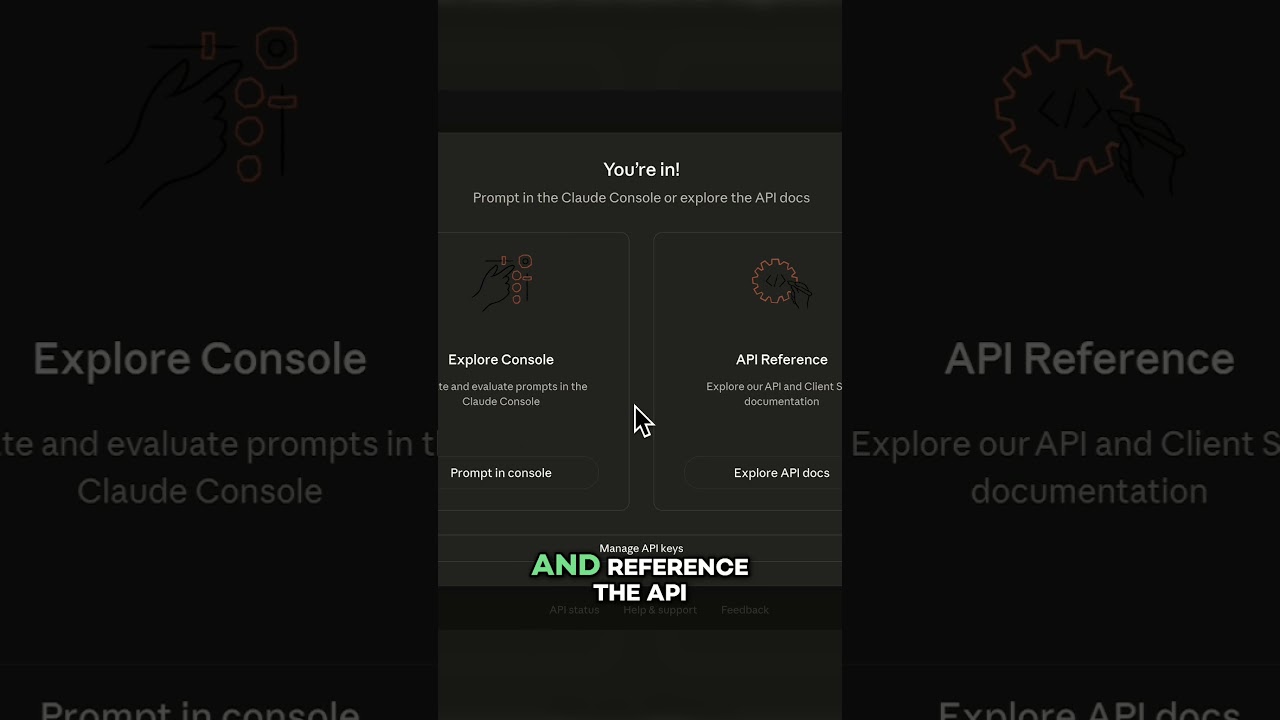
For a visual walkthrough of the entire process, including how to navigate the Claude platform interface and where to find billing details, watch our complete tutorial video below. At 2:15, we demonstrate the critical moment when you need to copy your API key before it disappears.
Key Takeaways
Getting started with the Claude API is simpler than many businesses realize, especially with the $5 in free credits removing any financial barrier to experimentation. By following these steps, you can have your first integration up and running today.
In summary: Create a separate platform account, generate descriptive API keys (remembering to copy them immediately), start with affordable models like Haiku, and monitor your usage in the billing section. This approach lets you explore Claude's capabilities without unexpected costs.
Frequently Asked Questions
Common questions about Claude API keys
Yes, the Claude API platform requires a completely separate account with separate billing from the monthly chat service. Having an active Claude subscription doesn't provide credit for the API platform, and you don't need a chat subscription to use the API.
This separation actually benefits users by allowing them to choose only the services they need. Many businesses find they only require the API for automation purposes, saving them the cost of a chat subscription.
Claude provides $5 worth of free credits when you first create your API account. This credit can go a long way, especially if you use the more affordable Haiku or Sonnet models rather than the premium Opus model.
To put this in perspective, $5 gets you approximately 20 million tokens with Haiku, or about 1 million tokens with Opus. For reference, 1 million tokens is roughly 750,000 words of English text.
No, once you close the API key creation dialog, you'll never be able to see the full key again. This is a security measure designed to protect your account. You'll need to create a new API key if you lose access to the original one.
This is why it's critical to copy your key immediately after generation and store it securely in a password manager or other safe location. Many users learn this lesson the hard way after having to recreate multiple keys.
Yes, it's recommended to create separate API keys for different projects or platforms. This security best practice allows you to better track usage and revoke access for specific integrations without affecting others.
For example, you might have one key for your Zapier automations, another for a custom app, and a third for development testing. If a key gets compromised or you want to stop a particular integration, you can revoke just that key while keeping others active.
For most initial projects, the Haiku or Sonnet models are recommended as they are more affordable and often sufficient for basic tasks. The premium Opus 4.5 model costs $5 per million tokens, while Haiku costs just $0.25 per million tokens.
Start with simpler models and only upgrade to Opus if you find your tasks require its advanced capabilities. Many businesses discover that Haiku handles their needs perfectly at 1/20th the cost of Opus.
You'll need to provide basic information including your full name and a preferred nickname when first setting up your Claude API account. The signup process is straightforward and can be completed using your Google account for authentication.
Unlike some enterprise API services, Claude doesn't require extensive business verification or documentation for initial access. This makes it easy to get started quickly, though you may need to provide additional information if your usage scales significantly.
You can view and manage all your API keys in the API Keys section of the Claude platform dashboard. From here you can create new keys, see when existing keys were created, and monitor their usage.
The dashboard shows each key's name (which is why descriptive naming is important), creation date, and last used date. While you can't see the actual key values again, you can revoke keys from this interface if needed.
GrowwStacks helps businesses integrate Claude AI into their workflows through custom automation solutions. Our team can design and implement Claude API integrations with your existing tools, create efficient prompt workflows, and help you maximize the value of your AI investments.
We offer a free 30-minute consultation to discuss your specific Claude integration needs and show you how we've helped similar businesses automate processes, reduce costs, and improve efficiency using Claude's API.
- Custom Claude API integrations with your existing systems
- Optimized prompt engineering for your specific use cases
- Usage monitoring and cost optimization strategies
Ready to Build with Claude API?
Every day without AI automation puts your business at a competitive disadvantage. Our team at GrowwStacks can have your first Claude integration up and running in as little as 48 hours.