How to Install n8n Locally on Windows (Free) - Complete Docker Setup Guide
Tired of cloud-based automation limitations? Self-hosting n8n on your Windows machine gives you full control over your workflows while keeping sensitive data private. This step-by-step guide walks through the entire Docker installation process, from initial setup to first login.
Why Install n8n Locally?
Most businesses start with n8n's cloud version, only to hit limitations when scaling sensitive workflows. Local installation solves three critical problems: data privacy concerns, internet dependency, and customization restrictions.
When you host n8n on your own Windows machine, you maintain complete ownership of all workflow data and credentials. This is particularly valuable for healthcare, legal, and financial automation where compliance matters. Local instances also continue working during internet outages and offer performance benefits for complex workflows.
Key benefit: Self-hosted n8n processes data locally without sending it to external servers, making it ideal for GDPR, HIPAA, or other compliance-sensitive automation.
Docker Desktop Installation
The foundation of running n8n locally is Docker Desktop for Windows. This containerization platform creates an isolated environment where n8n can run consistently regardless of your Windows version or configuration.
Begin by downloading Docker Desktop from the official website (timestamp 0:45 in the video). The installer walks you through enabling WSL2 integration - crucial for proper Docker operation on Windows. After installation completes, restart your computer as prompted - this ensures all components initialize correctly.
Verify your Docker installation by opening Command Prompt and running:
docker --version You should see version information confirming Docker is ready. If you encounter errors, check that virtualization is enabled in your BIOS settings (common on laptops).
WSL Configuration
Windows Subsystem for Linux (WSL) is Docker's backbone on Windows. The latest WSL2 version offers significant performance improvements over WSL1, especially for disk operations.
Docker Desktop may prompt you to update WSL if needed (timestamp 1:30). To manually update, open Command Prompt as Administrator and run:
wsl --update After updating, restart Docker Desktop from the system tray icon. The Docker dashboard should now show "Engine running" with no warnings. This confirms your environment is properly configured for n8n containers.
Pro tip: Allocate more resources to WSL in Docker Desktop settings if you plan to run multiple containers. Under Resources → WSL Integration, increase CPU and memory limits for better performance.
Creating n8n Volume
Docker volumes persist your n8n data between container restarts and updates. Without a volume, you'd lose all workflows and settings whenever the container stops.
In Docker Desktop, navigate to the Volumes section (timestamp 2:15) and click "Create." Name your volume n8n_data - this naming convention helps identify its purpose later. The volume acts as virtual storage that your n8n container will access.
Volumes are particularly important for n8n because they store:
- All workflow configurations
- Custom node installations
- Credential information (encrypted)
- Execution history and logs
Pulling n8n Image
With Docker running, switch to the Images tab and search for "n8nio/n8n" (timestamp 3:00). This is the official n8n container image maintained by the development team.
Click "Pull" to download the latest stable version. The image size is approximately 300MB, so download time depends on your internet speed. Once downloaded, you'll see the n8n image listed with its version tag.
Version note: While you can specify a particular version (like n8nio/n8n:0.220.0), pulling without a tag always gets the latest stable release. For production use, consider pinning to a specific version.
Container Configuration
Click "Run" on your n8n image to begin container setup (timestamp 3:45). First, name your container (like n8n_server) for easy identification. Then set the port mapping:
5678:5678 This maps container port 5678 (n8n's default) to the same port on your host machine. If 5678 is occupied, you can use another port like 5679:5678 instead.
Under volumes, select the n8n_data volume you created earlier. For the container path, use:
/home/node/.n8n This ensures all n8n data gets stored in your persistent volume rather than the temporary container filesystem.
Environment Variables
Environment variables customize n8n's behavior (timestamp 5:00). Start with your timezone (find yours at timestamp 5:15):
TZ=America/New_York Then add these two crucial variables to enable webhook functionality and execution data:
N8N_WEBHOOK_URL=http://localhost:5678/ N8N_HOST=localhost For production use, consider adding authentication variables like N8N_BASIC_AUTH_ACTIVE=true with corresponding user/password variables to secure your instance.
Security note: While these settings work for local development, expose your n8n instance to the internet only after implementing proper authentication and potentially a reverse proxy like Nginx.
Accessing Your n8n Instance
After clicking "Run," your n8n container starts within seconds (timestamp 6:00). Open your browser to:
http://localhost:5678 You'll see the n8n welcome screen confirming successful installation. The first time setup walks you through creating an admin user and exploring the interface.
From here, you can:
- Create new workflows with 200+ integrated apps
- Install community nodes for extended functionality
- Configure credentials for your connected services
- Set up error workflows and notifications
Watch the Full Tutorial
Prefer visual guidance? The video tutorial walks through each installation step with on-screen demonstrations, including troubleshooting tips for common Docker issues on Windows (timestamp 2:50 covers WSL updates).
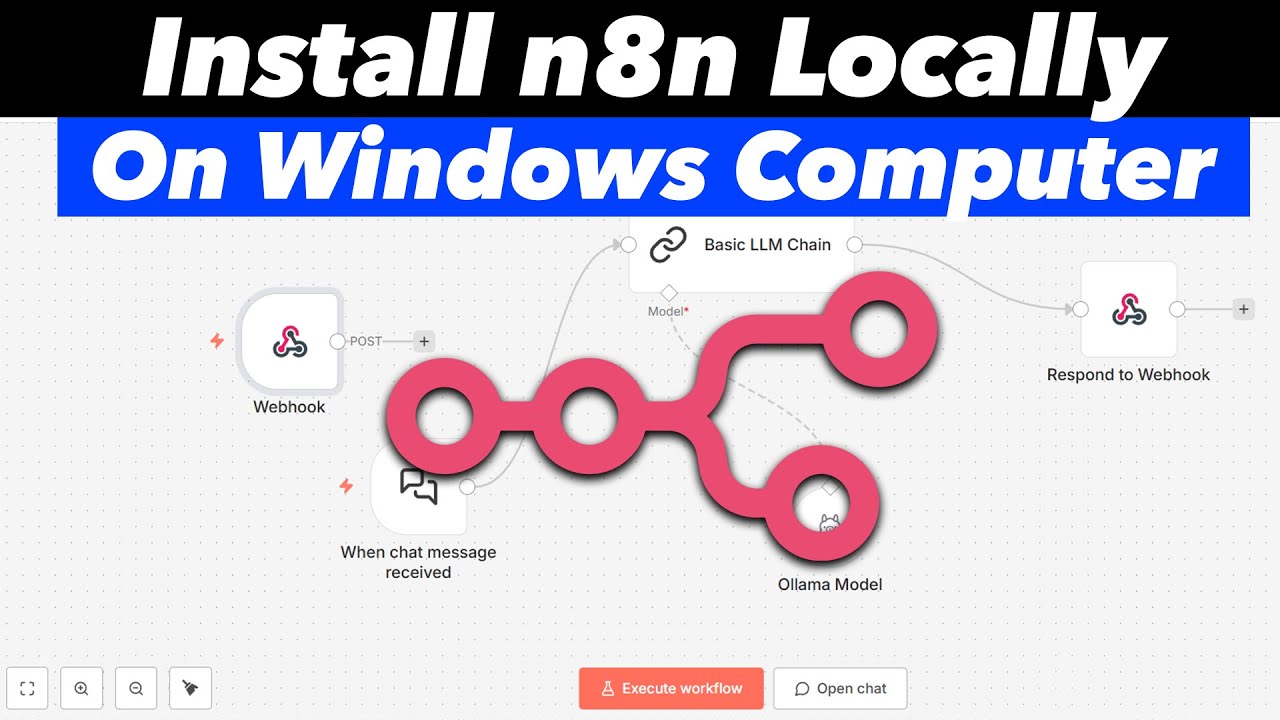
Key Takeaways
Self-hosting n8n on Windows via Docker provides enterprise-grade automation with local data control. The complete installation takes under 30 minutes but delivers permanent benefits for your automation strategy.
In summary: Install Docker Desktop, configure WSL2, create a persistent volume, pull the n8n image, set environment variables, and access your instance at localhost:5678. This gives you a private automation hub without cloud limitations.
Frequently Asked Questions
Common questions about this topic
Local installation gives you complete control over your data and workflows without relying on internet connectivity. It's ideal for businesses handling sensitive information or those needing custom configurations not available in the cloud version.
Local instances also avoid potential service interruptions and offer better performance for complex workflows. You can customize security settings, integrate with local services, and scale resources according to your specific needs.
- Maintains data privacy and compliance
- Works offline once configured
- Allows deeper system integration
You'll need Windows 10 or 11 (64-bit) with at least 4GB RAM (8GB recommended) and 20GB free disk space. The process requires Docker Desktop, which needs Windows Subsystem for Linux 2 (WSL2) enabled.
Your system should support hardware virtualization (VT-x/AMD-V) in BIOS settings. For production use with many active workflows, consider 16GB RAM and an SSD for better performance. The requirements scale with your workflow complexity and execution frequency.
- 64-bit Windows 10/11
- 4GB RAM minimum (8GB+ recommended)
- Hardware virtualization enabled
Updating is simple with Docker. Stop your running n8n container, pull the latest n8n image from Docker Hub, then recreate your container with the same volume and environment variables.
Your workflows and settings will be preserved as they're stored in the Docker volume. Consider testing major updates in a separate container first. The n8n team maintains detailed upgrade guides for significant version changes with potential breaking changes.
- Stop current container
- Pull new image version
- Recreate container with same volume
Yes, by default n8n runs on port 5678. You can access it from other devices using your computer's local IP address followed by :5678. First ensure your Windows firewall allows incoming connections on this port.
For security, always set up authentication before exposing n8n to your network. Consider implementing a reverse proxy like Nginx for HTTPS encryption if accessing from outside your local network. Never expose n8n directly to the internet without proper security measures.
- Use local IP address with port 5678
- Configure firewall rules appropriately
- Implement authentication first
First ensure virtualization is enabled in your BIOS settings. Then check that WSL2 is properly installed by running 'wsl --status' in Command Prompt. Common fixes include reinstalling WSL2 kernel update package or resetting Docker to factory defaults in its settings.
If you see Hyper-V related errors, ensure the Hyper-V Windows feature is enabled. For persistent issues, Docker's diagnostic tool (available in settings) can identify specific problems. The Docker community forums maintain an extensive knowledge base for Windows-specific troubleshooting.
- Verify BIOS virtualization settings
- Check WSL2 installation
- Use Docker diagnostic tools
All your data is stored in the Docker volume you created during setup. To back up, use Docker's volume export feature or manually copy the contents from the volume directory (typically in \wsl$\docker-desktop-data\version-pack-data\community\docker\volumes).
For automated backups, consider creating a workflow in n8n itself that exports your workflows to JSON files stored in a secure location. The n8n CLI also offers export commands that can be scheduled via Windows Task Scheduler for regular backups.
- Export Docker volume periodically
- Use n8n's built-in workflow export
- Automate with scheduled tasks
Yes, you can run multiple n8n containers simultaneously by assigning each a unique port number and separate Docker volumes. This is useful for testing different configurations or maintaining separate environments for development and production workflows.
When running multiple instances, monitor system resource usage in Task Manager. Each n8n container typically needs 500MB-2GB RAM depending on workflow complexity. Consider using Docker Compose to manage multiple containers with coordinated startup/shutdown.
- Use distinct ports for each instance
- Separate volumes for isolation
- Monitor system resources
GrowwStacks helps businesses implement automation workflows, AI integrations, and scalable systems tailored to their operations. Our team can handle your entire n8n deployment - from Docker configuration to production-ready workflow design.
We offer:
- Custom n8n installation with security best practices
- Workflow development for your specific business processes
- Ongoing maintenance and optimization services
- Integration with your existing software stack
- Training for your team on n8n administration
Schedule a free consultation to discuss how self-hosted n8n can transform your business automation while keeping data secure.
Ready to Deploy Self-Hosted n8n for Your Business?
Manual installation works for testing, but production deployments need security hardening, backup systems, and performance tuning. Our automation experts will configure your n8n instance with enterprise-grade reliability.