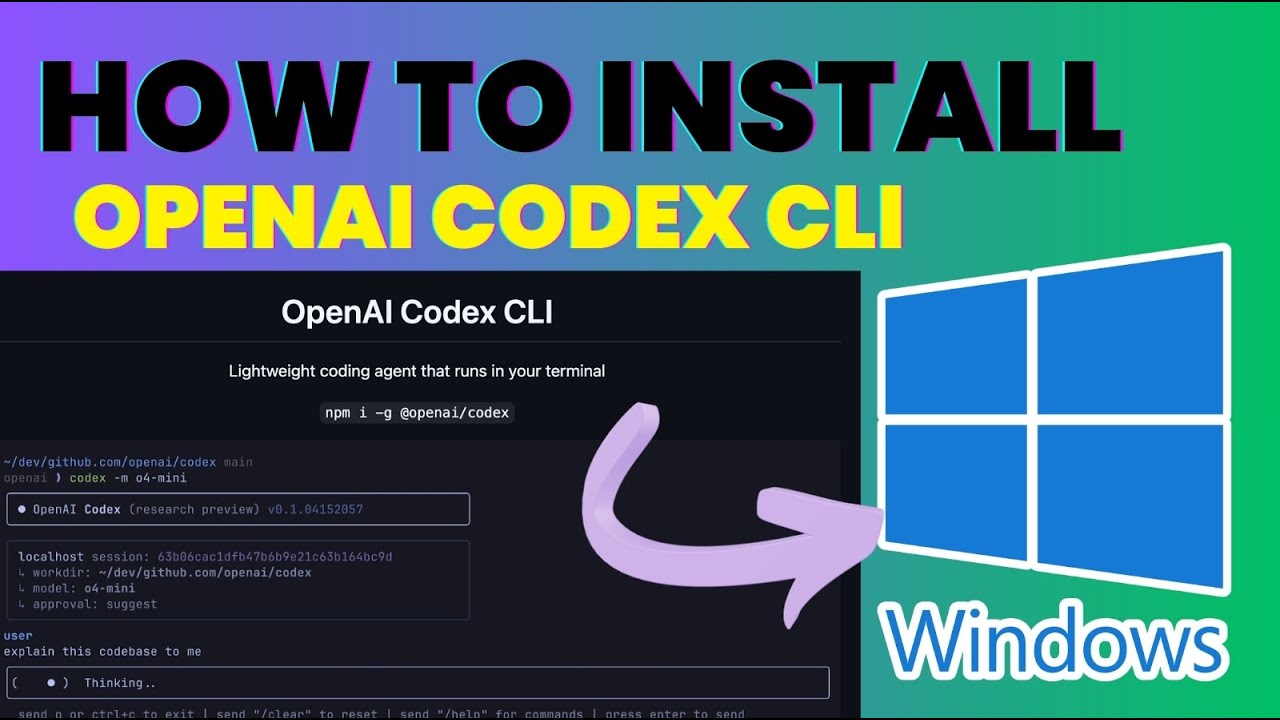
How to Install & Use OpenAI Codex CLI on Windows in Under 10 Minutes
Struggling to set up AI-powered coding assistance on your Windows machine? Most developers waste hours configuring environments and API keys. This step-by-step guide shows you exactly how to install NodeJS, set up OpenAI Codex CLI, and start generating code with simple natural language commands.
NodeJS Installation (Prerequisite)
Before you can use OpenAI Codex CLI, you'll need NodeJS installed on your Windows machine. Many developers hit roadblocks here with version conflicts or PATH issues. The solution is simpler than you think.
At 0:45 in the video, we demonstrate how to verify your NodeJS installation by running node -v in Command Prompt. If you don't see a version number, follow these steps:
Step 1: Download NodeJS
Visit the official NodeJS website and download the LTS (Long Term Support) version for Windows. This ensures stability and compatibility with most npm packages including OpenAI Codex CLI.
Step 2: Run the Installer
Execute the downloaded .msi file and follow the installation wizard. Make sure to check the option to add NodeJS to your system PATH during installation.
Pro Tip: Restart your Command Prompt after installation to ensure PATH updates are recognized. Many "node not found" errors occur simply because the terminal session predates the installation.
Codex CLI Installation Process
With NodeJS properly installed, setting up OpenAI Codex CLI takes just one command - but there's a critical detail most tutorials miss. The global installation flag (-g) is essential for convenient access.
At 1:30 in the video, we run the installation command:
npm install -g openai/codex This does three important things:
- Downloads the latest OpenAI Codex CLI package from npm
- Installs it globally on your system (thanks to the
-gflag) - Makes the
codexcommand available from any directory
Note: If you encounter permission errors, you may need to run Command Prompt as Administrator for this installation step only. This is a common Windows security measure for global npm packages.
OpenAI API Key Setup
The most crucial - and most frequently messed up - step is configuring your OpenAI API key. At 2:15 in the video, we show exactly where to find and how to securely set this up.
Follow these steps carefully:
Step 1: Get Your API Key
Log into your OpenAI account at platform.openai.com and navigate to API keys. Create a new secret key and copy it immediately - you won't be able to see it again after closing the dialog.
Step 2: Set Environment Variable
Windows handles environment variables differently than Unix systems. Use this exact command format in Command Prompt:
set OPENAI_API_KEY=your-api-key-here Security Warning: Never commit your API key to version control or share it publicly. Consider using a password manager to store it securely when not in use.
Running Your First Codex Commands
With everything set up, you're ready to start generating code with natural language prompts. At 3:50 in the video, we demonstrate creating a simple HTML file:
codex "create an index.html file for a portfolio website" The CLI will:
- Connect to OpenAI's servers using your API key
- Process your natural language prompt
- Return formatted code ready for use
For best results:
- Be specific in your prompts ("create a React component that..." vs "make some code")
- Chain commands for complex projects
- Always review generated code before use
Troubleshooting Common Issues
Even with perfect installation, you might encounter these common problems:
"Export is not recognized" Error
At 3:10 in the video, we hit this exact issue. The solution is simple: Windows uses set instead of export for environment variables.
API Key Not Found
If Codex can't find your API key:
- Verify you used
setnotexport - Check for typos in the variable name (
OPENAI_API_KEY) - Restart Command Prompt and try again
ChatGPT Plus Requirement
At 5:20, we note that some advanced features require ChatGPT Plus. The free tier has limitations, but is still useful for many coding tasks.
Practical Use Cases
OpenAI Codex CLI isn't just for simple HTML files. Here's what professional developers are using it for:
Rapid Prototyping
Generate working prototypes in minutes instead of hours. Describe your UI needs and get functional code immediately.
Learning New Languages
Ask "show me how to do [X] in [language]" to see practical examples with explanations.
Boilerplate Generation
Create project skeletons, configuration files, and common components with simple commands.
Remember: Always review and test generated code. While powerful, AI assistants can sometimes produce incorrect or insecure implementations.
Watch the Full Tutorial
See the complete installation and first-run process in action at 1:15 where we demonstrate the critical NodeJS version check, and at 3:50 where we generate our first HTML file using natural language commands.
Key Takeaways
Installing and using OpenAI Codex CLI on Windows is straightforward when you follow these steps:
In summary: Install NodeJS LTS → Globally install Codex CLI via npm → Set your OpenAI API key as an environment variable → Start generating code with natural language prompts. The entire process takes under 10 minutes and unlocks powerful AI-assisted development capabilities.
Frequently Asked Questions
Common questions about OpenAI Codex CLI on Windows
No advanced programming knowledge is required to use OpenAI Codex CLI, but basic familiarity with command line interfaces and JavaScript/NodeJS will help. The CLI handles most of the complexity, allowing you to generate code with simple natural language prompts.
Beginners can use it to learn programming concepts, while experienced developers leverage it for rapid prototyping and boilerplate generation.
- Start with simple prompts like "create HTML page with header and 3 sections"
- Gradually increase complexity as you understand the output patterns
- Always review and test generated code before relying on it
The OpenAI Codex CLI itself is free to install and use, but you'll need an OpenAI API key which comes with usage limits. Free tier provides limited access, while paid plans start at $20/month for heavier usage.
Always check OpenAI's latest pricing before extensive use, as they frequently adjust rates and quotas. The CLI makes it easy to track your usage directly from the command line.
- Free tier: ~20 requests per hour
- Pay-as-you-go: $0.002 per 1K tokens (~750 words)
- Enterprise plans available for high-volume users
You'll need NodeJS version 14 or higher installed on your Windows machine. The tutorial recommends installing the LTS (Long Term Support) version of NodeJS for maximum stability.
Using the LTS version ensures compatibility with all npm packages including the OpenAI Codex CLI, and receives security updates for an extended period. Avoid odd-numbered releases (15, 17, etc.) as they are typically short-lived.
- Current LTS version: Node 20.x
- Minimum required: Node 14.x
- Check version with
node -vin Command Prompt
Yes, you can use the OpenAI Codex CLI with a free OpenAI account, but functionality will be limited compared to paid plans. The free tier has lower API call limits and may not access the most advanced models.
For full features including GPT-4 level code generation and higher rate limits, you'll need an active OpenAI subscription. However, the free tier is excellent for learning and small-scale experimentation.
- Free tier uses GPT-3.5 level models
- Paid plans unlock GPT-4 and higher rate limits
- Educational discounts available for students
Never hardcode your API key in scripts or share it publicly. Use environment variables as shown in the tutorial, and consider setting usage limits on your OpenAI account.
The key should be treated like a password - if exposed, revoke it immediately and generate a new one. For team environments, consider using a secrets manager rather than sharing keys directly.
- Set spending limits in your OpenAI account dashboard
- Rotate keys periodically (every 3-6 months)
- Use
.envfiles for development (add to.gitignore)
The CLI can generate code for web development (HTML/CSS/JavaScript), Python scripts, API integrations, data processing tasks, and more. It's particularly useful for prototyping, boilerplate generation, and learning programming concepts through examples.
Developers commonly use it for creating starter templates, converting between programming languages, writing documentation, and solving algorithmic challenges. The possibilities expand as you learn to craft better prompts.
- Web development: React components, API routes, CSS layouts
- Data science: Pandas operations, matplotlib visualizations
- DevOps: Dockerfiles, CI/CD configurations, cloud templates
Yes, but review OpenAI's terms of service and attribution requirements carefully. Generated code can be used commercially, but you may need to disclose AI assistance depending on your use case.
Always verify and test generated code before deployment in production environments. Consider consulting legal counsel if using AI-generated code in regulated industries or for critical systems.
- Allowed for most commercial software projects
- Check industry-specific regulations (healthcare, finance, etc.)
- Maintain proper code reviews and testing procedures
GrowwStacks helps businesses implement AI automation solutions including OpenAI Codex CLI integration. Our team can set up custom workflows, secure API key management systems, and develop production-ready applications using AI-generated code.
We offer free consultations to discuss your specific AI automation needs and how to implement them securely at scale. Our experts ensure proper architecture, security, and maintainability for business-critical applications.
- Custom OpenAI integration solutions
- Secure API key management systems
- Enterprise-grade implementation support
Ready to Supercharge Your Development Workflow with AI?
Manual coding is slow and error-prone. Let GrowwStacks help you implement OpenAI Codex CLI across your team with proper security, training, and support. We'll have you generating production-ready code in days, not weeks.