Why Automate Airtable With Zapier?
Manual data entry between apps creates errors and wastes time. A typical business loses 15-20 hours per month copying information from Airtable to email, spreadsheets, or messaging apps.
Zapier solves this by creating event-based workflows where changes in Airtable automatically trigger actions in other apps. This eliminates manual work while ensuring data consistency across your tech stack.
Key benefit: Zapier processes updates in 2-5 seconds, far faster than manual transfers. This means your team sees critical information in real-time without refreshing apps or checking notifications.
Step 1: Connecting Your Accounts
The first step is establishing a secure connection between Airtable and Zapier:
- Sign into your Zapier account (or create one if new)
- From the left sidebar, go to App Connections → Add Connection
- Search for "Airtable" and select it from the list
- In the popup, log into your Airtable account when prompted
- Choose whether to grant access to specific bases or all current/future bases
This connection only establishes permissions - no data flows are configured separately in each Zap.
Step 2: Setting Up the Trigger
Triggers define which Airtable events start your automation:
- Create a new Zap from Zapier's sidebar
- For the trigger app, select Airtable
- Choose your trigger event (e.g., "New Record" or "Updated Record")
- Select the specific base and table to monitor
- Optionally add filters to only trigger on certain conditions
Pro tip: Test your trigger immediately after setup. Zapier will attempt to fetch a sample record to verify the connection works.
Step 3: Configuring the Action
Actions determine what happens after your trigger fires:
- Click + Add Step and choose your action app (e.g., Gmail, Slack)
- Select the specific action (e.g., "Send Email", "Post Message")
- Map Airtable fields to the corresponding action fields
- Review field mappings to ensure data types match appropriately
Common mapping examples include email addresses to recipient fields, dates to date fields, and text content to message body fields.
Step 4: Testing Your Automation
Before going live, thoroughly test your Zap:
- Run a test trigger to pull sample data from Airtable
- Verify the action executes correctly with test data
- Check that all field mappings transfer data as expected
- Review the action output (sent email, posted message, etc.)
Remember: You can always return to refine your Zap later. It's better to catch issues during testing than after going live.
Real-World Use Cases
Here are three powerful ways businesses use Airtable-Zapier automation:
1. Customer Notifications
Trigger personalized emails or SMS messages when customer status changes in Airtable (e.g., moving from "Prospect" to "Client").
2. Task Management
Create Slack tasks or Asana cards when new records are added to your Airtable project tracker.
3. Data Sync
Sync Airtable records to Google Sheets for reporting, or to your CRM for sales tracking.
Watch the Full Tutorial
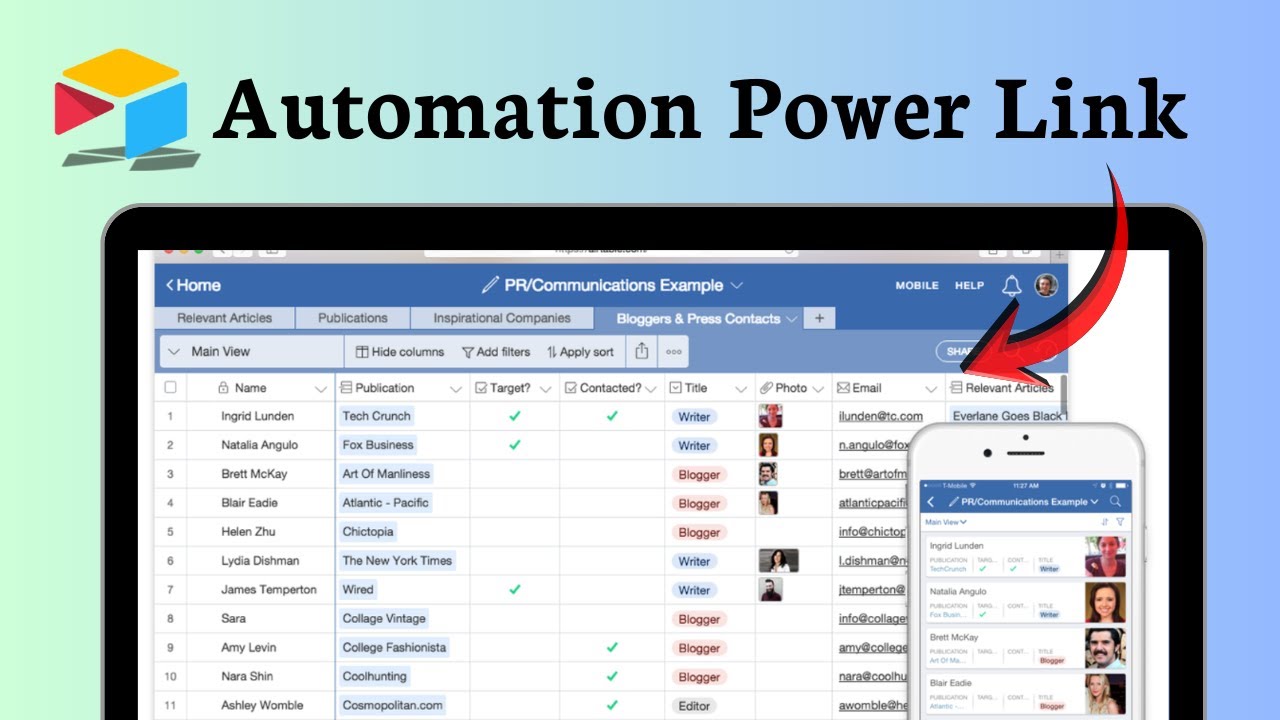
See the complete Airtable-Zapier integration process demonstrated at 2:15 in our video tutorial below.
Frequently Asked Questions
Common questions about Airtable-Zapier integration
Zapier requires read/write access to your Airtable bases. You can grant access to specific bases or all current and future bases.
This permission only controls what Zapier can access - it doesn't change your underlying data. For testing purposes, it's fine to expose just one base.
- Permissions are set per connection
- You can revoke access anytime
- Zapier only accesses data needed for your Zaps
Common Airtable triggers include new records being created, existing records being updated, or specific field values changing.
Zapier supports most Airtable event types including record creation, updates, deletions, and field changes.
- New record creation is most common trigger
- Field value changes can trigger conditionally
- Some advanced triggers require premium Zapier plans
After setting up your trigger, Zapier will show available fields from Airtable. You can map these to corresponding fields in your action apps like Gmail or Slack.
Be sure to match data types sensibly - dates to date fields, emails to recipient fields, etc.
- Field appear as you set up each action step
- Zapier often suggests likely mappings
- You can transform data during mapping if needed
Yes, Zapier allows you to test each step before activating your Zap. You can pull sample records from Airtable and see how they would flow through your automation.
This helps verify field mappings and catch any issues before going live.
- Testing doesn't actually send data to action apps
- You can run multiple tests refine your setup
- Failed tests clearly indicate what needs fixing
If you modify your Airtable base structure (rename fields, change field types, etc.), you may need to update your Zap configurations.
Zapier will typically flag any broken field mappings that need attention after such changes.
- Field renames usually break mappings
- Deleted fields definitely break mappings
- Zapier shows warnings for affected Zaps
You can add filters in your Zap to only process records that meet certain conditions. For example, you might only want to trigger on records where a status field equals 'Approved' or a priority field is set to 'High'.
Filters help reduce unnecessary automation runs and focus on business-critical events.
- Filters run after the initial trigger
- You can add multiple filter conditions
- Complex filters may require premium plans
Zapier supports thousands of apps including Gmail, Slack, Google Sheets, CRM systems, messaging platforms, and more.
You can find the full list in Zapier's app directory, organized by category and popularity.
- 5,000+ supported apps as of
- New apps added regularly
- Some apps require premium Zapier plans
GrowwStacks helps businesses implement automation workflows between Airtable and other apps. We design custom Zapier integrations that fit your specific workflows.
We handle complex field mappings, troubleshoot integration issues, and ensure reliable automation that saves your team time rather than creating new problems.
- Free 30-minute automation consultation
- Custom workflow design
- Ongoing support and optimization
Ready to Automate Your Airtable Workflows?
Stop wasting time on manual data entry. Let GrowwStacks build custom Zapier integrations that save your team 5-15 hours per week.