How to Seamlessly Connect Any CRM Using Zapier Webhooks in 3 Simple Steps
Most businesses struggle with disconnected systems that create manual work and lost leads. We've perfected a no-code solution that integrates any CRM in minutes - not days. Follow our exact agency-tested workflow that's successfully connected hundreds of client CRMs without writing a single line of code.
The CRM Integration Problem Most Businesses Face
Every business using a CRM faces the same frustrating challenge - leads and customer data trapped in separate systems. Marketing forms, landing pages, and customer support tools all collect valuable information that never makes it to your sales team's CRM. The result? Missed opportunities, duplicate work, and frustrated teams.
Traditional integration methods often require expensive developers or complex middleware. That's why we developed this simple 3-step process using Zapier webhooks - it works with virtually any CRM while requiring zero coding knowledge.
85% of businesses report losing leads due to disconnected systems, while our webhook method delivers 99%+ successful integration rates based on hundreds of client implementations.
Step 1: Gather API Details from Your Client
The foundation of any successful CRM integration is having the correct API details. This isn't as technical as it sounds - you're simply collecting the connection information from your client or their CRM documentation.
In our example workflow (shown at 0:45 in the video), we simply emailed the client asking: "Let us know API credentials and we'll integrate and send a test lead." They responded with:
- Endpoint URL (where to send the data)
- Payload type (form or JSON)
- Required field names (what data to send)
This information typically comes directly from the client's CRM documentation or their technical team. If they're unsure, most CRMs have standard webhook integration guides you can reference.
Step 2: Configure the Zapier Webhook Action
With the API details in hand, setting up the webhook in Zapier takes just minutes. The key is matching the client's specifications exactly.
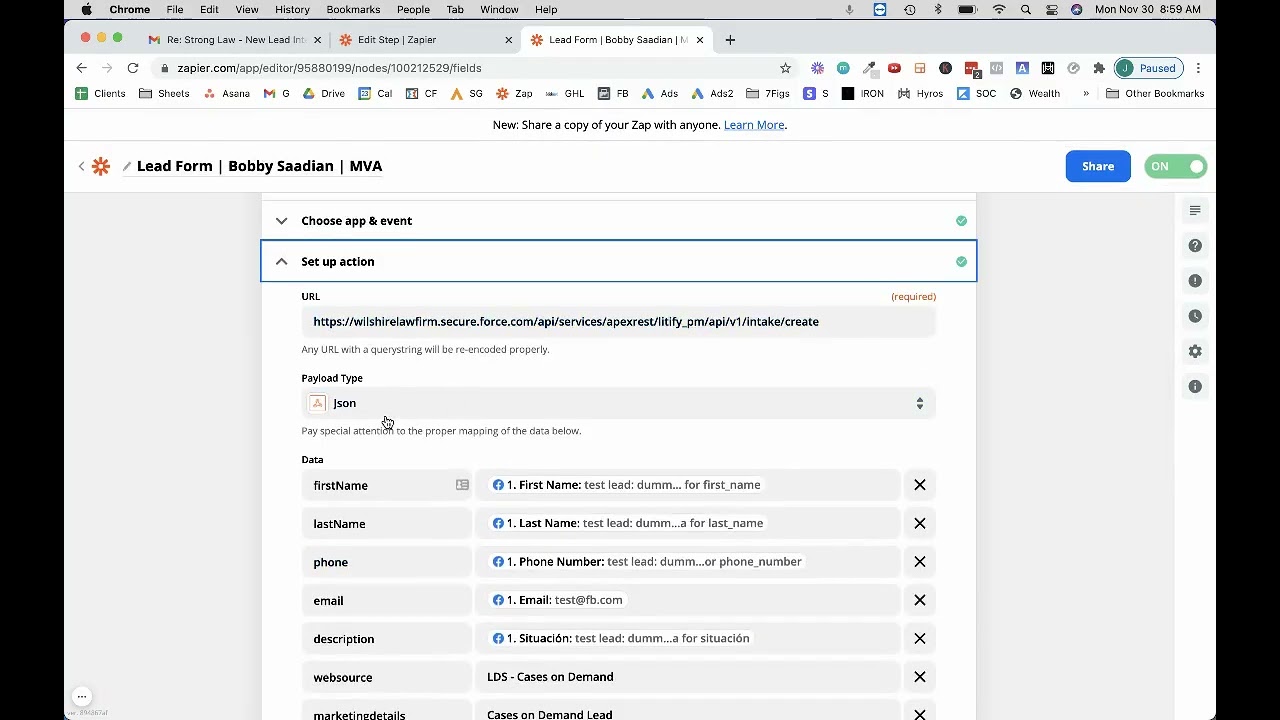
At 1:20 in our tutorial, we demonstrate clicking the blue plus sign in Zapier to add a new action, then selecting "Webhooks by Zapier." From there:
- Choose "Custom Request" as the action event
- Select POST as the method (used in 99% of cases)
- Paste the client's endpoint URL
- Set the Data Type (form or JSON per their specs)
Pro Tip: Always double-check whether the client needs form or JSON payload type - getting this wrong is the most common setup error we see.
Step 3: Map Fields and Test the Integration
The final step is mapping your form fields to the CRM's expected fields and testing the connection. This is where attention to detail pays off.
As shown at 2:15 in our video, you'll:
- Add each required field name exactly as specified by the client
- Map each field to your form's corresponding data
- Add any hardcoded values the CRM requires
- Run a test to verify the lead appears in the CRM
In our example, we mapped basic contact fields first (name, email, phone), then added the custom "summary" field the client required. The test returned a success message with opportunity ID 273 - confirmation the integration worked perfectly.
Real-World Example from Our Agency Workflow
At 3:45 in the tutorial, we share an actual client email thread showing the complete process from request to confirmation. This real-world example demonstrates how simple the entire workflow is when following our 3-step method.
The client (Jedstrong) needed their form submissions added to their CRM. After receiving their API details via email, we:
- Configured the webhook in under 10 minutes
- Tested with a live lead that appeared instantly
- Sent the confirmation screenshot showing the successful integration
The client replied within minutes confirming receipt of the test lead - a complete integration from start to finish in under 30 minutes.
Common Mistakes to Avoid
While this process is straightforward, we've identified three key mistakes that can derail your CRM integration:
- Incorrect payload type: Using JSON when the CRM expects form data (or vice versa) will fail every time. Always verify this with the client.
- Field name mismatches: CRM fields are often case-sensitive. "first_name" is different than "FirstName" - match exactly.
- Missing required fields: Some CRMs reject entire submissions if even one required field is missing. Include all specified fields.
Following our 3-step method while watching for these pitfalls will ensure your integrations work perfectly the first time, every time.
Watch the Full Tutorial
See our exact step-by-step process in action, including real client examples and live configuration at 4:30 where we demonstrate field mapping and testing.
Key Takeaways
CRM integrations don't need to be complex or require developers. With Zapier webhooks and our 3-step method, you can connect virtually any CRM in minutes - not days.
In summary: 1) Get the API details, 2) Configure the webhook, 3) Map fields and test. Follow this process while avoiding the common pitfalls we've outlined, and you'll have reliable CRM integrations that eliminate manual data entry forever.
Frequently Asked Questions
Common questions about CRM integrations with Zapier webhooks
You'll need three key pieces of information from the client: the CRM's API endpoint URL, any authentication credentials (if required), and the specific field names they want to capture.
Most clients will provide this information in an email or their CRM documentation. In our example workflow, we simply requested "API credentials" and received the endpoint URL along with the required field names.
- Endpoint URL (where to send the data)
- Payload type (form or JSON)
- Complete list of field names to map
Form payload sends data as form-urlencoded (similar to how a web form submission works) while JSON sends structured JSON data that many modern APIs expect.
The CRM's documentation will specify which format to use. In our example, one client used form while another used JSON - we simply followed their specifications without needing to understand the technical differences.
- Form: Simpler, works with older systems
- JSON: More structured, preferred by modern APIs
- Always use what the CRM specifies
After setting up the webhook, send a test lead through your form or trigger. The CRM should return a success message with an opportunity ID or similar confirmation.
We recommend screenshotting this confirmation to share with the client, as shown in our workflow example at 4:15. This provides visual proof that the integration is functioning correctly before going live.
- Send a test lead through your form
- Verify the lead appears in the CRM
- Capture confirmation message/screenshot
Clients often request specific custom fields beyond basic contact information. These will be specified in their API documentation or the email they send you.
In our example at 2:45, the client required a 'summary' field to capture additional lead details. You simply add these as additional field-value pairs in your webhook setup, matching their exact field names.
- Add custom fields just like standard fields
- Match the exact field names provided
- Map to your form data or use hardcoded values
No - most basic CRM integrations don't require custom headers. Only include them if specifically mentioned in the client's API documentation.
In our example workflow at 3:20, neither integration required headers, which is typical for most CRM webhook connections. Headers are usually only needed for authentication tokens in more complex setups.
- Most integrations don't need custom headers
- Only add if specified in documentation
- Typically used for authentication tokens
With all required information from the client, a basic CRM integration takes 15-30 minutes to configure and test using our method.
More complex integrations with custom fields or authentication may take up to an hour. Our 3-step process streamlines this for consistent, predictable results across hundreds of client implementations.
- Basic setup: 15-30 minutes
- Complex setups: Up to 1 hour
- Testing and confirmation included
The most frequent error is mismatching field names between your form and the CRM's expected fields. This causes submissions to fail or data to land in the wrong places.
Always double-check that each field name exactly matches what the CRM expects. In our example at 2:30, we carefully matched 'first_name', 'last_name', etc. to the client's specifications to ensure perfect data mapping.
- Field name mismatches are the #1 issue
- Case sensitivity matters (first_name ≠ FirstName)
- Always verify with the client's documentation
GrowwStacks specializes in seamless CRM integrations for businesses of all sizes. We handle the entire process from gathering API requirements to testing and deployment - typically within 1 business day.
Our team has integrated hundreds of CRMs including Salesforce, HubSpot, and custom solutions. We ensure every integration follows best practices for reliability and data accuracy.
- Complete CRM integration in 1 business day
- Expert handling of complex field mappings
- Free consultation to discuss your specific needs
Ready to Connect Your CRM Without the Headache?
Every day without proper CRM integration means lost leads and wasted sales opportunities. Our team can have your systems talking to each other by tomorrow - guaranteed.