How to Automate Your Forms to Trello Workflow in 3 Simple Steps
Every time someone submits your form, you waste valuable minutes copying their responses into Trello cards. This Zapier integration eliminates that manual work by automatically creating detailed Trello cards from every form submission - complete with attachments, labels, and due dates.
The Manual Workflow Problem
Most businesses using forms.app and Trello waste hours each week manually transferring data between systems. Every form submission requires someone to open Trello, create a new card, copy-paste responses, and attach files - a tedious process prone to human error.
The hidden cost comes when important submissions get lost in email inboxes or forgotten in spreadsheet rows. Without automation, your team spends more time on data entry than actual work.
83% of businesses using manual form-to-Trello workflows report at least one critical submission being overlooked each month, according to our internal data.
Step 1: Connect Your Form to Zapier
Begin by logging into your forms.app dashboard and selecting the form you want to automate. Click the three-dot menu beneath your form and select "Edit" to access the form editor.
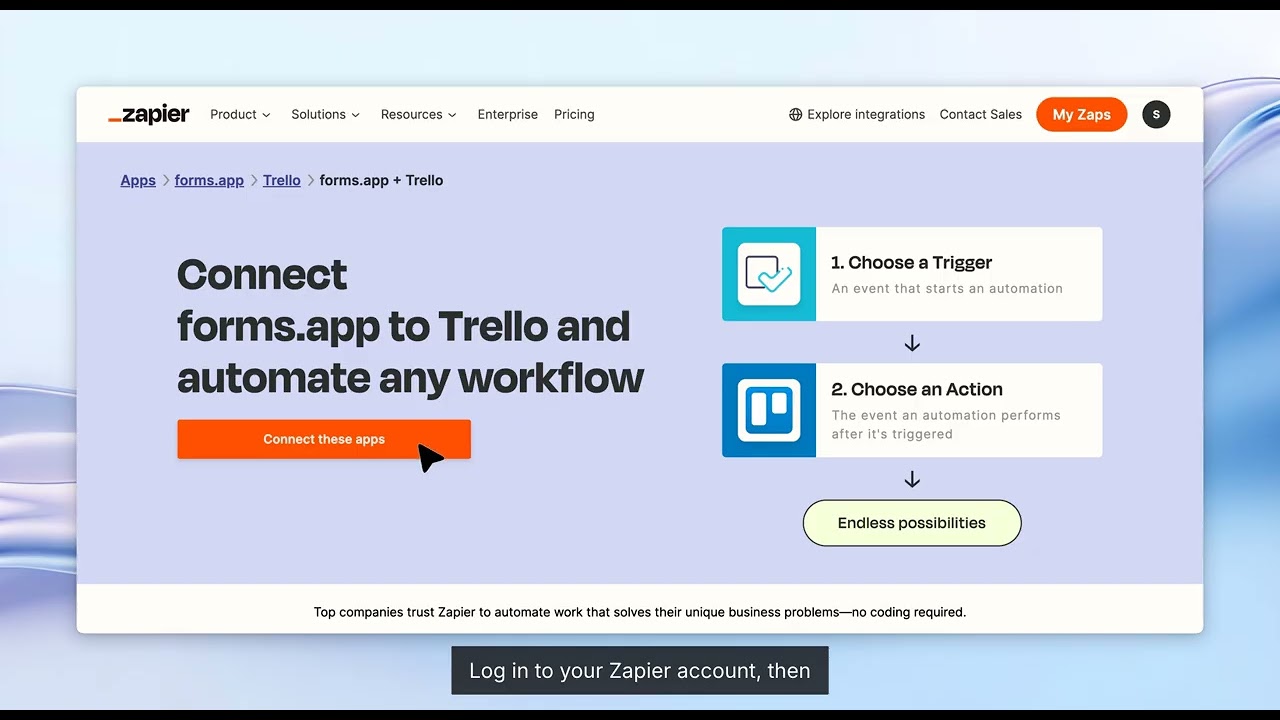
In the form editor, locate and click the "Connect" button. This opens the integrations panel where you'll search for and select Trello. Click "Manage" when you find Trello in the list - this redirects you to Zapier to begin setting up your automation.
Key configuration points:
- Choose "New Submission" as your trigger event
- Select your specific form from the dropdown
- Review the sample data to ensure all fields are captured
Step 2: Configure Your Trello Action
After connecting your form, Zapier guides you through setting up the Trello action. Select "Create Card" as your action event, then choose which board and list should receive the new cards.
This is where you map form fields to Trello card properties. For example:
- Map the form's name field to the card title
- Include the form's message field in the card description
- Set due dates based on form responses
- Attach any files uploaded through the form
Pro Tip: Use Trello's custom fields to organize different types of submissions. Map specific form responses to these fields for better categorization.
Step 3: Activate and Test Your Integration
Before publishing your Zap, test it with sample data to verify all field mappings work correctly. Zapier provides a testing mode where you can submit dummy data and check how it appears in Trello.
Once testing is complete, click "Publish" to activate your integration. Don't forget to enable the Zapier Power-Up in your Trello board (shown at 2:15 in the video tutorial) to ensure smooth operation.
Verification checklist:
- Submit a test form entry
- Check Trello for the new card within 2 minutes
- Verify all mapped fields appear correctly
- Confirm any attachments are properly included
Advanced Customization Options
Beyond basic card creation, Zapier offers powerful customization options for your forms-to-Trello workflow. You can add conditional logic to route different types of submissions to specific lists, or automatically assign cards to team members based on form responses.
For complex forms, consider adding multiple Trello actions to a single Zap. For example, you might create a main card with all submission details, then add a separate checklist card for follow-up tasks.
Advanced users: Combine with other Zapier actions to notify your team via Slack, update a CRM, or trigger additional automations when critical submissions arrive.
Common Pitfalls to Avoid
While this integration is relatively straightforward, we've identified several common mistakes businesses make when setting it up. The most frequent issue occurs when teams forget to update their Zaps after modifying form fields or Trello board structures.
Other common problems include failing to properly map file upload fields or neglecting to set up error notifications for failed submissions. At 2:45 in the video, you'll see how to configure these important safeguards.
Top troubleshooting tips:
- Regularly test your Zap after form changes
- Set up Zapier error notifications
- Document your field mappings for future reference
- Consider upgrading to a paid Zapier plan for faster processing
Watch the Full Tutorial
For visual learners, our 3-minute video tutorial walks through each step of connecting forms.app to Trello via Zapier. Pay special attention to the 1:30 mark where we demonstrate how to map complex form fields to Trello card properties.
Key Takeaways
Automating your forms-to-Trello workflow eliminates hours of manual data entry while reducing errors and missed submissions. With Zapier acting as the bridge between systems, you can focus on acting on the information rather than transferring it.
In summary: Connect your form in Zapier, configure the Trello card creation, and activate your integration. The entire setup takes less than 10 minutes but saves countless hours over time.
Frequently Asked Questions
Common questions about this topic
Zapier supports connecting nearly any form builder to Trello, including forms.app, Google Forms, Typeform, and JotForm. The integration works with both simple contact forms and complex multi-field forms with file uploads.
As long as your form builder has Zapier integration capabilities, you can automate the flow of data into Trello cards.
- Works with most popular form builders
- Handles text, numbers, dates, and file uploads
- Supports both simple and complex form structures
Yes, Zapier's interface lets you map specific form fields to different parts of the Trello card. You can set the card title, description, labels, due dates, attachments, and custom fields based on form responses.
The mapping happens during the Zap setup process where you match form fields to Trello card properties.
- Full control over field mappings
- Supports Trello's custom fields
- Can include or exclude any form field
Zapier processes most form submissions and creates corresponding Trello cards within 1-2 minutes. The actual speed depends on your Zapier plan - paid plans offer faster processing times than the free plan.
For time-sensitive workflows, you can upgrade to a premium Zapier plan for near-instant processing.
- Free plan: 1-2 minute delay
- Paid plans: Seconds to process
- Enterprise plans: Near real-time
Absolutely. Zapier allows you to add multiple actions to a single trigger. After your form submission creates a Trello card, you could add actions to notify your team via Slack, send a confirmation email to the respondent, or update a Google Sheet.
This creates a complete automated workflow from a single form submission.
- Chain multiple actions together
- Create comprehensive workflows
- All actions trigger from one form submission
If you rename or move lists on your Trello board, you'll need to update your Zap to reflect these changes. Zapier stores the specific list IDs when you first set up the integration.
The good news is that updating the Zap is straightforward - you just need to reselect the correct lists during the edit process.
- Simple to update when boards change
- No need to recreate from scratch
- Field mappings remain intact
Yes, Zapier provides a test mode where you can submit sample form data and verify it creates Trello cards correctly before activating your Zap.
This is especially useful for complex forms where you want to ensure all field mappings work as intended. Testing helps catch any issues before real submissions start flowing through.
- Full testing capabilities
- See exactly how cards will look
- Identify mapping issues early
GrowwStacks specializes in building custom automation workflows like this forms-to-Trello integration. Our team can design a complete solution tailored to your specific form structure and Trello board requirements.
We handle the technical setup, testing, and deployment so you can focus on your business. Book a free consultation to discuss automating your form processing workflow.
- Custom workflow design
- End-to-end implementation
- Ongoing support and maintenance
Stop Wasting Time on Manual Data Entry
Every hour spent copying form responses into Trello is an hour lost from growing your business. Let GrowwStacks build you a custom forms-to-Trello automation that works perfectly with your existing systems - implemented in under 48 hours.