How to Make Your Local n8n Public Using NGROK for Free (2025 Tutorial)
Running n8n locally but frustrated when webhooks from Slack or Telegram fail? Your workflows break because external services can't reach your localhost. This free solution using NGROK creates secure tunnels to make your local n8n instance publicly accessible - no cloud hosting required.
The Localhost Problem With Webhooks
Every developer running n8n locally hits the same wall eventually. You build a perfect workflow with webhook triggers, test it locally, and everything works great. Then you try to connect Slack, Telegram, or any external service - and nothing happens. The frustration is real.
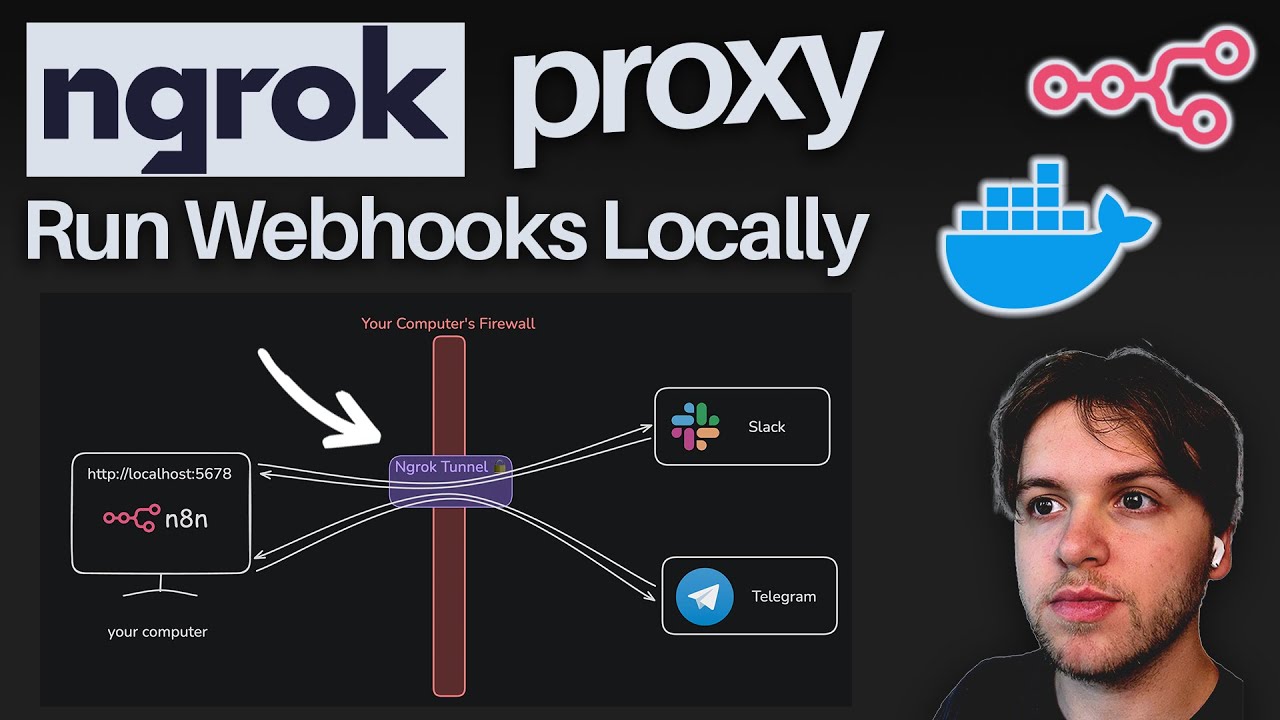
The core issue is simple: localhost means "this computer." When your n8n webhook URL starts with http://localhost:5678, it literally only works from your own machine. External services have no way to reach that address because localhost isn't routable on the internet.
Key insight: Webhooks require a two-way connection. While your local n8n can send requests out to services (outbound), those services can't initiate requests back to your local machine (inbound) without special configuration.
Setting Up n8n With Docker
Before solving the public access problem, let's ensure your local n8n instance is properly containerized using Docker. This creates a clean, isolated environment that's easy to restart and reconfigure.
Docker Desktop provides a simple GUI for managing containers (download at docker.com). The magic happens in the docker-compose.yml file which defines:
- n8n service: The actual automation platform running on port 5678
- PostgreSQL: Database for storing your workflows and credentials
After placing the compose file in a dedicated folder, running docker compose up in your terminal spins up both services. You'll see them as running containers in Docker Desktop with green status indicators.
NGROK Solution for Public Access
NGROK solves the localhost limitation by creating secure tunnels between the internet and your machine. Here's how it works at 2:15 in the video:
- Sign up for a free account at ngrok.com
- Download and install the NGROK client
- Authenticate with your authtoken (keep this private)
- Run
ngrok http 5678to forward your n8n port
NGROK provides a public HTTPS URL (like https://abc123.ngrok.io) that tunnels all traffic to your localhost:5678. Suddenly, your n8n instance is internet-accessible!
Security note: The free version generates random URLs that change with each session. For production use, consider upgrading to fixed domains with authentication.
Configuration Steps
Simply running NGROK isn't enough - we need to configure n8n to use the public URL for webhooks. This requires three Docker environment variables:
environment: - WEBHOOK_URL=https://your-subdomain.ngrok.io - N8N_EDITOR_BASE_URL=https://your-subdomain.ngrok.io - N8N_PROXY_HOPS=1 After adding these to your docker-compose.yml file under the n8n service:
- Run
docker compose downto stop your containers - Run
docker compose upto restart with the new config - Refresh your n8n interface - webhook URLs will now show the NGROK domain
Testing Webhooks With Your New Public URL
With NGROK running and n8n configured, you can now test webhooks properly. Create a simple workflow with:
- A Webhook trigger node
- A Slack node set to "Post Message"
Copy the webhook URL (now using your NGROK domain) and paste it into Postman or curl. When you send a test request, you should see:
- The request successfully reaching your local n8n instance
- The Slack message being sent as configured
You can even test from your phone by visiting the webhook URL directly - something impossible with pure localhost.
Setting Up Slack Integration
The real power comes when connecting services like Slack. At 4:30 in the video, we see how to:
- Enable event subscriptions in your Slack app settings
- Add the Request URL (your n8n webhook via NGROK)
- Verify the connection using Slack's challenge system
With this configured, Slack events will now push to your local n8n instance through the NGROK tunnel. You can trigger workflows based on:
- New messages in channels
- Reactions added
- User status changes
- And dozens of other events
Free Plan Limitations and Alternatives
While functional, the free NGROK solution has some constraints:
- URLs change with each restart
- Limited bandwidth (enough for testing)
- No custom domains
For production use, consider:
- NGROK paid plans ($8n
- Cloud hosting with proper HTTPS
- Reverse proxy setups with Let's Encrypt
Pro tip: For development and testing, the free plan works perfectly. Just remember to update your Docker config whenever your NGROK URL changes.
Watch the Full Tutorial
See the complete setup process in action, including troubleshooting tips for common Docker and configuration details not covered in this article. The video walks through each step with visual examples.
Key Takeaways
Exposing your local n8n instance to the internet unlocks powerful automation possibilities while keeping your setup private and secure. This solution bridges the gap between local development and cloud functionality.
In summary: NGROK provides free, secure tunnels to make localhost services publicly accessible. Combined with Docker for containerization, you can test webhook-dependent workflows locally before deploying to production.
Frequently Asked Questions
Common questions about exposing local n8n instances
Webhooks require a publicly accessible HTTPS URL to send data back to your service. When running n8n locally, your instance is only accessible via localhost, which external services can't reach.
This prevents webhook-based triggers from Slack, Telegram, and other services from working properly since they have no way to initiate connections to your personal computer.
- Localhost URLs only work from your own machine
- External services need internet-routable addresses
- HTTPS is required for most modern integrations
Yes, NGROK provides secure tunnels with HTTPS encryption for all traffic. The free version generates random URLs that change with each session, adding an extra layer of security.
For production use, you can upgrade to fixed domains with authentication options and additional security features like IP restrictions.
- All traffic is encrypted
- Free version uses ephemeral URLs
- Paid plans offer additional security controls
Docker containerizes your n8n service for easy local deployment, while NGROK creates secure tunnels to make your local instance accessible from the internet.
They serve different purposes - Docker manages the application environment and dependencies, while NGROK handles secure external access without exposing your local network.
- Docker: Application packaging and
- NGROK: Secure external access
- Often used together for local development
You need to update three environment variables in your Docker compose file: WEBHOOK_URL, N8N_EDITOR_BASE_URL (both set to your NGROK HTTPS URL), and N8N_PROXY_HOPS (set to 1).
After saving changes, restart your Docker containers running docker compose down followed by docker compose up for the changes to take effect.
- Update docker-compose.yml
- Restart containers
- Verify new webhook URLs appear
While functional, the free NGROK solution is best for testing and development due to URL changes on restart. For production, consider upgrading to NGROK's paid plans for fixed domains.
Alternatively, deploying n8n to a cloud server with proper HTTPS configuration provides more reliability and control for business-critical workflows.
- Free version good for testing
- Paid plans offer stability
- Cloud hosting most reliable
n8n typically uses port 5678 for its web interface and API. This is the port you'll forward through NGROK.
The exact port may vary if you've customized your n8n configuration, so always verify which port your instance is running on by checking your Docker compose file or n8n configuration.
- Default is 5678
- Check your specific configuration
- Forward the correct port in NGROK
Yes, the NGROK tunneling method works with any local web service that needs public access, including other automation platforms, development servers, or APIs.
The same principles apply - you're creating a secure bridge between your localhost and the internet. Any tool that requires webhook support can benefit from this approach during development.
- Works with any web service
- Great for development
- Universal solution for localhost access
GrowwStacks helps businesses implement secure automation solutions, whether locally hosted or cloud-based. Our team can configure your n8n instance with proper webhook handling, set up persistent tunneling solutions, or migrate your workflows to production-ready cloud hosting.
We offer free consultations to assess your automation needs and recommend the best architecture for your use case, whether you're testing ideas locally or ready to deploy at scale.
- Custom n8n configurations
- Production deployment assistance
- Free initial consultation
Ready to Build Reliable Webhook Workflows?
Don't let localhost limitations block your automation potential. Our team can help you implement this solution or deploy n8n in the cloud for production use.