How to Upload Files in n8n: The Complete Step-by-Step Guide
Manually uploading files to cloud storage is time-consuming and error-prone. With this simple n8n workflow, you can automate file transfers from your computer to Google Drive, Dropbox or FTP servers with just a few clicks. No coding required - just follow these steps to set up reliable, repeatable uploads.
Why Automate File Uploads?
Manual file transfers are one of those repetitive tasks that eat up valuable time without adding strategic value. Whether you're sending reports to cloud storage, backing up important documents, or moving files between systems, doing it manually means:
- Wasting 5-10 minutes per transfer on simple drag-and-drop
- Risking human error (wrong files, wrong folders, failed transfers)
- Creating bottlenecks when you're not available to perform the upload
n8n solves this with a simple workflow that handles the entire process automatically. Once set up, you can run it with a single click or schedule it to run at specific times.
Time savings: What takes 10 minutes manually becomes a 10-second automated process that runs reliably every time. For businesses handling multiple daily uploads, this can save dozens of hours per month.
Setting Up Your n8n Workflow
The file upload workflow requires just three main components:
- A trigger to start the process (manual or scheduled)
- A node to read the file from your local system
- A node to upload the file to your chosen destination
At 1:15 in the video tutorial, you'll see how to access the workflow builder interface where we'll assemble these components. The entire setup takes less than 5 minutes for basic uploads.
Step 1: Add Manual Trigger
We'll start with a manual trigger so you can test the workflow on demand:
- Click the "+" button on an empty canvas to add your first node
- Search for and select "Manual Trigger"
- Leave all settings at their defaults
This creates a starting point that lets you run the workflow whenever needed. Later, you can replace this with a schedule trigger for automatic daily/weekly uploads.
Pro tip: Name your nodes clearly (e.g. "Manual Trigger - Start Upload") to keep complex workflows organized as you add more steps.
Step 2: Configure Read Binary File
The Read Binary File node does the heavy lifting of accessing your local file:
- Add a new node connected to the trigger
- Search for and select "Read Binary File"
- In the File Path field, enter the full path to your file
File path formats:
- Windows:
C:\Users\YourName\Documents\file.pdf - Mac/Linux:
/Users/yourname/Documents/file.pdf
At 2:30 in the video, you'll see how to test this node independently to verify it can access your file before setting up the upload.
Step 3: Set Up Upload Node
Now connect your storage service:
- Add your chosen upload node (Google Drive, Dropbox, FTP, etc.)
- Connect it to the Read Binary File node
- Map the binary data output to the upload input
- Configure destination folder and file name
- Set up credentials if prompted
Each service has slightly different options, but all require:
- The binary file data from the previous node
- A destination path/folder
- A filename for the uploaded copy
Success indicator: When you execute the workflow, the upload node should return a success message with details about the transferred file, including its new location URL or path.
Testing Your Workflow
Before relying on the automation:
- Click "Execute Node" on just the Read Binary File node to verify file access
- Then run the full workflow end-to-end
- Check your destination service to confirm the file arrived correctly
Common issues to check if it fails:
- File path typos (especially backslash vs forward slash)
- Permission errors (can n8n access that file location?)
- Credential problems with the upload service
Advanced Options
Once the basic workflow works, consider these enhancements:
- Scheduling: Replace the manual trigger with a schedule trigger for automatic daily/weekly uploads
- Multiple files: Use the HTTP Request node to get a list of files from a folder, then process them in a loop
- Error handling: Add error notification nodes (email/Slack) if uploads fail
- File processing: Insert nodes between read and upload to modify files (compress, convert, etc.)
At 3:50 in the video, you'll see how to modify the workflow for scheduled backups with error notifications.
Watch the Full Tutorial
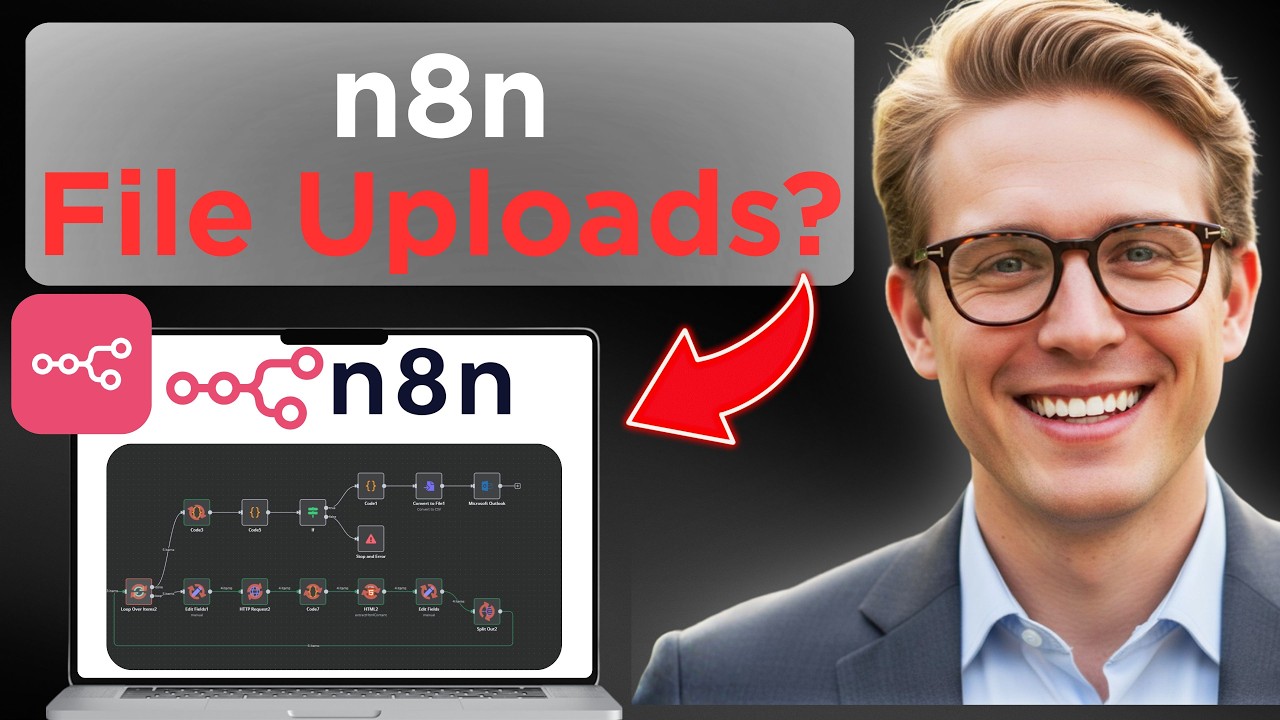
For a complete walkthrough with live demonstrations of each step, watch the video tutorial below. Pay special attention at 2:10 where we cover troubleshooting file path issues, and at 3:20 where we demonstrate the upload to Google Drive.
Key Takeaways
Automating file uploads with n8n eliminates one of the most common manual tasks in business operations. With this workflow:
- No more dragging and dropping files to cloud storage
- Eliminate human error in file transfers
- Schedule uploads to run automatically during off-hours
- Handle multiple files with a single workflow
In summary: This simple 3-node workflow can save hours per month on routine file transfers while improving reliability. It's one of the easiest automations to implement yet delivers immediate time savings.
Frequently Asked Questions
Common questions about file uploads in n8n
n8n can upload any file type including documents, images, videos, and compressed archives. The read binary file node handles all file formats equally since it treats them as binary data.
Common uploads include PDF reports, CSV data exports, product images, and backup files. The only limitation is your available storage space on the destination service.
- Documents: PDF, DOCX, XLSX, PPTX
- Images: JPG, PNG, GIF, SVG
- Media: MP3, MP4, MOV
- Archives: ZIP, RAR, TAR
No coding is required. The workflow uses visual nodes that you connect together. You only need to configure the file path and destination settings.
The most technical part is entering the correct file path format for your operating system. Even this becomes simple once you've done it once or twice.
- No programming knowledge needed
- Visual interface with dropdown menus
- Help tooltips explain each field
Yes, you can modify the workflow to handle multiple files. Either create multiple read binary file nodes or use the HTTP Request node to get a list of files from a folder first.
For batch uploads, we recommend using the "Loop Over Items" functionality to process each file sequentially. This prevents overloading your system or hitting API rate limits.
- Process all files in a folder automatically
- Set up filters to only upload certain file types
- Add delays between uploads if needed
n8n supports direct uploads to Google Drive, Dropbox, FTP/SFTP servers, AWS S3, and many others through dedicated nodes. You can also use the Webhook node for custom API integrations with other storage services.
The most popular options all have pre-built nodes that make configuration straightforward. Each service's node handles the specific API requirements automatically.
- Google Drive
- Dropbox
- FTP/SFTP servers
- AWS S3
- Nextcloud/ownCloud
File uploads are encrypted in transit when using HTTPS connections to cloud services. For maximum security, use SFTP instead of FTP, and store credentials securely in n8n's encrypted credential system rather than hardcoding them.
n8n doesn't store your files permanently - they're only held in memory during the transfer process. The security ultimately depends on your destination service's protections.
- Encrypted transfers (HTTPS/SFTP)
- Credential encryption
- No permanent file storage in n8n
Yes, replace the manual trigger with a Schedule Trigger node to run uploads at specific times. You can set daily, weekly, or custom intervals. This works well for regular backups or report generation workflows.
The scheduler supports cron expressions for precise timing. For example, you could set uploads to run every weekday at 2 AM when systems are idle.
- Daily/weekly schedules
- Custom cron expressions
- Time zone aware
n8n includes error handling options. You can configure retry attempts, add error notification nodes (like email or Slack alerts), and implement checks to verify successful uploads before proceeding with subsequent workflow steps.
For critical uploads, consider adding a verification step that checks the destination service to confirm the file arrived intact before marking the workflow complete.
- Automatic retries
- Error notifications
- Verification steps
GrowwStacks helps businesses implement automation workflows, AI integrations, and scalable systems tailored to their operations.
Whether you need a custom workflow, AI automation, or a full multi-platform automation system, the GrowwStacks team can design, build, and deploy a solution that fits your exact requirements.
- Custom automation workflows built for your business
- Integration with your existing tools and platforms
- Free consultation to discuss your automation goals
Stop Wasting Time on Manual File Uploads
Every minute spent dragging files to cloud storage is time stolen from growing your business. Let GrowwStacks build you a custom n8n automation that handles all your file transfers automatically - usually within 1 business day.