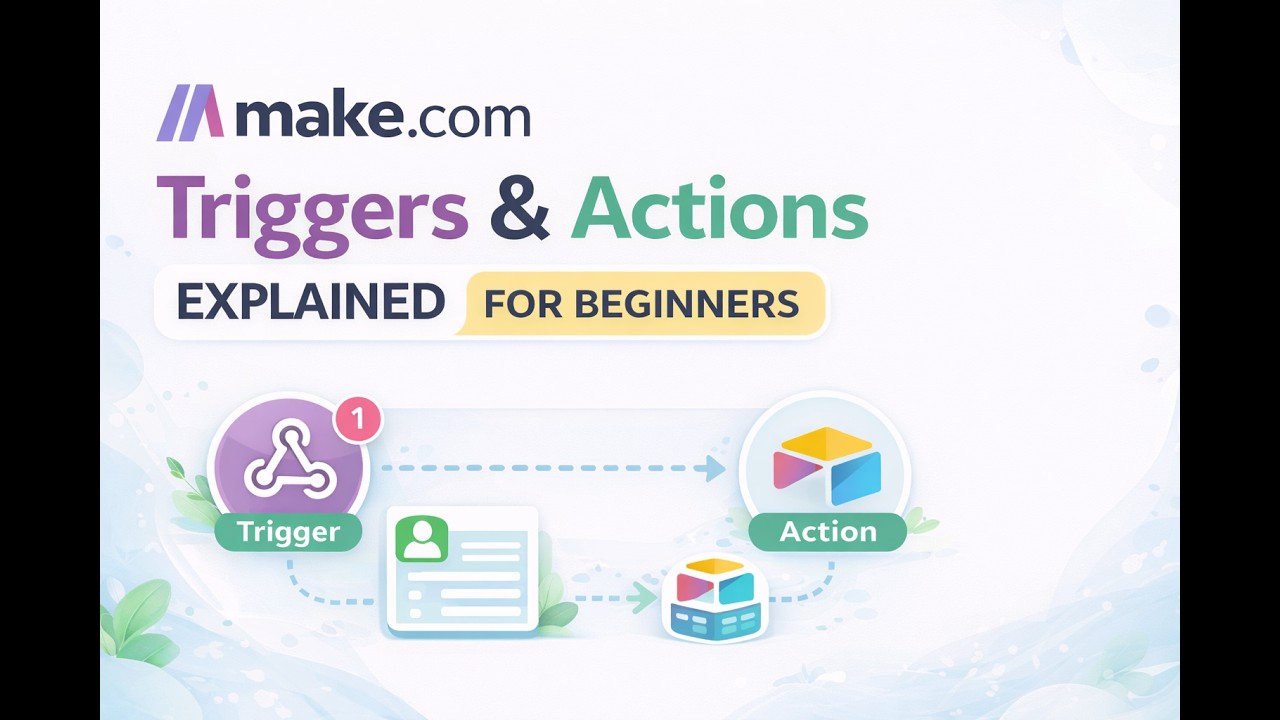
Make.com Triggers & Actions Explained: The Beginner's Guide to Automation
Most beginners struggle with the same Make.com questions: Why do triggers fail on first run? How do instant and polling triggers differ? This step-by-step guide shows exactly how to build your first working automation from JotForm to Airtable - including fixes for 3 common first-run failures.
Trigger Basics: Instant vs Polling
Every Make.com automation starts with a trigger - but choosing the wrong type causes delays and missed data. The clock icon (polling) and lightning bolt (instant) represent fundamentally different approaches to detecting changes.
At 2:15 in the video, we see how JotForm offers both trigger types for the same form. The instant version uses webhooks to push data immediately, while the polling version checks for submissions on a schedule. Instant triggers typically have lower latency but require proper webhook setup.
Key difference: Instant triggers activate within seconds when configured correctly, while polling checks for changes at fixed intervals (every 5, 15, or 60 minutes). For time-sensitive workflows like lead notifications, always prefer instant triggers when available.
Why First Runs Fail (And How to Fix It)
Nothing frustrates beginners more than seeing their carefully built scenario fail on the first test run. This happens because Make.com needs sample data to establish the structure before processing real information.
At 8:42 in the tutorial, we see the webhook waiting for its first submission. This initial run creates the data blueprint but doesn't process the content. The second submission (at 10:15) flows through successfully because the structure now exists.
Pro tip: Always run your Make.com scenarios twice when testing. The first execution sets up the data structure, while the second verifies actual data flows correctly. This pattern applies to both triggers and actions.
Webhook Setup for Instant Triggers
Webhooks power Make.com's instant triggers but require careful configuration. At 4:30 in the video, we walk through creating a custom webhook endpoint for JotForm submissions.
Three critical webhook settings often overlooked:
- Naming conventions: Always include the source app and purpose (e.g., "JotForm-ContactUs")
- Security: Add API keys or IP restrictions where available
- Data structure: Lock down expected fields to prevent mapping errors
The tutorial shows how testing the webhook (at 9:50) before connecting other modules prevents downstream issues. Webhook logs (visible at 12:15) provide valuable debugging when triggers misfire.
Data Mapping: Two Methods Compared
Messy form data causes most Make.com mapping failures. At 14:20, we encounter unstructured JotForm data that won't map cleanly to Airtable fields.
The video demonstrates two solutions:
- Text functions: Using split() and get() to extract values from comma-separated strings (15:45)
- JSON parsing: Converting raw API responses to structured data (19:30)
Which to use: Text functions work for simple string patterns, while JSON parsing handles complex nested data. The JSON method (shown at 20:15) automatically creates mappable fields for all form values.
Building a Polling Workflow
Not all apps support instant triggers. At 25:10, we convert our JotForm integration to use polling instead of webhooks.
Key polling configuration options:
- Limit: Controls how many records process per run (set to 10 by default)
- Sorting: Ensures you process newest or oldest records first
- Filters: Restricts processed data to specific conditions
The bundle system (explained at 26:45) handles record processing in chunks. Polling works best for daily syncs or batch operations where instant notifications aren't critical.
Basic Error Handling Strategies
At 28:30, we glimpse Make.com's error handling options. While a full treatment requires separate coverage, beginners should implement these two safeguards:
- Enable incomplete executions: Found in scenario settings, this preserves failed runs for debugging
- Add breaks: Right-click any module to insert rate limit handling and retries
The most common trigger errors stem from expired connections, API limits, or data structure changes. Regular monitoring of scenario histories catches these issues before they disrupt operations.
Watch the Full Tutorial
The video tutorial shows several live demonstrations you won't want to miss, including the moment a webhook first receives data (9:50) and how polling processes multiple records at once (26:10).
Key Takeaways
Understanding triggers and actions transforms Make.com from a confusing tool to an automation powerhouse. The right trigger type cuts processing time from hours to seconds.
In summary: Use instant triggers when possible, expect first runs to fail, parse messy data with JSON functions, and implement basic error handling. These fundamentals will solve 80% of beginner Make.com challenges.
Frequently Asked Questions
Common questions about Make.com triggers and actions
Instant triggers (marked with a lightning bolt icon) activate immediately when an event occurs, like a form submission. Polling triggers (watch icon) check for new data at scheduled intervals.
Instant triggers are better for time-sensitive actions, while polling is more efficient for batch processing. The video shows both types being configured for the same JotForm integration.
- Latency: Instant triggers process within seconds vs minutes/hours for polling
- Reliability: Polling can't miss events between checks
- API Limits: Polling consumes fewer API calls for high-volume sources
First runs often fail because Make.com needs sample data to establish the data structure. The initial test creates this structure without processing data.
This is most noticeable with webhooks and API connections. At 8:42 in the tutorial, we see the webhook waiting for its first submission before the data structure exists.
- Always run scenarios twice when testing
- First run establishes data structure
- Second run verifies actual data flow
For unstructured form data, use Make.com's text functions like split() to separate values or the JSON parser module for API responses.
The video shows both methods - splitting comma-separated values (15:45) and parsing raw JSON data from form submissions (19:30). The JSON method automatically creates mappable fields.
- Text functions for simple delimited data
- JSON parser for complex nested structures
- Always check raw data format before mapping
Running a single module (right-click > Run this module) tests just that step with existing data. Running the whole scenario (Run once button) processes new data through all connected modules.
At 11:20 in the video, we run just the webhook module to capture a new form submission without reprocessing previous steps. This is invaluable when debugging specific workflow sections.
- Module testing isolates problems
- Full scenario runs validate end-to-end flow
- Use module testing when adjusting mappings
Use instant triggers for time-sensitive actions (like form notifications) and polling for batch processes (daily data syncs). Polling every 5-15 minutes balances freshness with API limits.
The tutorial demonstrates both approaches with the same JotForm integration. Instant triggers (2:15) provide immediate response while polling (25:10) offers reliability for high-volume sources.
- Instant for alerts and notifications
- Polling for data synchronization
- Consider API limits when setting intervals
Bundles are Make.com's term for individual records processed through a scenario. Each form submission or API record becomes a bundle.
At 26:45, we see how the limit setting in polling triggers controls bundle processing. Setting this to 1 processes records individually, while higher values handle batches.
- One bundle = one processed record
- Limit controls bundles per execution
- Higher limits improve efficiency but increase memory use
When mapping fails, first check the input data structure using the 'eye' icon in each module. For complex data, use the JSON parser or text functions to extract specific values.
The video shows a common mapping challenge at 14:20 where form data arrives in an unstructured format. We solve this using both text manipulation (15:45) and JSON parsing (19:30).
- Always inspect raw input data first
- Use JSON parser for API responses
- Text functions handle simple patterns
GrowwStacks specializes in building custom Make.com automations tailored to your business workflows. We handle everything from trigger setup to complex data transformations, error handling, and ongoing maintenance.
Our team will design an automation strategy that saves you 10+ hours weekly with reliable, scalable workflows. We implement best practices like proper error handling (28:30) and efficient trigger selection (2:15) that most beginners miss.
- Free consultation to analyze your automation needs
- Custom Make.com training for your team
- Ongoing support and optimization
Ready to automate your workflows with Make.com?
Every hour spent manually transferring data between apps costs your business money. Our Make.com experts will build you a custom automation that works perfectly on the first run - with none of the beginner frustrations covered in this guide.