n8n Workflow Basics: Triggers, Nodes and Connections
Most automation beginners struggle with understanding how data moves between different steps in a workflow. The magic happens in the connections between nodes - where one step's output becomes the next step's input.
The tutorial demonstrates this with a practical salary form that automatically updates a Google Sheet. When the form submits, the data flows through each connected node, transforming raw inputs into structured records.
Key insight: Every n8n workflow starts with a trigger - whether it's a scheduled event, manual button click, or (in this case) form submission. The trigger initiates the entire automation chain.
Unlike simpler automation tools, n8n shows you exactly how data transforms at each step. The execution view lets inspect inputs and outputs in real-time, which is invaluable for debugging complex workflows.
Building a Form Trigger from Scratch
Creating effective form triggers requires understanding what data you need capture and how it will be used downstream. The tutorial builds a salary information form with:
- Basic personal information (first name, last name)
- Validated email field
- Salary range dropdown
- Optional message field
The tutorial demonstrates configuring each field type with proper validation. Required fields ensure complete data capture, while the dropdown standardizes salary range inputs for later analysis.
Pro tip: Always test form triggers with the 'Execute Workflow' feature before connecting other nodes. This verifies data structure matches your expectations.
Understanding Data Flow Between Nodes
The real power of n8n emerges when you chain multiple nodes together. In the demo, form submission data automatically flows to the Google Sheets node without any extra configuration.
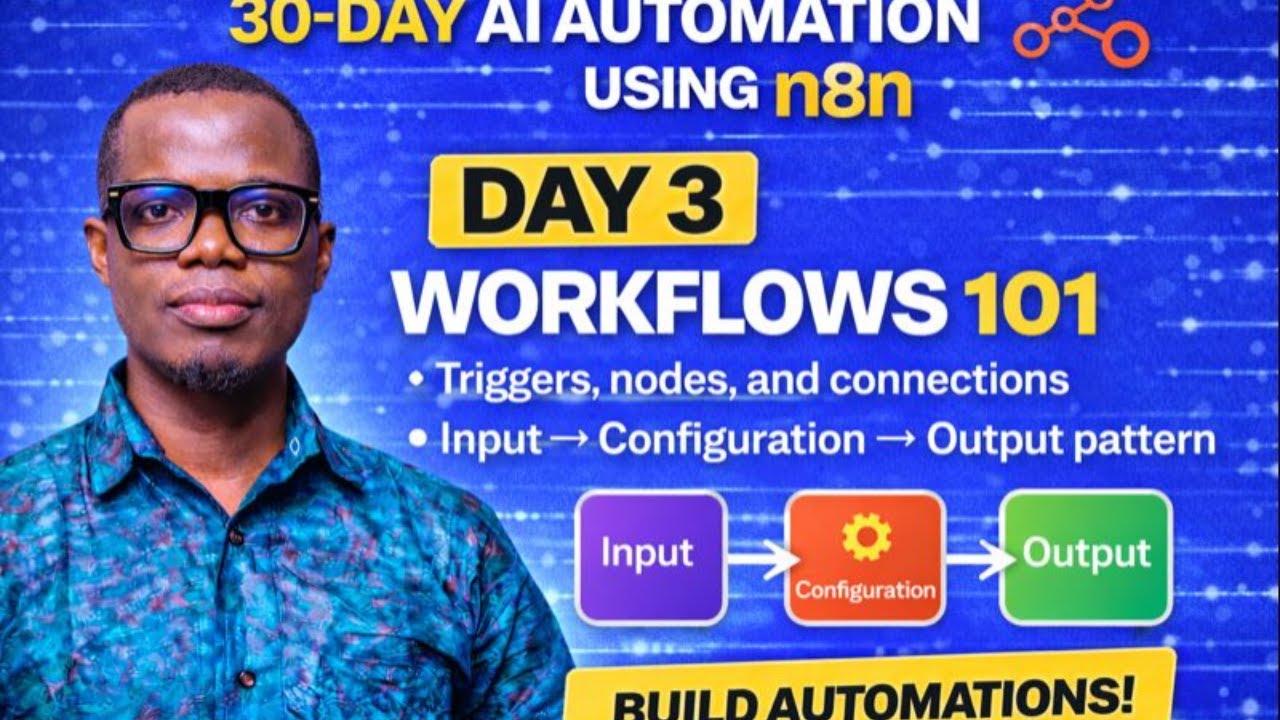
Each node has three critical sections:
- Input: Data received from previous node
- Configuration: Settings for current node's action
- Output: Processed data sent to next node
You can view this data flow in multiple formats - the clean table view is perfect for quick validation, while the JSON view shows the raw structure needed for advanced transformations.
Connecting to Google Sheets
Spreadsheets remain the most common destination for form data. The tutorial shows configuring Google Sheets to:
- Append new rows for each form submission
- Map form fields to specific columns
- Handle data types properly (text, numbers, dates)
n8n provides multiple Google Sheets actions beyond simple appends - you can update existing rows, clear ranges, or even create entirely new sheets on demand.
Implementation note: The first connection between nodes is automatic, but complex workflows may require manual data mapping using JSON paths (covered in later tutorials).
Debugging Tips Using Execution View
When workflows break (and they will), n8n's execution view becomes your best friend. It shows:
- Which node failed
- What data looked like at that point
- Error messages from the external service returned
The tutorial demonstrates using test submissions to validate each step before going live. This 'fail fast' approach catches issues early when they're easier to fix.
Remember: The execution history persists, letting you compare working and failed runs side-by-side to spot differences.
Workflow Management & Version Control
As workflows grow more complex, organization becomes critical. The tutorial covers:
- Tagging: Group related workflows by department or function
- Versioning: Roll back to previous working states
- Sharing: Export/import workflows between
These features become especially valuable when multiple team members collaborate on automations. The version history alone has saved countless hours by providing quick recovery points after experimental changes.
Watch the Full Tutorial
The video tutorial (timestamp 4:30) shows the exact moment where form submission data first appears in the Google Sheets node - a satisfying demonstration of automation in action.
Key Takeaways
This tutorial transforms abstract concepts into practical skills you can apply immediately:
In summary: Master triggers to start workflows, understand how data flows between nodes, and use execution views to debug issues. These fundamentals apply to every automation you'll build in n8n.
Tomorrow's lesson dives deeper into JSON data handling - the secret sauce for advanced transformations between apps.
Frequently Asked Questions
Common questions about n8n workflows
The three core components of any n8n workflow are triggers that initiate the automation, nodes that process data, and connections that pass information between nodes.
Triggers can be scheduled events, form submissions, or manual starts. Each node has input, configuration, and output sections that determine how data flows through the workflow.
- Triggers: Manual, scheduled, or event-based starters
- Nodes: Processing units with defined inputs/outputs
- Connections: Data pathways between nodes
n8n provides an 'Execute Workflow' feature that lets you test each node individually before connecting the full chain.
For form triggers like in our tutorial, you can generate test submissions to verify data capture. The platform shows real-time data flow between nodes in different formats (table view, JSON) making it easy to debug each step before deployment.
- Use test data previews at each node
- Test with small sample data first
- Check execution logs for errors
The most frequently used triggers include scheduled triggers (run daily at 10am), manual triggers (click-to-run), webhook triggers (API calls), and form submission triggers.
The video demonstrates a salary form that triggers a Google Sheets update - a common pattern for data collection workflows across industries.
- Scheduled: Time-based automations
- Manual: Human-initiated workflows
- Event: Form submits, API calls, etc.
Each node's output becomes the next node's input, creating a data pipeline. In the tutorial, form submission data (first name, last name, email) flows automatically to the Google Sheets node.
The connection arrows between nodes visually represent this data transfer, which you can inspect in the execution view for debugging.
- Automatic data passing between connected nodes
- Visual flow representation
- Execution view shows data at each step
Tagging helps organize workflows when managing multiple automations across teams or projects. Common tags include department (sales, HR), function (data collection, notifications), or client name.
The tutorial shows tagging a salary form workflow, which would help filter it later from marketing or support automations when you have dozens of workflows.
- Department/organization
- Workflow purpose
- Project/client
n8n provides three key workflow views: Editor for building workflows, Execution for debugging runs, and Evaluation for testing data transformations.
The execution view is particularly valuable for identifying exactly where a workflow fails, showing data state at each step during a run.
- Editor: Visual workflow builder
- Execution: Debugging interface
- Evaluation: Data transformation testing
n8n automatically versions workflows, letting you revert back to previous working states with one click. The versions feature maintains a history of changes.
This safety net allows experimentation - if new modifications cause issues, you can restore the last known good configuration in seconds.
- Automatic version history
- One-click restoration
- Compare versions side-by-side
GrowwStacks specializes in building custom n8n workflows like the form-to-sheets automation demonstrated. Our team can design complete automation systems with proper error handling, logging, and maintenance.
We offer free consultations to discuss your specific automation needs and provide implementation estimates tailored to your business processes.
- Custom workflow development
- Error handling implementation
- Free initial consultation
Ready to Automate Your Business Processes Like a Pro?
Manual data entry costs businesses hundreds of hours each year. Our n8n experts can build custom workflows that save you 10+ hours weekly on repetitive tasks.