How to Connect Google Apps to n8n in 10 Minutes (GCP API Setup Guide)
Most automation tutorials skip the most critical step - properly setting up Google Cloud Platform APIs. Without this foundation, your n8n workflows with Gmail, Sheets, and Drive will fail. This guide shows the exact OAuth credential process Google requires, with screenshots from start to finish.
Why GCP is Required for Google App Connections
Google has locked down API access to all its services through Google Cloud Platform (GCP) - a security measure that catches many n8n users off guard. Without setting up GCP properly, you'll hit authentication errors when trying to connect Gmail, Sheets, or Drive to your workflows.
The platform serves three critical functions: it verifies your identity, tracks API usage, and provides the OAuth credentials n8n needs to authenticate. Think of it as Google's gatekeeper - no proper GCP setup means no automation with Google apps.
Good news: Google gives new users $300 in free credits, and the API calls needed for n8n integrations typically stay well within free tier limits.
Step 1: Create Your GCP Project
Every n8n integration starts with a dedicated GCP project. This container holds all your API configurations and credentials in one place. Here's how to set it up:
Step 1.1: Access Google Cloud Console
Navigate to console.cloud.google.com and sign in with the Google account that owns the apps you want to automate (usually your work email).
Step 1.2: Create New Project
Click the project dropdown in the top navigation (likely shows "Select a project") and choose "New Project". Name it something recognizable like "n8n Integrations" - this helps if you manage multiple automation projects later.
Pro Tip: Google organizes everything by projects. Create separate ones for development vs production if you're building complex workflows.
Step 2: Enable Required Google APIs
With your project created, you'll need to enable each Google service API you plan to use in n8n. This grants your project permission to interact with that specific Google app.
Step 2.1: Enable Google Drive API
In the GCP navigation menu, go to "APIs & Services" > "Library". Search for "Google Drive API" and click "Enable". This allows n8n to access and modify files in Drive.
Step 2.2: Enable Google Sheets API
Repeat the process for "Google Sheets API". This is separate from Drive access and required for reading/writing spreadsheet data.
Step 2.3: Enable Other Needed APIs
Depending on your workflow, you may also need:
- Gmail API - for sending/receiving emails
- Google Calendar API - for event management
- Google Docs API - for document automation
Remember: Each API must be enabled individually. Don't skip this step even if the APIs seem related.
Step 3: Configure OAuth Consent Screen
This critical step is where most n8n users get stuck. Google requires you to configure how your "app" (in this case, n8n) will access user data before it will issue credentials.
Step 3.1: Navigate to OAuth Consent Screen
In GCP, go to "APIs & Services" > "OAuth consent screen". Select "External" user type (unless you're in a Google Workspace organization).
Step 3.2: Enter App Information
Fill in:
- App name: "n8n" (or your custom name)
- User support email: Your contact address
- Developer contact email: Your technical contact
Step 3.3: Add Test Users
Scroll to "Test users" and add every Google account that will connect through n8n. Without this, Google will block authentication attempts.
Important: Even though you're just connecting to n8n, Google treats this as an app development project requiring consent configuration.
Step 4: Create OAuth Credentials
Now for the credentials n8n will use to authenticate. These act like keys that unlock API access for your specific project.
Step 4.1: Create OAuth Client ID
Navigate to "APIs & Services" > "Credentials" and click "Create Credentials" > "OAuth client ID". Select "Web application" as the type.
Step 4.2: Configure Authorized Redirect URI
This is where Google sends authentication responses. In n8n:
- Go to Credentials > OAuth2 API
- Click "Google"
- Copy the redirect URL shown
- Paste it into GCP under "Authorized redirect URIs"
Step 4.3: Save Client ID and Secret
After creation, GCP will display your Client ID and Client Secret. Copy these immediately - you'll need them in n8n and they're only shown once.
Security Tip: Treat these credentials like passwords. Never commit them to public repositories or share them in support forums.
Step 5: Connect to n8n
With GCP configured, you're ready to connect each Google app to n8n using the credentials you created.
Step 5.1: Add Google Node in n8n
Drag a Google node (Drive, Sheets, etc.) into your workflow. Click "Connect account" > "OAuth2 API".
Step 5.2: Enter Credentials
Paste your Client ID and Client Secret from GCP. Give the connection a recognizable name like "Gmail Automation".
Step 5.3: Complete OAuth Flow
Click "Connect" - n8n will open a Google authentication window. Select the account you added as a test user in GCP and grant the requested permissions.
Troubleshooting: If you get errors, double-check that you enabled the correct API in GCP and that your test user email matches exactly.
Common Mistakes to Avoid
After helping hundreds of businesses set up n8n with Google apps, we've identified these frequent pitfalls:
Mistake 1: Skipping the OAuth Consent Screen
Many users try to create credentials immediately after enabling APIs. Google requires the consent screen configuration first - the order matters.
Mistake 2: Wrong Redirect URI
Using the wrong redirect URI (or none at all) breaks the authentication flow. Always copy it directly from n8n's OAuth setup screen.
Mistake 3: Not Adding Test Users
Google blocks authentication attempts from unlisted emails during development. Every account using the connection must be added in GCP first.
Remember: Google's API setup is particular but logical. Follow each step in order and you'll avoid 90% of connection issues.
Watch the Full Tutorial
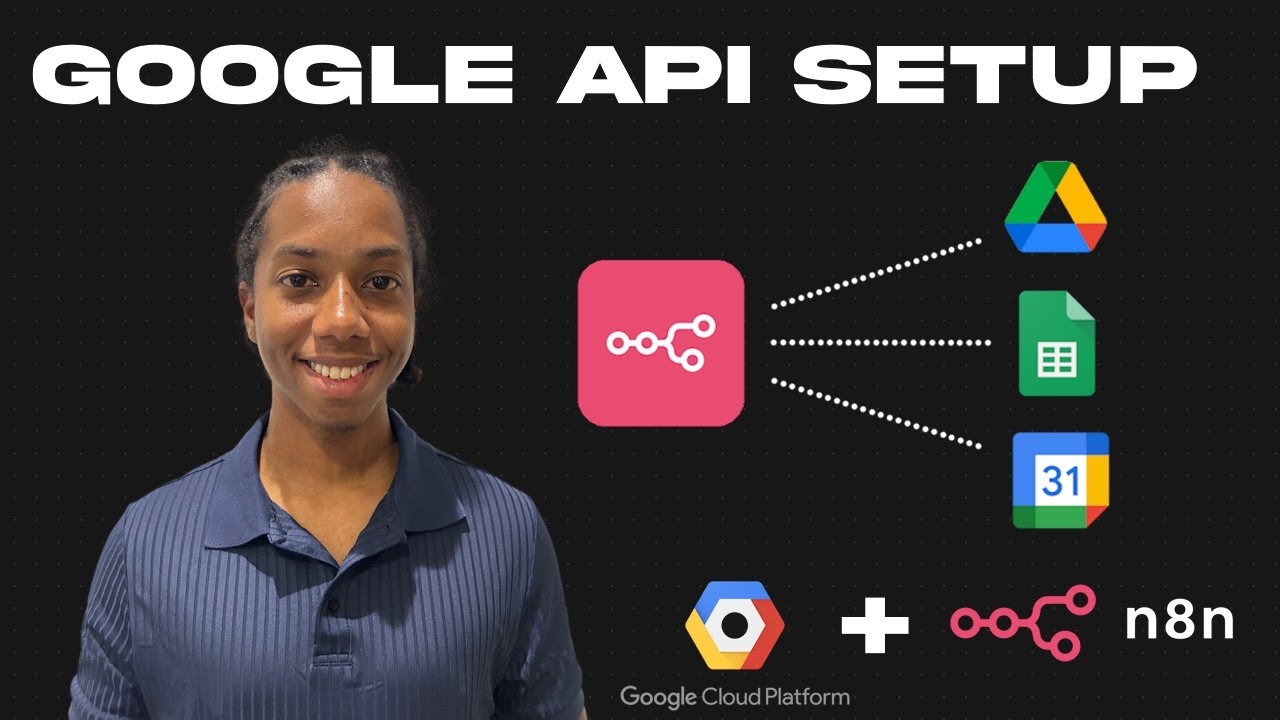
Prefer video instructions? The full walkthrough shows each click in real-time, including the OAuth authentication flow that's hard to capture in screenshots (jump to 4:30 for the credential setup).
Key Takeaways
Connecting Google apps to n8n requires proper Google Cloud Platform setup - it's not just about the n8n configuration. By following these steps methodically, you'll create stable, secure connections that power your automation workflows.
In summary: 1) Create a GCP project, 2) Enable required APIs, 3) Configure OAuth consent, 4) Create credentials, 5) Connect in n8n. Skip any step and your integration will fail.
Frequently Asked Questions
Common questions about this topic
Google requires all API connections to go through their Cloud Platform for security and monitoring. Without setting up GCP, n8n cannot authenticate with Google services like Gmail, Sheets, or Drive.
The platform provides the OAuth credentials and API access needed for the integration. It also gives Google visibility into what data is being accessed and by whom - a critical security layer for their ecosystem.
- Security: Centralized authentication and access control
- Monitoring: Tracks API usage and quotas
- Compliance: Required for data protection standards
Google offers $300 in free credits when you first sign up, which is more than enough for API usage with n8n. For most small business automation needs, you'll likely stay within the free tier.
Google only charges if you exceed very high API call volumes. The free tier includes:
- 50,000 Google Sheets API requests per day
- 1,000 Gmail API requests per day
- 50,000 Drive API requests per day
This setup works for all major Google Workspace apps including Gmail, Google Sheets, Google Drive, Google Calendar, and Google Docs. The process is similar for each - enable the specific API in GCP, then configure OAuth credentials.
Some specialized Google services may require additional permissions or verification steps. The most commonly automated apps through n8n are:
- Gmail: Send/receive emails automatically
- Sheets: Read/write spreadsheet data
- Drive: Manage files and folders
Most API changes take effect immediately after setup. However, some OAuth consent screen updates may take up to 15 minutes to propagate across Google's systems.
If your connection isn't working right away, wait a few minutes before troubleshooting. Common timing scenarios:
- API enabling: Instant
- Credential creation: Instant
- Consent screen updates: 5-15 minutes
The most frequent error is not properly configuring the OAuth consent screen before creating credentials. Google requires you to set up basic app information and user permissions before the API connections will work.
This step is often overlooked in tutorials because it seems unrelated to the technical integration. Other common mistakes include:
- Wrong redirect URI: Must match n8n's exactly
- Missing test users: Every email must be pre-approved
- Disabled APIs: Each service requires separate enablement
Yes, one GCP project can support all your n8n Google app connections. You'll just need to enable each required API (Gmail, Sheets, etc.) within the same project.
This centralized approach has several advantages:
- Simpler management: One place for all credentials
- Shared quotas: API limits apply per project
- Unified billing: If you exceed free tier
During development, Google restricts API access to only explicitly listed test users. This security measure prevents unauthorized access to Google accounts through unverified applications.
You must add any email addresses that will be connecting through n8n until your app goes through full verification. Key points about test users:
- Required for development: No exceptions
- Email must match exactly: Including capitalization
- Can add up to 100: For team workflows
GrowwStacks specializes in setting up and optimizing n8n workflows with Google apps. Our team can handle the entire GCP API configuration process, create custom automation workflows, and ensure your connections are secure and scalable.
We offer a free consultation to assess your specific needs and recommend the best integration approach. Our Google API setup service includes:
- Complete GCP configuration: We handle all the technical setup
- Custom n8n workflows: Tailored to your business processes
- Ongoing support: For updates and maintenance
Let Us Handle Your Google-n8n Integration
Setting up Google APIs correctly is tedious but critical - one misstep can break your entire workflow. Our team has configured hundreds of these connections and can have yours working in under an hour.