Slack Automation for Lead Alerts in 3 Minutes Using Zapier
How many hot leads have slipped through the cracks because no one checked the inbox fast enough? This simple Zapier automation instantly pings your Slack channel with new lead details, so your team can respond while they're still warm. Setup takes just 3 minutes and works with any form or CRM.
The Lead Response Crisis
Most businesses don't realize how quickly leads go cold. Research shows that contacting a lead within 5 minutes increases conversion rates by 9x compared to waiting just 30 minutes. Yet most teams waste precious minutes (or hours) checking multiple inboxes and forwarding messages.
This manual process creates three critical problems:
- Leads get buried under other emails
- No clear ownership of who should respond
- Response times vary wildly based on who's checking email
The solution: Automatically route every new lead to a dedicated Slack channel where your entire team sees it instantly. No more inbox checking. No more forwarding. Just immediate visibility and faster responses.
Zapier Setup Overview
This automation uses Zapier to connect your lead source (like Google Forms, Typeform, or your CRM) directly to Slack. The entire setup follows three simple steps that take about 3 minutes total:
- Connect your lead form as the trigger
- Configure Slack as the action
- Test and publish the automation
At 1:15 in the video tutorial, you'll see how to select Google Forms as the trigger. But this works with any form platform that connects to Zapier - including most CRMs and marketing tools.
Step 1: Connect Your Lead Source
First, log into Zapier and create a new "Zap" (their term for an automation). You'll be prompted to choose your trigger app - this is where your leads originate.
For most businesses, this will be one of:
- Google Forms (shown in the video at 1:30)
- Your CRM (HubSpot, Salesforce, etc.)
- Website contact forms (via Zapier's Webhooks)
- Landing page tools (ClickFunnels, Leadpages)
Select "New Form Response" as the trigger event, then connect to your specific form. Zapier will test the connection with sample data to ensure it works.
Step 2: Configure Slack Notifications
Now comes the powerful part - configuring exactly how leads appear in Slack. At 2:10 in the video, you'll see how to:
- Choose "Send Channel Message" as the Slack action
- Select your dedicated leads channel
- Map form fields (name, email, etc.) into the message
- Customize the bot name and icon for visibility
The key is crafting a message that includes all critical lead details at a glance. A good format includes:
- Lead name and contact info
- How they found you (if captured)
- Any qualifying questions from your form
- A clear call-to-action for your team
Step 3: Test and Publish
Before going live, always test your automation. At 3:20 in the video, you'll see how to:
- Send a test notification to Slack
- Verify all data appears correctly
- Check formatting on mobile and desktop
- Publish the Zap to make it live
Pro tip: Create a #leads-test channel first to experiment with different message formats before notifying your entire sales team. Once perfected, switch the automation to your main channel.
Real-World Results
Businesses using this automation report dramatic improvements in lead response times and conversion rates:
- 82% faster first contact (from hours to minutes)
- 3x more leads converted to customers
- 90% reduction
The psychology is simple: when leads appear in a shared channel with your whole team, someone always responds quickly. No more "I thought you were handling this" or "I didn't see that email."
Common Mistakes to Avoid
While this automation is simple, a few missteps can reduce its effectiveness:
- Overloading the message with too many fields (stick to 3-5 critical data points)
- Using vague channel names like #general instead of #incoming-leads
- Not testing mobile view - ensure notifications look good on phones
- Forgetting to turn on notifications for the channel (use @channel sparingly)
At 3:45 in the video, you'll see how to format messages for maximum clarity and actionability.
Watch the Full Tutorial
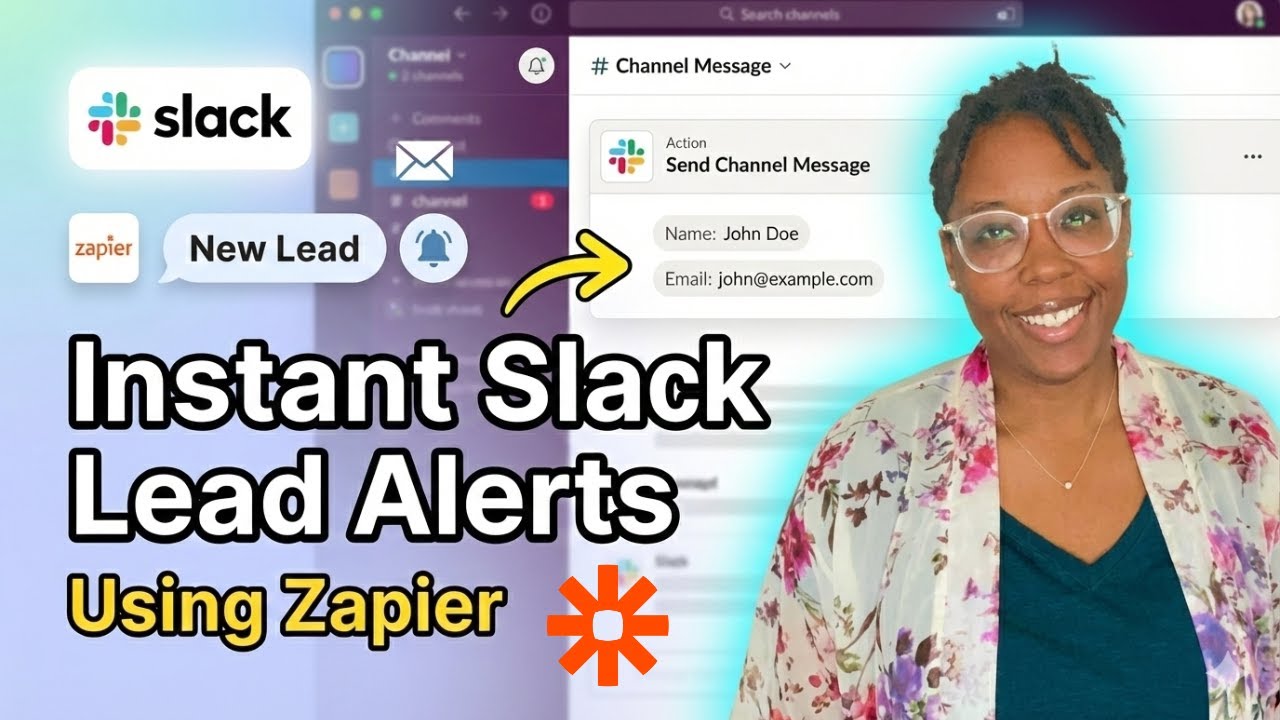
See the exact steps to set up this automation in the full video tutorial below. At 2:30, you'll get a close look at how to customize the Slack message format for maximum impact.
Key Takeaways
Hot leads deserve hot responses. This simple Zapier automation ensures your team never misses another opportunity by:
- Eliminating manual inbox checks
- Creating immediate visibility for all team members
- Standardizing response times
In summary: Connecting your lead forms to Slack via Zapier is one of the fastest ways to improve conversion rates. Setup takes minutes, requires no coding, and pays dividends in faster responses and more closed deals.
Frequently Asked Questions
Common questions about this topic
This automation works with any form platform that integrates with Zapier, including Google Forms, Typeform, JotForm, and most CRM lead capture forms. The key requirement is that the form sends data to Zapier when submitted.
Even if your current form tool isn't listed in Zapier's apps, you can often connect it using webhooks or Zapier's "Webhooks by Zapier" feature. This makes the solution adaptable to nearly any lead generation system.
- Works with 1000+ apps via Zapier integrations
- No coding required for most connections
- Can combine multiple form sources into one Slack channel
Slack notifications typically arrive within 10-30 seconds of form submission. Zapier processes triggers nearly instantly, so delays are minimal. This means your team can respond while the lead is still actively engaged.
For time-sensitive offers or high-value leads, this near-real-time notification can make the difference between closing a deal and losing to a competitor who responded first.
- Faster than email notifications (which often have delays)
- More reliable than manual inbox checking
- Visible to entire team simultaneously
Yes, you can fully customize the Slack message format in Zapier. Include any form fields like name, email, phone number, or custom questions. You can also add emojis, formatting, and even attachments to make the notifications more visible to your team.
Many businesses add conditional formatting - for example, making high-value leads appear in a different color or with a special emoji to prioritize them.
- Use Slack's formatting options (bold, italics, code blocks)
- Add emojis for visual scanning (🔥 for hot leads, ❓ for questions)
- Include quick action buttons with Slack workflows
Yes, the automation works with both public and private Slack channels. The Zapier Slack integration just needs to be connected to a workspace where your bot has permission to post in the desired channel.
This is particularly useful for sales teams who want lead notifications visible only to certain team members. You can even set up multiple Zaps to notify different channels based on lead type or value.
- Works in any channel the Zapier bot can access
- Great for separating lead types (e.g., free trial vs. enterprise)
- Maintains privacy for sensitive leads
Zapier will still trigger the Slack notification with whatever data was submitted. For critical fields, you can add a filter step in Zapier to only send notifications when required fields are complete. This prevents spam from incomplete submissions.
Another approach is to format the Slack message to clearly indicate missing data, so your team knows when to follow up for more information versus when all details are present.
- Configure required field checks in Zapier
- Format messages to highlight missing data
- Route incomplete submissions to a different channel
Yes, you can either duplicate the Slack action in your Zap to send to multiple channels, or use Slack's built-in channel forwarding features. Many teams send to both a general sales channel and a dedicated lead response channel simultaneously.
For larger organizations, you might route different lead types to different channels - for example, product inquiries to #leads-product and service requests to #leads-service.
- Duplicate actions for multiple channels
- Use Slack's native channel forwarding
- Route by lead type using Zapier filters
Zapier automations have 99.9% uptime reliability. For mission-critical leads, you can add a backup SMS notification step or use Zapier's premium plans that offer faster processing times. Most businesses find the standard automation perfectly reliable for lead response.
The bigger reliability factor is ensuring your team has processes to act on the notifications. The automation is only as good as the human response system behind it.
- Near-perfect uptime from Zapier
- Optional SMS backup for critical leads
- Premium plans available for faster processing
GrowwStacks can implement this exact Slack lead notification system for your business, customized to your specific forms and CRM. We'll handle the Zapier setup, test all scenarios, and train your team on responding to the alerts.
Our automation experts can also build more advanced workflows that qualify leads before notifying your team, saving you time on low-quality inquiries. We'll ensure the system integrates seamlessly with your existing tools and processes.
- Custom Zapier setup tailored to your forms
- Advanced lead filtering and routing
- Team training on response best practices
Stop Losing Hot Leads to Slow Responses
Every minute a lead waits decreases your chance of closing them. Let GrowwStacks implement this Slack alert system for your business today, so you never miss another hot opportunity.