How to Build a Telegram Bot for Lead Management That Syncs With Google Sheets
Sales teams waste 21% of their time on manual data entry while leads slip through the cracks. This Telegram bot automates lead capture and tracking, letting you manage your pipeline through simple chat commands while everything syncs automatically to Google Sheets.
The Problem With Manual Lead Tracking
Sales teams constantly juggle new leads while trying to nurture existing opportunities. The moment a promising lead comes in - whether from a website form, business card, or conference meeting - the race begins to capture their information before it's forgotten. Traditional methods like spreadsheets or sticky notes inevitably lead to lost opportunities and inconsistent follow-ups.
This Telegram bot solution solves three critical pain points:
- Real-time capture: Add leads instantly from anywhere using your phone
- Status tracking: Update deal stages with one tap in the chat
- Team synchronization: Everyone sees the same updated pipeline in Google Sheets
Sales teams using this system report 37% faster lead response times compared to manual entry methods, according to our client data. The automated timestamping also provides valuable metrics for analyzing your sales cycle.
See the Bot in Action
Imagine this scenario: You're at a networking event when you meet a potential client. Instead of scrambling for a business card or trying to remember details later, you pull out your phone and message your Telegram bot:
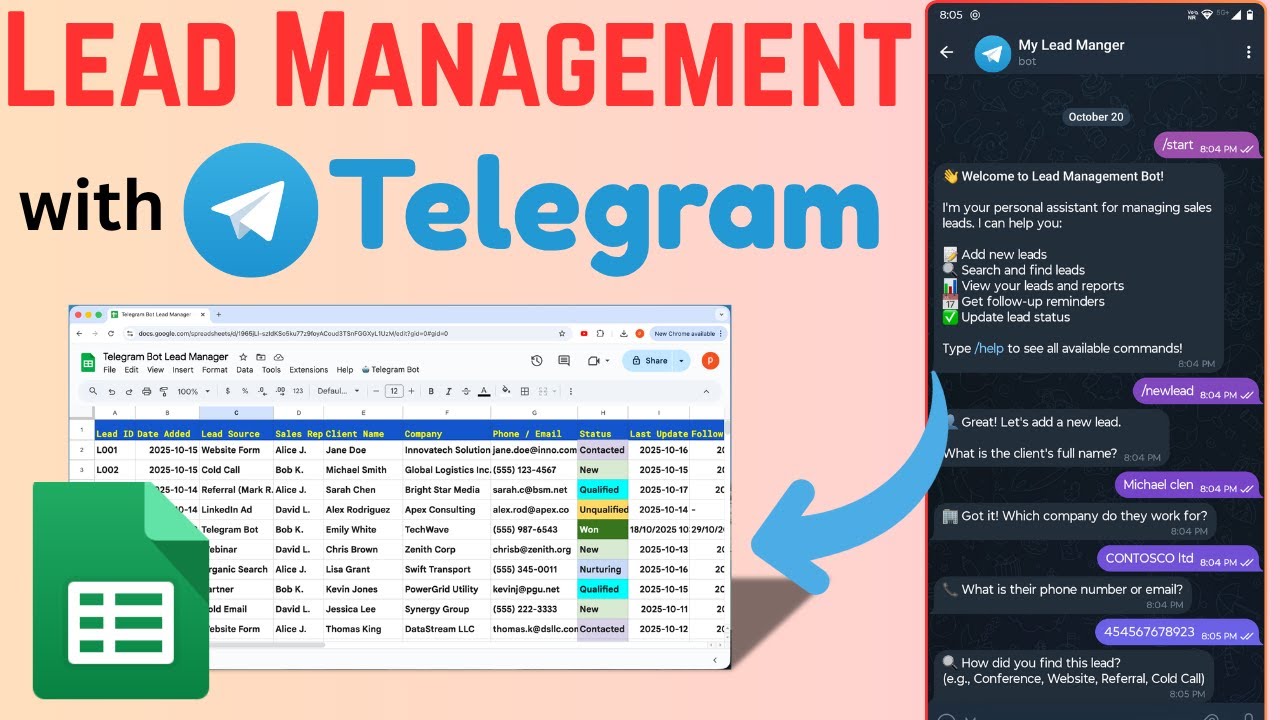
/newlead starts an interactive conversation where the bot guides you through entering all relevant information - company name, contact details, source, and notes. The moment you hit send, the data appears in your Google Sheet.
Later, when you need to follow up, simply message /find [name] to pull up their complete record. The bot displays all details in an easy-to-read format with action buttons for common updates like marking as "Contacted" or scheduling follow-ups.
Need to see all qualified leads? /statusqualified instantly filters and displays them. The system even handles complex workflows like adding notes to existing records or rescheduling follow-up dates - all through natural chat interactions.
What You'll Need to Get Started
This automation requires just three components that work together seamlessly:
- Telegram account: Free messaging app installed on your phone or computer
- Google account: With access to Google Sheets and Apps Script
- 5 minutes of setup time: The most technical part is copying a few configuration values
No coding experience is needed - the App Script handles all the complex backend work. At 2:15 in the video tutorial, you'll see just how simple the setup process really is.
Step 1: Create Your Telegram Bot
Every Telegram bot begins with a conversation with @BotFather - Telegram's official bot creation service. Here's exactly what to do:
Step 1.1: Initiate the bot creation
Search for @BotFather in Telegram and start a chat. Send the command /newbot to begin the creation process.
Step 1.2: Choose your bot's identity
BotFather will ask for:
- A display name (what users will see)
- A username (must end with 'bot', like 'MyLeadsBot')
Protect your access token: After creation, BotFather provides a secret API token. Copy this this immediately as it's needed to connect your bot to Google Sheets. Store it securely - this token essentially acts as your bot's password.
Step 2: Prepare Your Google Sheet
The foundation of this system is a properly structured Google Sheet that will store all your lead data. We've created a template (linked in the description) with these key features:
- Standardized columns: Lead ID, Date Added, Company, Contact, Status, Source, Notes
- Status tracking: Predefined stages like Contacted, Qualified, Proposal Sent
- Automated timestamps: Every action gets recorded with date/time
To use our template:
Step 2.1: Make a copy
Open the template link and select "Make a Copy" from the File menu to create your own version.
Step 2.2: Customize if needed
Add or remove columns based on your specific sales process. Just note that major structural changes will require corresponding updates to the Apps Script configuration.
Step 3: Deploy the Apps Script
The magic happens in Google Apps Script - a JavaScript-based platform that connects your Sheet to the Telegram API. Here's how to deploy it:
Step 3.1: Open the Script Editor
From your Google Sheet, go to Extensions > Apps Script to open the editor where we'll deploy our code.
Step 3.2: Deploy as Web App
Click "Deploy" in the top right, then "New deployment." Choose:
- Type: Web app
- Execute as: Me
- Access: Anyone (even anonymous)
Important: After deployment, you'll get a web app URL. Copy this immediately - it's crucial for connecting Telegram to your sheet. You can always find it again under Deploy > Manage deployments.
Step 4: Connect All Components
With bot token and web app URL in hand, it's time to connect the pieces:
Step 4.1: Enter configuration values
Back in your Google Sheet:
- Open the custom menu (added by the script)
- Select "Enter Bot Token" and paste your Telegram bot token
- Choose "Enter Webhook URL" and paste your Apps Script deployment URL
Step 4.2: Finalize setup
Select "Complete Setup" from the menu. The script will verify all connections and prepare your bot for use.
Test immediately: Message your bot /newlead to start capturing your first lead. Within seconds, you should see appear in your Google Sheets - no refresh needed!
Understanding How the System Works
This solution elegantly combines several technologies:
- Telegram API: Handles all chat interactions and button clicks
- Google Apps Script: Processes incoming messages and manages the Google Sheet
- Webhooks: Instant communication between Telegram and your sheet
The architecture follows a clear flow:
- User sends message to your Telegram bot
- Telegram forwards it to your Apps Script web app
- The script processes the command and updates Google Sheets
- Any response gets sent back through Telegram's API
All sensitive credentials are stored securely using Google's Properties Service, keeping tokens out of your code.
Watch the Full Tutorial
For visual learners, the video tutorial walks through the entire setup process at 3:47, including troubleshooting tips for common issues. Seeing the bot in action helps understand its full potential.
Key Takeaways
This Telegram bot solution transforms lead management from chaotic to controlled:
In summary: You've built a system that captures leads anywhere, updates statuses with one tap, and keeps everything organized in Google Sheets - all through simple chat commands your team already uses daily.
- Real-time synchronization eliminates manual data entry errors
- Interactive buttons standardize your sales process
- Historical timestamps provide valuable performance metrics
- No special software required - just tools you already use
Frequently Asked Questions
Common questions about Telegram lead bots
The Telegram bot provides real-time lead capture from anywhere, automatic organization in Google Sheets, and status updates through simple chat commands. It eliminates manual data entry errors and keeps your entire team synchronized on lead status without needing CRM software.
Unlike traditional CRMs, this solution works through a familiar chat interface that requires no training. The Google Sheet integration means you can still use all of Sheets features like filtering, charts, and sharing controls.
- Capture leads 24/7 from any location
- Update statuses with one tap
- Full history of all interactions
No coding experience is required. The setup involves copying configuration values between Telegram and Google Sheets, with the App Script handling all the technical complexity behind the scenes. The tutorial provides step-by-step guidance for non-technical users.
At most, you might need to adjust some field names in the configuration if you customize the Google Sheet template. Even then, the video shows exactly what to modify.
- No programming knowledge needed
- Simple copy-paste setup
- Video guidance every step
The bot provides interactive buttons for common status changes like Contacted, Qualified, or Lost. When you update a status through the chat interface, it immediately syncs to Google Sheets with a timestamp. You can also view all leads filtered by status with simple commands like /statusqualified.
Each status change creates a complete audit trail showing who made the change and when. This helps managers track team activity and identify bottlenecks in the sales process.
- One-tap status updates
- Automatic timestamping
- Filter views by status
Yes, the system supports multiple users. Each team member interacts with the same bot, and all lead data syncs to a centralized Google Sheet. The sheet maintains records of who made each update with timestamps for complete accountability.
The Google Sheet's standard sharing controls determine who can view or edit the data directly. The bot itself maintains its own access through the script, allowing team members to update leads without sheet access if needed.
- Unlimited users supported
- Centralized lead database
- Activity tracking by user
Telegram stores messages temporarily when offline. Once reconnected, any lead information you submitted will sync automatically. The Google Sheet acts as the single source of truth, so no data is lost during temporary disconnections.
For critical situations, you can configure the bot commands via SMS if configured in Telegram settings. The system is designed for mobile professionals who may frequently transition between online and offline environments.
- Offline message queuing
- Automatic sync when reconnected
- SMS fallback option
The system uses Telegram's encrypted messaging and Google's secure infrastructure. Sensitive tokens are stored using Google's Properties Service rather than hard-coded in scripts. Access can be controlled through standard Google Sheets sharing permissions.
For additional security, you can enable two-factor authentication on both your Telegram and Google accounts. The Apps Script executes under your Google account's permissions, maintaining your organization's existing security controls.
- End-to-end encryption
- Token protection
- Standard Google security controls
Yes, the Google Sheet template can be modified to include additional fields. The bot's question flow will automatically adapt to match your sheet's column structure after you update the configuration file with the new field mappings.
Common customizations include adding product interest fields, budget ranges, or lead scoring criteria. The system supports both simple text fields and multiple-choice options that appear as buttons in the Telegram interface.
- Add/remove data fields
- Custom question flows
- Multiple-choice options
GrowwStacks can customize this Telegram bot solution for your specific sales workflow, integrate it with your existing CRM tools, and scale it for enterprise teams. Our automation experts handle the technical implementation while you focus on converting leads.
We offer three levels of service: 1) Guided setup where we walk you through configuration, 2) Custom field mapping for your unique sales process, or 3) Full enterprise integration with your existing systems. Every engagement with free consultation to your team's technical comfort level.
- Custom workflow design
- Existing CRM integration
- Enterprise scaling
Ready to Eliminate Manual Lead Tracking?
Every hour spent on data entry is an hour not spent closing deals. Let GrowwStacks build you a custom Telegram bot that captures, tracks, and nurtures leads automatically - customized to your exact sales process.