
The Bulk Email Bottleneck: Why Sending Personalised Emails With Attachments to Hundreds of Recipients Takes Days When It Should Take Minutes
Personalised bulk email communication with file attachments is one of the highest-frequency, highest-labour administrative tasks across business functions — and one of the most straightforwardly automatable. HR teams send offer letters and onboarding documents to each new hire — each email personalised with the candidate's name, role, and start date, each carrying a different set of signed documents. Accounting departments distribute monthly invoices, financial statements, or payroll documents to client lists — each recipient's email containing files specific to their account. Software companies send licence renewal notices with individual licence files. Marketing teams distribute client-specific proposals, pitch decks, or creative briefs. In every case, the same painful manual workflow repeats: open Gmail, start a new email, type or paste the recipient's name, address the email, write or paste the subject line, write or paste the body, find the relevant files on Drive or a local folder, attach each file individually, send, and manually record in a spreadsheet that the email was sent. Multiplied across 50, 100, or 500 recipients, this is a multi-day task that consumes skilled team members' time with mechanical repetition.
Two failure modes are endemic to this manual process. The first is personalisation errors: when composing individual emails from a template, the person sending frequently forgets to update recipient-specific fields — sending an email addressed to "Dear [First Name]" or with the previous recipient's company name still in the body. These errors damage professionalism and require follow-up correction emails, compounding the time cost. The second is the attachment error: attaching the wrong file to a recipient (sending Client B's invoice to Client A, or attaching last month's document instead of this month's) creates compliance and confidentiality problems that are difficult to remediate once the email is delivered. The automation eliminates both failure modes by reading personalisation data and file IDs directly from a structured database — making errors structurally impossible rather than merely unlikely.
Building the Automated Bulk Email Pipeline: Google Sheets as the Control Panel, Make.com as the Engine
GrowwStacks built a bulk email automation that handles the complete email production and delivery workflow — personalisation, file retrieval, attachment aggregation, Gmail delivery, and status tracking — from a Google Sheets interface the team already uses daily. The architecture is intentionally built on tools organisations already have access to: Google Sheets for the recipient database (no new database software required), Google Drive for file storage (no new file hosting service required), Gmail for delivery (no new email platform required), and Make.com for orchestration. The only new components are the automation logic itself and the Google Apps Script button that triggers it.
The system's distinctive technical capability is its multi-file attachment handling. Most basic email automation tools support a single static attachment per email — a limitation that prevents them from serving use cases where different recipients need different files, or where a single recipient needs multiple documents in one email. This system handles both scenarios: each recipient's row in Google Sheets contains a comma-separated list of Google Drive file IDs specific to that recipient. Make.com's iterator splits this list, downloads each file independently from Drive, and aggregates all downloaded files into a single attachment array — which Gmail receives and attaches to the outgoing message. A recipient who needs five documents gets five attachments; a recipient who needs two gets two; and every attachment is recipient-specific, drawn from the file IDs in that recipient's row rather than a shared static attachment list.
From Button Click to Delivered Email: The Complete Six-Step Automated Pipeline
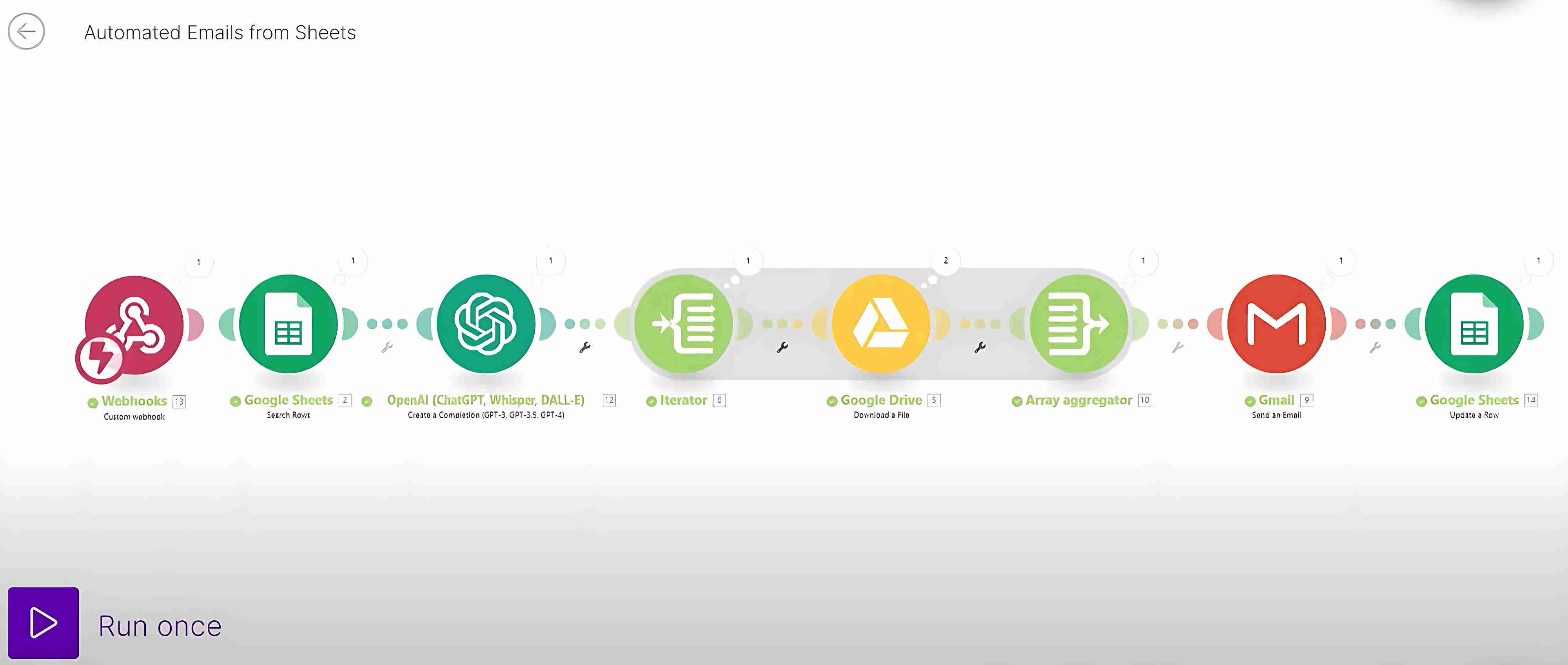
The system processes every Valid recipient in the Google Sheets database through six automated steps — from Apps Script webhook trigger through Gmail delivery and status update — executing the complete cycle for each recipient without any manual action per email. Here's how each component operates:
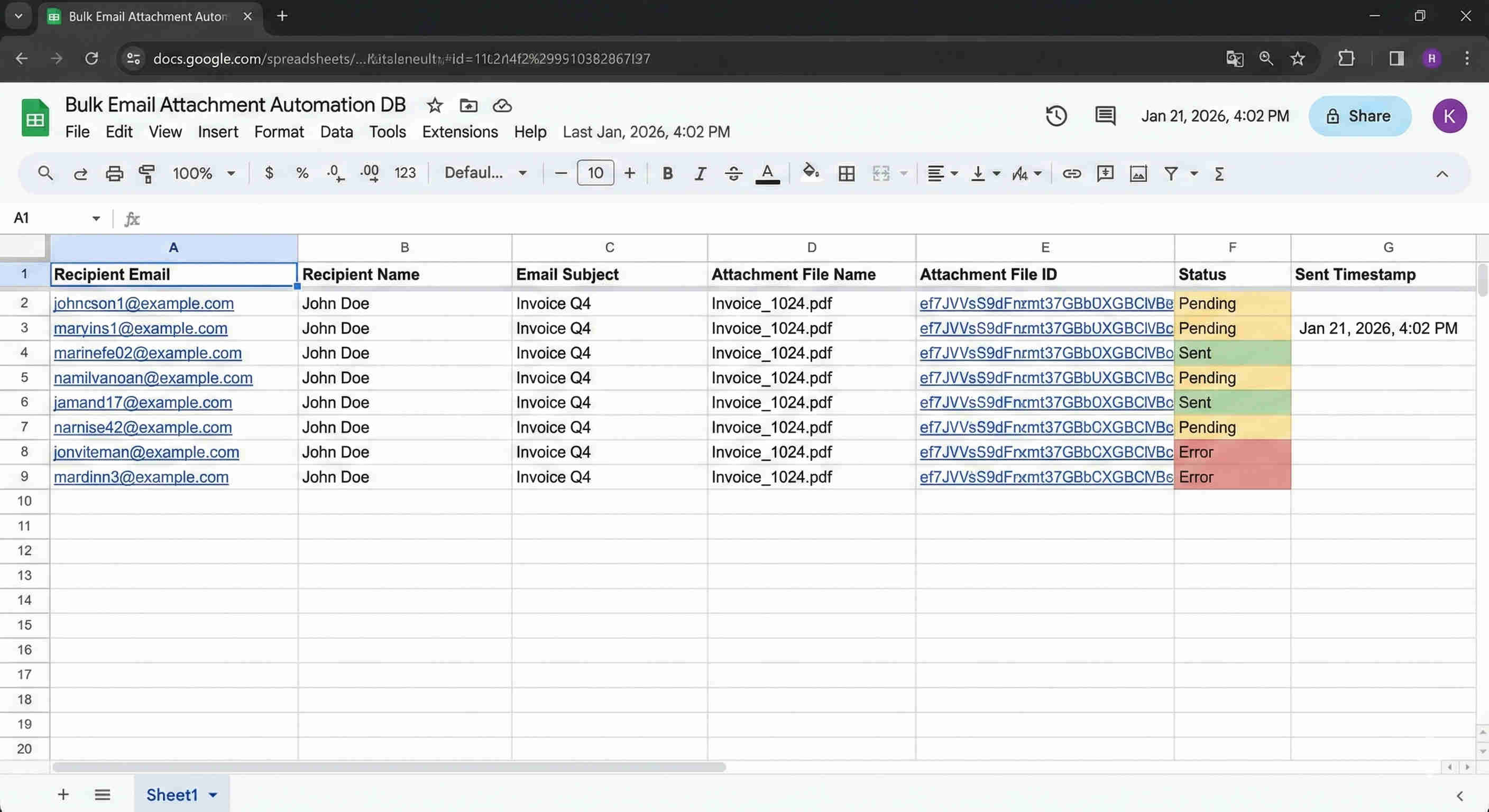
- Google Sheets database setup and status-based triggering: The Google Sheets recipient database is structured with one row per email send, containing all information required for that specific recipient's email: Email ID (a unique identifier for deduplication), First Name, Last Name, Email Address, Subject Line (the complete subject as it should appear in the recipient's inbox — recipient-specific for maximum personalisation), Email Body (the full email body content — which can include placeholder text that ChatGPT cleans and formats, or fully written content ready for delivery), Attachment File IDs (a comma-separated list of Google Drive file IDs for all files that should be attached to this specific recipient's email — e.g., "1ABC123xyz, 1DEF456abc, 1GHI789def"), and Status (dropdown: Pending / Valid / Sent / Error). The team prepares the database by populating all rows, uploading files to Google Drive and pasting their file IDs into the attachment column, and setting each row's status to "Valid" when ready to send. The Status dropdown is the send gate — only Valid rows are processed, giving the team precise control over which recipients receive emails in each send batch.
- Google Apps Script webhook trigger: When the team is ready to execute the send, they click the custom "Send Email" button embedded in the Google Sheets interface. This button is a drawing object with a Google Apps Script function assigned to its click event. The Apps Script function calls Make.com's webhook URL via UrlFetchApp — passing a trigger signal that initiates the Make.com scenario. The Apps Script button means team members never need to access Make.com to operate the system: the entire workflow is initiated from the familiar spreadsheet interface. For teams with multiple users, the button can be configured with access controls — ensuring only authorised team members can trigger the bulk send. The webhook call is near-instantaneous — Make.com begins processing Valid rows within seconds of the button click.
- Make.com Google Sheets search for Valid recipients: The Make.com scenario begins with a Google Sheets Search Rows module that queries the recipient database for all rows where the Status column equals "Valid." This module returns all matching rows as an array, which Make.com processes sequentially — executing the full pipeline for each Valid row in turn. The search filter ensures that rows already marked "Sent" are never reprocessed (preventing duplicate emails), rows marked "Pending" are held for future send batches, and rows marked "Error" are surfaced for manual review. The sequential processing model means the scenario handles one recipient at a time from start to finish — completing the full cycle (file fetching, attachment aggregation, Gmail send, status update) for each recipient before moving to the next — ensuring no race conditions in the status update logic and providing a clear per-recipient success or failure record.
- ChatGPT content cleaning and formatting: For each recipient's row, the Email Body content is passed through a ChatGPT API call with a content cleaning prompt. This step ensures that email body content — which is often pasted from various sources (Word documents, Google Docs, previous emails) — is cleaned of formatting artefacts, HTML entities, inconsistent whitespace, and structural issues before delivery. ChatGPT standardises the text into clean, professionally presented email copy without altering the substantive content. For use cases where the email body contains placeholder instructions (such as "insert the candidate's start date here"), ChatGPT can also be configured to complete these completions using data from other row columns — providing a lightweight personalisation layer on top of the base email content. The cleaned content is passed to the Gmail delivery step.
- Google Drive file retrieval and attachment aggregation: The Attachment File IDs cell content (e.g., "1ABC123xyz, 1DEF456abc, 1GHI789def") is processed by Make.com's iterator module, which splits the comma-separated string into individual file ID values and creates a separate processing iteration for each. For each file ID, a Google Drive Download File module retrieves the file binary from Google Drive — supporting any file type (PDF, DOCX, XLSX, PNG, ZIP) without requiring manual download or format conversion. After all file IDs have been processed through the iterator, Make.com's aggregator module collects all downloaded file binaries into a single attachment array using the target structure type — a technical configuration that ensures all files for one recipient are bundled correctly for Gmail's multi-attachment API rather than sent as separate emails or lost in processing. The aggregated attachment array is passed to the Gmail module ready for embedding in the outgoing email. This iterator → download → aggregate sequence handles unlimited attachment files per recipient — a recipient with 1 file and a recipient with 10 files both process through the same pipeline logic, with the aggregator adapting dynamically to however many file IDs were present in that row.
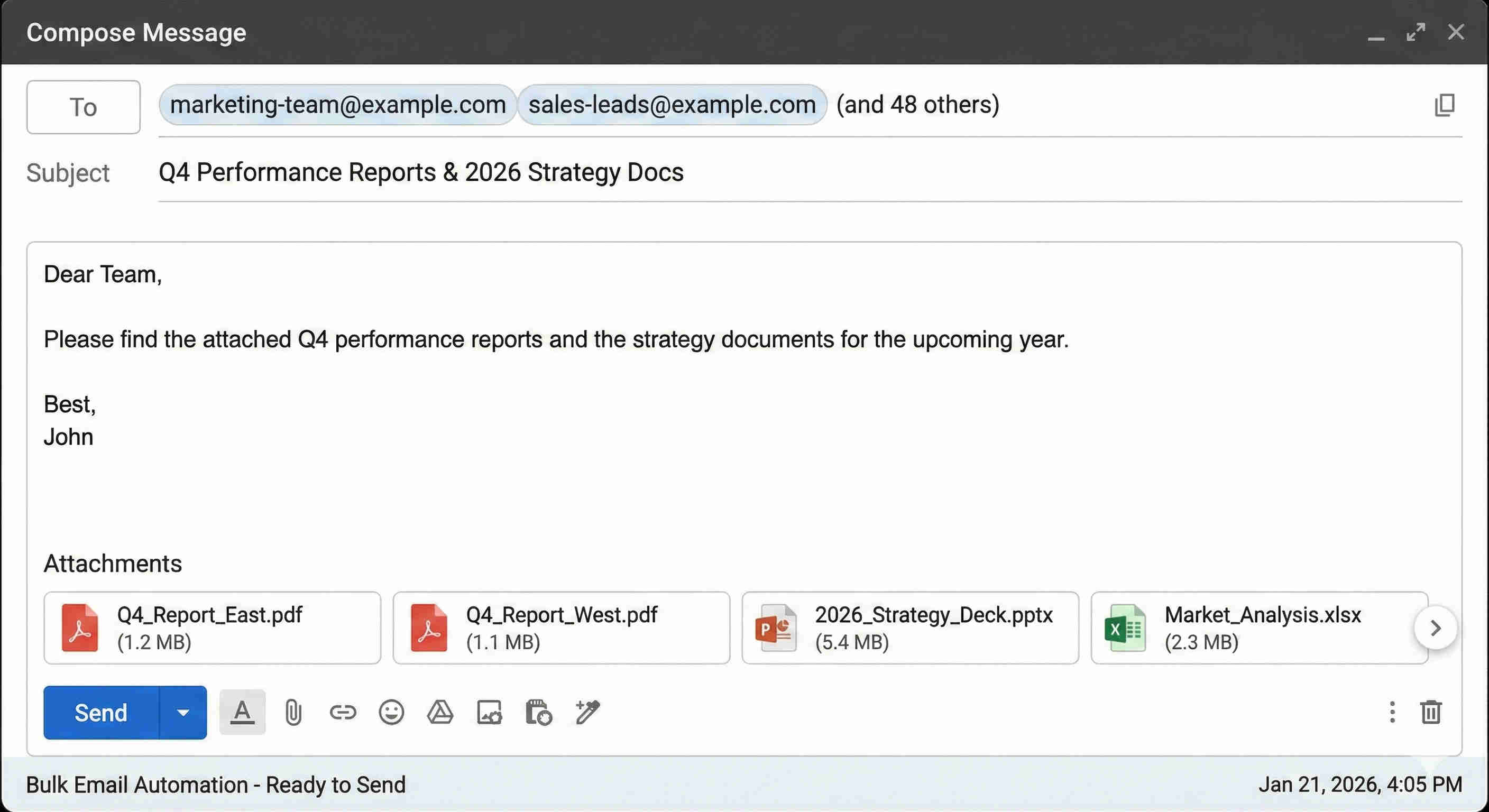
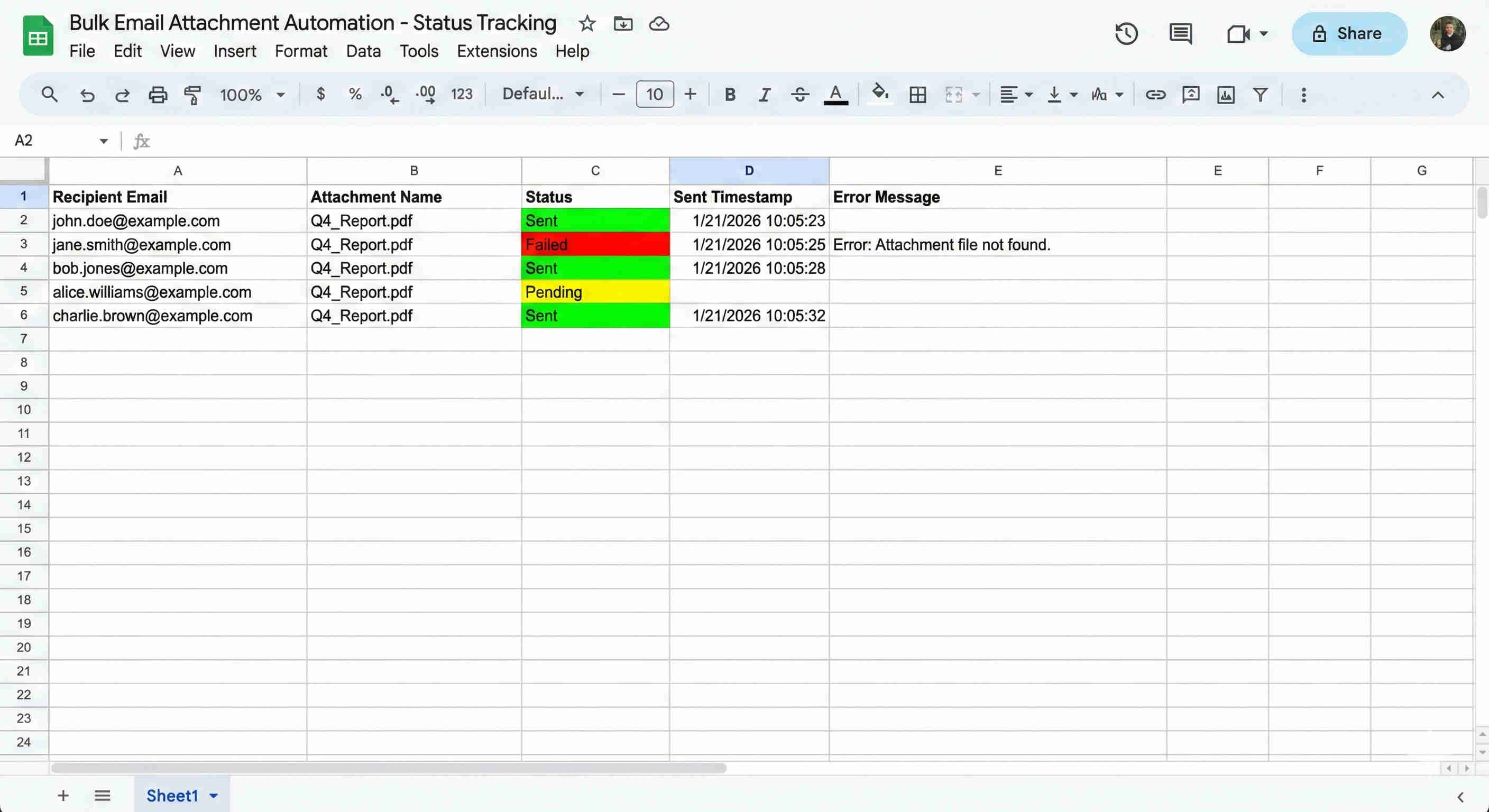
- Gmail personalised delivery and status update: Make.com's Gmail Send Email module receives the complete email payload: the recipient's email address (from the Email Address column), the personalised subject line (from the Subject Line column, with the recipient's name interpolated if the subject includes personalisation fields), the cleaned email body from the ChatGPT step (with the recipient's first and last names mapped into the greeting), and the aggregated attachment array from the Drive retrieval step. Gmail sends the email with all attachments in a single message — maintaining the sender's Gmail account reputation and delivering within seconds for standard recipient lists. Immediately after successful Gmail delivery, Make.com calls the Google Sheets Update Row module to write "Sent" to the Status column for that recipient's row — using the row's Email ID as the lookup key to update precisely the correct row. This status update is the deduplication gate: if the workflow were somehow re-triggered for the same recipient, the "Sent" status would exclude them from the Valid rows search and prevent a duplicate email from being sent. Error handling captures Gmail API failures, Drive access errors, and any other exceptions — writing "Error" to the status column with an error note for manual review rather than silently failing or halting the entire batch.
💡 Why the comma-separated Google Drive file ID approach solves the hardest part of bulk email automation — per-recipient variable attachment sets: Most bulk email tools support sending the same static attachment to all recipients — a useful capability for sending a generic document to a mailing list, but fundamentally insufficient for business communication where each recipient needs their own specific files. The file ID approach in this system solves this by treating each recipient's attachment set as a data field rather than a file selection. A Drive file ID is simply a string of characters (e.g., "1BxiMVs0XRA5nFMdKvBdBZjgmUUqptlbs74OgVE2upms") that uniquely identifies a specific file in Google Drive. Pasting these IDs into a Google Sheets cell is no more complex than typing a value — and it gives the system complete information about which files to attach to that specific recipient's email. When the system processes that row, it fetches exactly those files and no others — making recipient-specific document delivery structurally accurate regardless of how many recipients are in the batch. For teams working with large file libraries (an accounting firm with hundreds of client documents, an HR team with dozens of onboarding document variants), this approach scales without any reclassification of files or reorganisation of the Drive folder — the file IDs remain stable, and the database simply references them per recipient.
What This System Enables That Manual Email Sending Cannot Scale
Unlimited Per-Recipient Attachment Support
Automatically fetches any number of recipient-specific files from Google Drive using comma-separated file IDs stored in the spreadsheet — with Make.com's iterator and aggregator handling the splitting, downloading, and bundling of multiple files into a single Gmail attachment array. No manual file selection, no repeated uploading, no risk of attaching the wrong document to the wrong recipient. A recipient requiring 10 attachments is processed with identical automation logic to one requiring a single file.
Dynamic Email Personalisation
Maps recipient-specific data — first name, last name, custom subject line, and individual email body content — directly from Google Sheets into every outgoing Gmail message. ChatGPT cleans and formats the body content before delivery, ensuring professional presentation across all messages regardless of source formatting. Personalisation is structurally enforced by the data mapping rather than dependent on the sender remembering to update template fields — eliminating the "Dear [First Name]" category of error that manual template email sending frequently produces.
One-Click Send From Google Sheets
A custom "Send Email" button embedded directly in the Google Sheets interface triggers the complete Make.com workflow via Apps Script webhook — without the user opening Make.com, navigating a platform dashboard, or performing any action outside the spreadsheet. The entire batch send for hundreds of recipients executes from a single button click by a team member who has never interacted with the automation platform directly. The simplicity of the trigger interface is what enables non-technical team members to operate the system with confidence.
Automatic Status Tracking and Duplicate Prevention
Google Sheets status updates from "Valid" to "Sent" immediately after each successful Gmail delivery — creating a real-time audit trail of which recipients have been contacted in the current batch and which are pending. The status-based filtering ensures that triggering the send button a second time processes only remaining Valid rows — recipients already marked "Sent" are excluded automatically, making duplicate email sends structurally impossible rather than dependent on the team member's memory of who was already emailed.
The System in Action
Before vs. After: What Changes When Bulk Personalised Email With Attachments Takes Minutes Instead of Days
Before: Sending personalised emails with recipient-specific attachments to a list of 100 recipients was a multi-day task that consumed skilled team members in mechanical repetition. Opening Gmail 100 times, typing or pasting a personalised greeting 100 times, finding and attaching the correct files for each recipient individually — then manually updating the tracking spreadsheet to record each send. At 10 minutes per recipient (a conservative estimate when factoring in file location, attachment uploading, and personalisation verification), 100 recipients represents nearly 17 hours of work. During that time, personalisation errors crept in — a wrong name, a wrong subject line, the wrong attachment — and were discovered only when the recipient flagged the mistake, requiring a follow-up correction email that added further time and damaged professionalism. And throughout the process, the team member performing the sends was unavailable for any other work.
After: The same 100-recipient send executes in minutes. The team member spends time once — building the Google Sheets database with recipient details and file IDs — and then clicks the Send Email button. Make.com processes all 100 rows: fetching files, aggregating attachments, personalising content, and delivering each email with the correct attachments. The status column updates row by row as sends complete, providing real-time visibility into progress without the team member needing to track anything manually. When the scenario finishes, all 100 rows show "Sent" and the team member is available for other work. The same workflow that took 17 hours of manual execution takes 20 minutes of setup and 5 minutes of automated execution — with structurally zero personalisation errors and structurally zero attachment mistakes. The reclaimed time is not marginal; for teams sending bulk personalised emails weekly, it represents multiple full working days per month redirected from mechanical repetition to strategic work.
Implementation: Live in 1 Week
- Google Sheets database template and Google Drive file organisation (Days 1–2): The Google Sheets recipient database is built with the full column schema: Email ID (a sequential or UUID identifier used for status update targeting), First Name, Last Name, Email Address, Subject Line, Email Body, Attachment File IDs (formatted as comma-separated Drive file IDs without spaces), and Status (dropdown with options: Pending, Valid, Sent, Error). Data validation is applied to the Status column and the Email Address column. The client's Google Drive folder structure is reviewed and a dedicated "Email Attachments" folder is established — all files to be sent via the automation should reside in this folder or in accessible subfolders. The process for obtaining Google Drive file IDs is documented for the team: right-clicking a Drive file and selecting "Copy link" gives the shareable URL; the file ID is the long string after "d/" in the URL (e.g., in "drive.google.com/file/d/1BxiMVs0.../view", the ID is "1BxiMVs0..."). A sample recipient list of 5–10 rows is populated with real file IDs and email addresses for testing the complete workflow.
- Google Apps Script button development (Day 2–3): Google Apps Script is written for the Send Email trigger function: the function constructs the Make.com webhook URL call using UrlFetchApp.fetch(), passing a JSON payload with a trigger identifier. The script is deployed within the Google Sheets project (Tools → Script Editor) and tested by calling the function manually to confirm Make.com receives the webhook signal. A drawing object (rectangle or button shape) is created in the Google Sheets interface and labelled "Send Email." The drawing is right-clicked and "Assign Script" links it to the trigger function. The button's visual position is set to a fixed cell location in the spreadsheet header area where it remains visible without scrolling, and is formatted with a colour and label that makes its function clear to all users. A second button labelled "Reset Selected" is optionally added — an Apps Script function that changes selected rows' Status back to "Valid" for re-sending if an error correction is needed without manually editing each cell.
- Make.com scenario development (Days 3–5): The Make.com scenario is built module by module. The Webhook module is configured with a unique webhook URL, which is copied into the Apps Script UrlFetchApp call. The Google Sheets Search Rows module is configured to search the recipient database for rows where Status = "Valid," with the correct Spreadsheet ID and Sheet name. The ChatGPT module is connected with the content cleaning prompt — a system instruction telling ChatGPT to clean and format the email body text for professional presentation without changing substantive content, and to substitute recipient name placeholders with the actual First Name and Last Name values from the current row. The Iterator module is configured to split the Attachment File IDs cell value on the comma character, producing individual file ID values. For each file ID value, a Google Drive Download File module is configured to download the file using the current iterator value as the file ID parameter. The Aggregator module is configured with the target structure set to the Gmail module's attachment array structure — aggregating all downloaded file binaries into the format Gmail's API expects for multi-attachment sends. The Gmail Send Email module is configured with field mappings: To = Email Address, Subject = Subject Line, Body = ChatGPT cleaned output (HTML mode enabled for formatted emails), Attachments = aggregator output. The Google Sheets Update Row module is configured to write "Sent" to the Status column for the processed row using the Email ID as the match key. Error handling routes capture exceptions from each module with error logging to the Status column.
- End-to-end testing and deployment (Days 5–7): Comprehensive testing covers: single recipient sends with one attachment, single recipient sends with five attachments, bulk sends of 10 recipients with mixed attachment counts, error scenarios (invalid file ID, invalid email address, Drive permission error), and re-send attempt on a "Sent" row confirming exclusion from processing. Gmail delivery is confirmed for all test sends — checking attachment presence, personalisation accuracy, subject line correctness, and body formatting quality. Status updates are verified for Sent and Error states. The Apps Script button is tested by multiple team members to confirm the trigger workflow operates correctly for non-technical users. Final user documentation is prepared covering: how to populate the Google Sheets database, how to obtain Google Drive file IDs, how to set status to Valid and trigger the send, how to monitor send progress via the status column, and how to handle Error rows. The production system is activated for the client's first real send batch, with GrowwStacks monitoring the Make.com scenario execution log for the initial deployment to confirm clean operation before handing off to the team.
The Right Fit — and When It Isn't
This solution delivers maximum value for HR teams distributing offer letters, employment contracts, and onboarding document packages to batches of new hires; accounting and finance departments sending monthly invoices, financial statements, or payroll documents to client or employee lists; software companies sending licence files, renewal notices, or technical documentation to user bases; marketing and business development teams distributing client-specific proposals, pitch decks, or creative briefs; legal teams sending executed contracts or compliance documents to counterparty lists; and any organisation where a staff member currently spends more than 3 hours weekly composing and sending personalised emails with document attachments. The 1-week implementation timeline is the fastest in the GrowwStacks portfolio — making this the highest-speed-to-value automation available for teams whose time cost is most acute.
Two important scope boundaries: the system is built for Google Workspace users — it requires Gmail for sending, Google Sheets for the database, and Google Drive for file storage. Organisations using Microsoft 365 (Outlook + SharePoint + OneDrive) can achieve equivalent results with a parallel architecture using Microsoft's Graph API and Make.com's Microsoft modules, which is a separate implementation scope. Additionally, this system sends emails from the authenticated Gmail account of the team member who set up the connection — emails arrive from that person's Gmail address rather than from a dedicated sending domain. For organisations requiring a custom domain sending address (e.g., [email protected] or [email protected]), an SMTP relay configuration or a Google Workspace alias setup is required as an additional implementation step, which we scope during the discovery call.