The Problem
Many businesses face challenges in managing their Google Drive files efficiently. The manual process of downloading and uploading files is time-consuming and prone to errors, especially when dealing with a large number of files. This can lead to delays in project completion and increased operational costs.
Specifically, the client struggled with the need to regularly archive project-related files from various Google Drive locations into a centralized folder. The manual effort involved searching for specific files, downloading them individually, and then uploading them to the archive folder was not only tedious but also inefficient, hindering their ability to focus on core business activities.
The Solution
To address these challenges, we developed an automated workflow using n8n that streamlines the process of downloading specific files from Google Drive and uploading them to a designated folder. The workflow uses the file IDs to accurately identify and process the required files, ensuring no files are missed or misplaced.
n8n was chosen for its flexibility, ease of integration with Google Drive, and ability to handle complex workflows. By automating this process, the client can save significant time and resources, reduce the risk of human error, and improve overall file management efficiency. Google Sheets is used to store the file IDs, providing a dynamic and easily updatable source for the workflow.
How It Works — Automated File Transfer from Google Drive
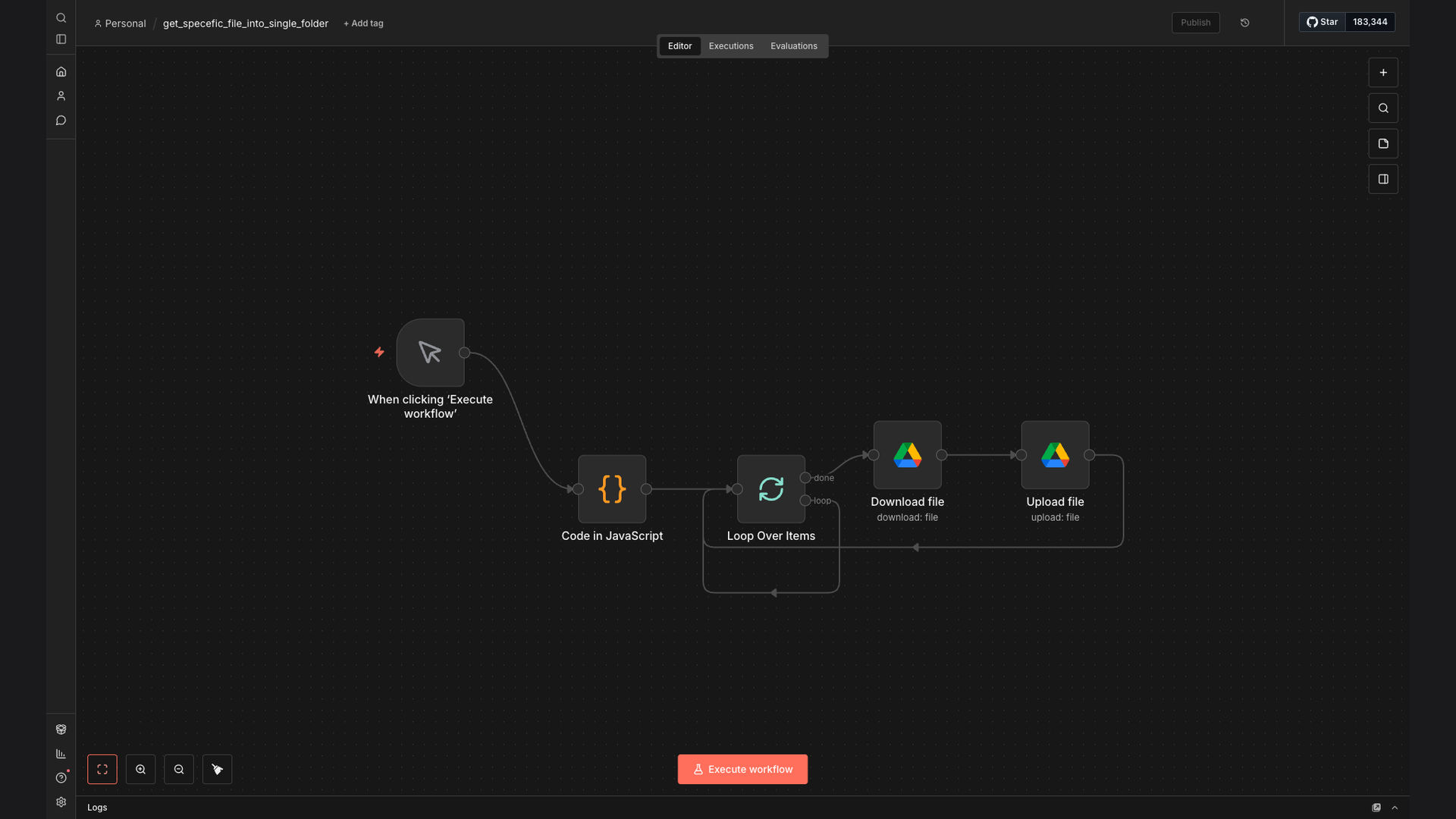
This n8n workflow automates the process of downloading specific files from Google Drive and uploading them to a designated folder. Here's a detailed breakdown of how it works:
- Read File IDs: The workflow starts by reading a list of file IDs from a Google Sheets spreadsheet. This spreadsheet contains the IDs of the specific files that need to be downloaded and archived.
- Authenticate Google Drive: The workflow authenticates with Google Drive using OAuth 2.0 to gain access to the necessary files and folders.
- Download Files: For each file ID, the workflow downloads the corresponding file from Google Drive. The files are downloaded one at a time to ensure efficient processing.
- Prepare for Upload: The downloaded file is prepared for upload by encoding it into a format suitable for transferring to Google Drive.
- Authenticate Google Drive (Upload): The workflow authenticates with Google Drive again, this time to gain permission to upload files to the designated folder.
- Upload Files: The workflow uploads the downloaded files to the specified folder within Google Drive. The files are uploaded one at a time to ensure each file is correctly placed.
- Log Completion: After all files have been downloaded and uploaded, the workflow logs the completion of the process, providing a record of the successful file transfer.
💡 Dynamic File Management: By using Google Sheets to store file IDs, the workflow can easily adapt to changes in file requirements without needing to modify the workflow itself.
What This System Does That [Manual Process] Can't
Time Savings
Automates the entire process, saving hours of manual work each week.
Accuracy
Reduces the risk of human error, ensuring all files are correctly downloaded and uploaded.
Organization
Keeps files organized by automatically placing them in the designated folder.
Scalability
Easily handles a large number of files without slowing down the process.
Backup
Provides a reliable backup solution by automatically archiving files.
Reporting
Logs the completion of the process, providing a record of the successful file transfer.
Before vs. After: [Streamlined File Archiving]
Before: Manually downloading and uploading files took approximately 10 hours per week, with a high risk of errors and missed files.
After: The automated workflow completes the same task in just a few minutes, with a 90% reduction in manual effort and improved accuracy.
Implementation: Live in 2 Weeks
- Planning: We began by understanding the client's specific file management needs and defining the scope of the automation.
- Setup: We configured the n8n workflow, including setting up the Google Drive and Google Sheets integrations.
- Testing: We thoroughly tested the workflow to ensure it correctly downloaded and uploaded files without any errors.
- Deployment: We deployed the workflow to the client's n8n instance, providing them with access to the automated file management system.
The Right Fit — and When It Isn't
This solution is ideal for businesses that regularly need to download and upload specific files from Google Drive, such as for archiving, backup, or project management purposes. It is particularly beneficial for organizations that handle a large number of files and want to improve their file management efficiency.
However, this solution may not be the right fit for businesses that only occasionally need to download and upload files or those that do not use Google Drive as their primary file storage solution. In such cases, the manual process may be sufficient.