Why Excel automation?
Excel remains one of the most widely used business tools decades after its introduction, with over 750 million users worldwide. Its versatility for data analysis, reporting, and calculations makes it indispensable, but manual processes create bottlenecks.
The modern business environment demands automation for several key reasons:
- The average company now uses over 100 different applications that need to share data
- Manual data transfers between systems wastes employee time and introduces errors
- Real-time data synchronization improves decision making and customer experiences
Excel automation solves these challenges by creating seamless connections between spreadsheets and other business applications. Automated workflows run in the background, keeping all systems updated without manual intervention.
Pro tip: Start with automating your most repetitive Excel tasks that consume significant employee time. These typically offer the fastest ROI from automation.
How to automate Excel: 27 Make templates to get you inspired
These ready-to-use templates demonstrate the power of Excel automation across business functions. Each can be customized for your specific needs while requiring no coding knowledge to implement.
How to automate Excel for sales and e-commerce processes
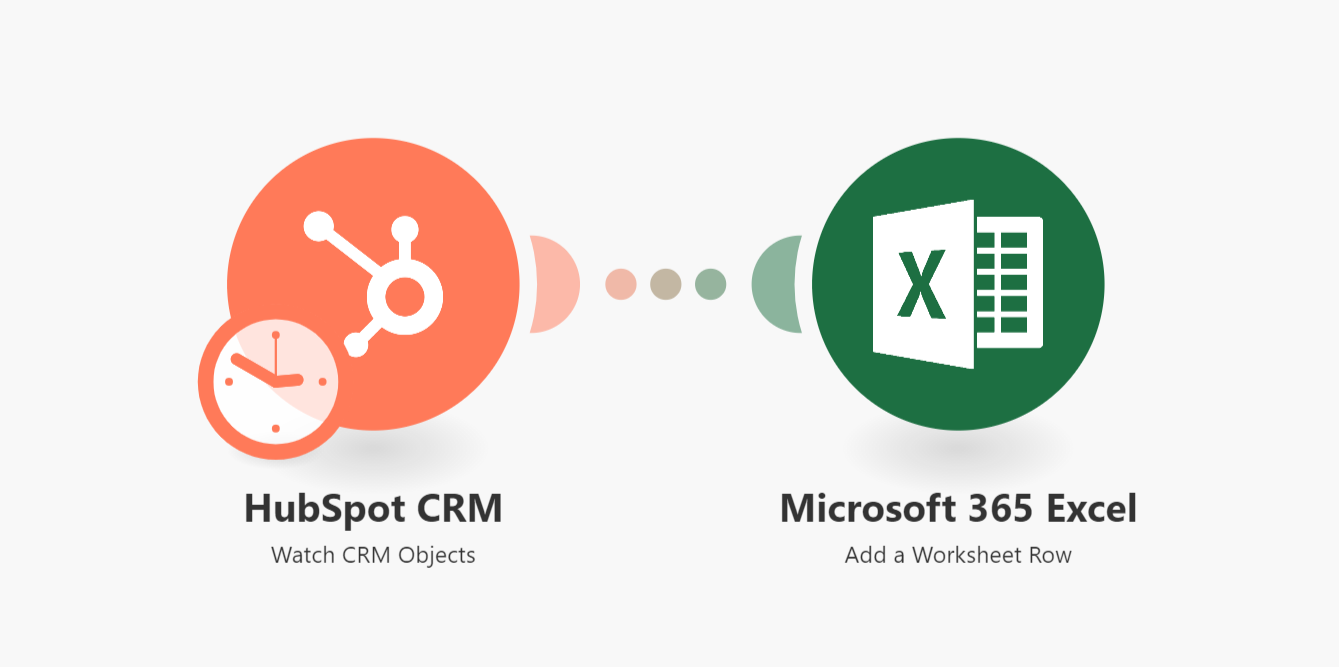
1. Automate sales commissions in Excel for closed HubSpot deals
Calculating sales commissions manually creates delays and potential errors that impact team morale. This template automatically tracks closed HubSpot deals, calculates commissions based on your rules, and updates Excel in real-time.
The workflow captures deal amount, sales rep, close date and other key fields from HubSpot. It applies your commission structure (flat rate, tiered, or custom formulas) and logs everything in Excel for accounting and reporting.
2. Create new Salesforce leads from Excel and avoid lead duplication
Managing leads across multiple systems often creates duplicate records and inconsistent data. This automation checks Salesforce for existing contacts before creating new leads from Excel entries, preventing duplicates.
The template validates email addresses and other key fields against Salesforce. Only net-new leads get created while existing contacts are flagged in Excel. This maintains data integrity while saving sales teams from manual cross-checking.
3. Excel and PandaDoc, or how to create an automated document mill
Generating contracts, proposals and other documents from Excel lists becomes fully automated with this template. It pulls recipient details and document variables from Excel, generates personalized PandaDoc documents, and tracks status back to your spreadsheet.
The workflow handles document creation, e-signature requests, and completion tracking. Sales teams save hours previously spent manually preparing documents while gaining real-time visibility into signing status.
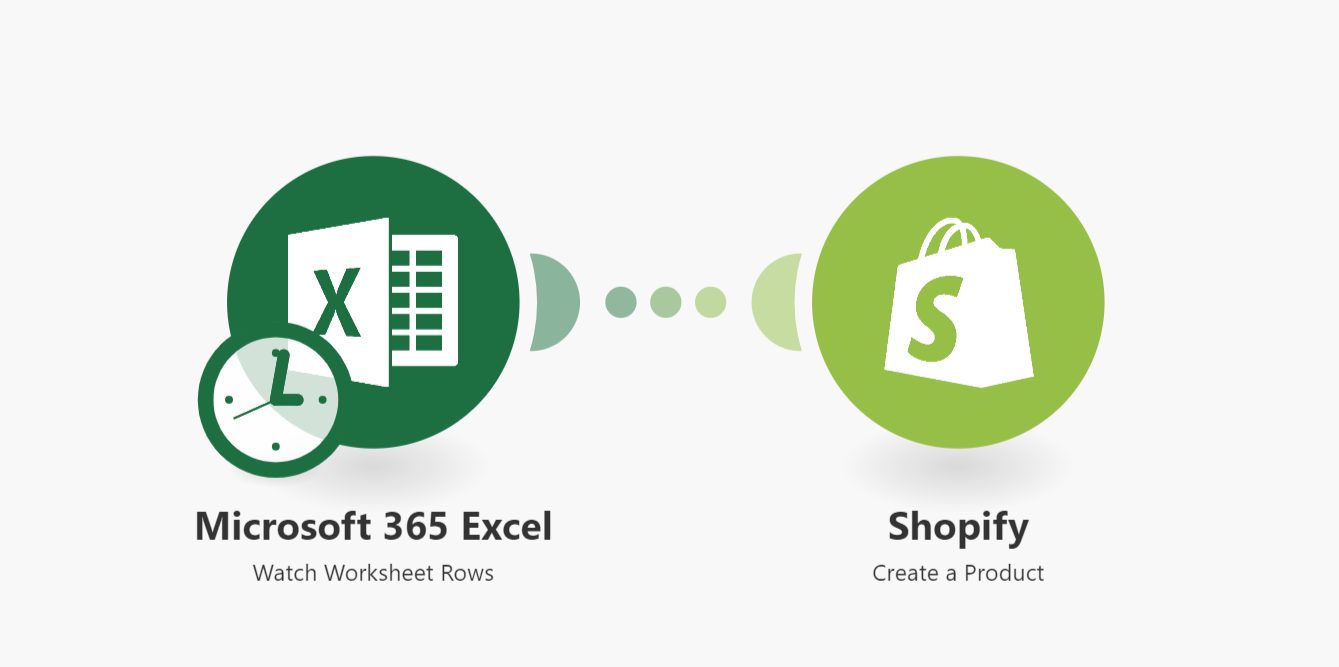
4. Automatically import Shopify products from Excel
Adding products manually through Shopify's interface becomes impractical at scale. This template lets you manage products in Excel where bulk editing is easier, then automatically syncs them to your Shopify store.
The automation handles product titles, descriptions, variants, images, pricing and inventory levels. You can update hundreds of products by modifying your Excel sheet, with changes propagating to Shopify without manual data entry.
5. Record your ShipStation orders to Excel
Shipping data trapped in ShipStation becomes far more valuable when analyzed in Excel. This automation exports order details, shipping costs, delivery dates and tracking information to Excel for reporting and analysis.
The template helps identify shipping cost trends, carrier performance, and delivery time benchmarks. Finance teams gain visibility into logistics spend while customer service can access shipping history without ShipStation logins.
6. Export QuickBooks invoices to Excel for detailed analysis
QuickBooks reporting limitations often force businesses to export data to Excel for proper analysis. This template automates the process, syncing invoices, payments and customer data on a schedule you define.
The automation maintains a complete financial record in Excel for custom reporting, aging analysis, and revenue tracking. Data stays current without manual exports, and historical records are preserved even if changed in QuickBooks.
7. See who your WooCommerce customers are in Excel
WooCommerce customer data becomes far more useful when analyzed alongside other business systems. This template exports customer details, order history and lifetime value metrics to Excel for segmentation and marketing.
The automation helps identify high-value customers, track purchase frequency, and measure campaign effectiveness. Marketing teams can create targeted segments while executives gain visibility into customer demographics.
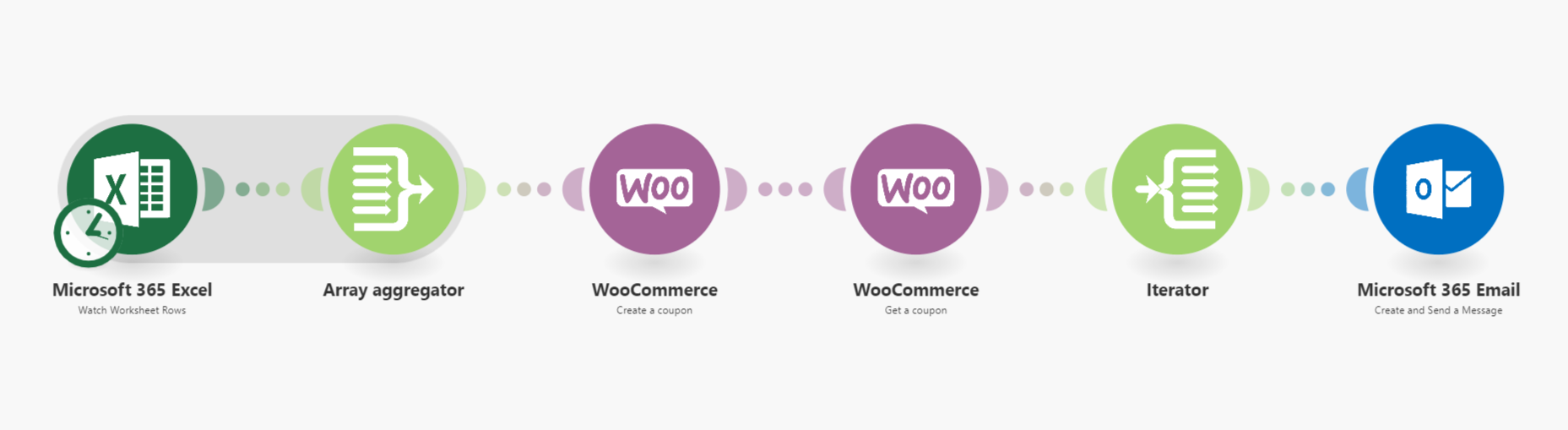
8. Create and send WooCommerce coupons using Excel
Personalized promotions drive repeat purchases but creating them manually doesn't scale. This template generates unique coupon codes in Excel, applies your discount rules, and emails them to customers automatically.
The workflow helps implement loyalty programs, win-back campaigns, and VIP discounts. You control all parameters in Excel while the automation handles code generation, WooCommerce integration, and customer delivery.
How to automate Excel for marketing
9. Export your leads from Facebook to Excel
Facebook Lead Ads capture high-quality prospects but the data often gets stuck in Facebook. This template automatically exports new leads to Excel where your team can process and follow up efficiently.
The automation includes lead validation and formatting to ensure clean data. Sales teams receive real-time notifications of new leads while marketers can analyze campaign performance directly from the Excel data.
10. Contact Form 7 form answers to Excel, automatically
WordPress sites using Contact Form 7 often struggle to manage form submissions. This template captures all form entries in Excel automatically, creating a searchable database and preventing data loss.
The workflow handles file uploads, multiple choice fields, and other complex form elements. You gain centralized access to all submissions without logging into WordPress, with data structured for easy analysis and reporting.
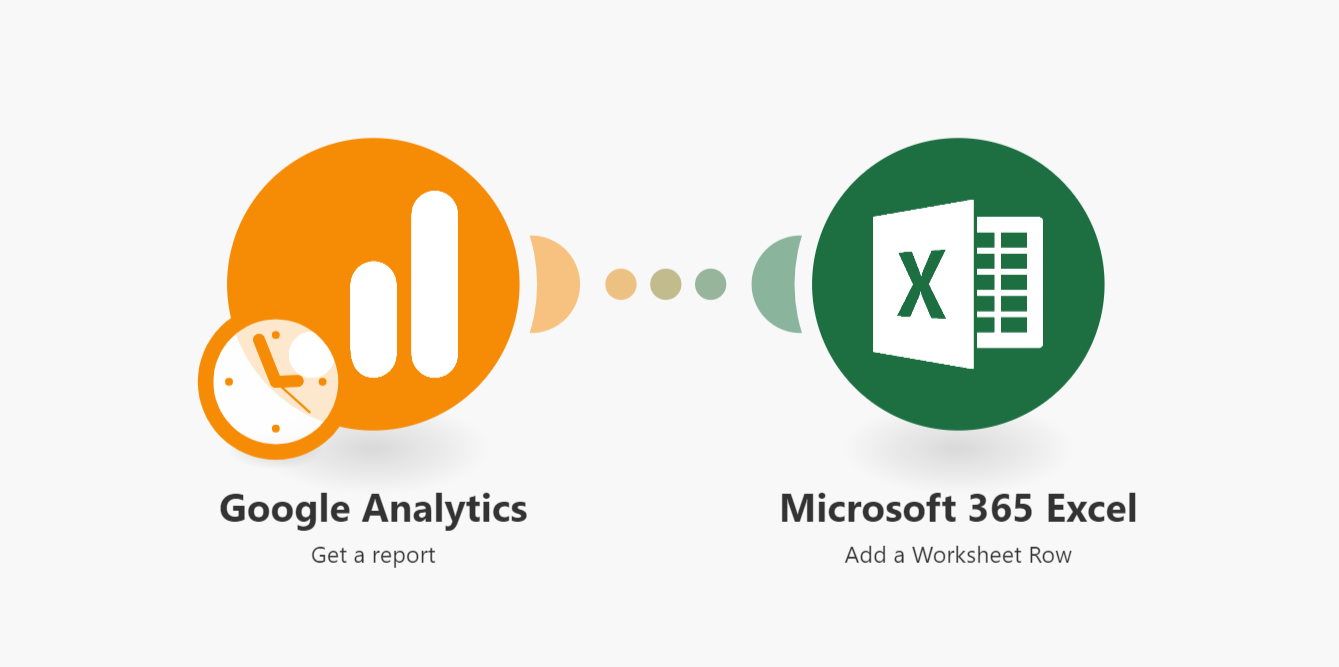
11. Export Google Analytics data to Excel for in-depth analysis
Google Analytics provides powerful insights but its interface limits deep analysis. This template exports key metrics to Excel automatically, preserving historical data and enabling custom calculations.
The automation can track conversions, traffic sources, user behavior and custom events. Marketing teams build custom dashboards while executives get scheduled reports - all powered by automated data transfers.