Make.com Discord Twitter Automation

Auto Tweet to Your Discord Server

Learn how to automatically post tweets to your Discord server using Make.com to improve community engagement.

Discord and Twitter integration diagram showing automated tweet posting

Discord Community Management Challenges

Managing an active Discord server requires constant attention to keep members engaged. Unlike platforms that thrive on asynchronous communication, Discord communities expect real-time interaction. When activity lulls, members often migrate to more vibrant servers.

The core challenge lies in Discord's 24/7 nature conflicting with human schedules. Even dedicated admins can't maintain constant presence. Automated content bridges these gaps by providing fresh material during off-hours, maintaining engagement until human moderators return.

Pro tip: The most successful automated content matches your community's interests while leaving room for organic discussion. Don't overwhelm channels - aim for 3-5 quality posts daily.

Why Connect Twitter to Discord

Twitter excels at rapid information dissemination while Discord fosters community discussion. Bridging these platforms creates a virtuous cycle where tweets spark conversations, and community feedback can inform future tweets. This integration works particularly well for:

  • Game studios announcing updates
  • News organizations sharing breaking stories
  • Content creators promoting new work
  • Communities tracking industry trends
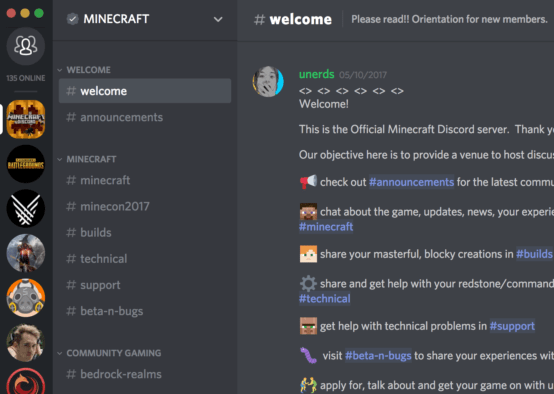
Discord channel showing automated tweets
Example of tweets appearing automatically in a Discord channel

Step-by-Step Setup Guide

1. Connect Your Accounts to Make.com

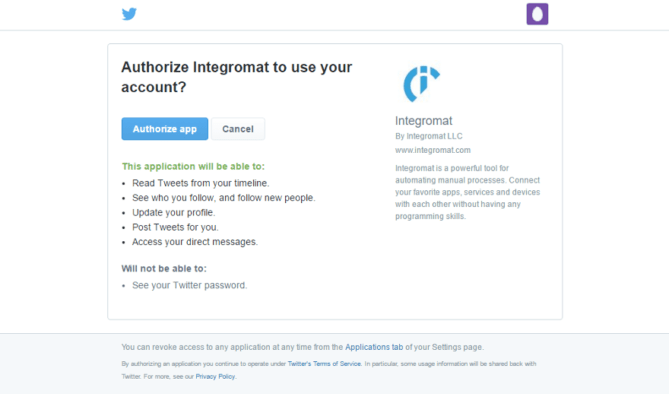
Begin by authorizing Make.com to access both your Twitter and Discord accounts. For Twitter, you'll need read access to the account you want to monitor. For Discord, the integration requires permission to post messages in your designated channel.

Security note: Make.com uses OAuth for these connections, meaning your credentials stay encrypted and aren't stored by the platform. You can revoke access anytime through each service's app permissions page.

2. Configure the Twitter Trigger

Create a new scenario in Make.com and add the "Watch Tweets" module from Twitter. Specify the exact account you want to monitor. For optimal performance, set the polling interval to 5 minutes - this balances responsiveness with API rate limits.

Advanced users can add filters here to only capture tweets containing specific keywords, hashtags, or media types. This prevents flooding your Discord with irrelevant posts.
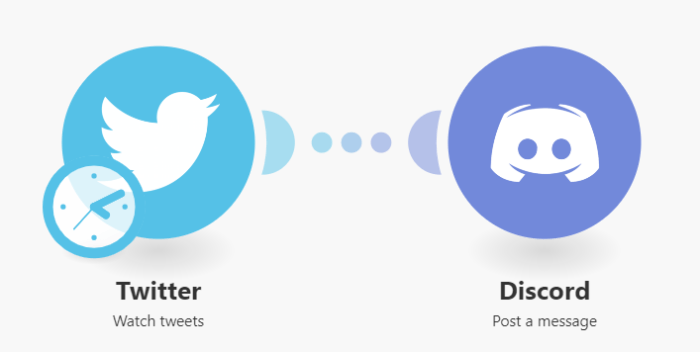
Make.com Twitter module configuration
Configuring the Twitter module in Make.com

3. Set Up the Discord Action

Add the "Post Message" module from Discord after your Twitter trigger. Select your server and channel, then customize the message format. We recommend including:

  • The tweet text
  • Author handle
  • Direct link to the tweet
  • Any attached media

For private channels, ensure your Discord bot has the "Send Messages" permission. You may need to adjust role permissions in your server settings.

Pro tip: Add a custom emoji reaction to automated posts so members can quickly indicate they've seen important updates.

Advanced Integration Uses

Beyond basic tweet mirroring, consider these enhanced implementations:

Multi-Account Aggregation

Combine tweets from several related accounts into a single Discord channel. For gaming communities, this might include the main studio account, community managers, and esports teams. Use Make.com's router to organize by source before posting.

Automated Moderation

Add filters to exclude tweets containing banned words or controversial topics. You can route questionable content to a moderation channel for review instead of your main chat.
Advanced filtering options in Make.com
Setting up content filters for automated posting

Engagement Tracking

Use Make.com to log Discord reactions to tweets in a spreadsheet. This helps identify which types of content resonate most with your community, informing your future content strategy.

Frequently Asked Questions

Common questions about Discord and Twitter automation

Automating tweet posting to Discord keeps your community engaged with fresh content even when you're not online. It helps maintain server activity, shares important updates automatically, and saves you time from manual posting.

For gaming communities, this ensures players never miss patch notes or event announcements. Content creators can share their latest posts without spamming manual links. The automation works 24/7, complementing your active moderation periods.

This works great for game studios, news outlets, influencers, or any account that posts content relevant to your Discord community. The key is choosing accounts your members genuinely care about.

Consider accounts that post: game updates, industry news, tutorial content, or community highlights. Avoid accounts that tweet too frequently (more than 20/day) as this could overwhelm your channel.

Yes, Make.com allows you to set filters so only tweets containing specific keywords, hashtags, or meeting certain criteria get posted to your Discord channel.

For example, you could: Only post tweets with #announcements, exclude replies, require media attachments, or match specific text patterns. These filters help maintain channel quality.

With proper setup, tweets typically appear in Discord within 1-2 minutes of being posted on Twitter. The delay depends on your Make.com scenario's polling frequency.

Free accounts check for new tweets every 15 minutes by default, while paid plans can poll as often as every 1-2 minutes. For time-sensitive announcements, consider Twitter's webhook options.

Yes, but you'll need to ensure your bot has proper permissions to post in private channels. The guide covers how to configure these permissions correctly.

For private channels: Grant the bot "View Channel" and "Send Messages" permissions. Test with a non-essential channel first to verify everything works before applying to important channels.

Absolutely. You can modify the message format, add custom text before/after tweets, include images, or even transform the content before posting to Discord.

Common customizations include: Adding a custom header ("New Tweet from @Account"), embedding media differently, or parsing tweet text to highlight specific elements like patch notes version numbers.

Yes! GrowwStacks specializes in building tailored automation solutions. We can create custom workflows that match your specific community management needs and integrate additional features beyond basic tweet posting.

Our custom solutions might include: Combining multiple social platforms, adding moderation layers, integrating user analytics, or creating specialized formatting for different content types. Book a consultation to discuss your needs.

Need Custom Automation Help?

This guide is a starting point. Our team builds fully tailored automation systems for your specific workflow needs.