
Make.com SEO AI Mode DataForSEO Google Sheets

Auto-Track Google AI Mode References with Make & DataForSEO

Automatically monitor Google AI Mode citations, analyze competitor performance, and optimize your content for AI-powered search results using this powerful integration.

Get This Workflow → Make.com · DataForSEO · Free Template
Screenshot of Make.com scenario for tracking Google AI Mode references

What This Workflow Does

In today's evolving search landscape, Google's AI Mode is transforming how users find information, offering conversational, source-backed answers instead of traditional ranked lists. For businesses and SEO professionals, understanding when and how their content is referenced in these dynamic AI responses is crucial. This workflow automates the complex task of tracking Google AI Mode citations, providing invaluable insights into your online visibility and competitive landscape.

By integrating Make.com with the DataForSEO API, this automation acts as your vigilant digital librarian, constantly monitoring AI-generated search results for mentions of your content. It extracts critical data like source URLs, domains, titles, and even the exact text snippets used by Google's AI, then neatly organizes it all in a Google Sheet. This eliminates the need for manual, time-consuming data collection, allowing you to focus on strategic content optimization.
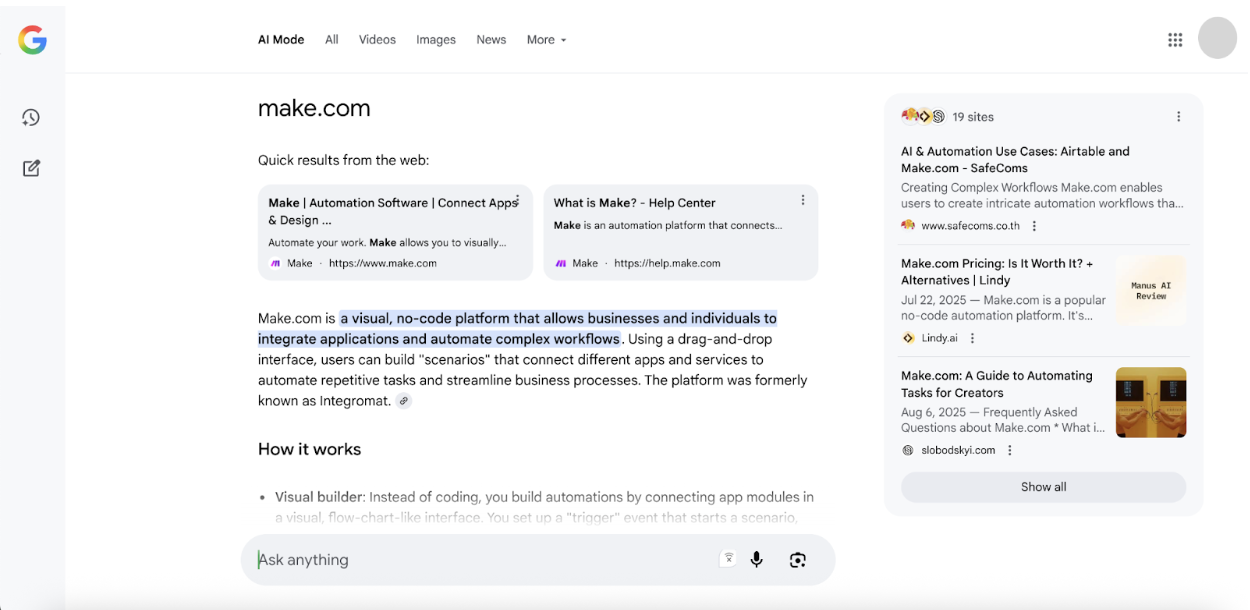
Google AI Mode search interface showing a conversational answer with source references.
An example of Google AI Mode's conversational interface, highlighting how source references are integrated into the response.

How It Works

This automation is designed to be straightforward yet powerful, breaking down the complex process of AI Mode reference tracking into manageable, automated steps:

1. Initiate a New Scenario in Make

The journey begins in your Make.com account. You'll start by creating a new scenario, which is the canvas for building your automation. This sets the stage for connecting your tools and defining the workflow's logic.

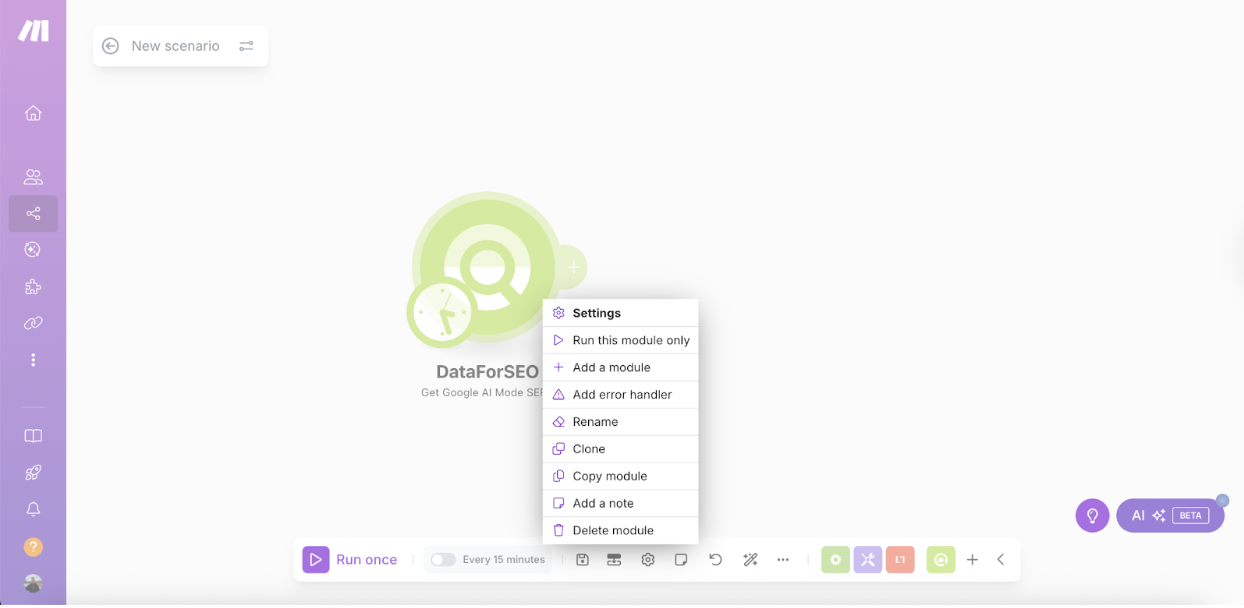
2. Integrate the DataForSEO Module

Next, you'll add the DataForSEO module to your scenario. This powerful module is the key to accessing Google AI Mode SERP data, including all the crucial reference information embedded within AI responses.
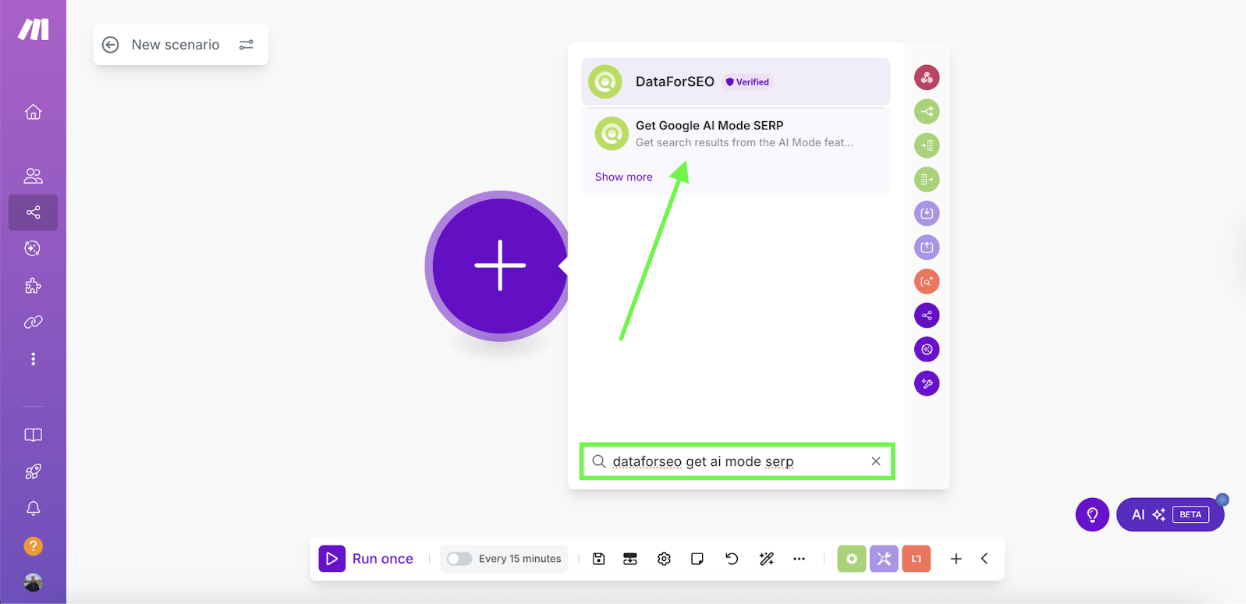
Adding the DataForSEO module to a Make.com scenario.
Selecting the DataForSEO module within the Make.com scenario builder.

3. Configure DataForSEO Parameters

Once the DataForSEO module is added, you'll configure it with your API credentials. You'll then specify the target keywords, geographical location, and language for which you want to track AI Mode references. This ensures the data collected is highly relevant to your specific SEO goals.
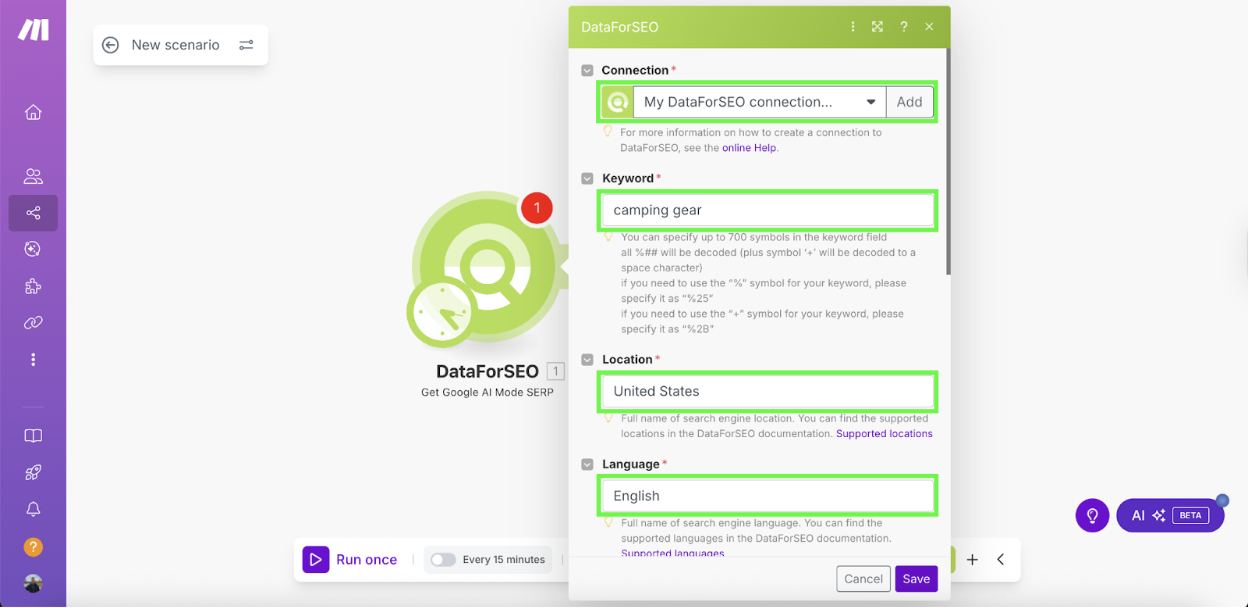
Configuring keyword, location, and language settings in the DataForSEO module.
Detailed configuration of the DataForSEO module for precise data retrieval.

4. Define Device and OS Settings (Optional)

For even more granular data, you have the option to specify the device type (e.g., desktop, mobile) and operating system. This can help you understand how AI Mode references vary across different user contexts. After setting these, save your module configuration.
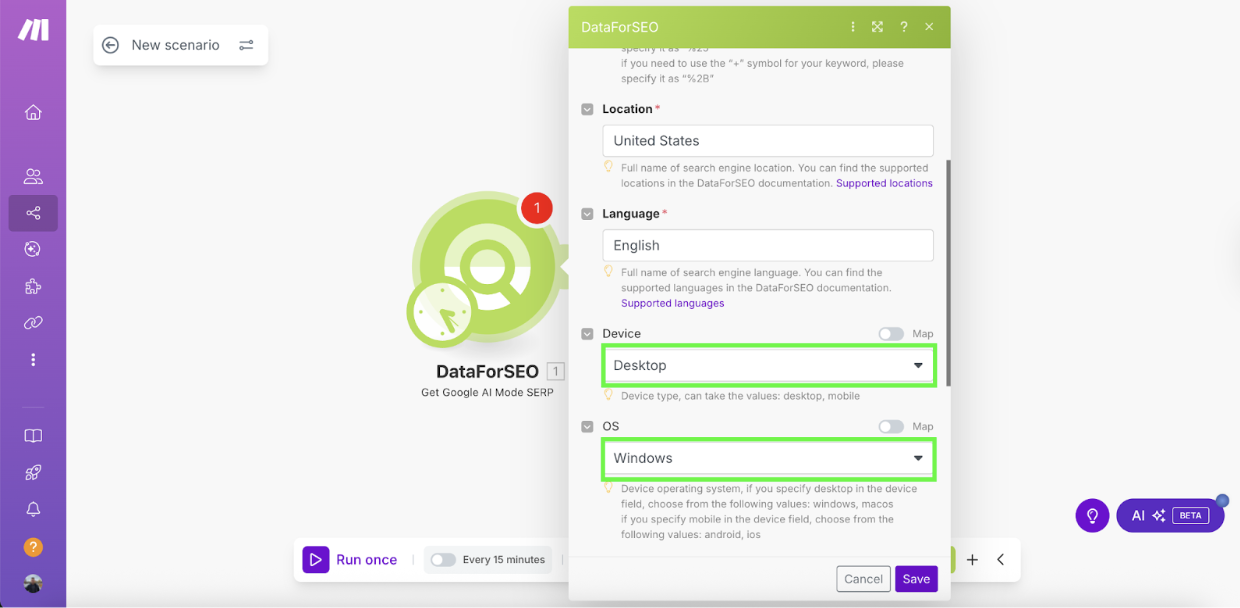
Setting device and operating system parameters in the DataForSEO module.
Refining search parameters by specifying device and OS for targeted results.

5. Test the DataForSEO Module

Before proceeding, it's essential to test the DataForSEO module to ensure it's correctly fetching data. A quick test run verifies the connection and confirms that the module is retrieving the expected AI Mode reference information.
Testing the DataForSEO module to verify data retrieval.
Executing a test run on the DataForSEO module to confirm functionality.

6. Add and Configure the Iterator Module

Google AI Mode responses can contain multiple references. The Iterator module is crucial here, as it processes each reference individually from the DataForSEO output. You'll map the 'references' array from the previous module to the Iterator to ensure every citation is handled separately.
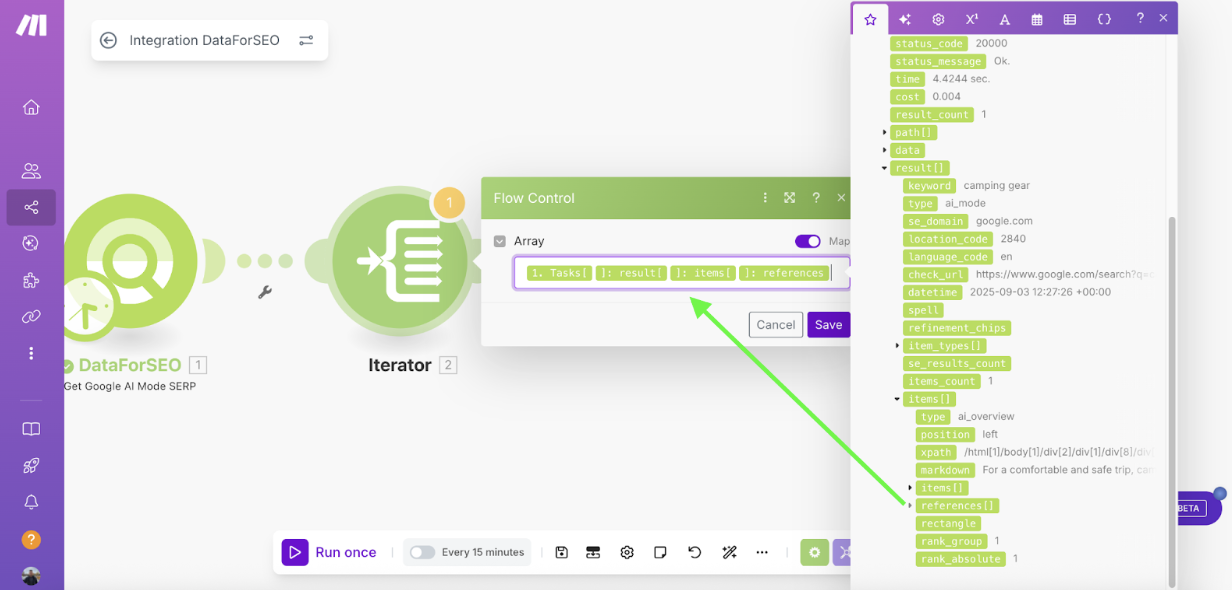
Configuring the Iterator module to process individual references from the DataForSEO output.
Mapping the 'references' array to the Iterator for individual processing.

7. Add and Configure the Google Sheets Module

To store and organize your extracted data, you'll add a 'Google Sheets - Add a Row' module. Connect your Google account, select your target spreadsheet, and confirm that your sheet contains headers. This prepares your spreadsheet to receive the structured AI Mode reference data.
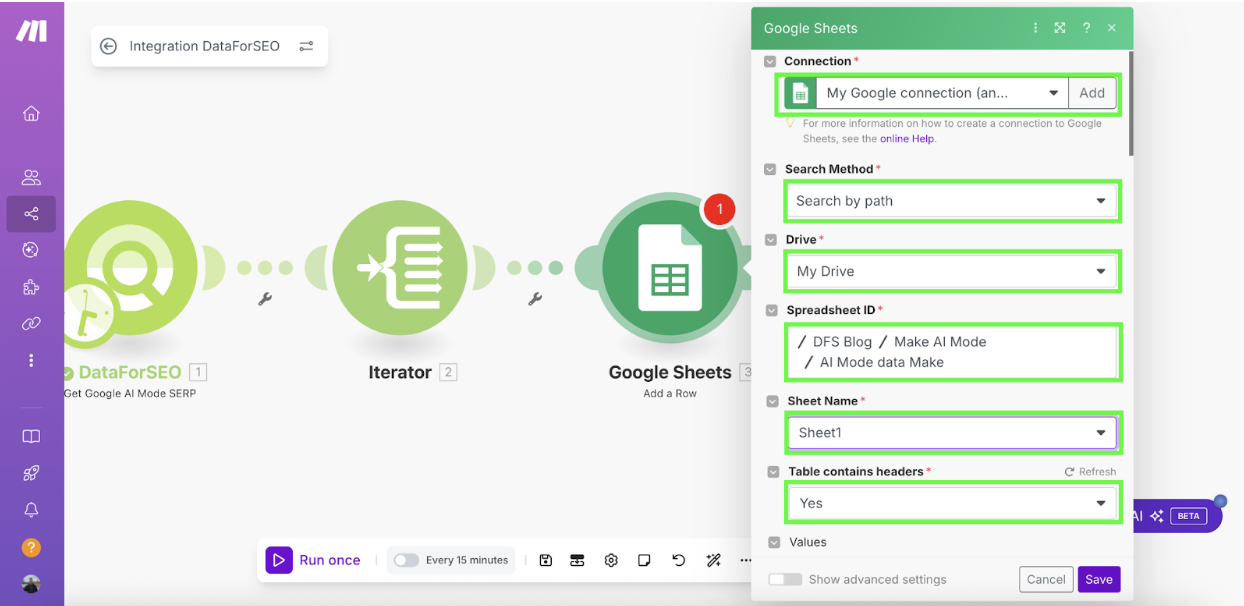
Setting up the Google Sheets module to add new rows of data.
Configuring the Google Sheets module to add new rows, specifying the target spreadsheet and header presence.

8. Map Data to Google Sheets Columns

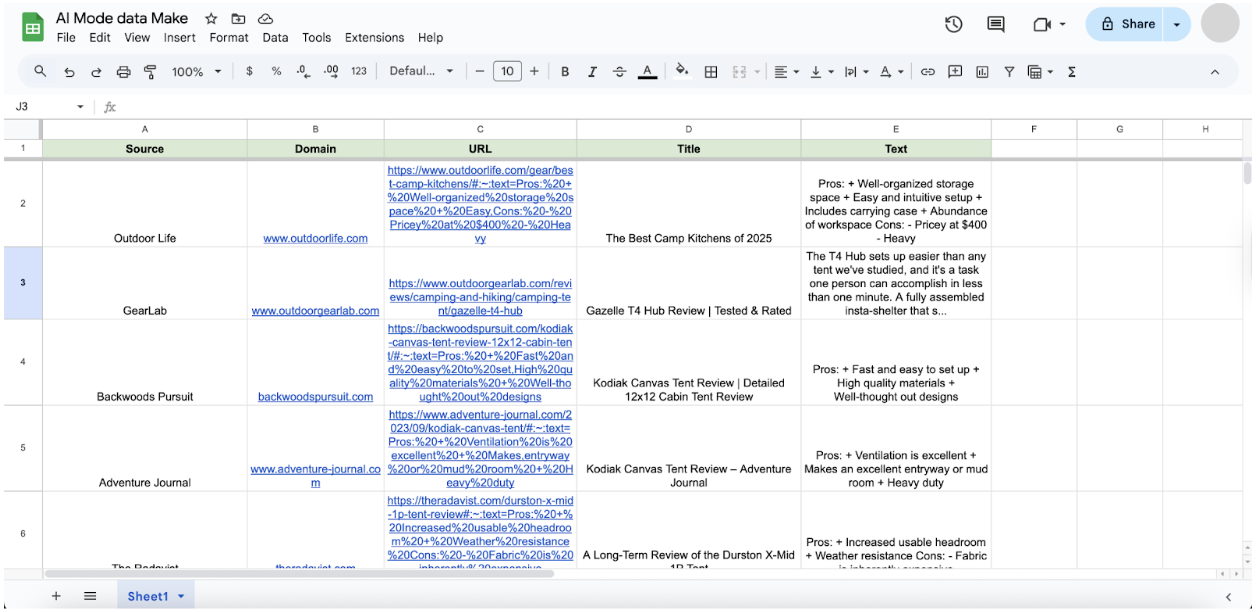
In the Google Sheets module, you'll map the specific data fields from the Iterator (Source, Domain, URL, Title, Text) to their corresponding columns in your spreadsheet. This ensures that each piece of extracted information is placed correctly for easy analysis. Save this configuration.
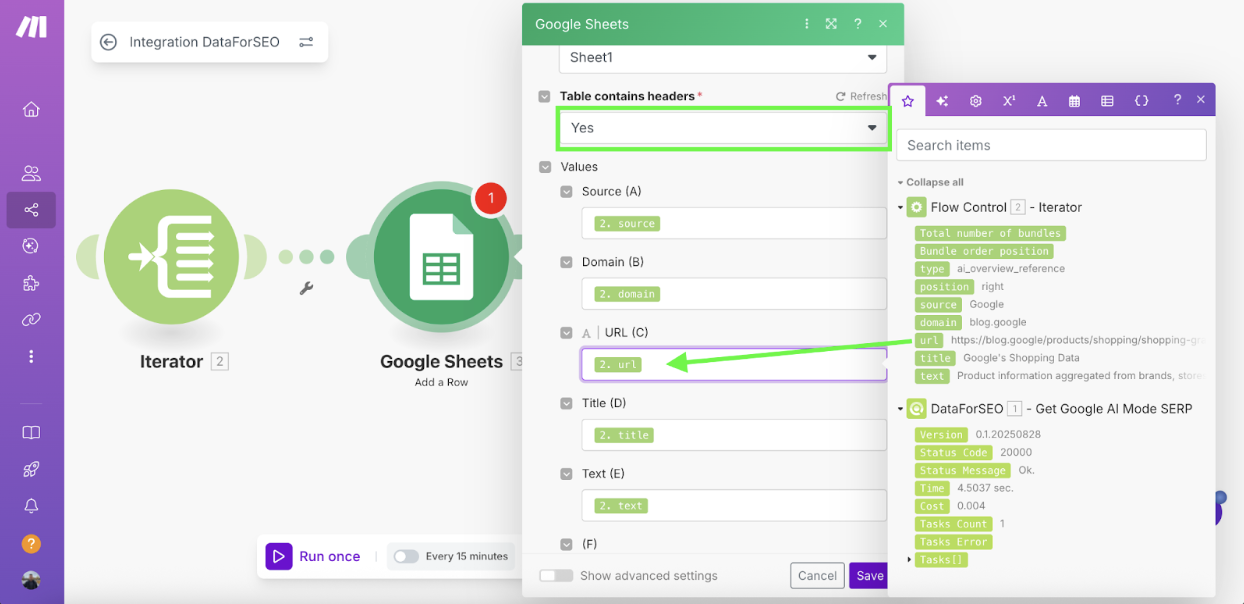
Mapping data fields from the Iterator to corresponding Google Sheets columns.
Precisely mapping data fields from the Iterator to their respective columns in Google Sheets.

9. Run the Automation

With all modules configured, your AI Mode references tracker is ready. Click 'Run once' to execute the workflow and populate your Google Sheet. For continuous monitoring, you can schedule the scenario to run daily, weekly, or at any interval that suits your SEO strategy.
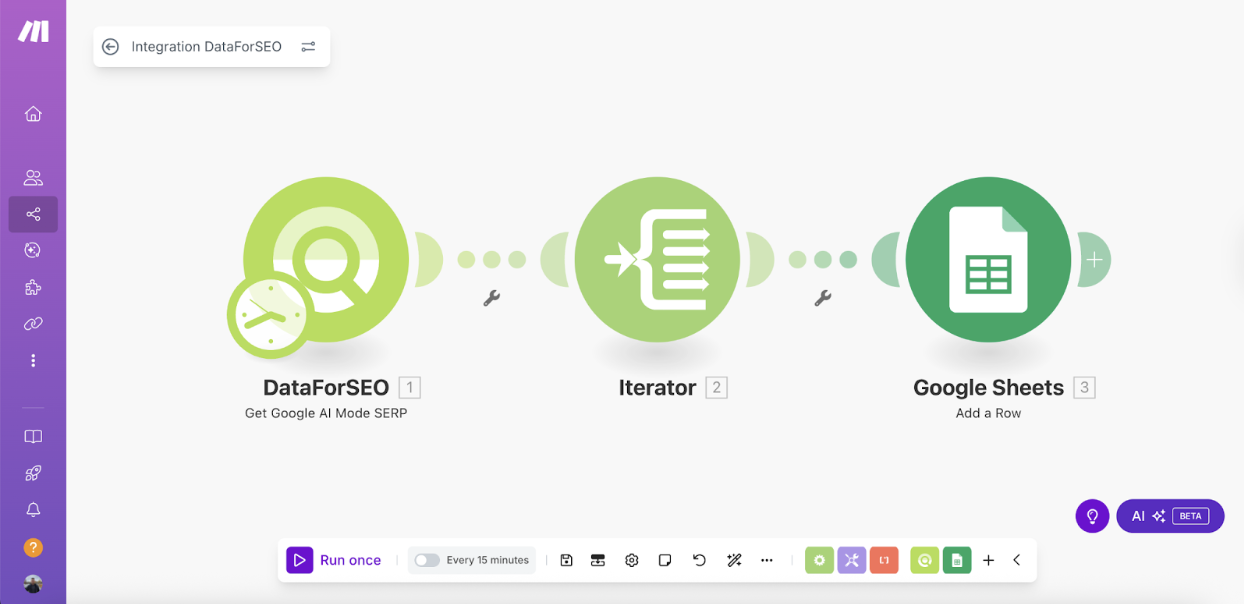
Running the Make.com scenario to populate Google Sheets with AI Mode reference data.
Initiating the workflow to automatically pull AI Mode reference data into Google Sheets.
Google Sheet populated with AI Mode reference data, including source, domain, URL, title, and text snippets.
A Google Sheet displaying the automatically collected AI Mode reference data, ready for analysis.

Who This Is For

This workflow is ideal for:

  • SEO Specialists & Agencies: Gain a competitive edge by understanding how Google's AI references content, allowing for more targeted optimization strategies.
  • Content Marketers: Identify which content pieces are most effective in AI-driven search and refine your content strategy to increase visibility.
  • Digital Marketing Managers: Monitor brand mentions and track the impact of your content across the evolving search landscape without manual effort.
  • E-commerce Businesses: Ensure your product pages and informational content are being cited by AI Mode, driving organic traffic and authority.
  • Competitive Intelligence Analysts: Keep a close eye on how competitors' content is being referenced by Google AI, informing your own strategic decisions.

What You'll Need

  1. An active Make.com account.
  2. A DataForSEO account with API credentials.
  3. A Google Sheet set up with columns for 'Source', 'Domain', 'URL', 'Title', and 'Text'.

Quick Setup Guide

  1. Log in to your Make.com account and create a new scenario.
  2. Add the "DataForSEO - Get Google AI Mode SERP" module. Connect your DataForSEO API.
  3. Configure the module by specifying your target keyword, location, and language. Optionally, set device and OS parameters.
  4. Test the DataForSEO module to ensure it fetches data correctly.
  5. Add an "Iterator" module and map the 'references' array from the DataForSEO output.
  6. Add a "Google Sheets - Add a Row" module. Connect your Google account and select your prepared spreadsheet.
  7. Map the data fields from the Iterator (Source, Domain, URL, Title, Text) to their respective columns in Google Sheets.
  8. Save and run your scenario. Schedule it to run automatically at your desired frequency.

Key Benefits

Automated AI Mode Visibility Tracking: Eliminate manual data collection and continuously monitor when and how your content is referenced in Google's AI-generated search results, saving countless hours.

Enhanced Content Optimization: Gain direct insights from the exact text snippets Google's AI uses, allowing you to refine your content for better crawlability and higher chances of citation.

Superior Competitive Analysis: Automatically track competitor mentions in AI Mode, understand their content strategies, and identify opportunities to outperform them in the evolving search landscape.

Data-Driven SEO Decisions: Access structured, organized AI Mode reference data in Google Sheets, enabling you to make informed decisions and adapt your SEO strategy to the future of search.

Increased Organic Reach & Authority: By optimizing for AI Mode citations, you can significantly boost your brand's visibility, establish thought leadership, and drive more qualified organic traffic to your website.

Frequently Asked Questions

Common questions about AI Mode tracking and SEO automation

Tracking Google AI Mode references is crucial because AI-driven search is fundamentally changing how users interact with search results. Instead of a list of links, users receive conversational answers with embedded source citations. Understanding when and how your content is cited directly impacts your visibility, brand authority, and organic traffic in this new search paradigm.

Traditional SEO metrics like keyword rankings become less relevant when content is summarized and referenced within an AI response. Monitoring these citations allows you to adapt your content strategy to ensure your brand remains prominent and continues to capture user attention in AI-powered search environments.

Google AI Mode provides comprehensive, conversational answers generated by large language models, often with embedded source references. This contrasts sharply with traditional SERPs, which typically display a list of ten blue links and various SERP features like featured snippets or knowledge panels. AI Mode prioritizes direct answers and contextual follow-ups, making the user experience more interactive and less about navigating multiple links.

The visibility mechanics are also different; instead of ranking for a position, the goal in AI Mode is to be cited as a credible source within the AI's generated response. This shift requires a focus on comprehensive topic coverage and clear, authoritative content that AI models can easily parse and reference.

This workflow allows you to extract several key data points about each AI Mode reference. You can capture the source domain, the full URL of the referenced page, the title of the content, and most importantly, the exact text snippets that Google's AI used in its response. This granular data is crucial for understanding how your content is being interpreted and presented by the AI.

By analyzing these snippets, you can identify patterns in how Google's AI summarizes information, pinpoint specific phrases or sections of your content that are being highlighted, and use this knowledge to refine your content for future AI citations. It provides a direct look into the AI's content consumption habits.

Absolutely. This automation is highly effective for competitive analysis in the AI Mode landscape. By configuring the DataForSEO module with keywords relevant to your industry, you can track which of your competitors' websites and content pieces are being referenced by Google's AI. This provides a clear picture of who is winning the AI citation game.

Analyzing competitor data allows you to identify their strengths, understand why their content is deemed authoritative by AI, and uncover gaps in your own content strategy. This intelligence is vital for developing informed strategies to improve your own AI Mode visibility and gain a competitive edge.

To set up this workflow, you'll need an active account with Make.com, which serves as the automation platform. You'll also require a DataForSEO account, as their API is used to fetch the Google AI Mode SERP data. Finally, a Google Sheet is needed to store the extracted reference data in an organized, tabular format. Ensure your Google Sheet has appropriate columns like 'Source', 'Domain', 'URL', 'Title', and 'Text' to accommodate the incoming information.

Having these accounts and a basic understanding of how to connect them within Make.com will ensure a smooth setup process. No advanced coding knowledge is required, as Make's visual builder simplifies the integration of these services.

The frequency at which you can run this AI Mode reference tracking automation depends on your Make.com plan and your DataForSEO API usage limits. Make.com scenarios can be scheduled to run at various intervals, from every few minutes to daily or weekly. For most SEO monitoring purposes, a daily or weekly run is sufficient to capture changes in AI Mode citations.

It's important to consider the cost implications of frequent API calls with DataForSEO, as each call consumes credits. Balance your need for real-time data with your budget to determine the optimal scheduling frequency for your specific business requirements. You can adjust the schedule within your Make.com scenario settings.

Yes, absolutely! While this template provides a robust starting point, many businesses have unique needs that require tailored automation solutions. GrowwStacks specializes in building custom Make.com workflows designed to fit your exact operational requirements and strategic goals. Whether you need more complex data analysis, integration with additional tools, or specific reporting features for Google AI Mode tracking, our experts can design and implement a solution just for you.

A custom automation can help you unlock even deeper insights and streamline your SEO efforts further. Contact us for a free consultation to discuss your specific challenges and how a bespoke automation can give your business a significant competitive advantage in the AI-driven search landscape.

Need a Custom Google AI Mode Automation?

This free template is a starting point. Our team builds fully tailored automation systems for your specific business needs.