
The Email Overload Problem
Freelancers and small businesses often struggle with email overload, where important client communications get buried under newsletters, app notifications, and other low-priority messages. Traditional ticketing systems require separate logins and interfaces, adding complexity rather than simplifying workflow.
The challenge lies in creating a system that surfaces critical client emails without requiring users to leave their primary communication hub - Gmail. Most professionals already spend significant time in their email client, making it the ideal centralized location for managing all messages.
Make Automation Solution
This guide presents a cost-effective solution using Make (formerly Integromat) to transform Gmail into a powerful ticketing system. The approach leverages Gmail's built-in Multiple Inboxes feature combined with automated labeling through Make to create a dedicated client communication space.
The system works by automatically applying a special label to emails from known clients, which then appear in a separate inbox pane. This happens behind the scenes through Make automation that checks incoming emails against a client whitelist stored in Google Sheets.
Configuring Gmail
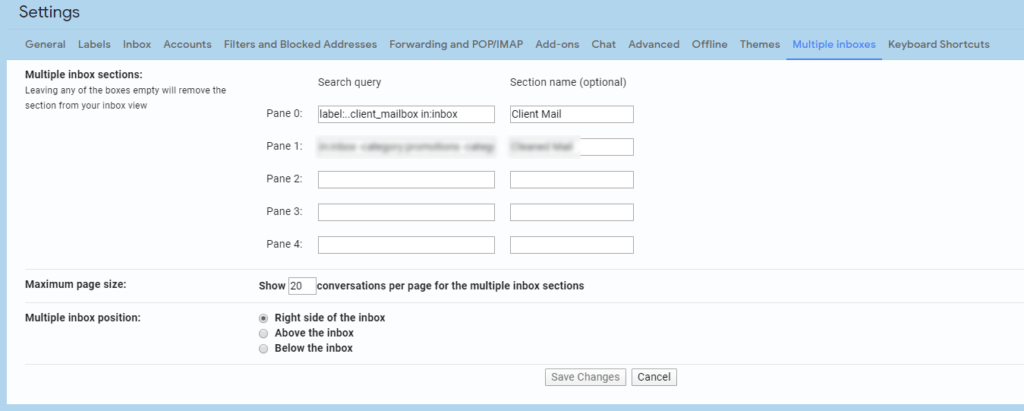
The first step involves setting up Gmail's Multiple Inboxes feature under Settings > Advanced. Create a new inbox pane with the search filter "label:client_mailbox in:inbox" to display labeled messages in a dedicated section.
This filter ensures only current, unarchived emails with the client label appear in the special inbox. The label itself will be applied automatically by Make based on the sender's email address matching your client whitelist.
Pro tip: Position your client inbox pane on the right side of your Gmail interface for maximum visibility while keeping your main inbox functional for other messages.
Building the Make Scenario
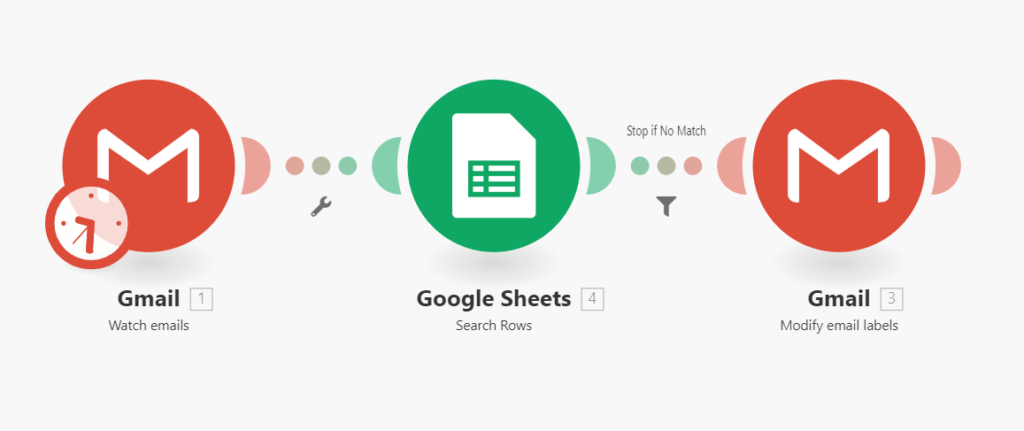
The Make scenario begins with a "Gmail - Watch Emails" trigger that activates whenever new messages arrive. Each email's sender address is then checked against your Google Sheets client whitelist using the "Google Sheets - Search Rows" module.
When a match is found, the scenario uses the "Gmail - Modify Email Labels" module to apply your designated client label. The scenario runs every 5 minutes during business hours to process new messages efficiently without overwhelming your systems.
Optional Slack Integration
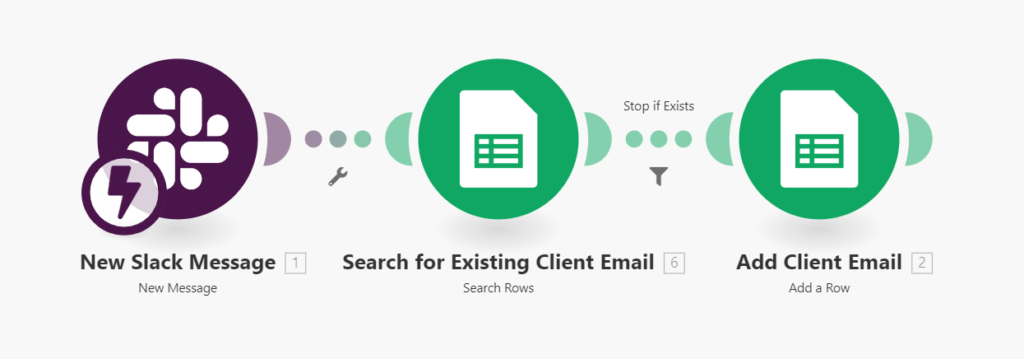
For teams using Slack, an additional automation can be created to maintain your client whitelist. When team members message email addresses to a designated Slack channel, Make checks if they exist in your Google Sheet.
New addresses are automatically added to the whitelist, keeping your system current without manual spreadsheet updates. This creates a collaborative approach to managing client communications where anyone on your team can easily add new contacts.
System Benefits
This automated ticketing system provides several key advantages over traditional solutions or manual organization methods. First, it keeps all communications within Gmail, eliminating the need to switch between multiple platforms throughout the day.
Second, the system scales effortlessly as your client list grows. New contacts can be added through the Slack integration or directly in Google Sheets, with no changes needed to the core automation. The solution also works during weekends or vacations when you might not be actively monitoring all communications.
Pro tip: Combine this system with Gmail filters to automatically archive or label non-client messages, creating an even cleaner workspace focused on priority communications.