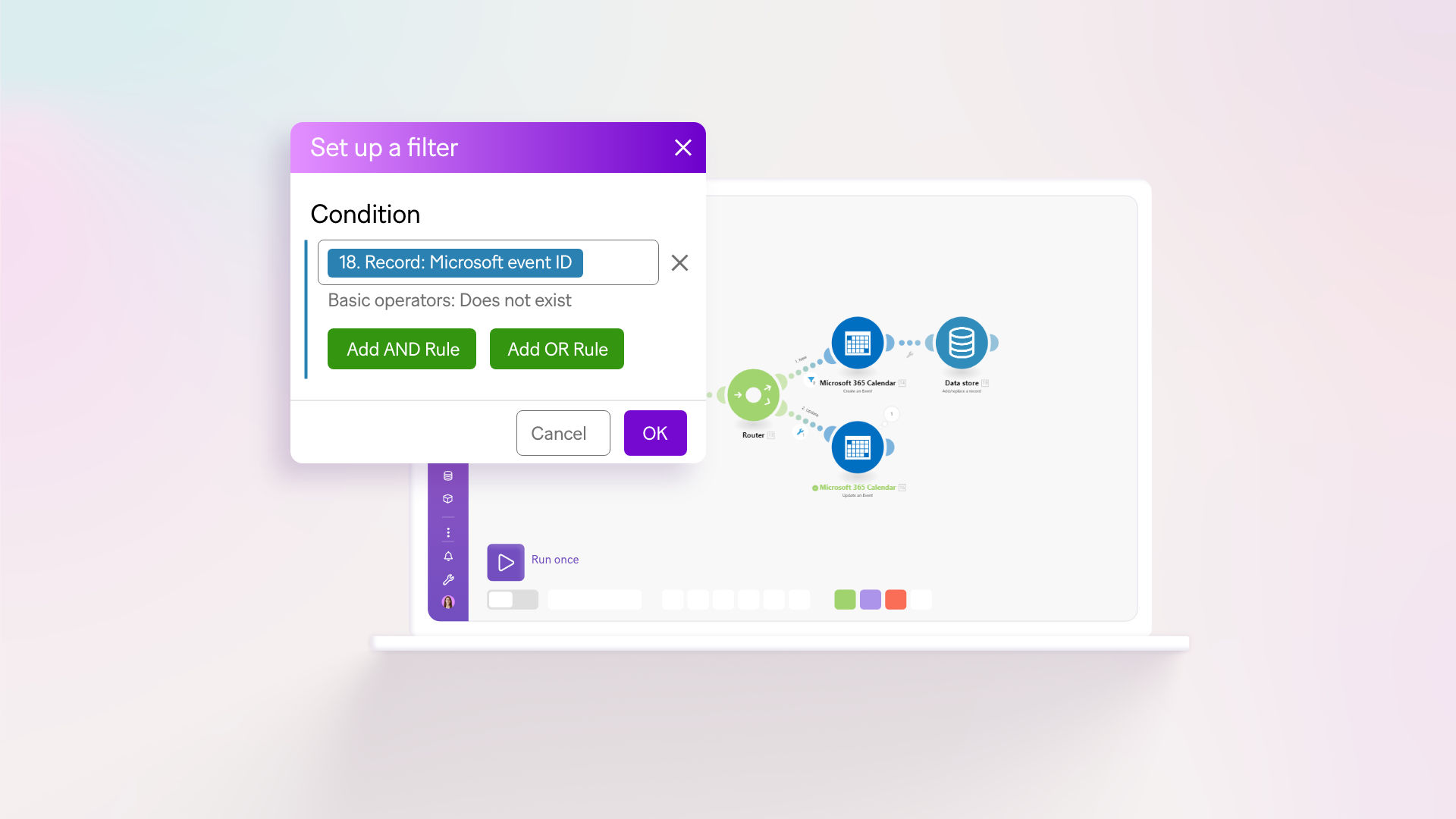
How the Google Calendar-Outlook Calendar integration works
Syncing Google Calendar and Outlook Calendar automatically solves a common problem for professionals who need to manage events across both platforms. While both are powerful calendar tools, neither offers built-in synchronization capabilities, forcing users to manually update events in both systems.
This automation works by having Make monitor your Google Calendar for changes (new events, updates, deletions) and then replicate those changes in Outlook Calendar. The key to making this work reliably is tracking which Outlook Calendar events correspond to which Google Calendar events using unique identifiers.
1. Create a new Make scenario that watches for new Google Calendar events
Begin by logging into your Make account and creating a new scenario. Add the Google Calendar "Watch Events" module and connect it to your Google account. This module will monitor your specified Google Calendar for any changes.
Configure the module with these key settings:
- Select your Google Calendar from the dropdown
- Set "Watch Events" to "By Updated Date"
- Change "Show deleted events" to "Yes"
- Set an appropriate limit for events to process (start with 10)
Pro tip: Choose a calendar that doesn't have too many events for initial testing. Once you confirm the automation works, you can expand it to busier calendars.
2. Add a module to create new Outlook Calendar events for new Google Calendar ones
Next, add the Microsoft 365 Calendar "Create an Event" module. Connect this to your Microsoft account and select the Outlook Calendar where new events should be created.
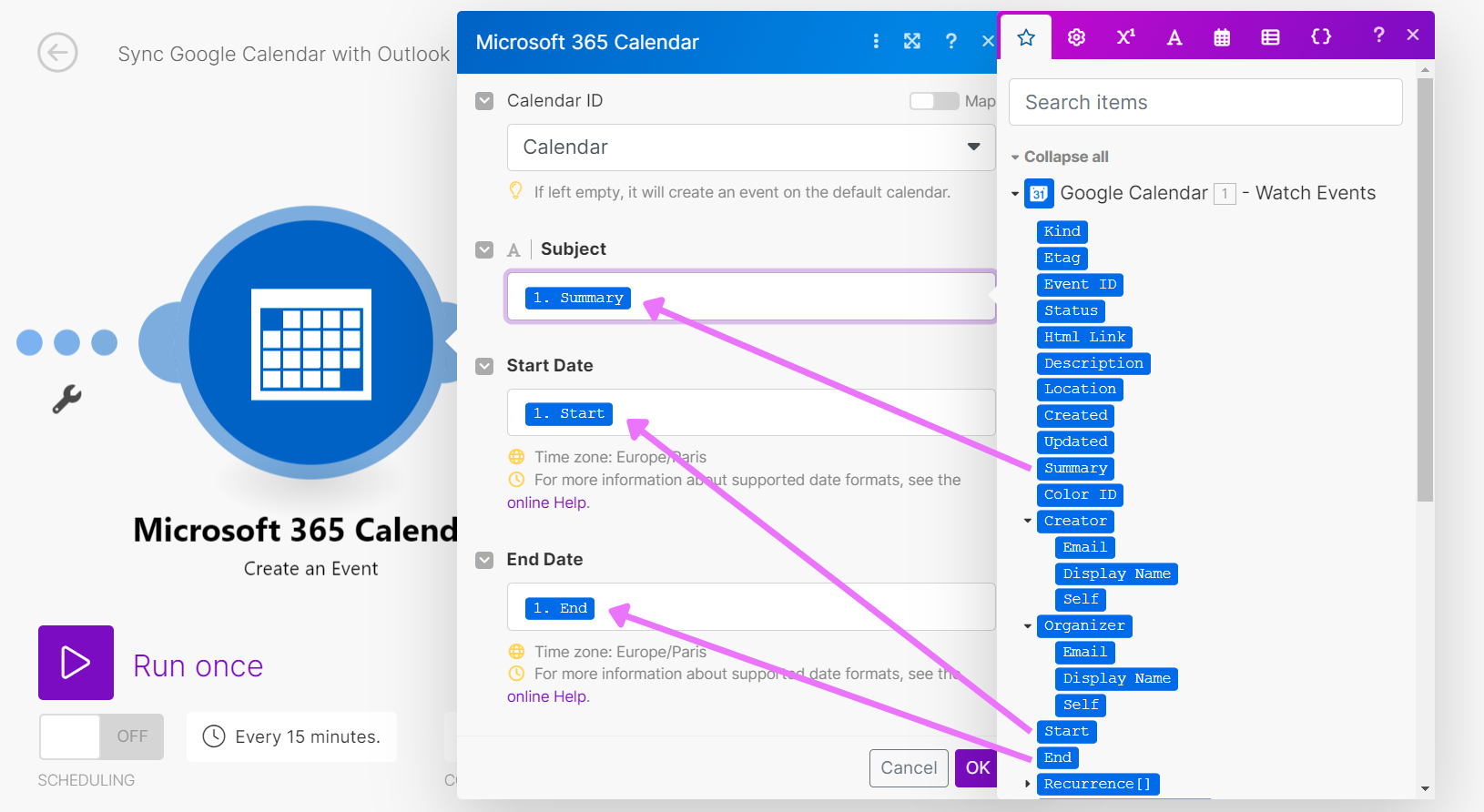
The critical part here is mapping the Google Calendar event details to the corresponding Outlook Calendar fields:
- Map Summary → Subject
- Map Start → Start Date
- Map End → End Date
- Map Description → Body Content
- Map Location → Location
3. Add a module to update the original Google Calendar event with its corresponding Outlook Calendar event's ID
After creating the Outlook Calendar event, we need to store its ID back in the Google Calendar event. This allows future updates to find and modify the correct Outlook Calendar event.
Add a Google Calendar "Update an Event" module and configure it to:
- Select the same Google Calendar
- Map the original event ID
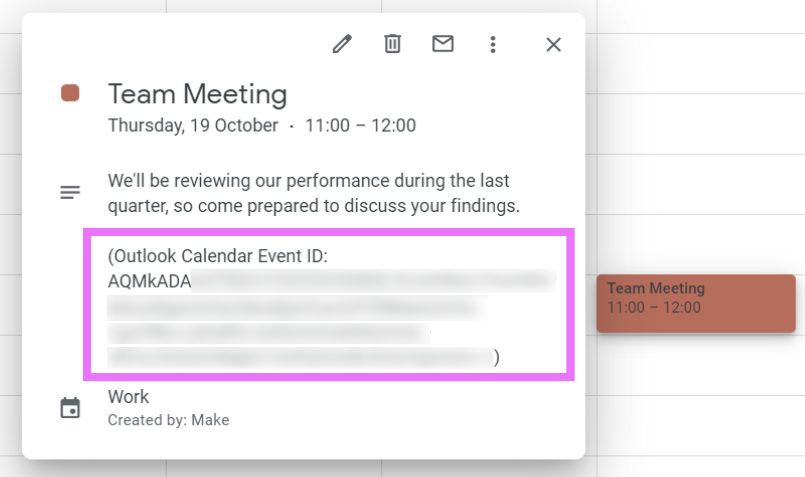
- Add the Outlook event ID to the description field using a special function
Pro tip: The function we add to the description field checks if a description already exists and appends the Outlook event ID in a standardized format that we can parse later.
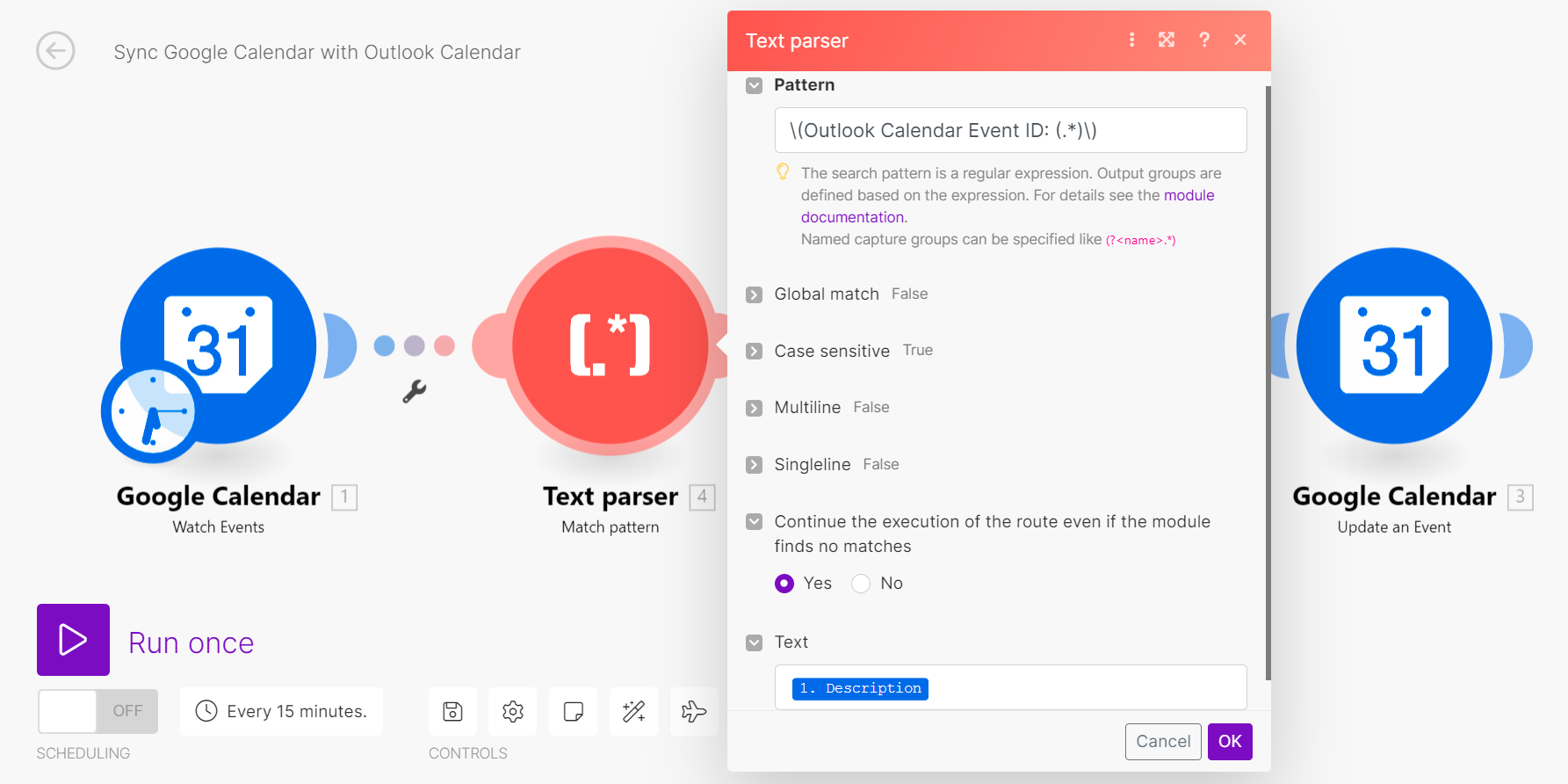
4. Add a text parser module to identify a Google Calendar event's corresponding Outlook Calendar event ID
Between the "Watch Events" and "Create Event" modules, insert a Text Parser "Match Pattern" module. This will search the Google Calendar event description for an existing Outlook Calendar event ID.
Configure the text parser with:
- Pattern: \(Outlook Calendar Event ID: (.*)\)
- Set to continue execution even if no match is found
- Map the Google Calendar event description to the text field
5. Add a module to match existing Outlook Calendar events with updated Google Calendar events
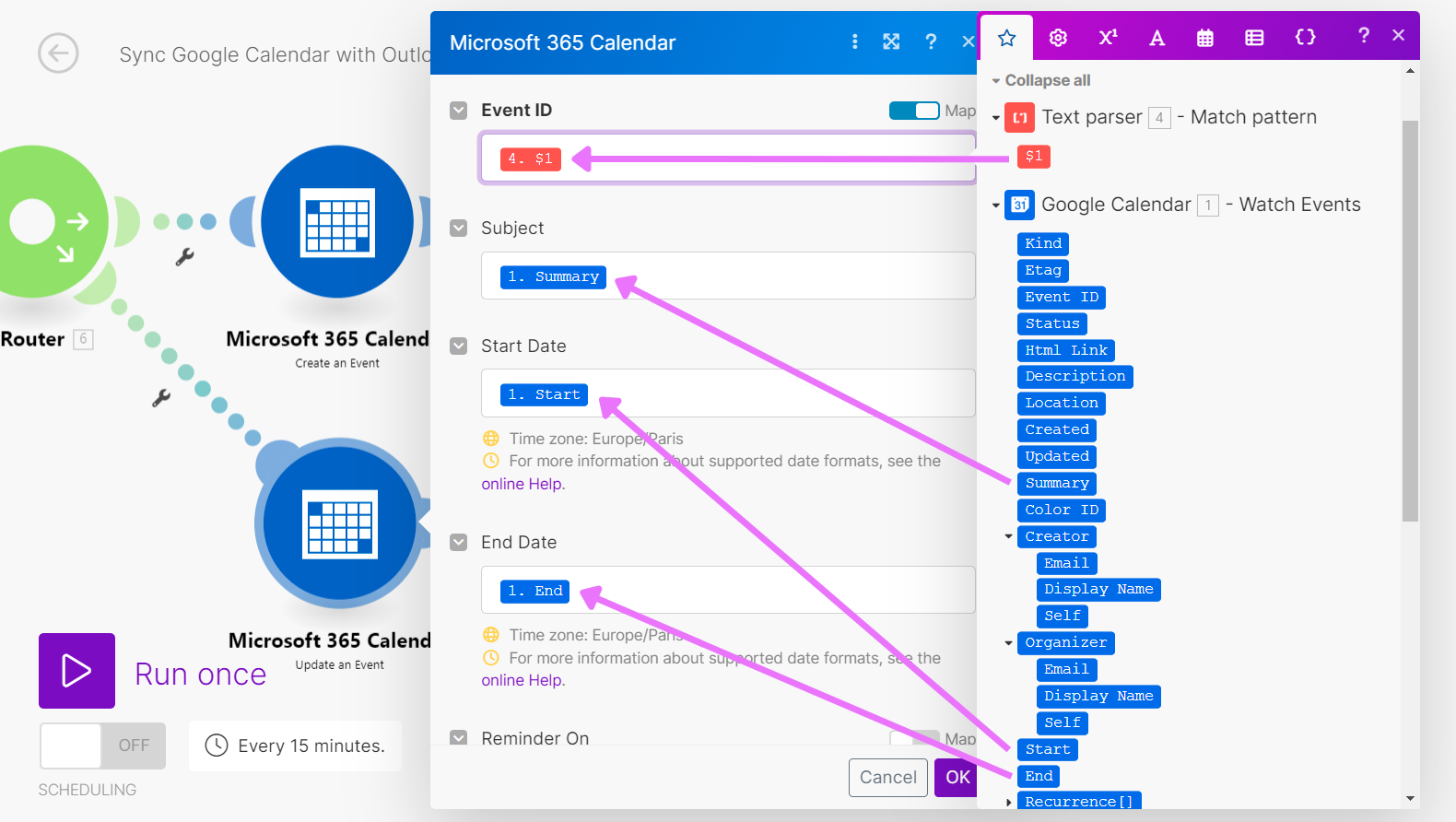
Now we'll add functionality to update existing Outlook Calendar events when their Google Calendar counterparts change. Add a Microsoft 365 Calendar "Update an Event" module connected to the router.
Configure this module to:
- Use the event ID extracted by the text parser
- Map all relevant fields from Google Calendar to Outlook Calendar
- Maintain all existing Outlook Calendar event details
6. Add a module to delete Outlook Calendar events when they're deleted in Google Calendar
Complete the synchronization by adding a Microsoft 365 Calendar "Delete an Event" module. This will remove Outlook Calendar events when their Google Calendar counterparts are deleted.
Configure this module to:
- Use the event ID extracted by the text parser
- Only trigger when the Google Calendar event status is "cancelled"
Pro tip: The delete operation is important for maintaining clean calendars. Without it, deleted Google Calendar events would remain in Outlook Calendar indefinitely.
7. Add route filters that determine whether to create a new Outlook Calendar event or update or delete an existing one
The router needs filters to determine which path to take for each event. Set up these filters:
- Create route: Runs when no Outlook event ID exists
- Update route: Runs when an Outlook event ID exists and status isn't "cancelled"
- Delete route: Runs when an Outlook event ID exists and status is "cancelled"
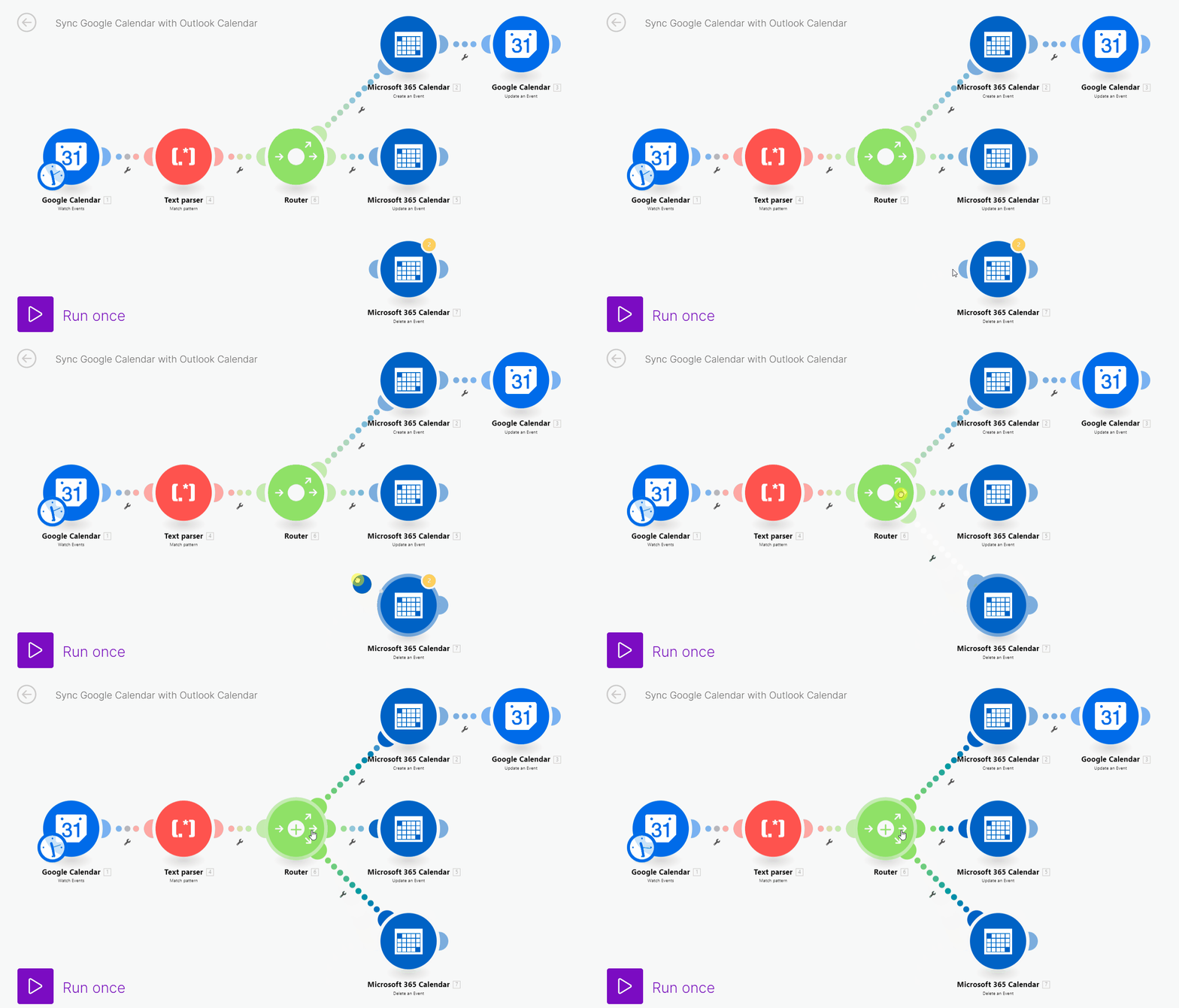
8. Turn on and run your scenario to start syncing your Google and Outlook calendars
With everything configured, you're ready to activate the synchronization:
- Choose whether to sync existing events or only new ones
- Set an appropriate schedule (start with hourly for testing)
- Run the scenario manually first to verify it works
- Turn on scheduling for automatic operation
Frequently Asked Questions
Common questions about calendar synchronization
Many professionals need to sync Google Calendar with Outlook Calendar because they use both platforms for different purposes - Google Calendar for personal scheduling and Outlook Calendar for work. Without synchronization, you have to manually update events in both calendars, which is time-consuming and prone to errors.
This becomes especially problematic when you have frequent meeting changes or need to coordinate across teams using different calendar platforms. Automation ensures all your calendars stay up-to-date automatically.
The tutorial focuses on syncing from Google Calendar to Outlook Calendar, but the same principles can be applied in reverse. You would need to modify the scenario to watch Outlook Calendar events and update Google Calendar accordingly.
For true two-way synchronization, you would need to build a more complex automation that watches both calendars for changes and updates the other accordingly, with careful handling to avoid infinite update loops.
The synchronization frequency depends on how you schedule your Make scenario. For real-time syncing, you can set it to run every 15 minutes. For less critical calendars, once or twice daily may be sufficient.
Consider your specific needs - more frequent syncing provides better real-time accuracy but consumes more operations in your Make plan. Less frequent syncing may be perfectly adequate for many use cases.
The automation will detect deleted events (when configured properly) and remove the corresponding event from Outlook Calendar. This maintains synchronization between both platforms.
This deletion handling is why we configured the "Show deleted events" setting to "Yes" in the initial setup. Without this, deleted Google Calendar events would remain in Outlook Calendar indefinitely.
Yes, you can create separate scenarios for each Google Calendar you want to sync, or modify a single scenario to handle multiple calendars. Each approach has different complexity levels.
For most users, separate scenarios for each calendar provides better clarity and easier troubleshooting. Advanced users might prefer a single, more complex scenario handling multiple calendars.
This one-way sync won't detect changes made directly in Outlook Calendar. For two-way synchronization, you would need to build a more complex automation that watches both calendars for changes.
If you occasionally update events directly in Outlook Calendar, those changes will be overwritten the next time the Google Calendar event updates and triggers the synchronization.
Yes, GrowwStacks specializes in building custom automation solutions. We can create tailored calendar synchronization workflows that match your specific business needs and integrate with your existing systems.
Our team can handle complex requirements like multiple calendar synchronization, conditional event handling, advanced conflict resolution, and integration with other business systems beyond just calendars.
- Custom two-way synchronization
- Advanced conflict resolution
- Integration with CRM and other business systems