
Automating CRM Assistance Notifications
Effectively managing a sales pipeline often requires collaboration beyond just the sales team. For instance, when a SaaS company onboards a large client with unique demands, a technical support specialist might need to evaluate if these requirements can be met. This additional step, while crucial, can become a significant bottleneck if not handled efficiently.
If a sales representative has to manually explain the situation to multiple colleagues and send numerous messages to get answers, it consumes valuable time and creates unnecessary delays. This is where the process can become overly complicated and inefficient. Fortunately, these manual and repetitive tasks can be seamlessly automated using platforms like Make (formerly Integromat).
In this installment of our series on automating data collection for marketing and sales teams, we will demonstrate how to leverage Make scenarios to automatically notify relevant employees when their assistance is needed for tasks within the sales pipeline. This automation ensures that support is provided promptly, keeping the sales process moving smoothly.
By implementing these automated workflows, businesses can significantly reduce the time spent on internal coordination, allowing sales teams to concentrate on their primary goal: closing deals. Read on to discover how you can start automating your CRM assistance processes today and enhance your team's overall productivity.
Configuring Your CRM for Assistance Requests
The initial step in setting up this automation involves modifying your CRM system to include an "Assistance" column or stage within your sales pipeline. This dedicated stage will serve as the trigger point for your automated workflows, indicating that a particular deal requires external support from other departments.
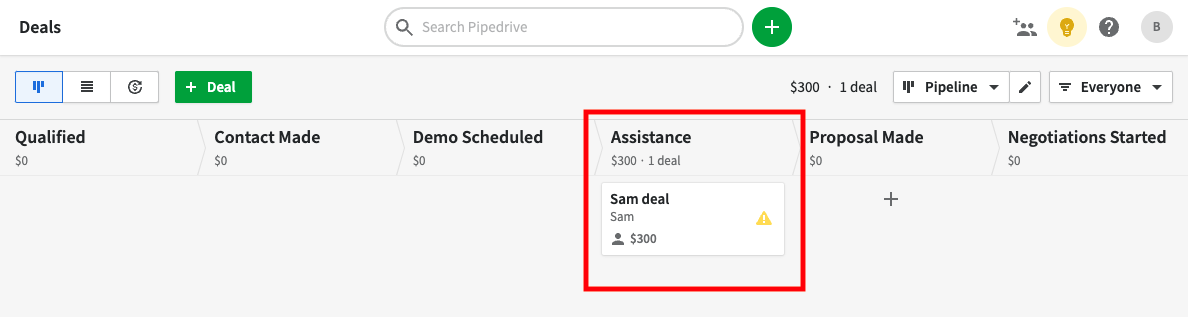
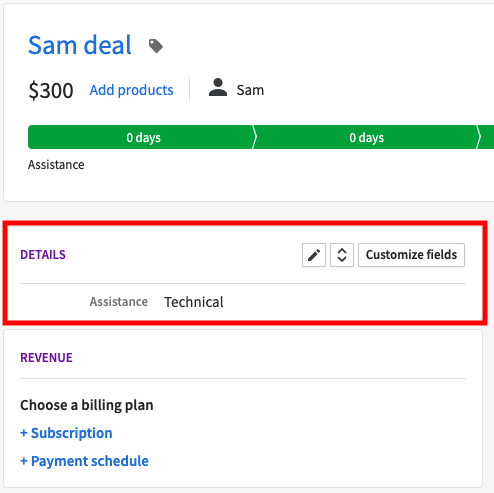
Following this, you'll need to add a custom field that is accessible across all CRM deals. This custom field will enable sales representatives to select the specific type of assistance required from a predefined list of options. This standardization is key to ensuring that the automation can accurately route requests.
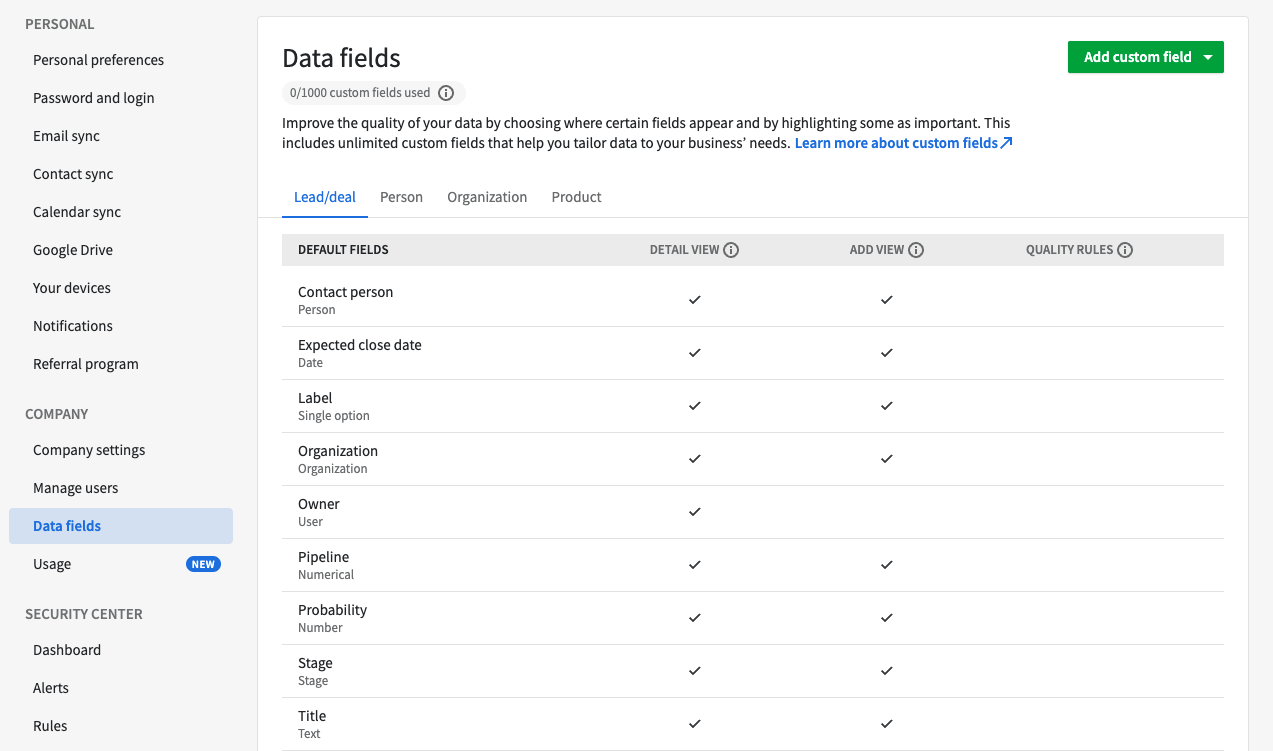
For example, in Pipedrive CRM, you would navigate to the Personal Preferences page and then locate the Data Fields section. Here, you can initiate the creation of a new custom field by clicking the "Add custom field" button.
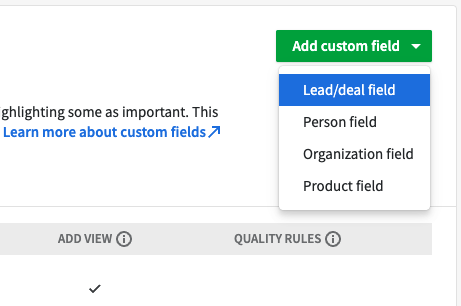
Next, select the "Lead/deal field" option to ensure that this new custom field is available for all your deals, making it universally accessible to your sales team. This ensures consistency across all sales activities and simplifies the process of requesting assistance.
Afterward, choose "Single option" as the field type. This restricts users to selecting only one option from a predefined list, which is ideal for categorizing specific types of assistance. This prevents ambiguity and ensures that requests are clearly defined.
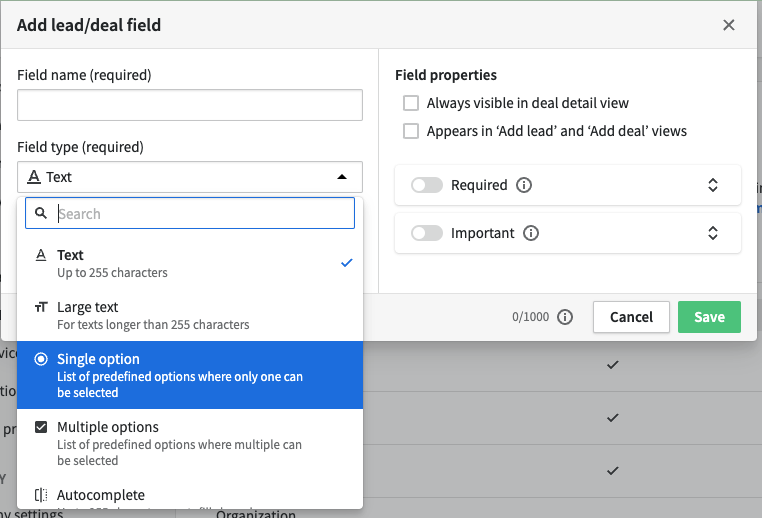
Finally, populate this custom field with a comprehensive list of options that represent the various types of assistance your sales team might require. Once saved, this custom field will be readily available in all your deals, allowing sales reps to easily categorize and flag deals needing support.
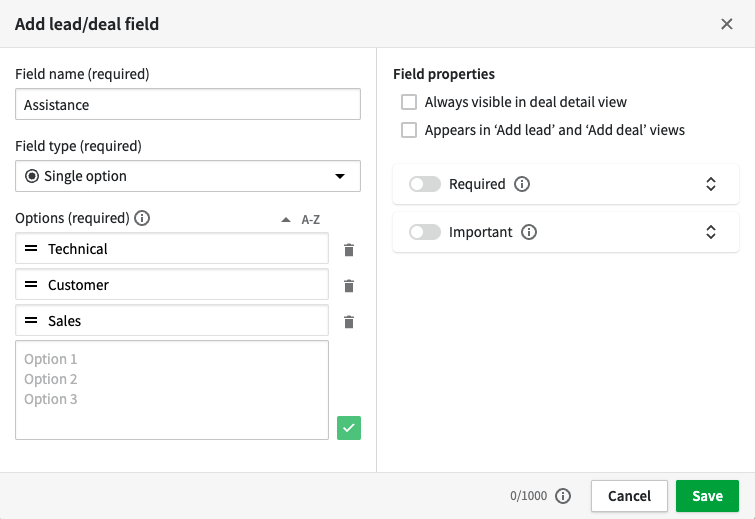
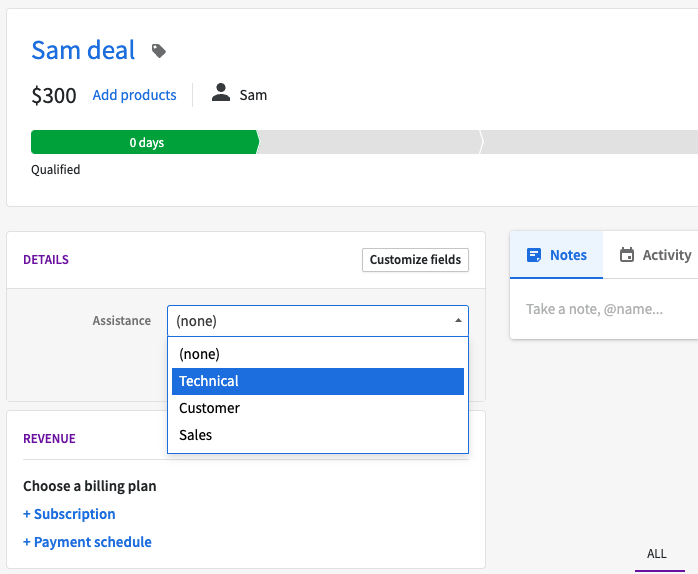
This structured approach ensures that every assistance request is clearly defined and easily identifiable, forming the foundation for effective automation. The custom field will appear within each deal's details, ready for selection by your sales team.
Building the Automation Scenario in Make
Once your CRM is configured, the next crucial step is to construct an automation scenario within Make. This scenario will be responsible for identifying deals that require assistance and subsequently notifying the appropriate teams. The goal is to create a seamless flow of information that eliminates manual intervention.
Consider building a scenario that begins with a trigger module designed to monitor your CRM for new deals entering the "Assistance" stage. For example, you would use a "Pipedrive CRM > Watch Deals" module. This module continuously checks for any deals that have been moved into the designated assistance pipeline stage, acting as the starting point for your automation.
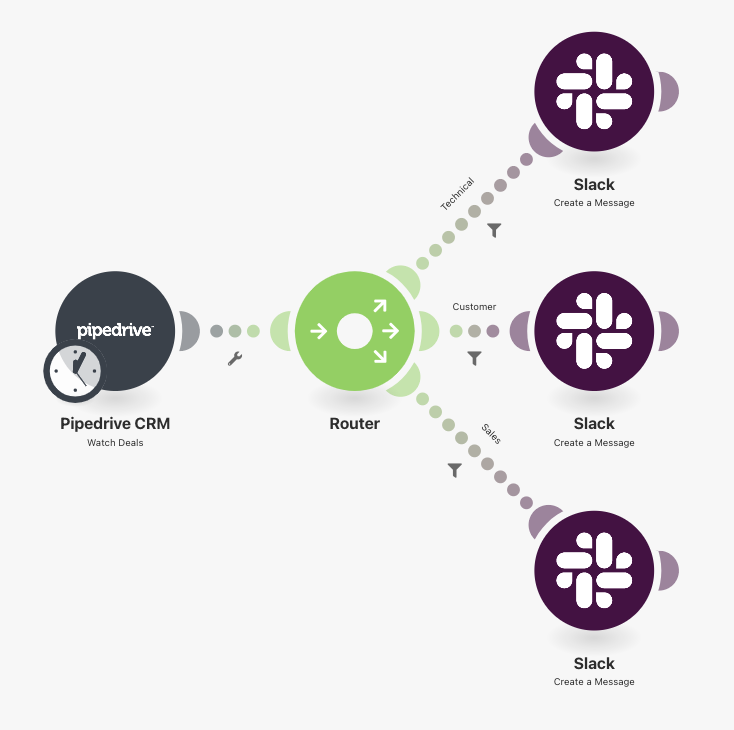
The "Pipedrive CRM > Watch Deals" module is configured to specifically look for deals that have transitioned into the "Assistance" stage. This ensures that only relevant deals trigger the automation, preventing unnecessary notifications and maintaining the efficiency of your workflow.
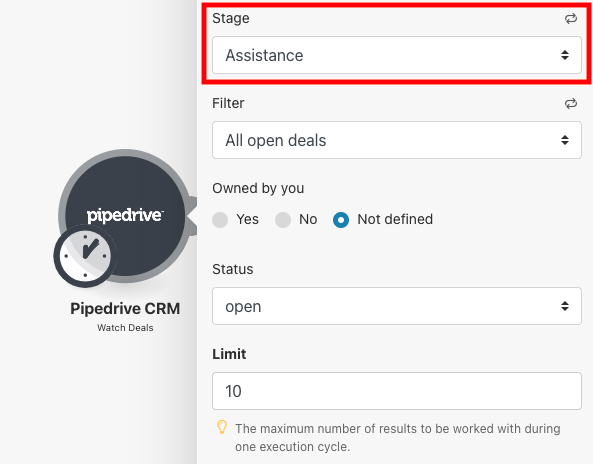
Once a deal is detected in the "Assistance" stage, the scenario proceeds to the next step. This modular approach allows for precise control over when and how the automation is activated, ensuring that your team receives timely and accurate alerts.
Pro tip: When setting up your 'Watch Deals' trigger in Make, use filters to specify not just the pipeline stage, but also other criteria like deal value or specific custom field entries. This ensures that only the most critical assistance requests trigger your automation, preventing alert fatigue for your teams.
Routing Notifications to the Right Teams
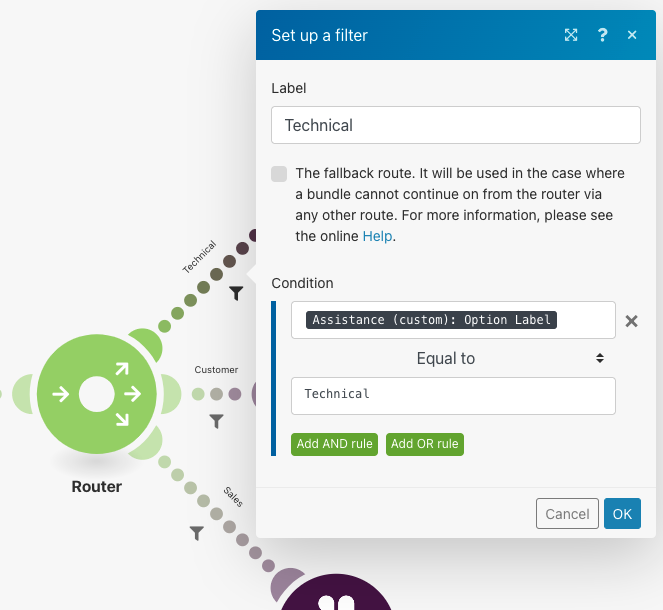
After the Pipedrive module identifies a deal requiring assistance, the next critical component in your Make scenario is a router. This router module is essential for creating different execution paths based on the specific type of assistance selected in the deal's custom field. It acts as a decision-maker, directing the workflow to the appropriate team.
Each path originating from the router will be configured with a filter that checks the value of the "Assistance" custom field. For instance, if the custom field indicates "Technical Support," the filter on one path will allow the scenario to proceed to the technical support team's notification module, while other paths remain inactive.
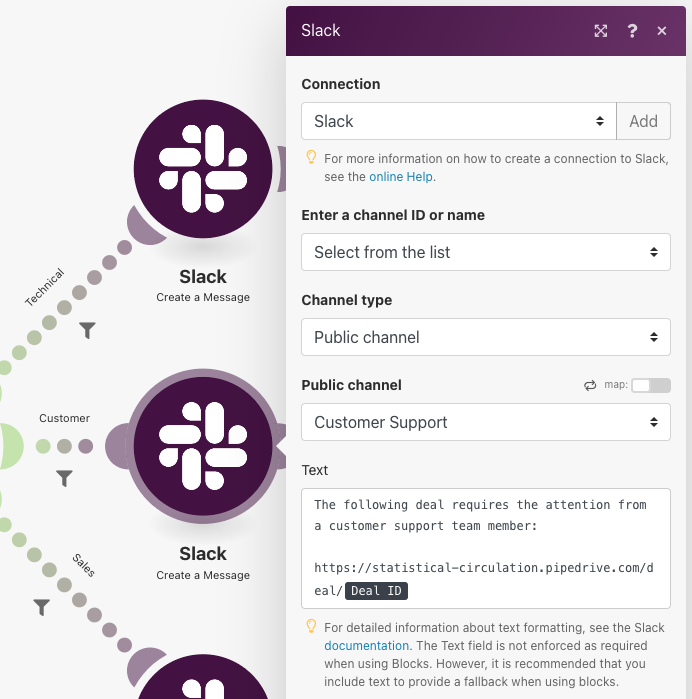
Subsequently, Make sends a message to the designated Slack channel of the team capable of providing the required assistance. For example, if the assistance type is "Customer Support," a message is dispatched to the "Customer Support" channel, ensuring all relevant team members are immediately aware.
Crucially, the notification message includes a direct link to the CRM deal. This allows any available customer support team member to click the link, instantly access the deal within Pipedrive, and retrieve all necessary information to begin assisting. This direct access eliminates the need for manual searching and ensures a rapid response.
Pro tip: Beyond just sending a Slack message, consider adding a module to update the CRM deal with a note indicating that the assistance request has been sent and to which team. This provides a clear audit trail and keeps all stakeholders informed of the deal's progress, even if they aren't directly involved in the assistance task.
Streamlining Sales and Marketing Operations
This series has aimed to provide practical insights into automating data gathering and manipulation workflows, particularly within sales and marketing contexts. As demonstrated, building these automations becomes significantly more accessible and efficient with platforms like Make, especially given that many applications and services lack native integrations with each other.
The examples provided, from setting up custom CRM fields to routing notifications, are merely a glimpse into the vast potential of automation. By eliminating manual, repetitive tasks, businesses can free up their teams to focus on more strategic activities, driving innovation and improving overall productivity.
Automation not only saves time but also reduces the likelihood of human error, ensuring that critical information is processed accurately and promptly. This leads to better decision-making, faster response times, and ultimately, a more competitive edge in the market.
We encourage you to explore the full capabilities of automation. By signing up for a free Make account, you can begin to uncover countless possibilities for transforming your marketing and sales operations, making them more agile, efficient, and effective.