What is Lead Enrichment?
Lead enrichment is the process of enhancing basic contact information with additional firmographic and demographic data to create more complete prospect profiles. When a visitor fills out a form on your website, you typically only capture basic details like name, email and company. Lead enrichment appends valuable business context including company size, industry, technologies used, funding status and more.
This enriched data enables more effective lead scoring and routing. Sales teams can prioritize outreach based on comprehensive profiles rather than making judgments from limited information. According to research from Cognism, enriched leads convert 30% better than non-enriched leads.
Pro tip: Focus your enrichment efforts on leads that have shown genuine interest through multiple engagements rather than all form submissions. This ensures you're investing enrichment resources where they'll have most impact.
Automated Lead Enrichment Solution
The automation we'll build solves a critical sales challenge - receiving leads with minimal information that are difficult to properly score and route. Without enrichment, your sales team wastes time researching companies or makes suboptimal prioritization decisions based on incomplete data.
Our Make.com scenario will automatically:
- Trigger when a new lead submits your website form
- Enrich the lead with Clearbit company data
- Score the lead based on multiple criteria
- Create a properly tagged record in Salesforce
- Notify the appropriate salesperson in Slack
Step 1: Create the Make Scenario and Webhook
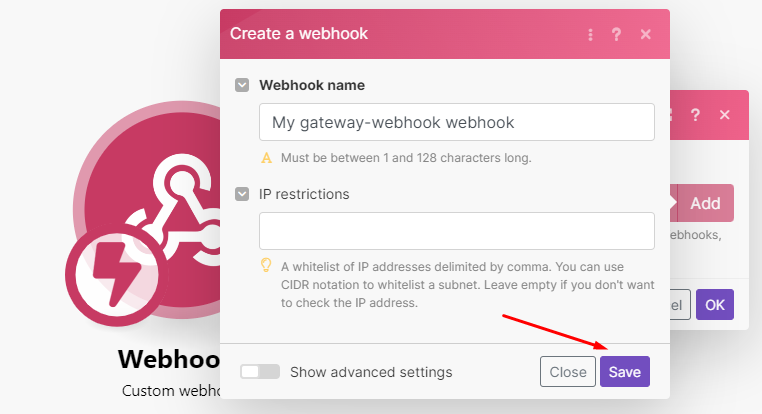
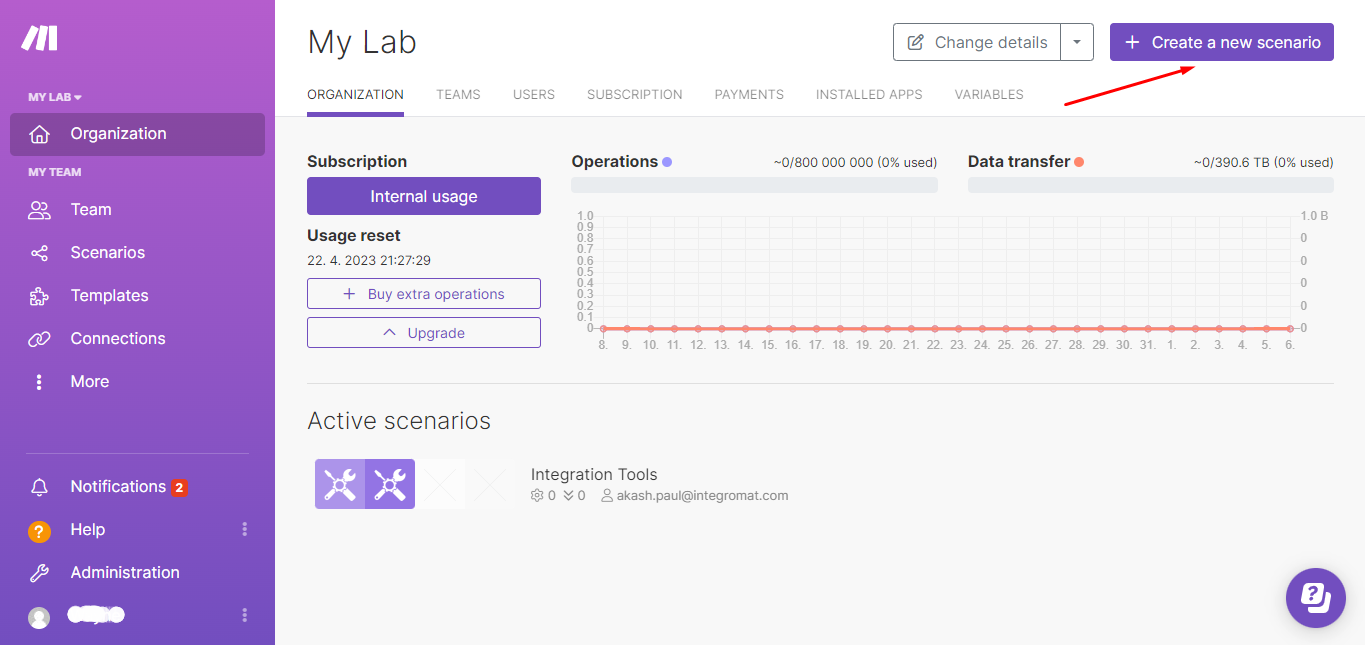
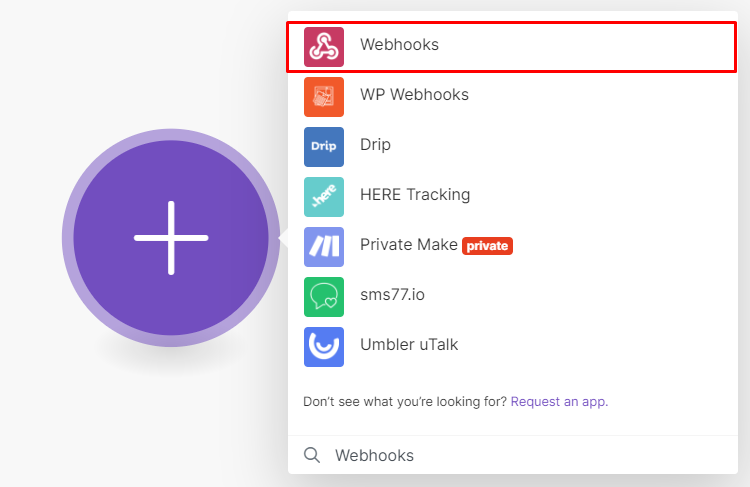
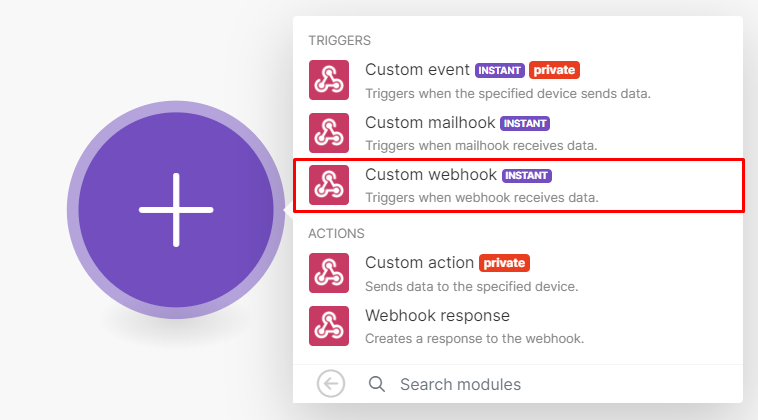
Begin by creating a new scenario in your Make account. The automation will trigger via a custom webhook that receives lead data from your website forms. This instant trigger ensures no delay between form submission and enrichment.
Configure the webhook module by:
- Naming it descriptively (e.g. "Lead Form Webhook")
- Copying the unique webhook URL
- Adding this URL to your website's form submission settings
Test the connection by submitting a test form entry. Make will automatically detect the data structure including all form fields. Ensure your form captures at minimum: first name, last name, email address and company name.
Step 2: Add the Clearbit Module
With the webhook operational, add Clearbit's "Get Company" module to enrich leads with firmographic data. Clearbit uses the company domain from the lead's email address to lookup and return detailed company information.
Key configuration steps:
- Connect your Clearbit account in Make
- Map the email field from the webhook to Clearbit
- Use get() and split() functions to extract the domain
- Enable error handling for failed lookups
Step 3: Add Router and Configure Filters
The router splits your workflow into multiple paths based on lead score. We'll create three routes for high, medium and low scoring leads. Each route has filters checking specific criteria from the Clearbit data.
Example scoring criteria:
- High score: Enterprise companies (500+ employees) in target industries
- Medium score: Mid-market companies (100-500 employees) in target industries
- Low score: All other companies that don't match higher criteria
Configure filters using AND conditions that must all be true for the lead to take that path. For example, a high score filter might require both "employees > 500" AND "industry = Software".
Pro tip: Start with simpler scoring criteria and refine over time as you analyze which scored leads actually convert. Overly complex initial scoring often needs adjustment.
Step 4: Configure the Top Route
The top route handles your highest quality leads. Add a Salesforce module to create a new lead record with all enriched data. Map fields from both the original webhook and Clearbit to the Salesforce fields.
Key configuration points:
- Set lead rating to "Hot" for high-scoring leads
- Include all relevant firmographic data
- Add lead source tracking
- Set proper ownership based on your sales team structure
Step 5: Add Slack Notifications
Complete the high-score route by adding Slack notifications. Configure the Slack module to alert the assigned salesperson with key lead details and a direct link to the Salesforce record.
Effective notifications include:
- Lead name and company
- Score rationale (why they qualified as high-value)
- Key firmographic details
- Direct link to the CRM record
- Any initial engagement context
Step 6: Middle and Bottom Routes
Configure the remaining routes similarly but with appropriate adjustments:
Medium-score route:
- Set lead rating to "Warm"
- Route to business development reps
- Use slightly less urgent Slack notifications
Low-score route:
- Set lead rating to "Cold"
- Route to marketing for nurturing
- Optional: Add to a low-priority notification channel