
Tracking testimonials on Capterra: Solution overview
Customer testimonials provide invaluable social proof and feedback, but manually monitoring multiple review platforms consumes significant time. This automation solution solves that problem by programmatically collecting testimonials from Capterra and storing them systematically in Airtable.
The workflow begins by connecting to Capterra's API to fetch the latest reviews. Since APIs often return data in batches, we implement smart filtering to identify only new testimonials. Each review gets processed individually, checked against existing records, and added to your database if it's genuinely new.
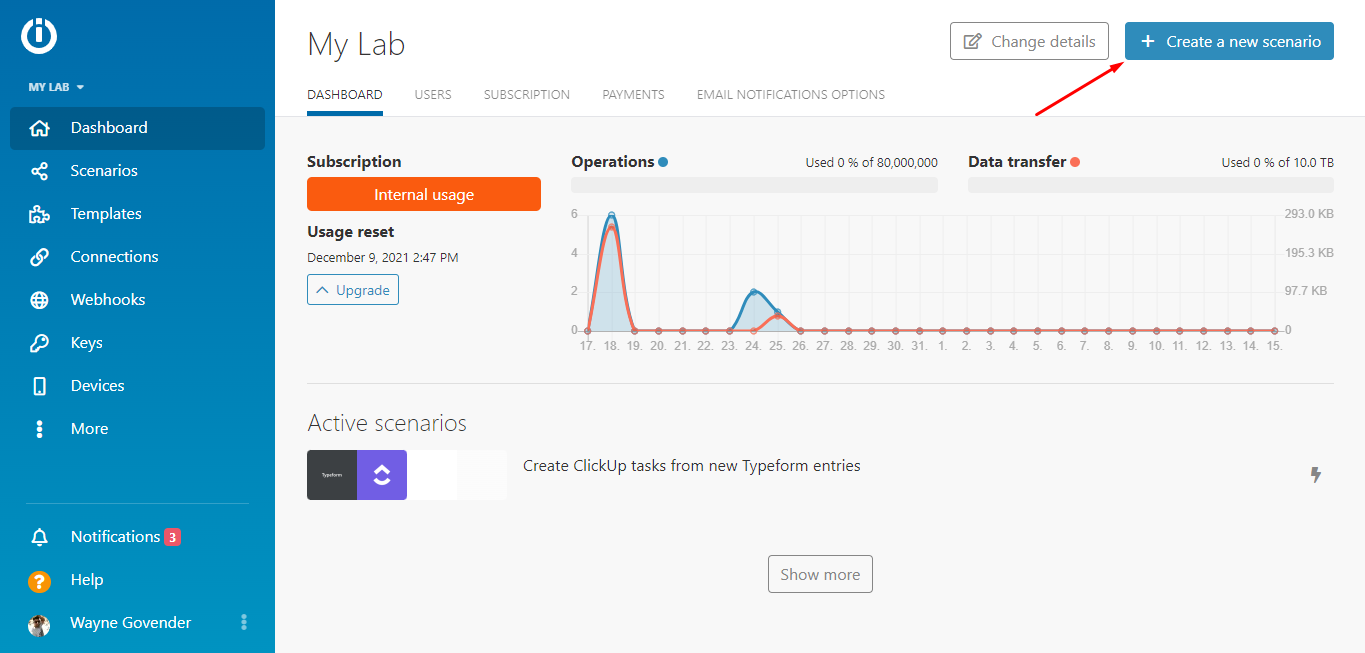
Step 1: Creating the Make scenario and adding the HTTP app
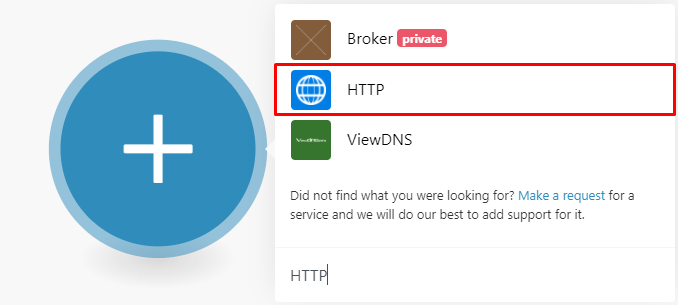
Begin by creating a new scenario in Make (formerly Integromat). This serves as the container for your entire automation workflow. The first module you'll add is an HTTP request, which will communicate with Capterra's API to fetch reviews.
Configuring the HTTP module requires your Capterra API credentials and the correct endpoint URL. The API documentation provides these details, including how to structure your request. We recommend testing the connection immediately to verify you're receiving the expected data format before proceeding.
Pro tip: Always run your HTTP module once after configuration to confirm it returns data correctly. This saves troubleshooting time later in the workflow.
Step 2: Adding the first Airtable module
After successfully connecting to Capterra's API, we add an Airtable module to manage our testimonial database. The first Airtable function searches your existing records to prevent duplicates. It checks each new review against your database using the testimonial URL as a unique identifier.
This step requires careful mapping between the API response fields and your Airtable columns. You'll need to establish the connection between Make and your Airtable base, then configure the search parameters to match your database structure exactly.

Step 3: Adding the second Airtable module
The second Airtable module handles actually creating new records for testimonials that pass the duplicate check. This module maps all relevant review data (text, rating, date, reviewer info) to corresponding fields in your Airtable base.
A critical component here is the filter placed between the search and create modules. It ensures only genuinely new testimonials proceed to the creation step by verifying the search returned zero existing matches. This prevents duplicate entries in your database.
Pro tip: Structure your Airtable base with all needed fields before building the automation. Include columns for rating, date, product/service referenced, and any tags or categories you want to track.
Step 4: Sending the Slack notification
To keep your team informed of new testimonials, we add Slack integration. Rather than sending individual notifications for each review (which could become noisy), the workflow aggregates new testimonials into a single digest message.
The Slack module connects to your workspace and posts to your specified channel. You can customize the message format to include the most important details - we recommend including the testimonial text, rating, and direct link to the original review.
Step 5: Testing the scenario
With all modules configured, it's time to test the complete workflow. Running the scenario end-to-end verifies each component functions correctly together. Watch as Make retrieves reviews, checks for duplicates, adds new testimonials to Airtable, and sends your Slack notification.
After successful testing, schedule the scenario to run automatically at your preferred interval (daily, weekly, etc.). Make will handle all future executions, keeping your testimonial database current with minimal ongoing effort.