Step 1: Create a Google Sheets spreadsheet and a new Make scenario
Manual invoice tracking creates administrative overhead and often leads to delayed follow-ups. By automating this process with Make.com, you can ensure consistent, timely reminders while freeing up valuable staff time.
Begin by setting up a Google Sheets spreadsheet with these essential columns:
- Customer Name
- Created Date
- Due Date
- Amount Due
- Customer Email
- Plan/Service
- PDF Link
- Invoice ID
Step 2: Add the Google Sheets app to your scenario
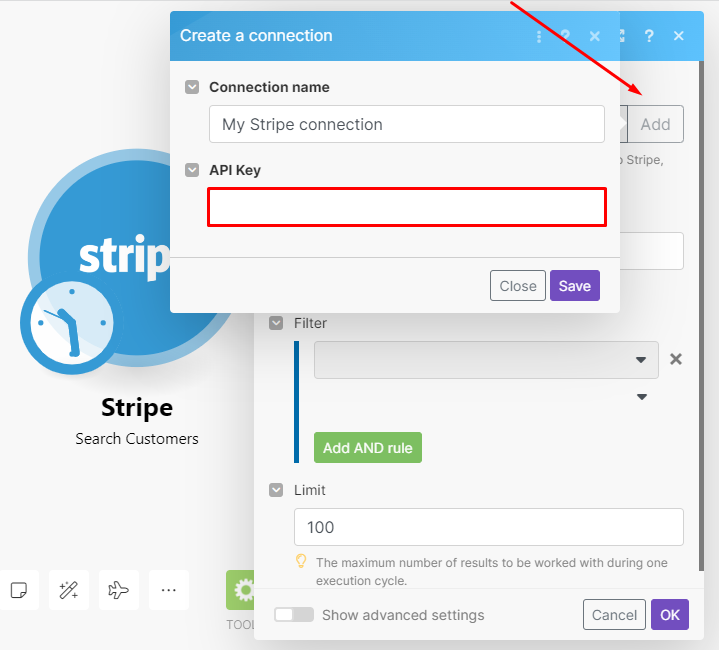
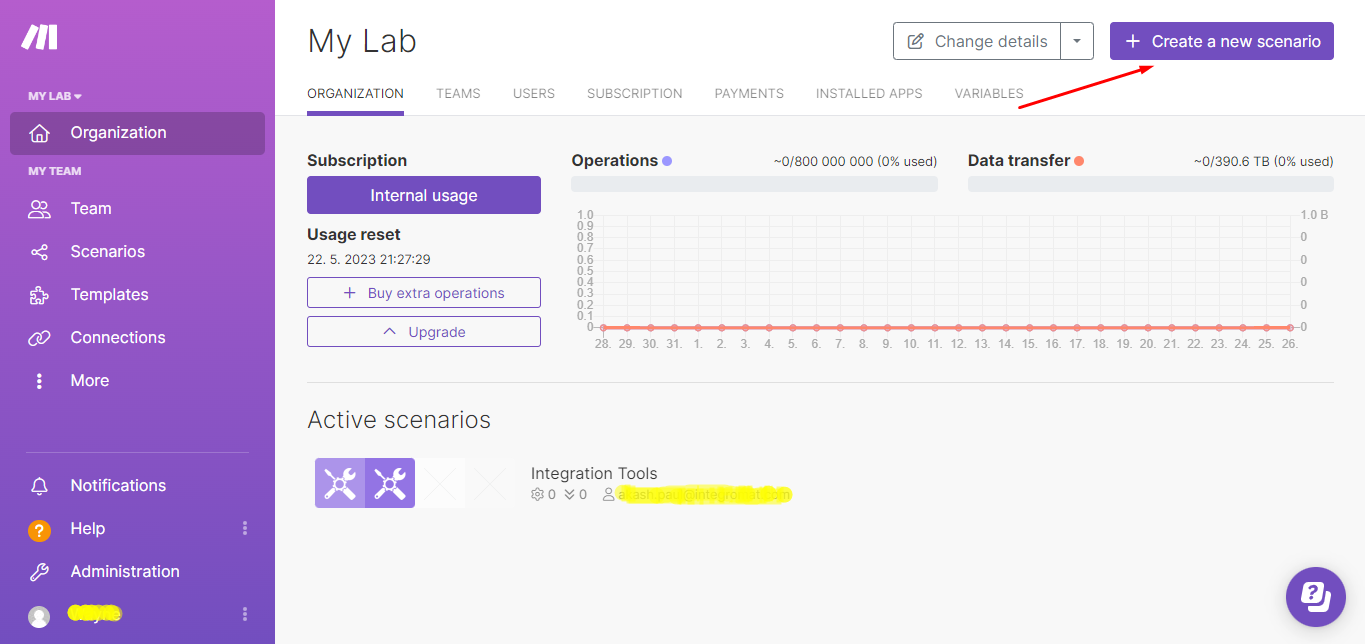
After creating your spreadsheet structure, log into your Make.com account and create a new scenario. The first module you'll add is Stripe's "Search Customers" function, which will pull invoice data directly from your payment processor.
If you haven't connected Stripe to Make before, you'll need to authenticate using your Stripe API key. This secure connection allows Make to access your invoice data while maintaining all security protocols.
Pro tip: When configuring the Stripe module, set the status filter to "Open" and collection method to "Send Invoice" to catch all unpaid invoices.

Step 3: Add a filter for overdue invoices
The magic of this automation lies in its intelligent filtering. We'll configure the system to only flag invoices that are genuinely overdue, avoiding premature reminders.
Using Make's date functions, we'll compare the invoice due date with the current date minus 10 days. This creates a buffer period before reminders are sent, which improves customer relations while maintaining cash flow.