
What This Workflow Does
This powerful automation eliminates the tedious and error-prone task of manually processing purchase orders received via email. Imagine an online store receiving dozens, or even hundreds, of orders daily. Without automation, each email would require someone to open it, extract customer details, order items, quantities, and prices, then manually input this data into a spreadsheet and create an invoice in their accounting software. This workflow completely transforms that process.
It acts as a digital assistant, constantly monitoring your inbox for new purchase orders. Once an order email arrives, it intelligently reads and understands the content, pulls out all the critical information, logs it neatly into a designated Google Sheet for tracking, and then automatically generates a professional invoice in Xero. This not only saves countless hours of administrative work but also drastically reduces the risk of human error, ensuring accuracy in your sales records and financial reporting.
How It Works
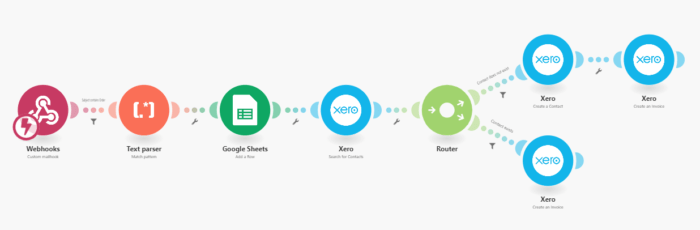
This automation is built on a series of interconnected steps within Make.com, designed to handle each part of the purchase order process seamlessly.
1. Capture Email Purchase Orders
The workflow begins with a Webhooks > Custom mailhook module. This unique email address acts as a dedicated inbox for your purchase orders. You simply configure your email client (like Gmail) to automatically forward any incoming purchase order emails to this mailhook. This ensures that every new order instantly triggers the automation.

2. Filter and Parse Email Content
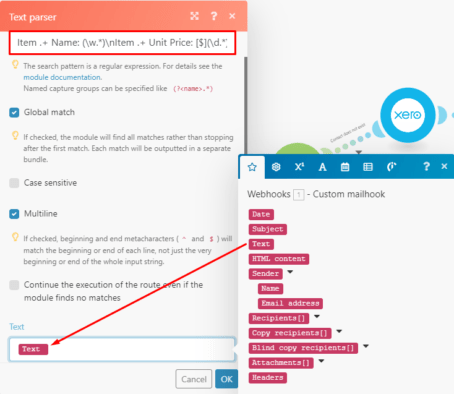
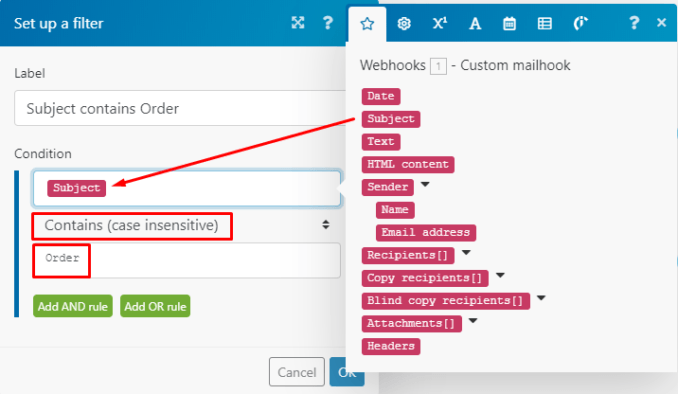
After receiving an email, a filter ensures that only relevant emails (e.g., those with "Order" in the subject line) proceed. The core of the data extraction is handled by the Text Parser > Match pattern module. This module uses regular expressions to identify and pull out specific pieces of information from the email body, such as customer name, product details, quantities, and prices. This intelligent parsing ensures accurate data capture.
3. Log Data in Google Sheets
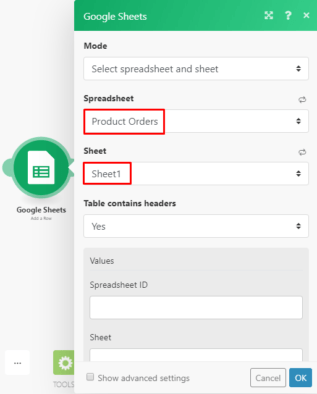
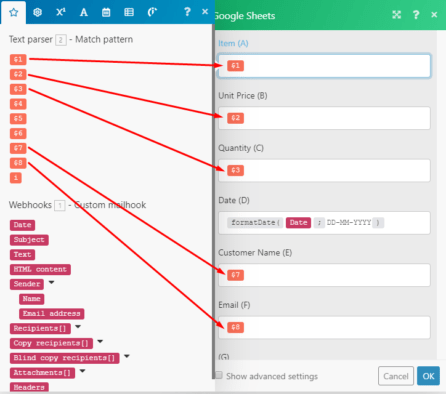
The extracted data is then immediately sent to a Google Sheets > Add a row module. This module populates a pre-defined Google Sheet with all the order details, creating a real-time log of every purchase. This centralizes your order information, making it easy to track, analyze, and report on sales performance.
4. Manage Customer Contacts in Xero
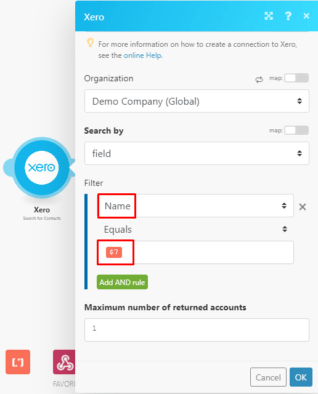
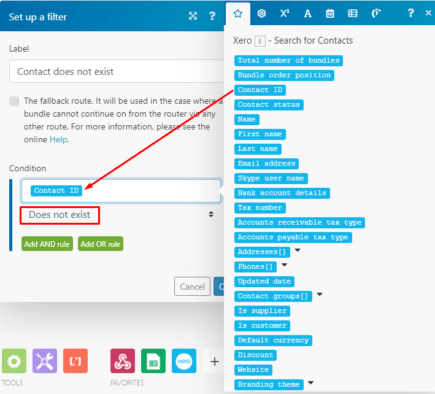
A Xero > Search for contacts module checks if the customer already exists in your Xero accounting system. A router then intelligently directs the workflow: if the contact is new, a Xero > Create a contact module is triggered to add the new customer. If the contact already exists, the workflow proceeds directly to invoice creation.
5. Create Invoice in Xero
Finally, a Xero > Create an invoice module generates a sales invoice. For new contacts, the Contact ID from the newly created contact is used. For existing contacts, the ID found in the search step is used. All relevant details extracted from the email are mapped to the invoice fields, ensuring a complete and accurate invoice is created automatically.
Who This Is For
This automation is ideal for any business that regularly receives purchase orders via email and uses Google Sheets for record-keeping and Xero for accounting. This includes:
- E-commerce businesses: Streamline order processing from various sales channels that send email notifications.
- Service providers: Automate invoicing for client projects or recurring services initiated by email.
- Small to medium-sized businesses (SMBs): Reduce administrative overhead and free up staff for more critical tasks.
- Wholesale suppliers: Efficiently manage incoming bulk orders and ensure timely invoicing.
- Any business aiming for efficiency: If you're tired of manual data entry and want to improve accuracy and speed in your order-to-invoice cycle, this workflow is for you.
What You'll Need
To implement this workflow, you will need the following:
- A Make.com account (free tier or higher).
- A Google account with access to Google Sheets.
- A Xero account.
- An email account (e.g., Gmail) where purchase orders are received.
- A basic understanding of regular expressions for text parsing.
Quick Setup Guide
Follow these steps to quickly set up your email purchase order automation:
- Create the Scenario: In your Make.com account, create a new scenario and add the following modules: Webhooks > Custom mailhook, Text Parser > Match pattern, Google Sheets > Add a row, Router, Xero > Search for contacts, Xero > Create a contact, and Xero > Create an invoice (two instances, one for each route).
- Configure Mailhook: Copy the generated mailhook URL from the Webhooks module. In your email client (e.g., Gmail), go to settings, find the forwarding options, and add this mailhook URL as a forwarding address. Ensure emails with purchase orders are forwarded.
- Set up Text Parser: In the Text Parser module, map the 'Text' element from the mailhook. Create a regular expression to extract key data points (customer name, items, quantities, prices) from your typical purchase order email format. Enable 'Global match' and 'Multiline'.
- Add Email Filter: Between the mailhook and Text Parser, add a filter condition: "Subject" contains "Order" (case insensitive) to process only relevant emails.
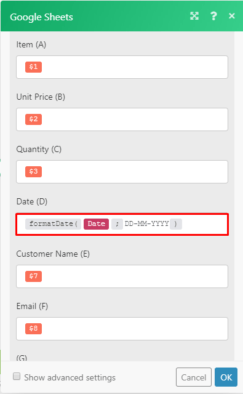
- Map to Google Sheets: Connect the Text Parser to the Google Sheets 'Add a row' module. Select your target spreadsheet and sheet. Map the extracted data from the Text Parser to the corresponding columns in your Google Sheet. Use the `formatdate` function for date fields if needed.
- Configure Xero Contact Search: Connect the Google Sheets module to the Xero 'Search for contacts' module. Search by 'Name' using the customer name extracted by the Text Parser.
- Set up Router for Contacts: Add a Router after the Xero 'Search for contacts' module. Create two routes:
- Route 1 (New Contact): Add a filter where 'Contact ID' (from Xero Search) 'Does not exist'. Connect this to a Xero 'Create a contact' module, mapping the customer name.
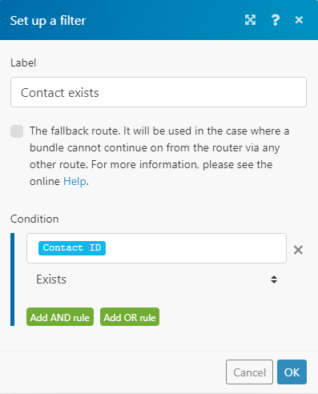
- Route 2 (Existing Contact): Add a filter where 'Contact ID' (from Xero Search) 'Exists'.
- Create Xero Invoices: Add a Xero 'Create an invoice' module to both routes. For Route 1, map the 'Contact ID' from the 'Create a contact' module. For Route 2, map the 'Contact ID' from the 'Search for contacts' module. Map the extracted order details (description, quantity, unit amount, item) to the invoice line items.
- Test and Activate: Run the scenario once with a sample purchase order email to ensure all steps execute correctly and data is transferred accurately. Once confirmed, activate your scenario.
Pro tip: Regularly review your Google Sheet and Xero account after initial setup to ensure data is flowing as expected. Adjust your regular expressions in the Text Parser if your email formats change or if you need to capture additional data points.
Key Benefits
Implementing this automation brings significant advantages to your business operations:
Eliminate Manual Data Entry: Say goodbye to copying and pasting information from emails. This workflow automatically extracts all necessary details, drastically reducing the time spent on repetitive tasks and freeing up your team for more strategic work.
Boost Data Accuracy: Manual data entry is inherently prone to human error. By automating the transfer of purchase order details to Google Sheets and Xero, you minimize typos and inconsistencies, ensuring your records are always precise and reliable for financial reporting and inventory management.
Accelerate Order-to-Invoice Cycle: Orders are processed and invoices are generated almost instantly upon email receipt. This speed improves your cash flow, enhances customer satisfaction with quicker billing, and allows for faster fulfillment processes.
Maintain Real-time Records: With every purchase order automatically logged in Google Sheets and invoiced in Xero, you gain a real-time overview of your sales and financial standing. This immediate access to accurate data supports better decision-making and more responsive business management.
Improve Customer Experience: Faster and more accurate invoicing leads to a smoother experience for your customers. They receive their invoices promptly and correctly, reflecting professionalism and efficiency, which can strengthen customer loyalty.