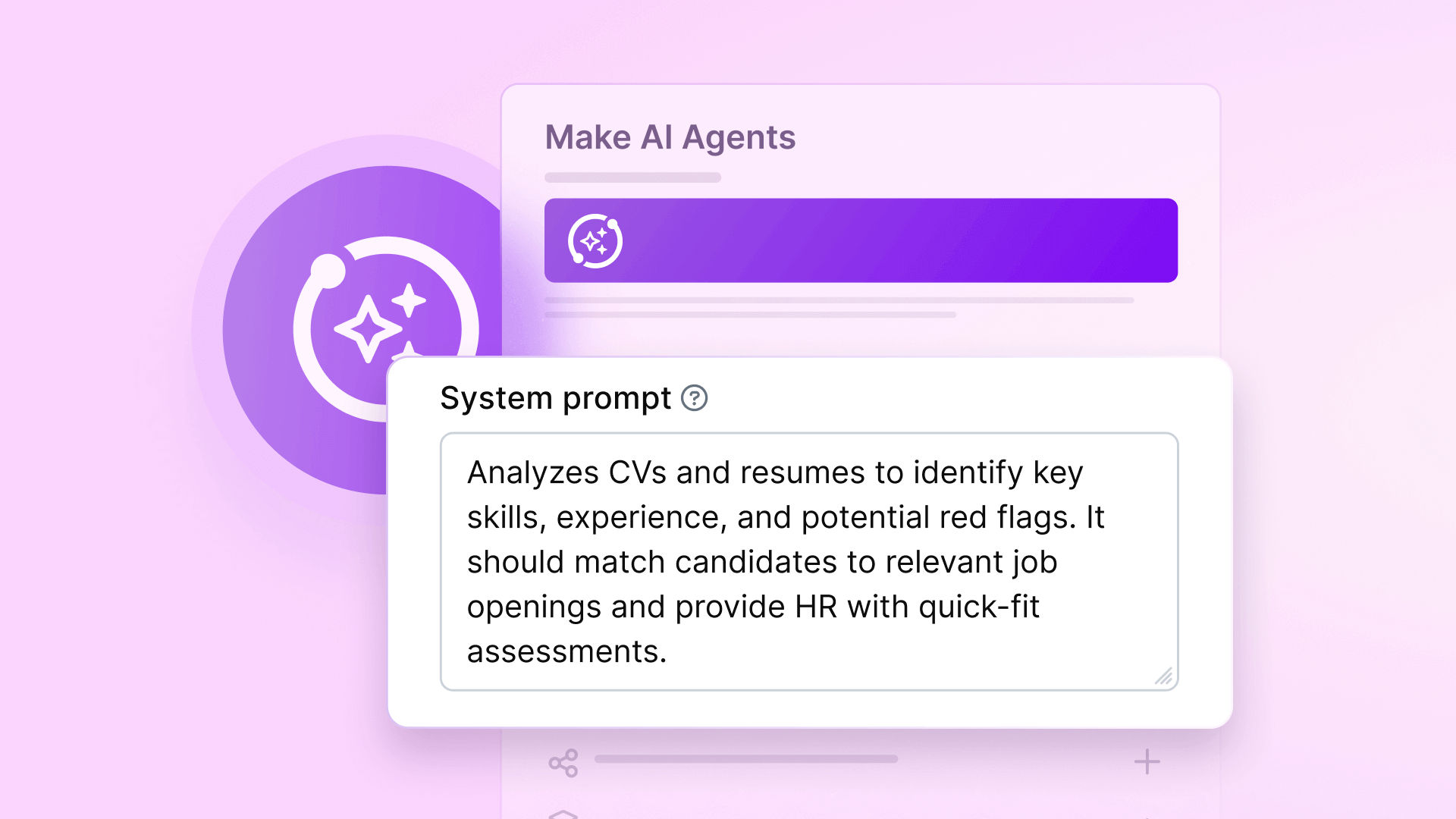
What is an AI recruiting agent?
An AI Recruiting Agent is a goal-based assistant that automates early hiring tasks. Instead of manually opening each CV, it extracts candidate data and runs evaluations based on your instructions.
In Make, you set a clear goal (for example, "screen marketing applicants"), link supporting scenarios, and connect an input, such as a resume folder. When new resumes arrive, the agent selects the right scenarios to run and returns structured results - fast, consistent, and ready to review.
What an AI recruiting agent does (and why it's useful)
Manual resume screening is slow and inconsistent. This AI recruiting agent automates early-stage hiring to deliver fast, objective results. Here's how it works:
- Detects new resumes: Monitors a Google Drive folder (or other cloud storage) for incoming PDFs.
- Extracts candidate info: Parses each file to pull name, email, LinkedIn URL, and other contact details.
- Answers screening questions: Reads the resume to answer four predefined questions (for example, "Has this person written scripts for YouTube?").
- Scores responses: Assigns a score from 0–2 for each answer, along with a short explanation.
- Logs results in a sheet: Adds a row to Google Sheets with contact info, answers, scores, and total points—ready to sort by top candidates.
With this setup, every resume is screened the same way - no bias, no bottlenecks - just structured, actionable results for your team.
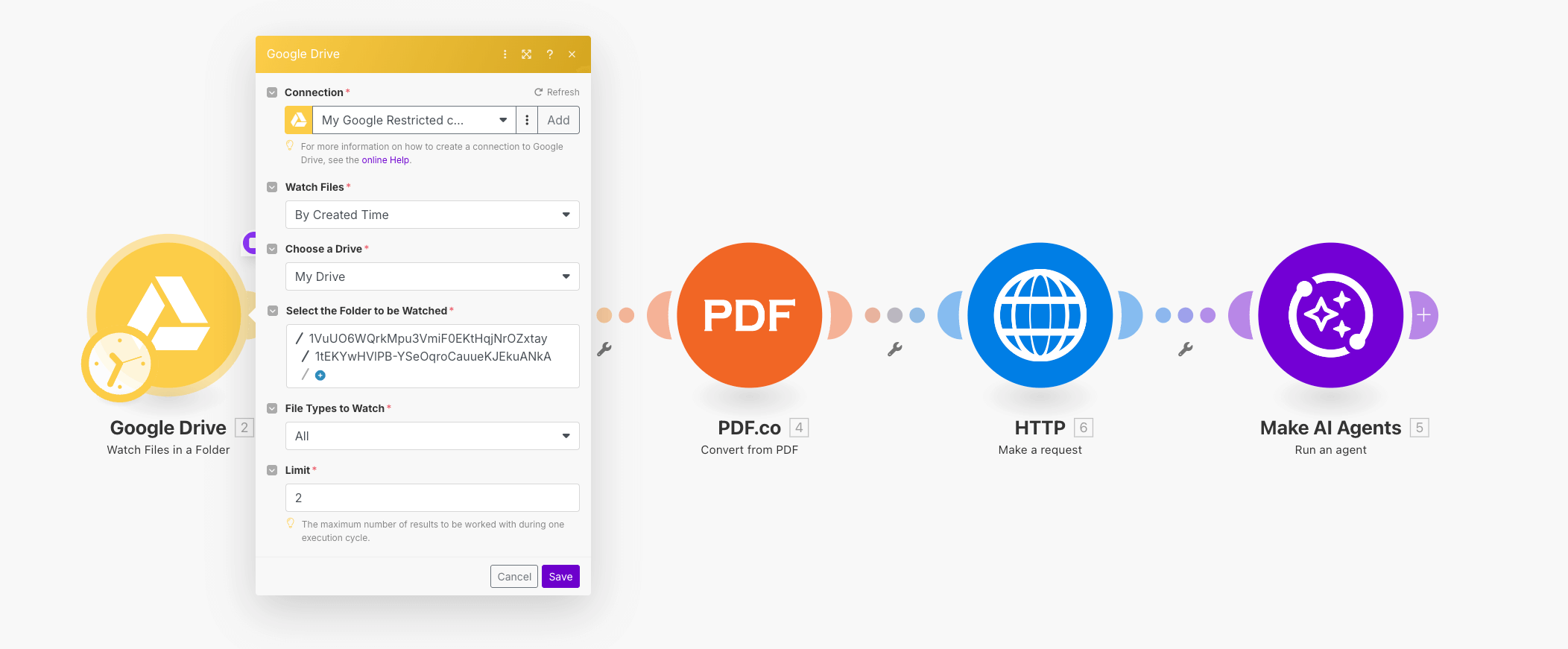
How it works: two-scenario architecture
This setup uses two connected scenarios:
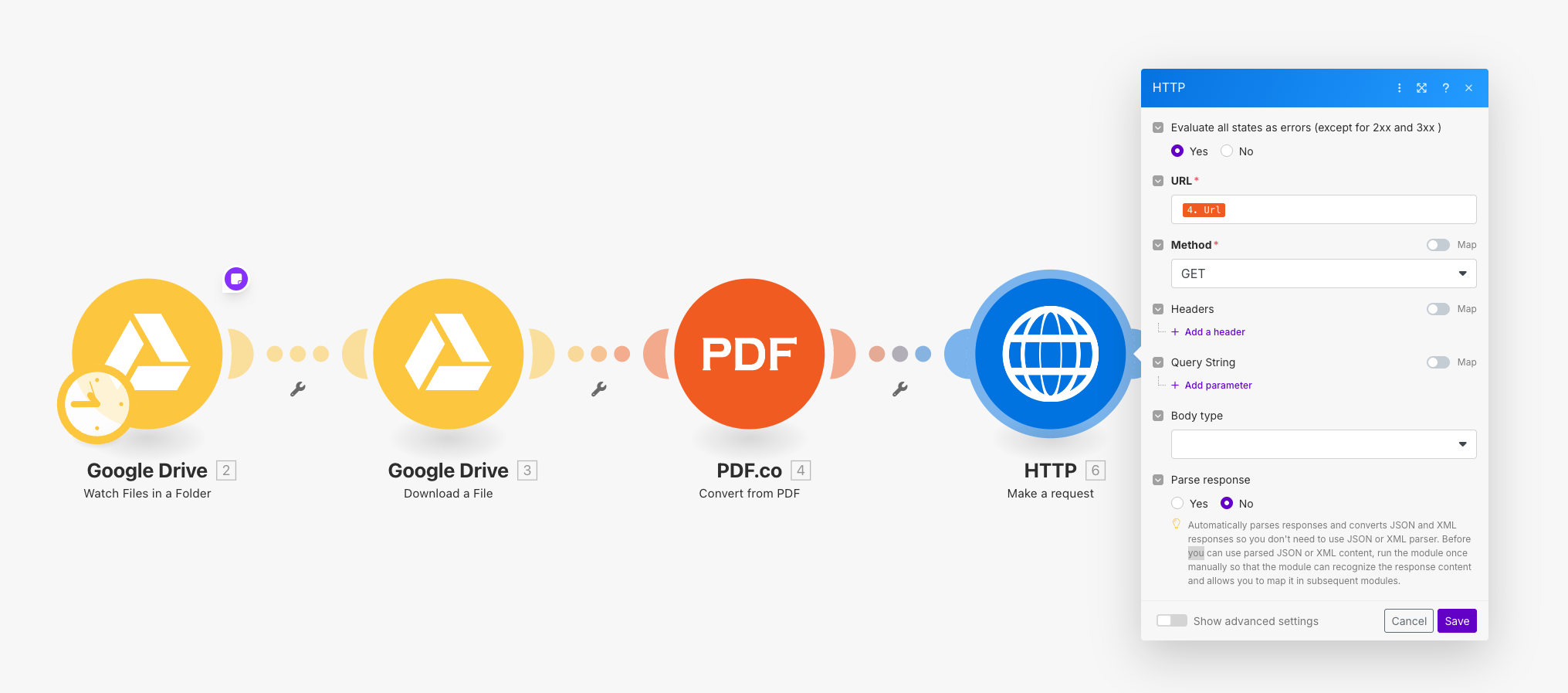
- Resume Processing scenario: Triggers when a new resume is added to a Google Drive folder. It converts the PDF to JSON and sends the data to the AI Agent.
- Google Sheets Logging scenario: Receives the agent's output - contact info, answers, and scores - and appends a new row to a Google Sheet.
These scenarios act as tools for the AI agent. When a resume arrives, the first scenario handles conversion and parsing. The agent answers four screening questions, assigns scores (0–2), and triggers the second scenario to log results.
Pro tip: Start with a simple version of your workflow focusing on core functionality, then add enhancements like email notifications or CRM integration once the basic process is working smoothly.
Apps used in this example
This recruiting agent uses several Make modules. You can swap in equivalents if needed:
- Google Drive – Monitors a folder of resumes and fetches new files.
- PDF.co – Converts each PDF resume into structured JSON text.
- HTTP – Makes a simple HTTP GET request to download the JSON output.
- Make AI Agent – The core AI that reads the resume data and produces structured answers.
- Google Sheets – Logs each candidate's details and scores.
Step-by-step: How to build the recruiting AI agent
Now let's assemble everything in Make step by step.
Step 1: Set up the Resume Monitor scenario
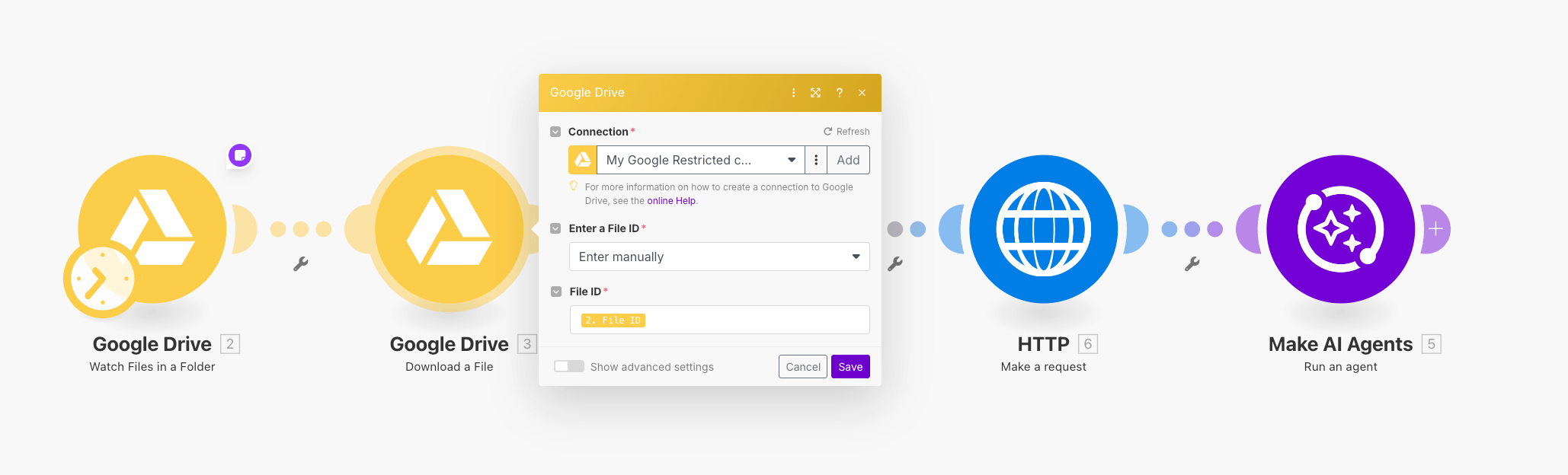
Create a new scenario called "Resume Intake" and add a Google Drive "Watch Files in a Folder" module. Configure it to monitor your resumes folder and trigger when new files are added.
Step 2: Get the resume file
Add a Google Drive "Download a File" module connected to the watcher. Configure it to fetch the resume content and convert documents to a consistent format.
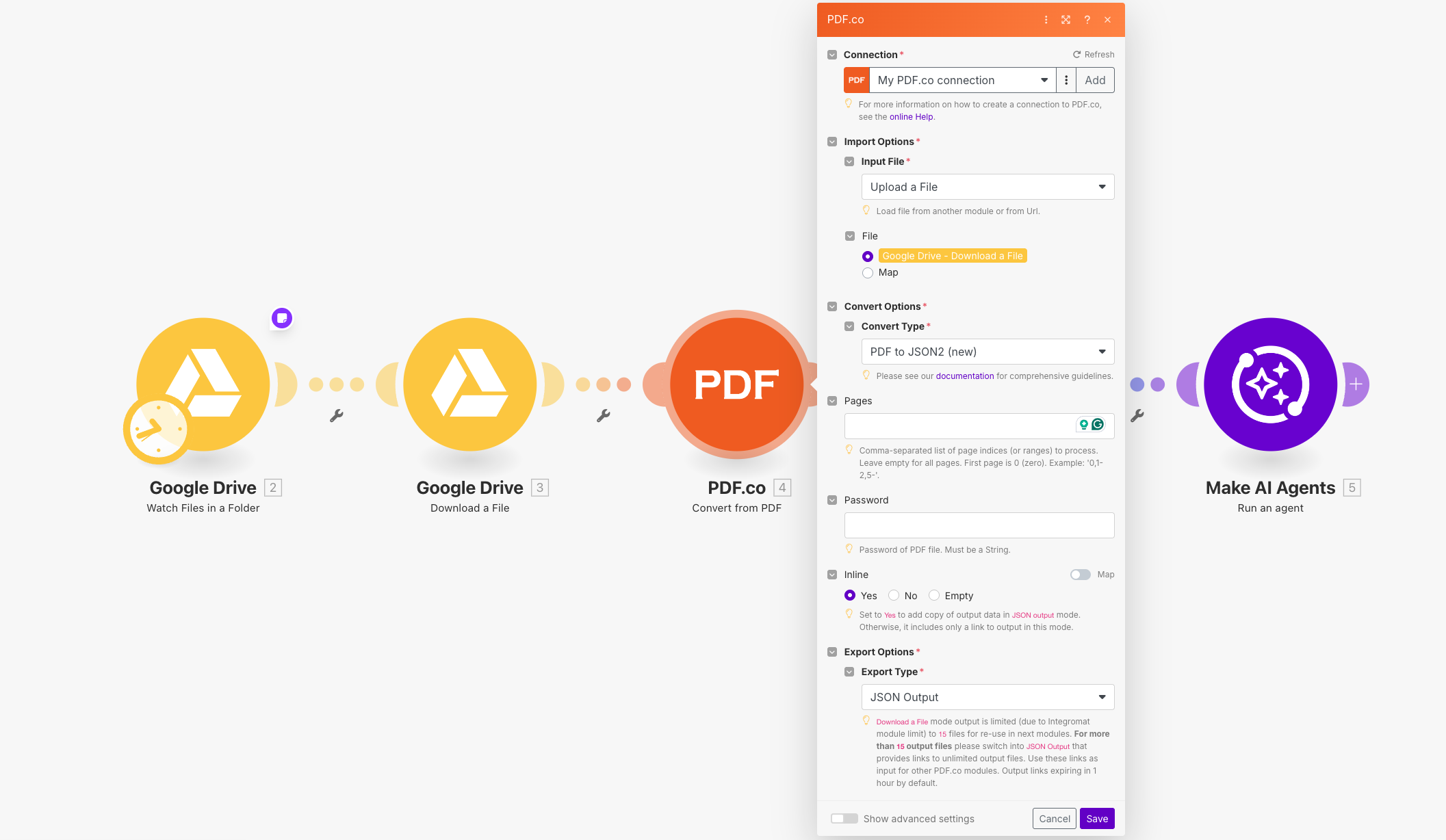
Step 3: Convert PDF to JSON
Insert a PDF.co "Convert from PDF" module to parse the resume file into structured JSON text that the AI can analyze.
Step 4: Fetch the JSON via HTTP
Add an HTTP "Make a Request" module to download the parsed JSON content from the PDF.co service.
Step 5: Add the AI Agent module
Insert a Make "AI Agents > Run an Agent" module. Configure it with your screening questions and connect it to the parsed resume data.
Pro tip: When writing your agent prompts, be specific about answer formats (e.g., "Respond with 'Yes' or 'No' for each question") to ensure consistent, machine-readable outputs.
Step 6: Create the Google Sheets logging scenario
Build a separate scenario that receives the agent's output and logs candidate details to a Google Sheet with columns for each screening question and score.
Step 7: Define scenario inputs and connect the agent
Configure the inputs for your logging scenario to match the outputs from your AI agent, then connect the two scenarios so results flow automatically from analysis to recording.