What This Workflow Does
This automation streamlines the often tedious process of converting Google Docs into PDF files. Instead of manually opening each document, selecting "Download as PDF," and saving it, this workflow handles it all for you automatically. It monitors a designated Google Drive folder for new or updated Google Docs, converts them to the universally compatible PDF format, and then saves these new PDF versions to another specified folder in Google Drive. This eliminates repetitive clicks and ensures your documents are always in the correct format for sharing, archiving, or presentation.
For businesses and individuals who frequently work with Google Docs and require PDF versions for various purposes, this automation is a game-changer. It ensures consistency, reduces human error, and frees up valuable time that can be redirected to more strategic tasks. Imagine never having to worry about whether a client or colleague can open your document correctly again.
How It Works
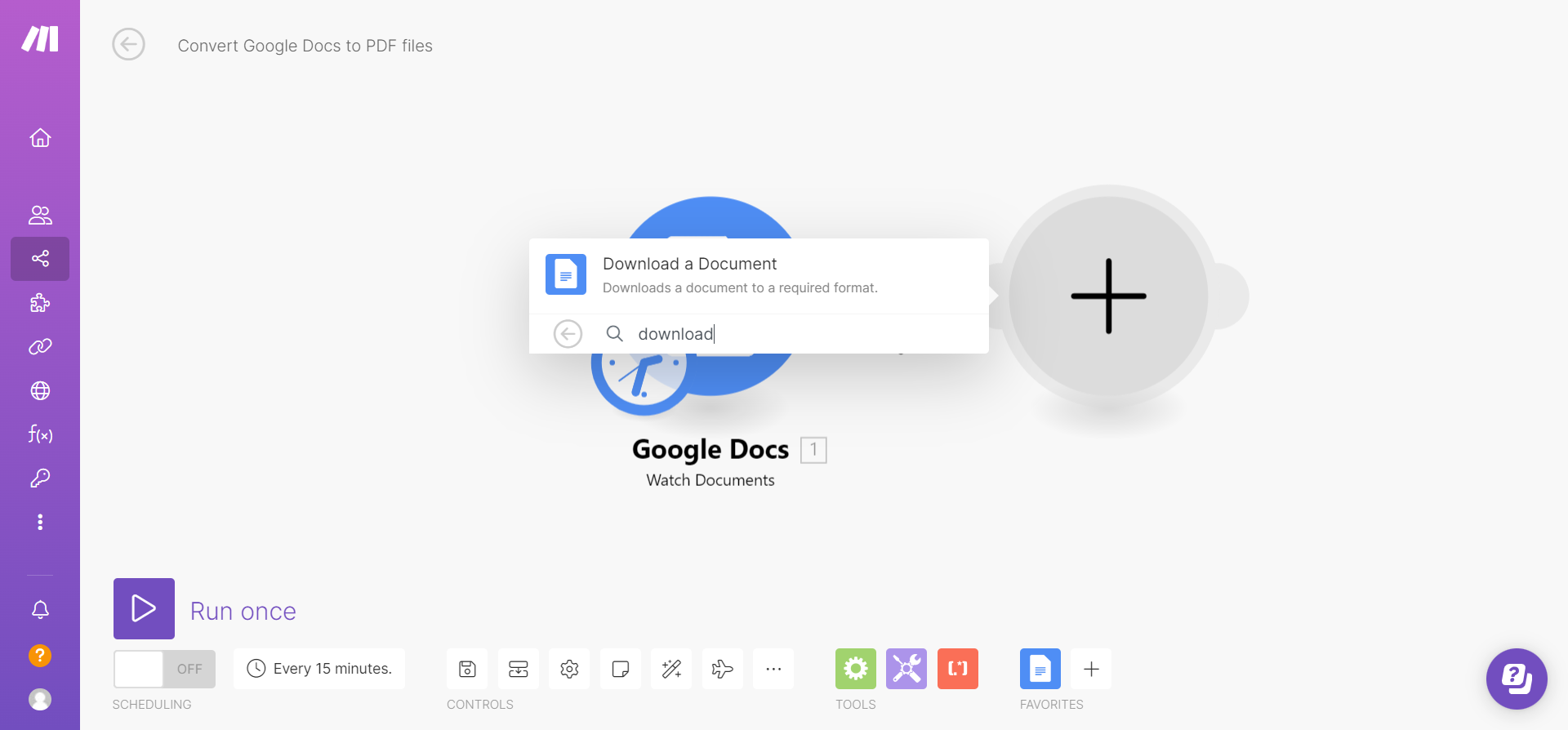
Step 1: Monitor for New Google Docs
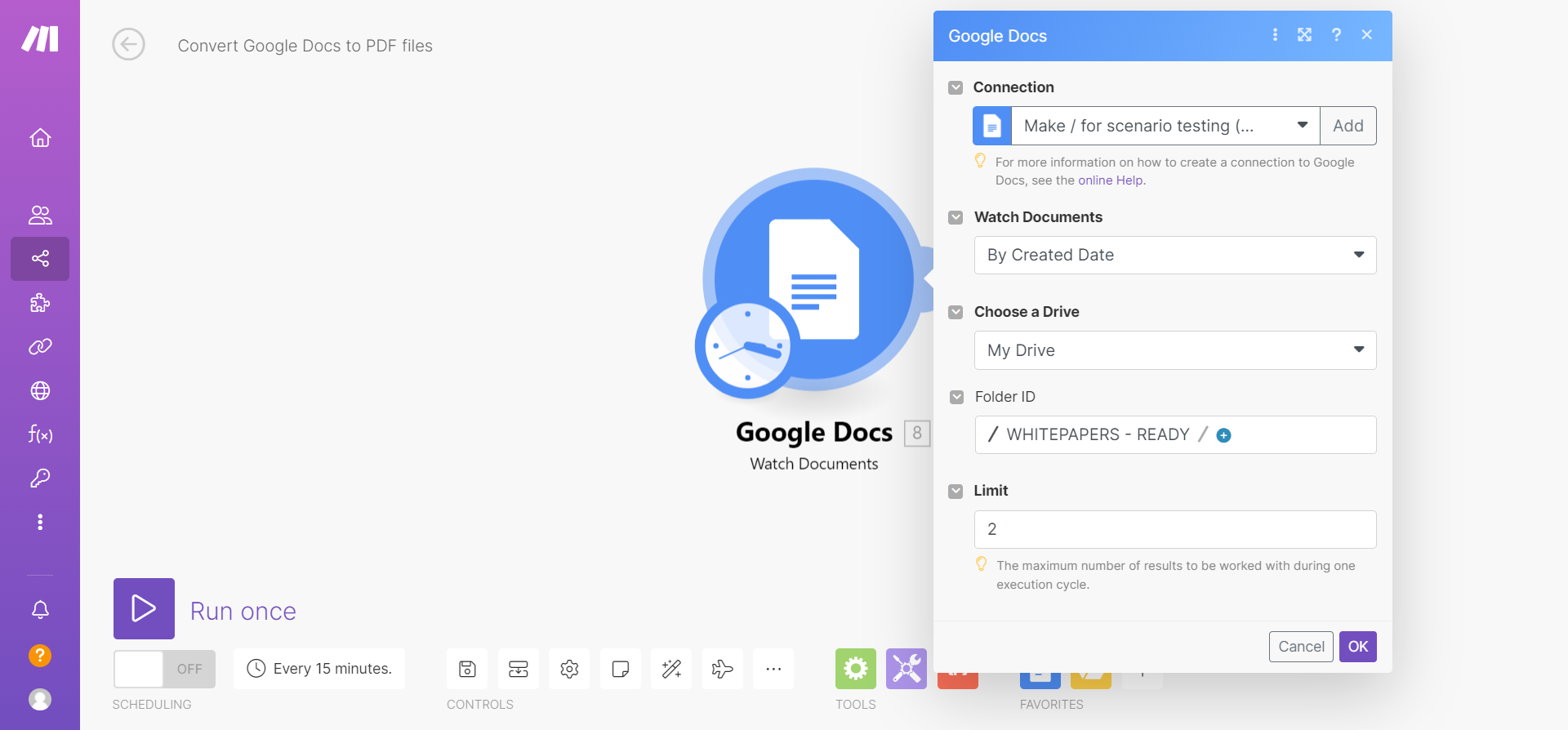
The workflow begins by actively watching a specific Google Drive folder for any new Google Docs that are created or added. This acts as the trigger for the entire automation. You define which folder should be monitored, ensuring that only relevant documents initiate the conversion process.
Step 2: Convert the Google Doc to PDF
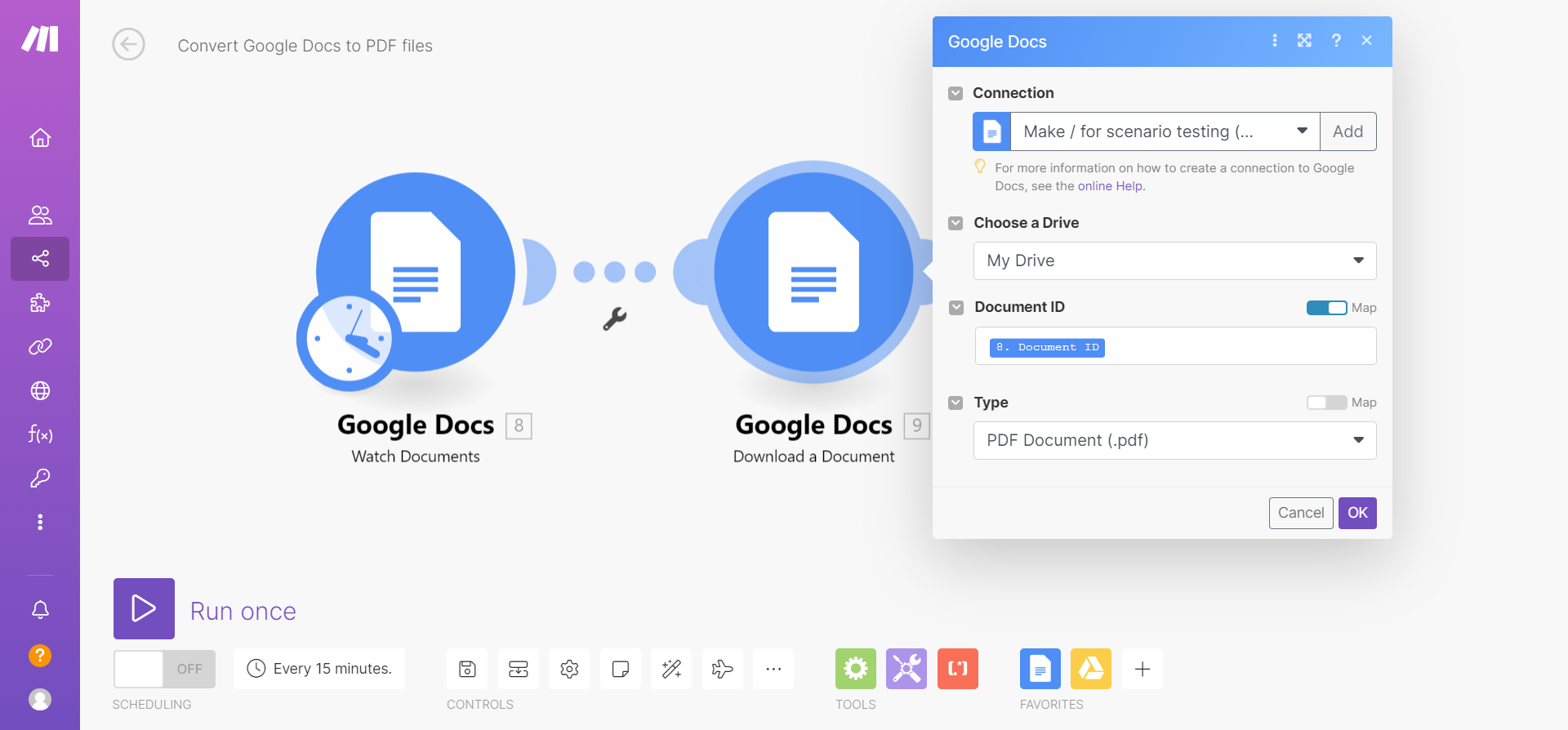
Once a new Google Doc is detected, the workflow automatically initiates its conversion. It accesses the document and uses Google's native capabilities to transform it into a PDF file. This step is crucial as it ensures the formatting and layout of your document are preserved, making it ready for distribution.
Step 3: Save the Converted PDF to Google Drive
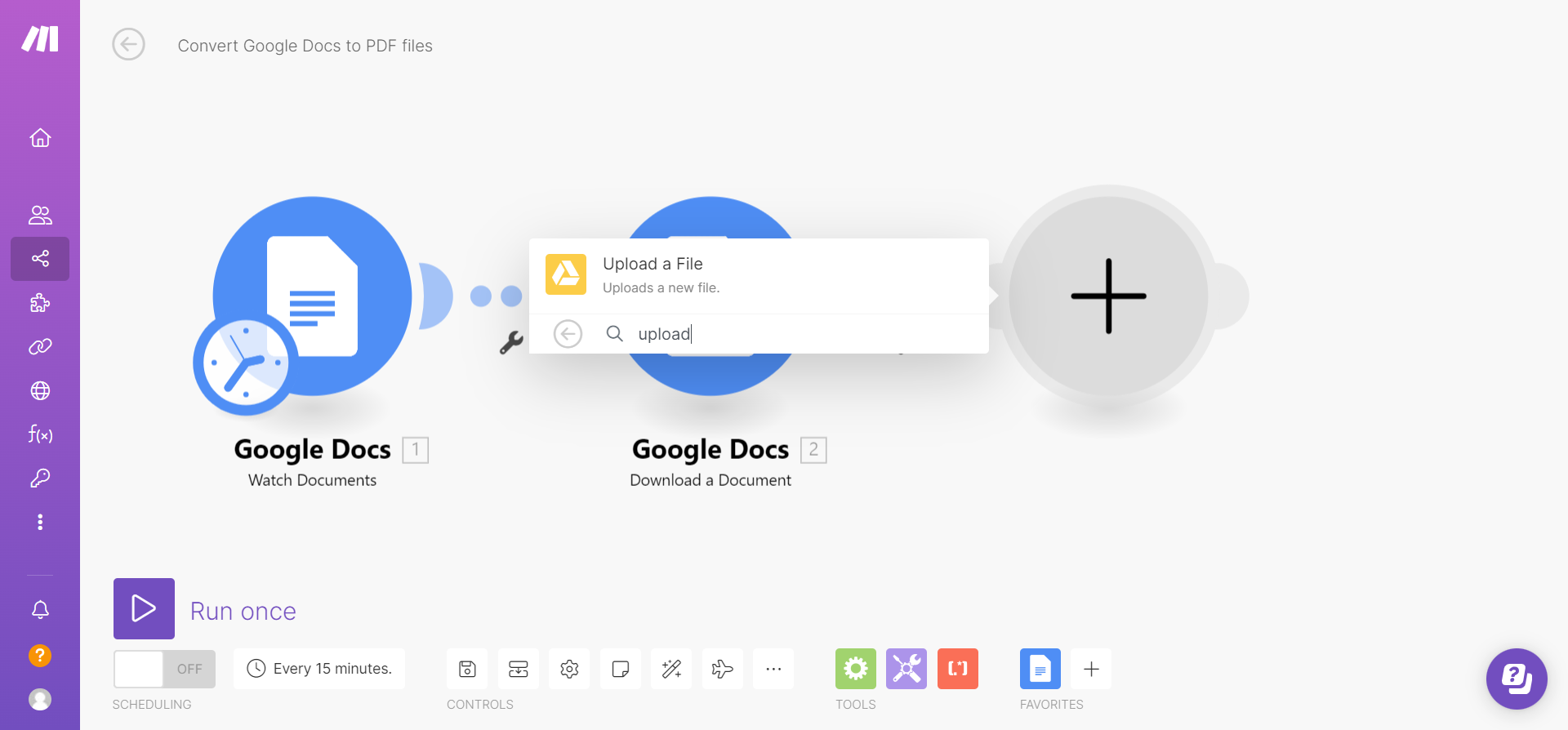
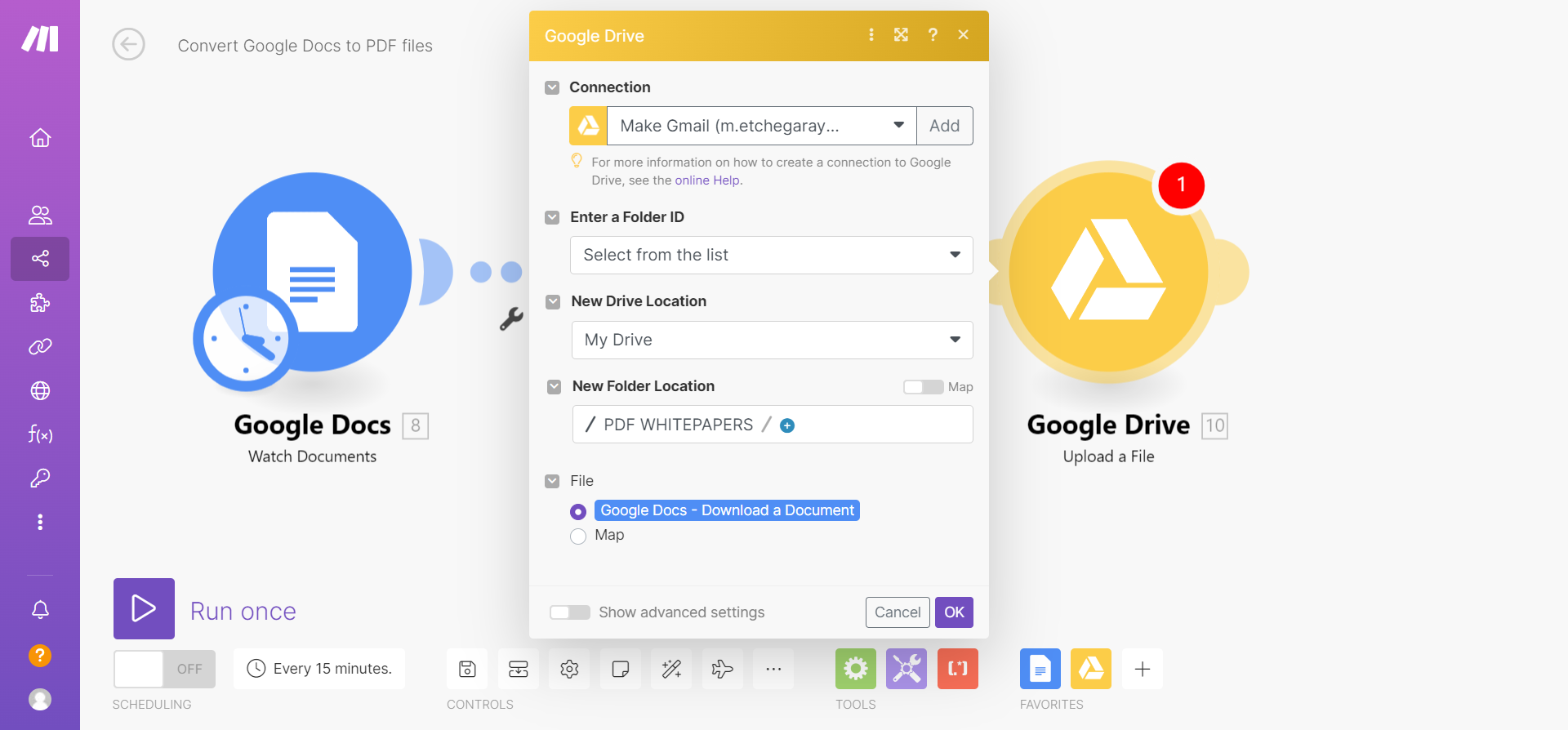
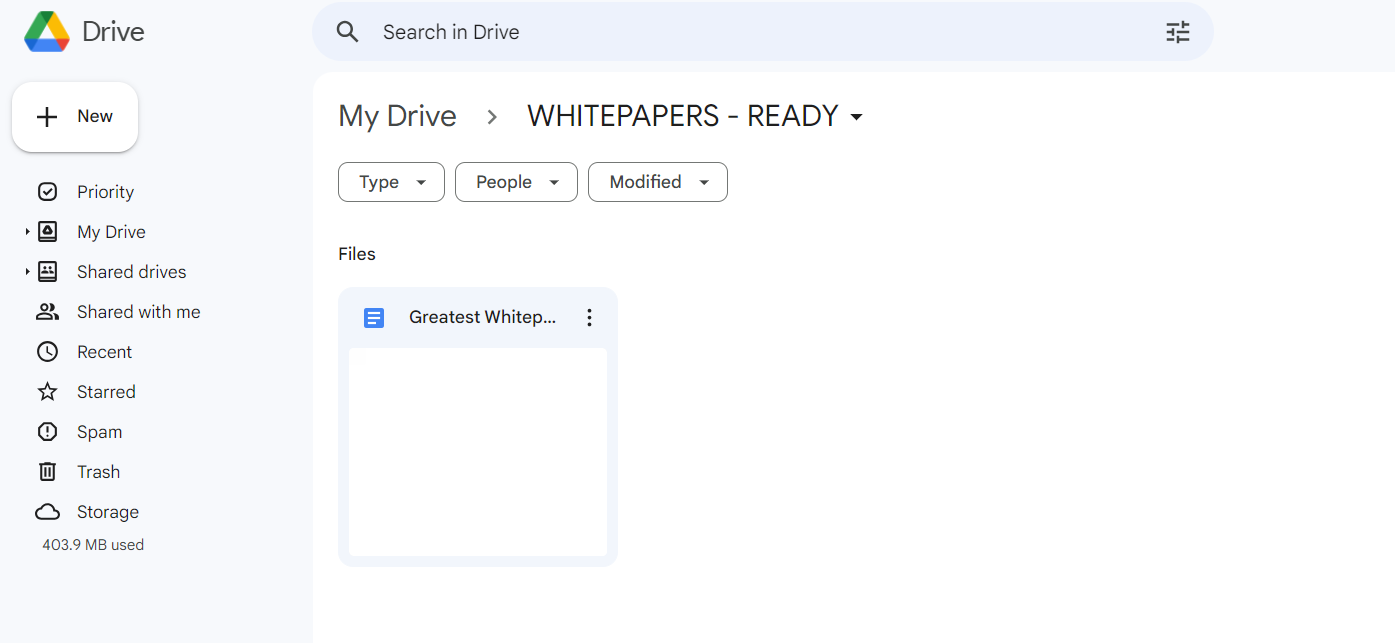
Finally, the newly created PDF file is automatically uploaded and saved to a designated destination folder within your Google Drive. This ensures that your original Google Doc remains untouched, and you have a perfectly formatted PDF version readily available in the location of your choice. This step completes the end-to-end automation, making the entire process seamless.
Who This Is For
This workflow is ideal for anyone who regularly needs to convert Google Docs to PDFs, especially those in roles requiring frequent document sharing, reporting, or archiving. This includes:
- Marketing Teams: For converting whitepapers, case studies, or reports into shareable PDF formats for campaigns.
- Sales Professionals: To quickly generate PDF proposals, contracts, or product sheets for clients.
- Educators & Students: For submitting assignments, sharing course materials, or creating study guides in a fixed format.
- HR Departments: Automating the conversion of policy documents, employee handbooks, or onboarding materials.
- Legal Professionals: Ensuring legal documents are in a non-editable, universally viewable format for court filings or client review.
- Small Business Owners: To streamline administrative tasks and maintain consistent document versions without manual effort.
Essentially, if your work involves Google Docs and PDFs, this automation will save you significant time and reduce the potential for errors.
What You'll Need
- A Make.com account (free tier available).
- A Google account with access to Google Docs and Google Drive.
- Two specific folders in Google Drive: one for source Google Docs and one for converted PDFs.
- Basic understanding of how to connect apps in Make.com.
Quick Setup Guide
Setting up this automation is straightforward. Follow these steps to get your Google Docs converting to PDFs automatically:
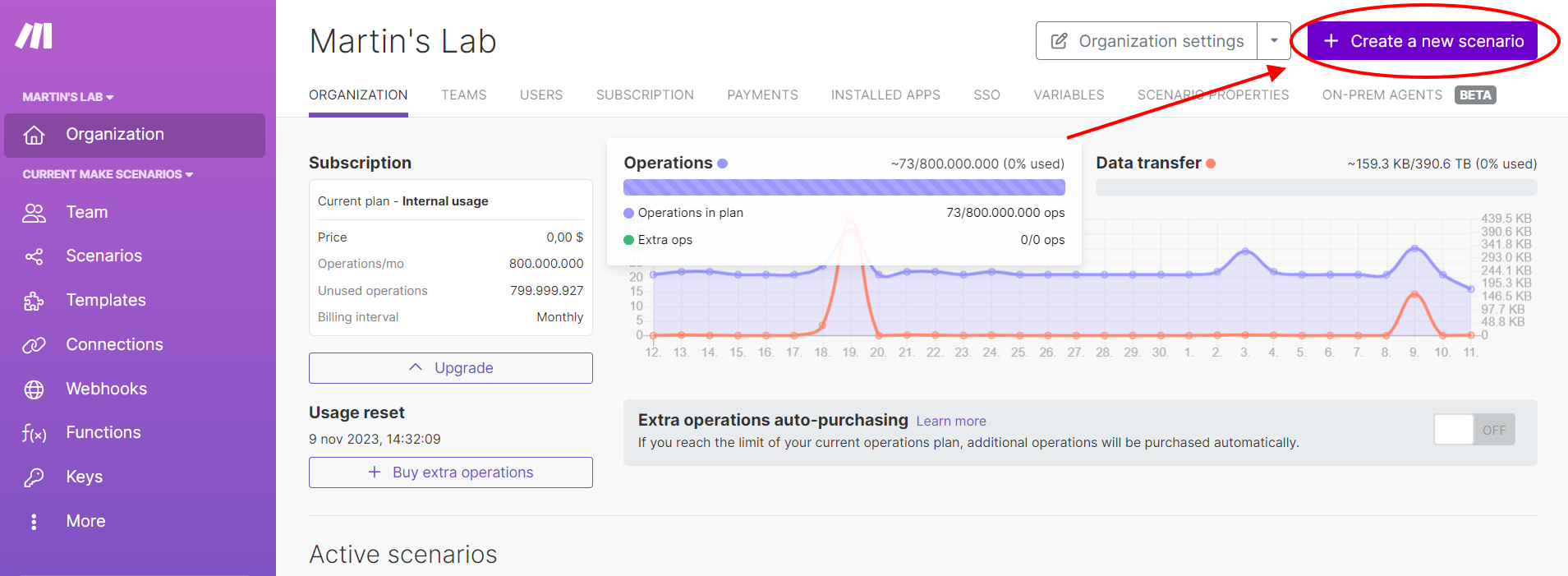
- Create a New Scenario in Make.com: Log into your Make.com account and click "Create a new scenario."
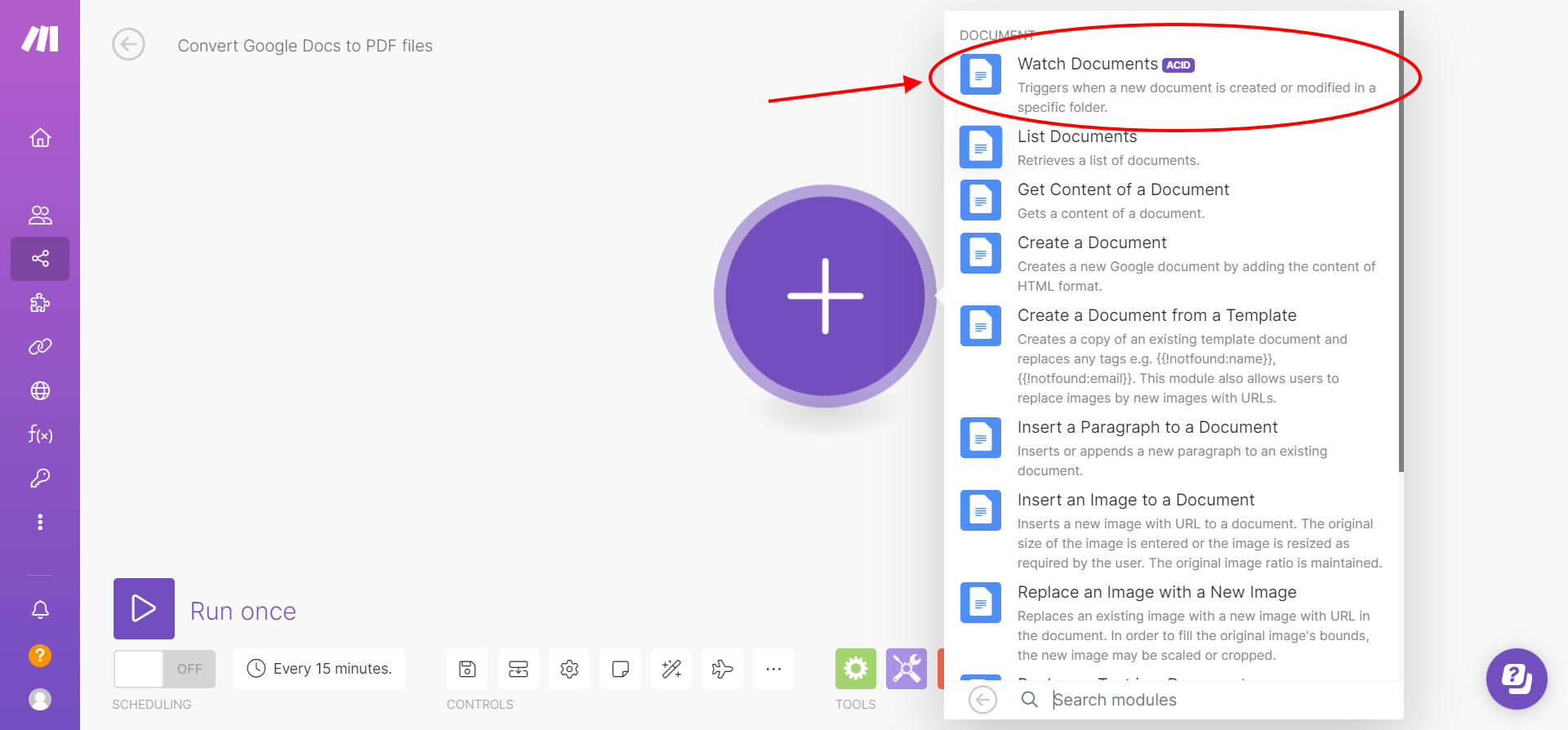
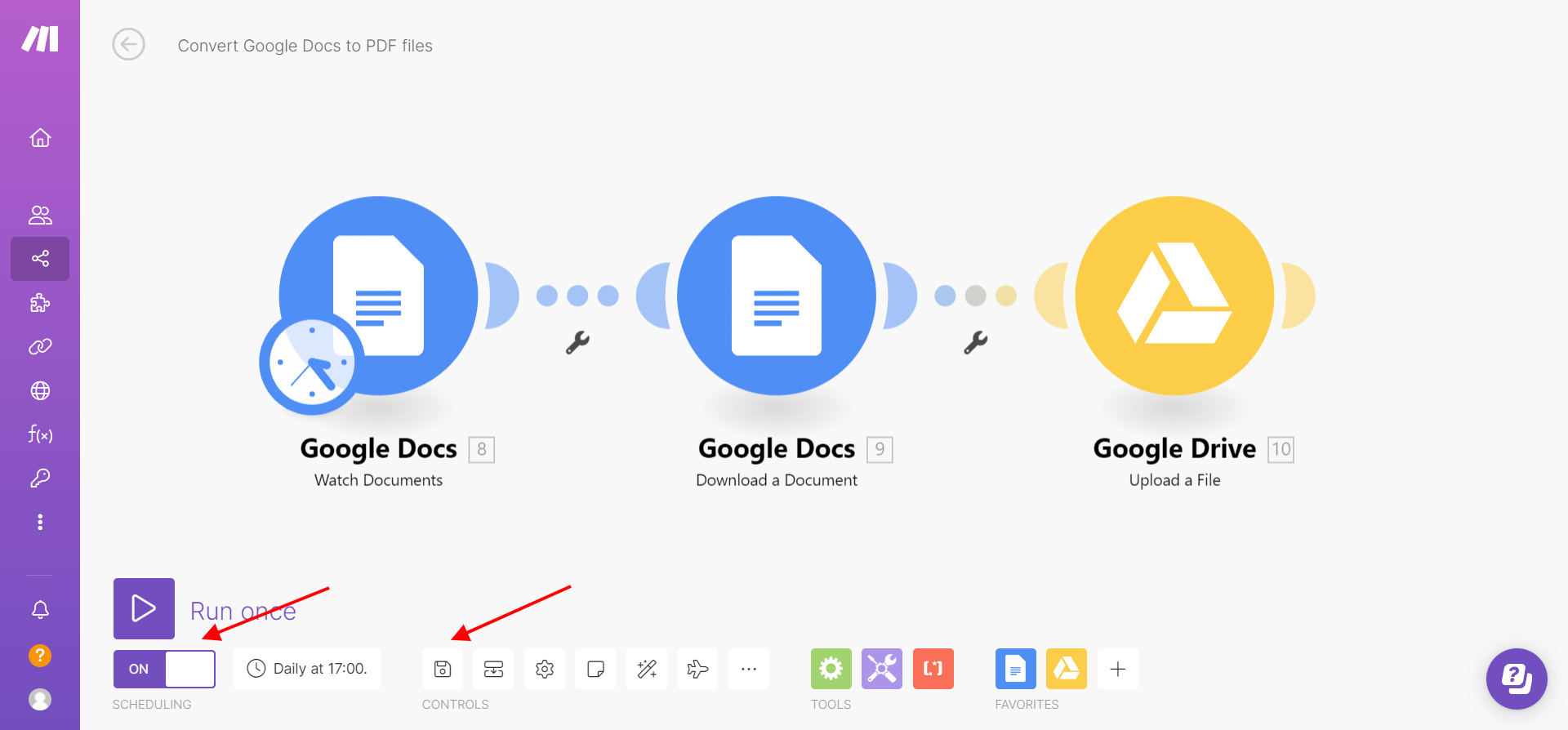
- Add Google Docs "Watch Documents" Module: Search for Google Docs, select "Watch Documents," and connect your Google account. Configure it to watch the specific Google Drive folder where your source Google Docs will be placed. Set a reasonable "Limit" for documents to process per run.
- Add Google Docs "Download a Document" Module: Add another Google Docs module, select "Download a Document." Map the "Document ID" from the previous step and choose "PDF Document" as the output type.
- Add Google Drive "Upload a File" Module: Add a Google Drive module, select "Upload a File." Connect your Google account again. Specify the destination folder in Google Drive where you want the converted PDFs to be saved. Select the file output from the "Download a Document" module.
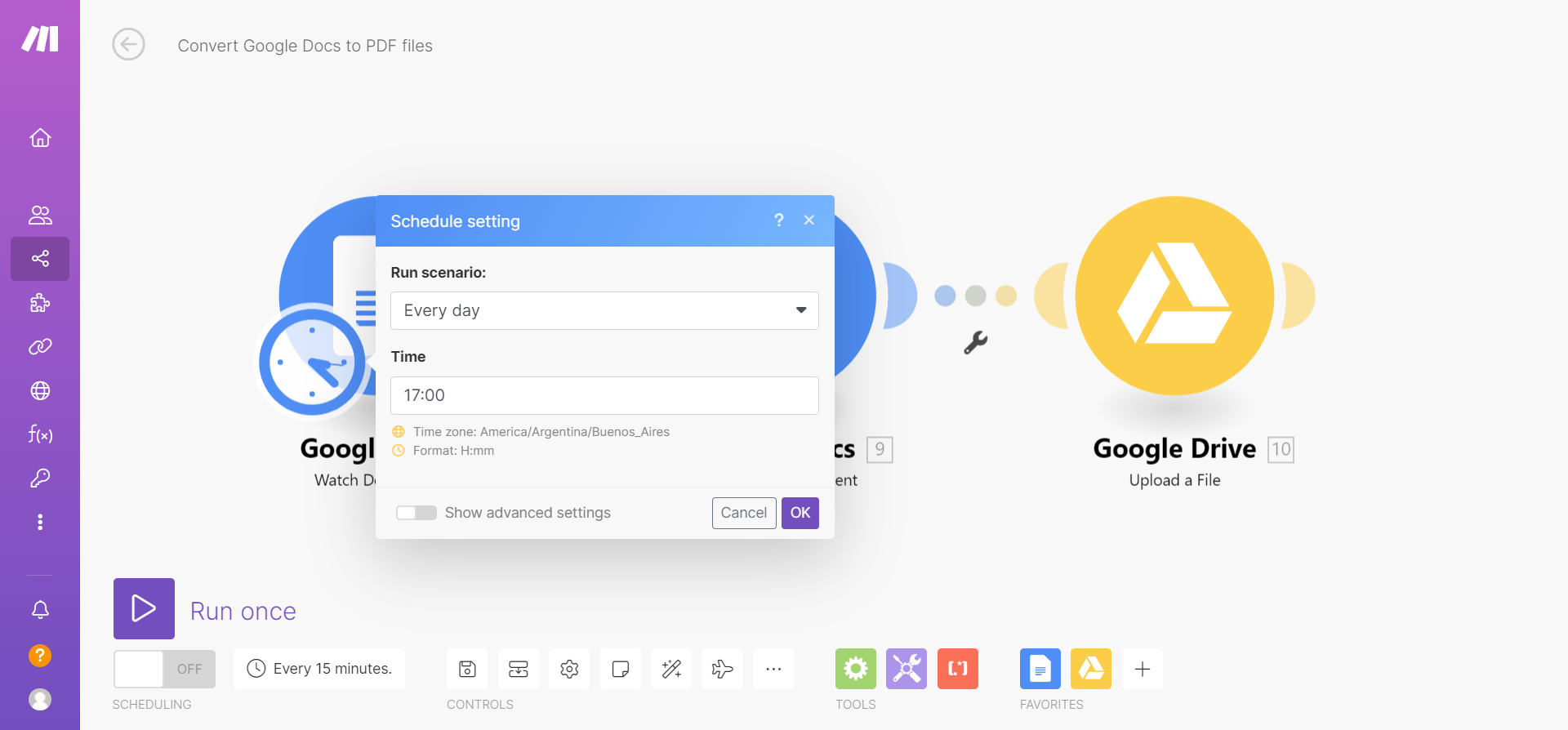
- Schedule and Test: Set the schedule for how often you want the scenario to run (e.g., daily, hourly). Run a test with a sample Google Doc in your source folder to ensure everything works as expected.
- Activate and Save: Once testing is successful, turn the scenario "ON" and save it.
Key Benefits
Save Hours of Manual Work: Eliminate repetitive "download as PDF" clicks, freeing up significant time for more important tasks. For teams handling dozens of documents daily, this translates into hours saved each week.
Ensure Document Consistency: Automatically generate PDFs with consistent formatting, reducing errors and ensuring all stakeholders receive the correct version. This is vital for brand consistency and professional communication.
Streamline Document Workflows: Integrate PDF conversion seamlessly into your existing document creation and sharing processes. This creates a smoother, more efficient flow from drafting to final distribution.
Improve Accessibility & Compatibility: PDFs are universally viewable across devices and operating systems, ensuring your documents can be accessed by anyone, anywhere. Avoid compatibility issues with different software versions.
Automate Archiving & Compliance: Easily maintain a repository of finalized PDF documents for legal, compliance, or historical record-keeping purposes. This ensures proper document governance without extra manual effort.