
What This Workflow Does
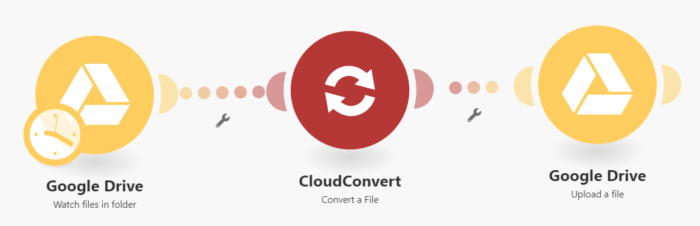
This powerful automation workflow connects your Google Drive with CloudConvert via Make.com to effortlessly transform your Google Sheets files into various formats, such as PDF, and then save them back to your Google Drive. Imagine no longer needing to manually open each spreadsheet, convert it, and then re-upload it. This scenario monitors a specified folder in Google Drive for new Google Sheets files, automatically triggers the conversion process using CloudConvert, and places the newly formatted document into a designated destination folder.
For businesses, this means a significant reduction in repetitive administrative tasks. Whether you need to generate professional PDF reports from financial data, convert data exports for compatibility with other software, or simply archive documents in a standardized format, this workflow handles it all in the background. It ensures consistency, saves valuable employee time, and minimizes the potential for human error in document handling.
How It Works
The process is broken down into three simple, automated steps within your Make.com scenario:
Step 1: Watch for New Google Sheets Files in Google Drive
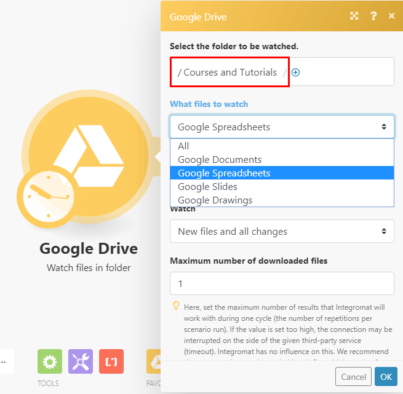
The workflow begins by constantly monitoring a specific folder in your Google Drive. Whenever a new Google Sheets file is added to this folder, the automation is triggered. You configure this module to specifically look for Google Sheets files, ensuring that only relevant documents initiate the conversion process.
Step 2: Convert the File Using CloudConvert
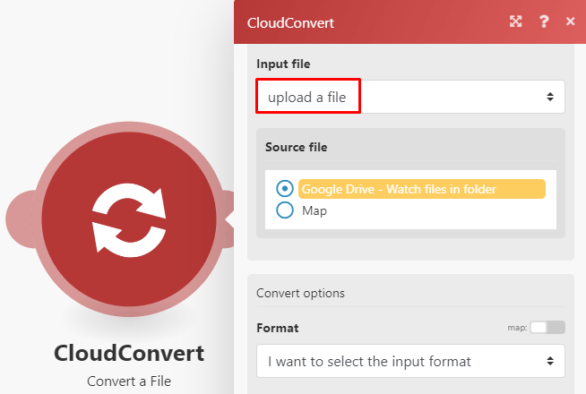
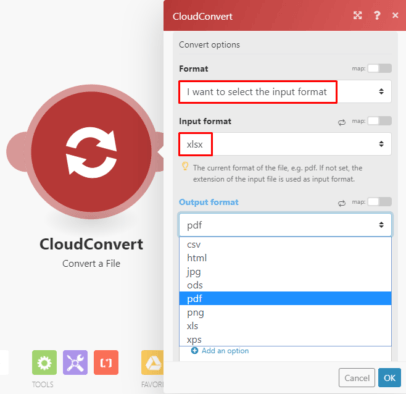
Once a new Google Sheets file is detected, it's passed to the CloudConvert module. Here, you'll use your CloudConvert API key to authenticate the service. The module takes the Google Sheet as the source file, identifies its format (typically 'xlsx' for Google Sheets), and then converts it to your chosen output format, such as PDF. The new file name is dynamically generated by taking the original title and appending the new file extension.
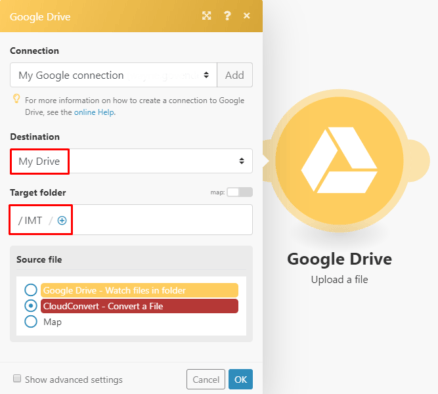
Step 3: Upload the Converted File Back to Google Drive
Finally, the converted file (e.g., the PDF version of your Google Sheet) is taken from CloudConvert and uploaded to a specified destination folder in your Google Drive. This ensures that your converted documents are organized and easily accessible alongside your other files. This step completes the automated cycle, delivering the final document without any manual effort on your part.
Who This Is For
This workflow is ideal for anyone who regularly works with Google Sheets and needs to convert them into other formats, especially PDF, for reporting, archiving, or sharing. This includes:
- Small Business Owners: Automate the creation of financial reports, invoices, or sales summaries from Google Sheets.
- Marketing Teams: Convert campaign performance data into shareable PDF reports for stakeholders.
- Finance Departments: Ensure consistent PDF versions of budgets, expense reports, or audit trails.
- Project Managers: Convert project plans or status updates from spreadsheets into easily viewable PDF documents.
- Educators & Researchers: Transform data sets or grade books into various formats for analysis or distribution.
- Anyone Seeking Efficiency: If you find yourself repeatedly performing manual file conversions, this automation will save you significant time and effort.
What You'll Need
To implement this workflow, you will need active accounts and access to the following:
- Make.com Account: A free or paid account to build and run the automation scenario.
- Google Drive Account: With permissions to create and manage files and folders.
- CloudConvert Account: A free or paid account to access their file conversion API. You will need to generate an API key from your CloudConvert dashboard.
Quick Setup Guide
Follow these steps to quickly set up your Google Sheets conversion workflow:
- Create a New Scenario in Make.com: Log in to your Make.com account and create a new scenario.
- Add Google Drive "Watch files in folder" Module:
- Select Google Drive as the app and choose the "Watch files in folder" module.
- Connect your Google Drive account.
- Select the folder where you will upload your Google Sheets files.
- Under "What files to watch," select "Google Sheets" from the dropdown.
- Add CloudConvert "Convert a file" Module:
- Add a CloudConvert module and select "Convert a file."
- Connect your CloudConvert account using your API key (found in your CloudConvert dashboard under API V2).
- For "Input file," select "Upload a file" and map the "Source file" from the Google Drive module.
- Choose "I want to select the input format" and set "Input format" to "xlsx".
- Set "Output format" to "PDF" (or your desired format).
- Map the "Title" from the Google Drive module and append ".pdf" (or the appropriate extension for your chosen output format).
- Select "Download a file" under "Export options."
- Add Google Drive "Upload a file" Module:
- Add another Google Drive module and select "Upload a file."
- Select the destination folder in Google Drive where you want the converted files to be saved.
- Under "Source File," map the output from the CloudConvert module.
- Test and Activate: Run the scenario once with a test Google Sheet to ensure everything works correctly. Once confirmed, activate your scenario.
Pro tip: Create separate "Input" and "Output" folders in your Google Drive to keep your original and converted files organized. This makes managing your documents much easier.
Key Benefits
Implementing this Google Sheets conversion workflow brings several tangible benefits to your business:
⏱️ Saves Hours of Manual Work: Eliminate the tedious, repetitive task of manually converting and saving Google Sheets, freeing up valuable employee time for more strategic activities.
✅ Ensures Document Consistency: Automatically generate documents in a standardized format (like PDF), reducing errors and ensuring all stakeholders receive uniform, professional-looking files.
🚀 Accelerates Reporting & Sharing: Instantly convert spreadsheets into shareable formats, speeding up report distribution, client communication, and internal data sharing.
🔒 Improves Data Integrity & Archiving: Convert important data into stable, non-editable formats like PDF for secure archiving and compliance, protecting against accidental changes.
📈 Enhances Workflow Efficiency: Seamlessly integrate file conversions into your existing document management processes, creating a smoother, more efficient operational flow across departments.