Have you ever forgotten to pay an invoice, only to face complications later? Even with top-tier accounting software like Xero, this can happen. Xero, by default, doesn't provide built-in email reminders for invoices or bills that are nearing their due date. This can be particularly frustrating for businesses managing numerous bills without sufficient time or staff to track each one manually.
Fortunately, with an automation platform like Make.com, you can easily set up personalized Xero invoice reminders. These reminders can be configured to send email notifications exactly when you need them, helping you stay on top of your financial obligations. Whether you need alerts for bills due this week, today, or tomorrow, Make provides the flexibility to customize your notification schedule.
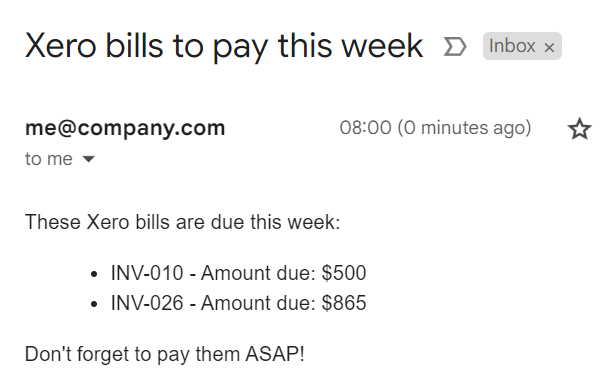
This tutorial will guide you through the process of setting up email notifications for Xero invoices that are due soon. We'll focus on configuring reminders for invoices due within the current week and also show you how to adjust the settings for daily reminders, such as those due today or tomorrow. All you need to get started is a Make account, a Xero account, and an email application like Gmail.
Create a new Make scenario and add the Xero app
To begin, log into your Make account and create a new scenario. This is the canvas where you'll build your automation workflow. Once your new scenario is open, add the "Xero > Search for Invoices" module. This module will allow Make to connect with your Xero account and retrieve invoice data. You'll need to connect your Xero account and select the relevant organization within the module's settings.
Next, configure the "Search by" dropdown setting to "user-defined condition." In the "Where condition" field, you'll enter a specific text string to filter the invoices. For invoices due this week, use the following condition: Type=="ACCPAY" && Status=="AUTHORISED" && AmountDue>0 && DueDate<=DateTime({{formatDate(addDays(now; 6); "YYYY, MM, DD")}}). It's crucial to note that "AUTHORISED" must be typed in uppercase and spelled exactly as shown.
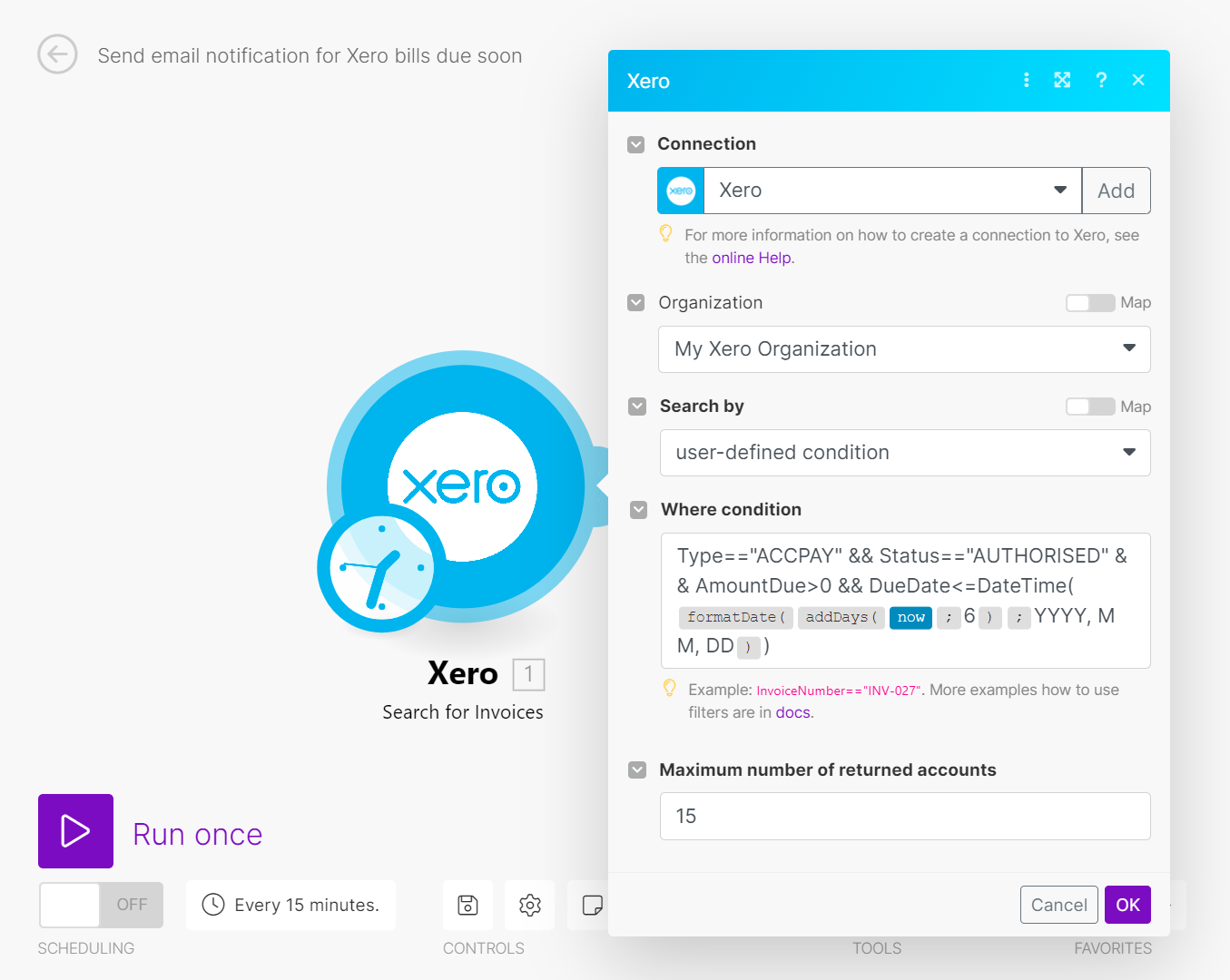
This "where" condition ensures that the scenario only retrieves Xero invoices that meet several specific criteria:
- The invoice type is "ACCPAY" (account payable), which refers to a bill.
- The invoice status is "AUTHORISED," meaning the bill has been approved and is either partially or fully unpaid.
- The invoice has an outstanding amount greater than zero.
- The invoice's due date is on or before six days from the day the scenario runs. For example, if the scenario runs on a Monday, it will find invoices due by the following Sunday, effectively capturing all invoices due within that week.
For different payment timeframes, you can modify the "DueDate" field in the "where" condition. To find bills due today, use DueDate=DateTime({{formatDate(now; "YYYY, MM, DD")}}). For bills due tomorrow, use DueDate=DateTime({{formatDate(addDays(now; 1); "YYYY, MM, DD")}}). Finally, set the "Maximum number of returned accounts" field to a number that accommodates your typical volume of due bills, such as "15" for demonstration purposes. Click "OK" to save the module's configuration.
Add the Text Aggregator module to compile the list of Xero invoices
After configuring the Xero module, add a "Tools > Text Aggregator" module to your scenario. This module is essential for consolidating all the individual Xero bills found in the previous step into a single, formatted list. This aggregated text will then be used in your email notification, making it easy to present multiple invoices in a clear and organized manner.
Within the Text Aggregator module's settings, enable the "Show advanced settings" switch. Set the "Source Module" to "Xero - Search for Invoices [1]" to ensure it processes the output from your Xero module. Choose "New row" for the "Row separator" setting, which will place each bill on a separate line in your email. To prevent sending empty emails, check the "Yes" box under "Stop processing after an empty aggregation."
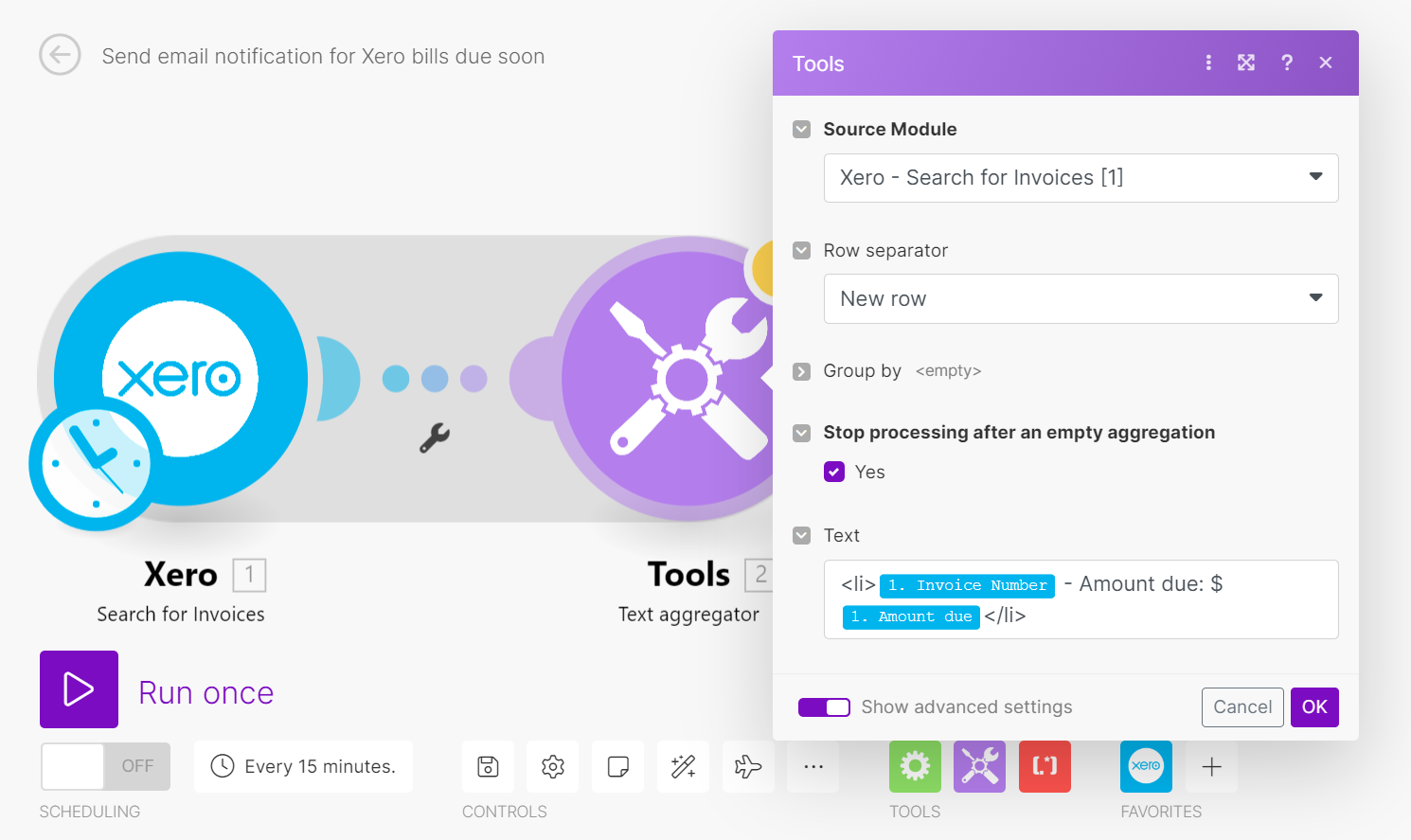
In the "Text" field, map the data items from the Xero module to define how each invoice's information will appear in the notification. For example, to display the invoice number and outstanding amount, use: and HTML tags are included here to help Gmail correctly format the list within the email. Once configured, click "OK" to save the Text Aggregator module settings.
Add a filter between the Xero and Text Aggregator modules
To ensure that email notifications are only sent when there are actual Xero bills due soon, you need to add a filter between the "Xero" and "Text Aggregator" modules. This filter acts as a gatekeeper, preventing the scenario from proceeding and sending an email if no invoices meet your specified criteria. This helps maintain a clean inbox and avoids unnecessary notifications.
To set up the filter, click on the wrench icon located between the two modules and select the "Set up a filter" option from the menu. Give your filter a descriptive name, such as "Proceed if Xero bill is found," to clearly indicate its purpose. For the condition, map the "Invoice ID" item from the Xero module to the first operator. Then, change the operator setting from "Text operators: Equal to" to "Basic operators > Exists."
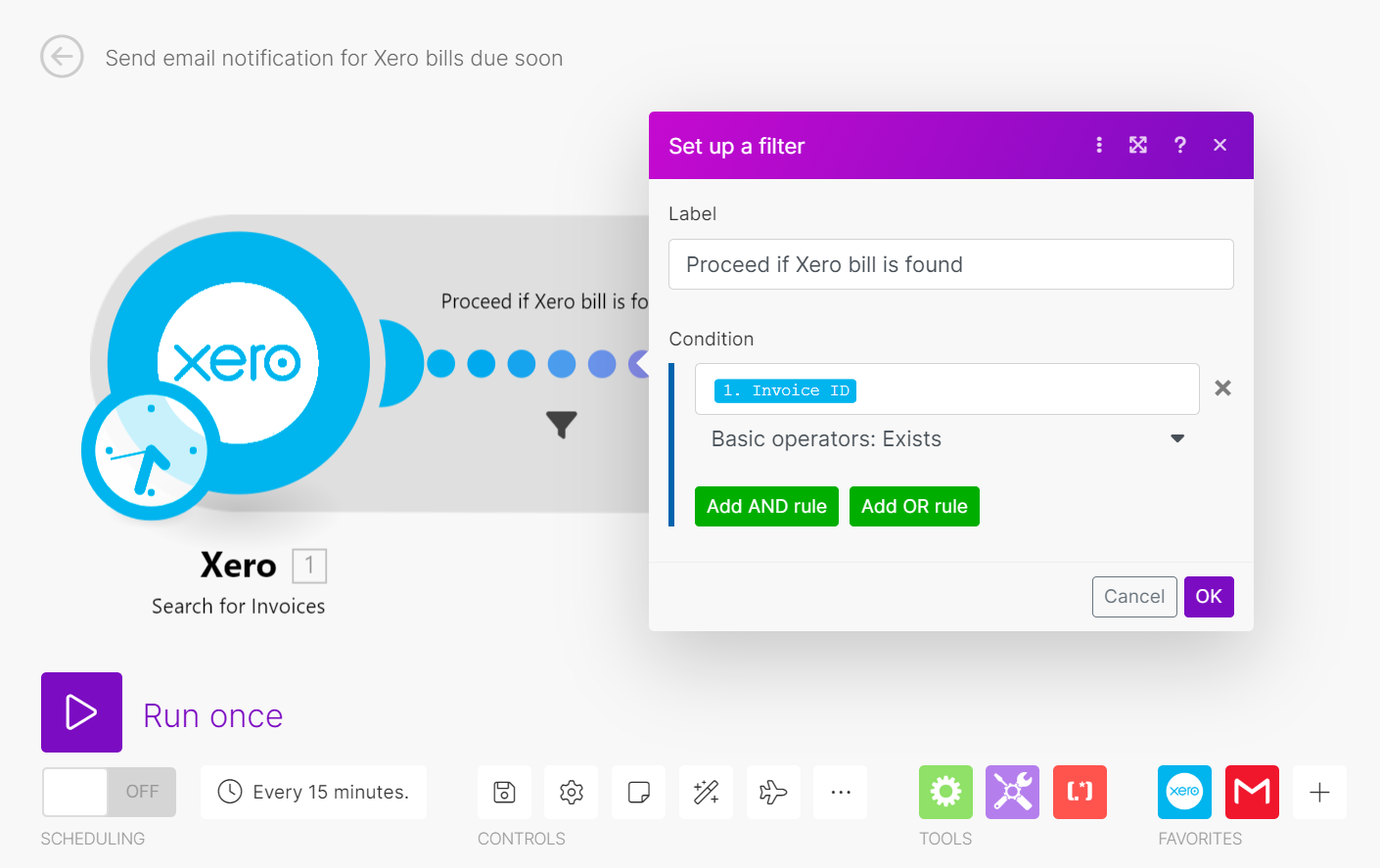
This configuration ensures that the scenario will only continue its execution if at least one Xero bill matching your due date condition has been successfully identified. If no such bills are found, the filter will stop the scenario, preventing an empty or irrelevant email from being sent. Click "OK" to finalize the filter setup.
Add the Gmail module that sends the email reminder
The next step is to add the "Gmail > Send an Email" module to your scenario. While Gmail is used in this example, you can substitute it with any other email or messaging application supported by Make, such as Microsoft 365 Email, depending on your preference. Connect your Google account to this module and enter your email address in the "To" field, as you will be the recipient of these reminders.
Compose a clear and concise subject line for your email notification in the "Subject" field. For the email body, populate the "Content" field with the desired message. Remember to wrap your paragraphs with and
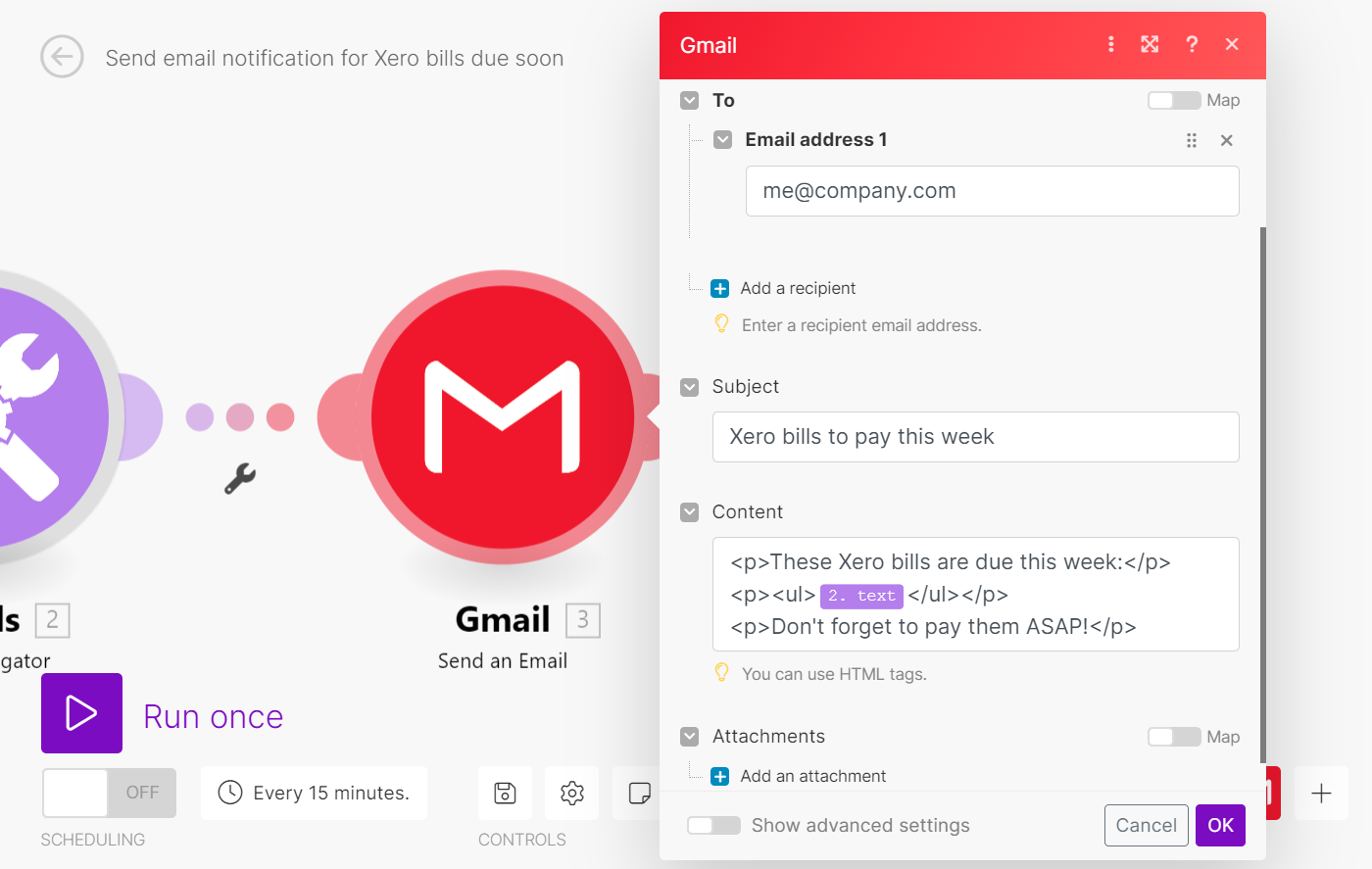
To format the list of invoices as an unordered (bulleted) list, surround the "text" item with HTML tags. If you prefer a numbered list, use tags instead. If you need to include additional recipients, enable the "Show advanced settings" switch to access the CC (Carbon Copy) or BCC (Blind Carbon Copy) fields. Once you've completed the module's configuration, click "OK" to save your changes.
Test and activate the scenario
With all modules configured, your Make scenario for Xero invoice reminders is now complete. It should visually resemble the example provided below. Before activating it, it's crucial to test the scenario to ensure everything works as expected. Click the "Run once" button located at the bottom left of the visual editor to initiate a test run.
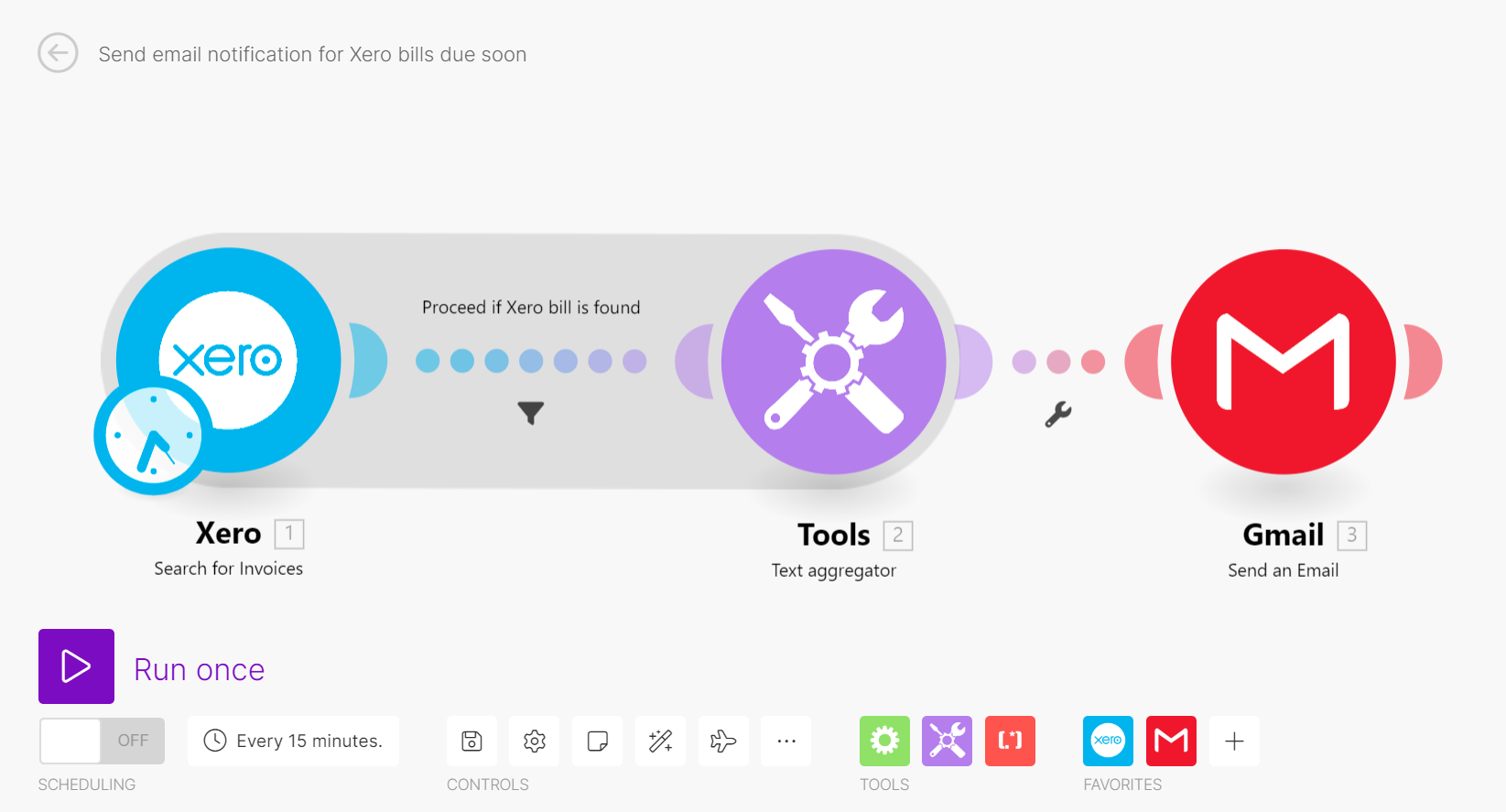
During the test, if there are Xero bills that match the due date condition you set in Step 1, you should receive an email containing the list of those invoices. If no bills meet the condition, the scenario will complete without sending an email, which is the intended behavior. In such a case, you can create a temporary test Xero bill that falls within your specified due date range. For instance, if today is January 1st and your reminder is set for bills due this week, create a test bill due on January 3rd.
Run the scenario again after creating the test bill to confirm that you receive the email notification. Once verified, you can void the test bill. After confirming that your email notifications are functioning correctly, proceed to schedule and activate your scenario. To receive weekly reminders, for example, every Monday at 8 AM, configure the scenario's schedule accordingly.
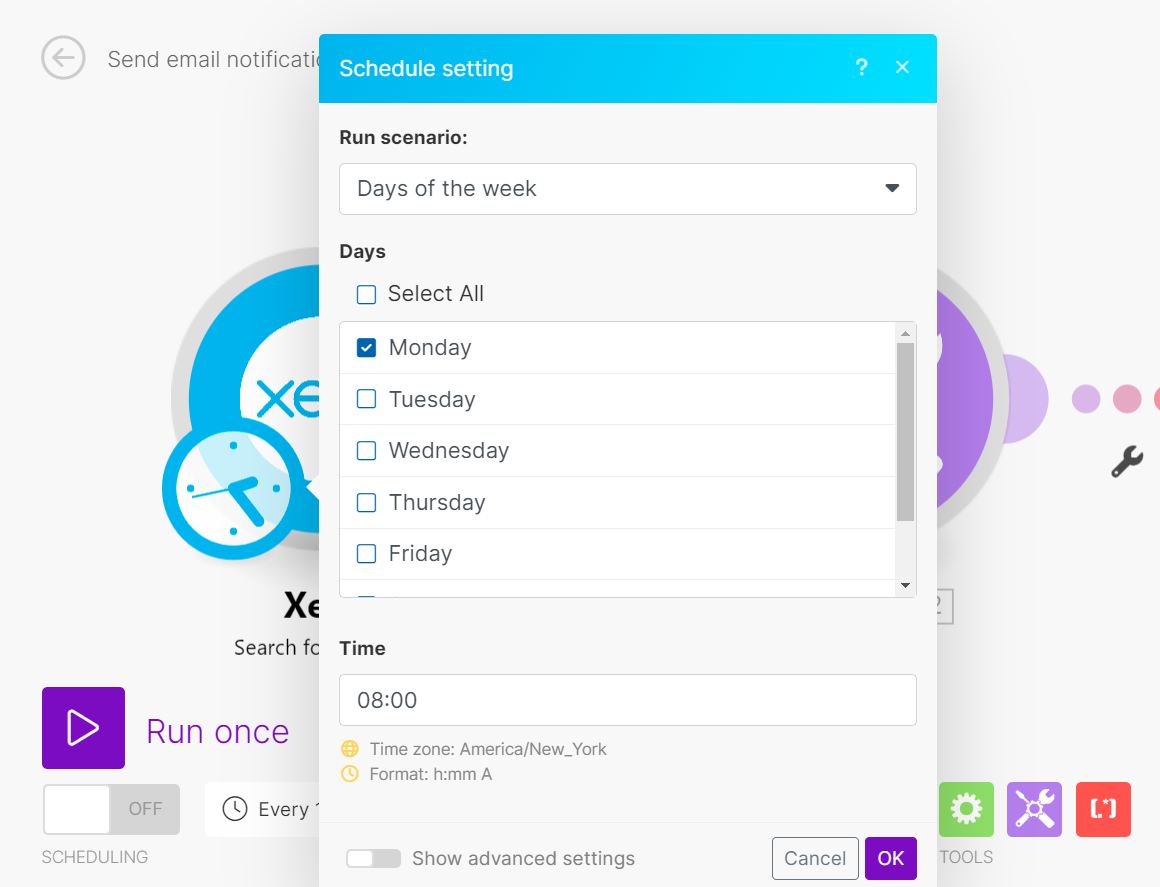
For daily reminders of Xero bills due today or tomorrow, simply set the scenario to run every day at your preferred time. This automation ensures you'll always be informed about upcoming invoice due dates, helping you maintain a strong reputation with your vendors and avoid late payment fees. Make.com can also streamline other finance-related tasks, such as sending Xero invoices to multiple recipients upon approval or automating notifications for unpaid invoices. Sign up for a Make account today to leverage these powerful automation capabilities for your business.