What This Workflow Does
This powerful automation streamlines your email management by automatically saving incoming emails to a designated folder in Google Drive. Instead of manually archiving each important message, this workflow converts your emails into individual Google Docs files, ensuring they are easily searchable, accessible, and securely stored. This not only frees up valuable time but also provides a robust backup solution for critical communications and data.
For businesses, this means an end to lost emails, disorganized inboxes, and the tedious task of manual archiving. Whether it's client correspondence, project updates, or important receipts, every specified email is systematically cataloged. This enhances operational efficiency, supports compliance efforts, and ensures that your team always has access to the information they need, when they need it, without ever leaving the Google ecosystem.
How It Works
The workflow operates in a few simple, automated steps, ensuring a seamless transfer of your emails to Google Drive.
Step 1: Monitor Incoming Emails
The automation begins by continuously watching your specified email inbox or folder for new messages. You can configure it to monitor all emails, or filter for specific criteria such as sender, subject keywords, or even emails with attachments. This ensures only relevant emails are processed.
Step 2: Extract Email Content
Once a new email is detected, the workflow automatically extracts its key information, including the subject, sender, date, and the body text. This data is then prepared for conversion into a new document.
Step 3: Create Google Doc in Google Drive
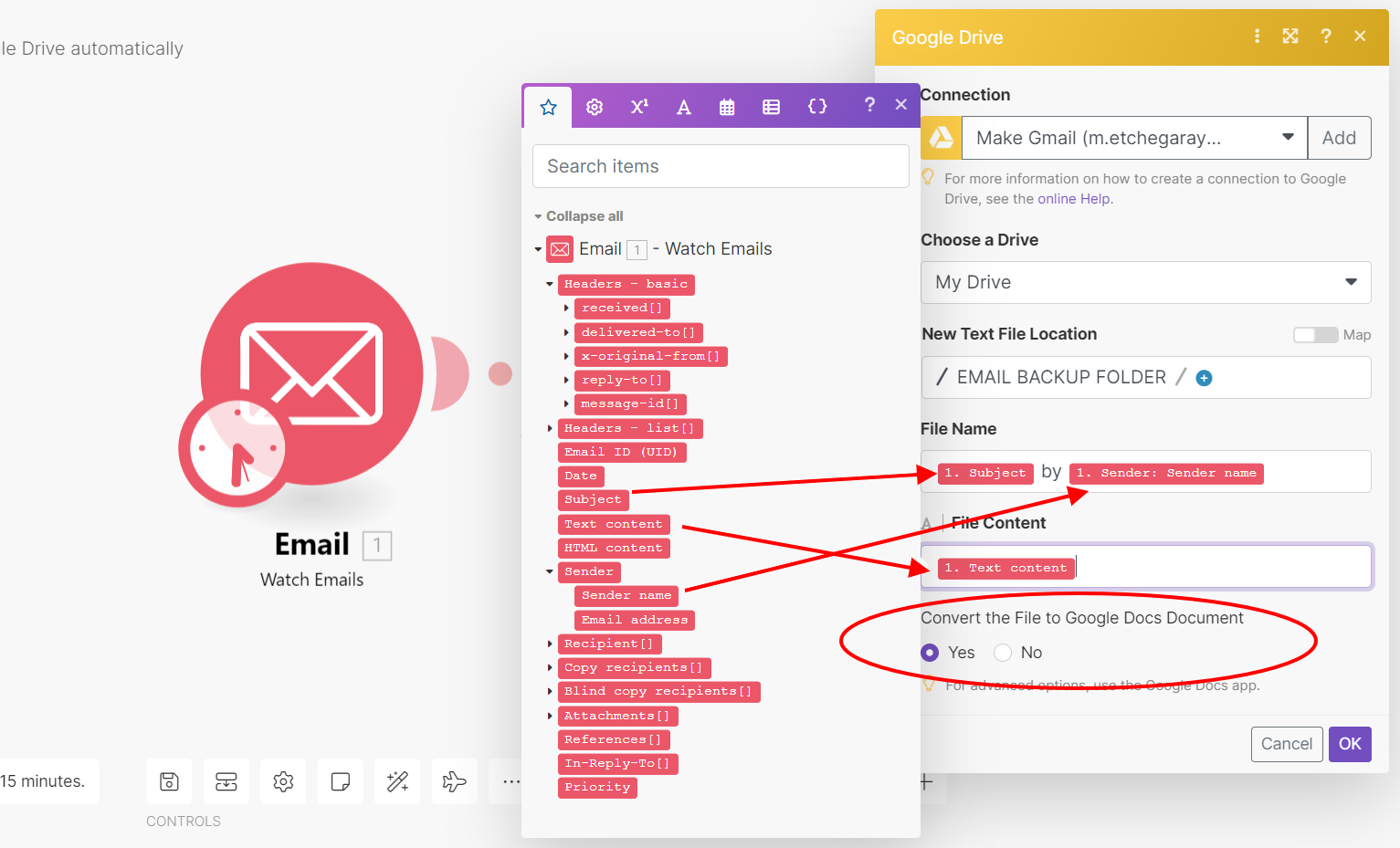
The extracted email content is then used to create a new Google Docs file in a specified Google Drive folder. The file is intelligently named using details from the email, such as the subject and sender, making it easy to identify later. The email's body content is directly inserted into the new Google Doc.
Step 4: Schedule and Activate
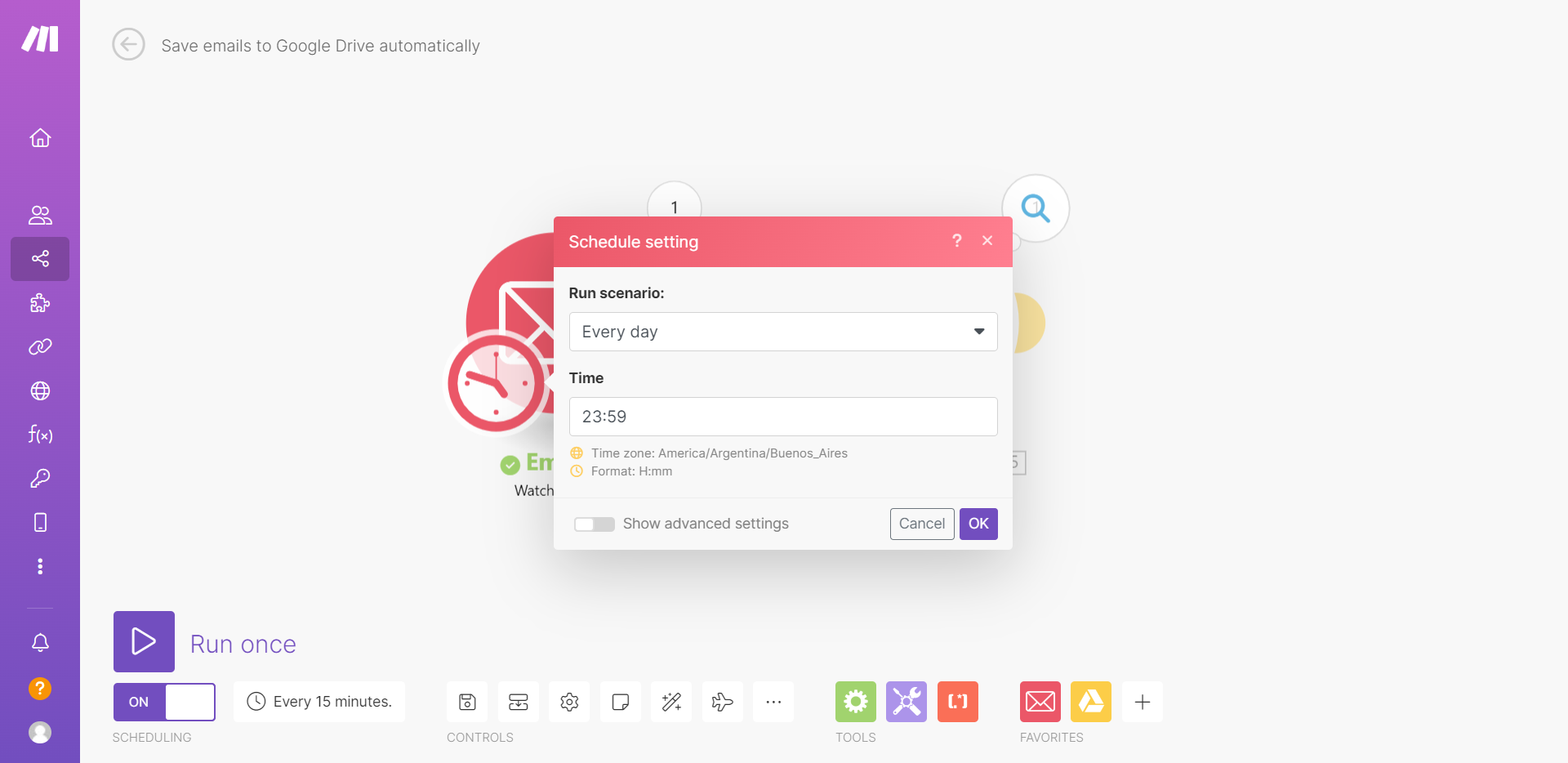
After a quick test to ensure everything is working correctly, the automation is scheduled to run at regular intervals (e.g., daily, hourly). This ensures continuous, hands-free archiving of your emails, keeping your Google Drive up-to-date without any manual intervention.
Who This Is For
This workflow is ideal for any individual or business that relies heavily on email for communication and needs a robust, automated system for archiving and managing those communications. This includes:
- Small to Medium Businesses (SMBs): To ensure all client communications, contracts, and important discussions are backed up and easily accessible for team members.
- Sales Teams: To automatically save lead inquiries, client proposals, and negotiation threads for future reference and CRM integration.
- Customer Support Departments: To archive support tickets and customer interactions, providing a comprehensive history for dispute resolution or service improvement.
- Project Managers: To keep a chronological record of project-related emails, decisions, and updates in a centralized location.
- Legal and Compliance Teams: For maintaining an auditable trail of communications relevant to legal or regulatory requirements.
- Freelancers and Consultants: To organize client agreements, feedback, and invoices without manual effort.
Essentially, anyone looking to reduce administrative overhead, improve data security, and enhance the discoverability of their email archives will find immense value in this automation.
What You'll Need
To implement this workflow, you will need the following:
- A Make.com account (free tier available).
- An active email account (e.g., Gmail, Outlook, or any IMAP/POP3 compatible email service).
- A Google account with access to Google Drive.
- A designated folder in Google Drive where you want to save your emails.
Quick Setup Guide
Follow these steps to get your email-to-Google Drive automation up and running:
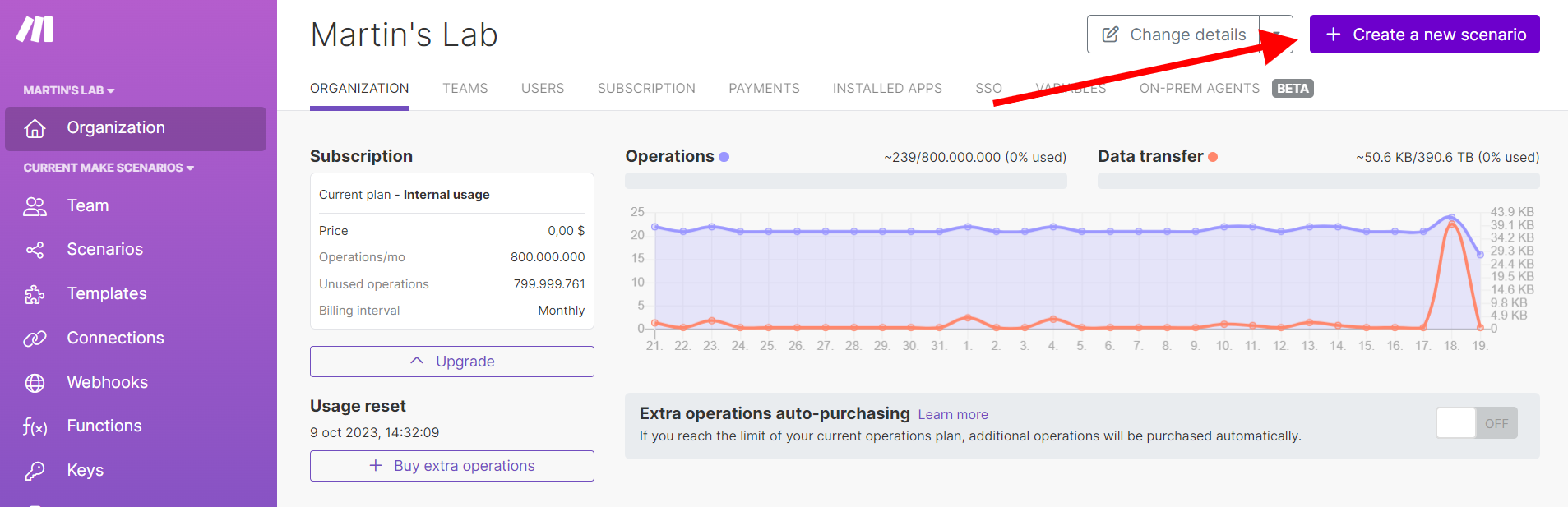
- Create a New Scenario in Make.com: Log in to your Make.com account and click "Create a new scenario."
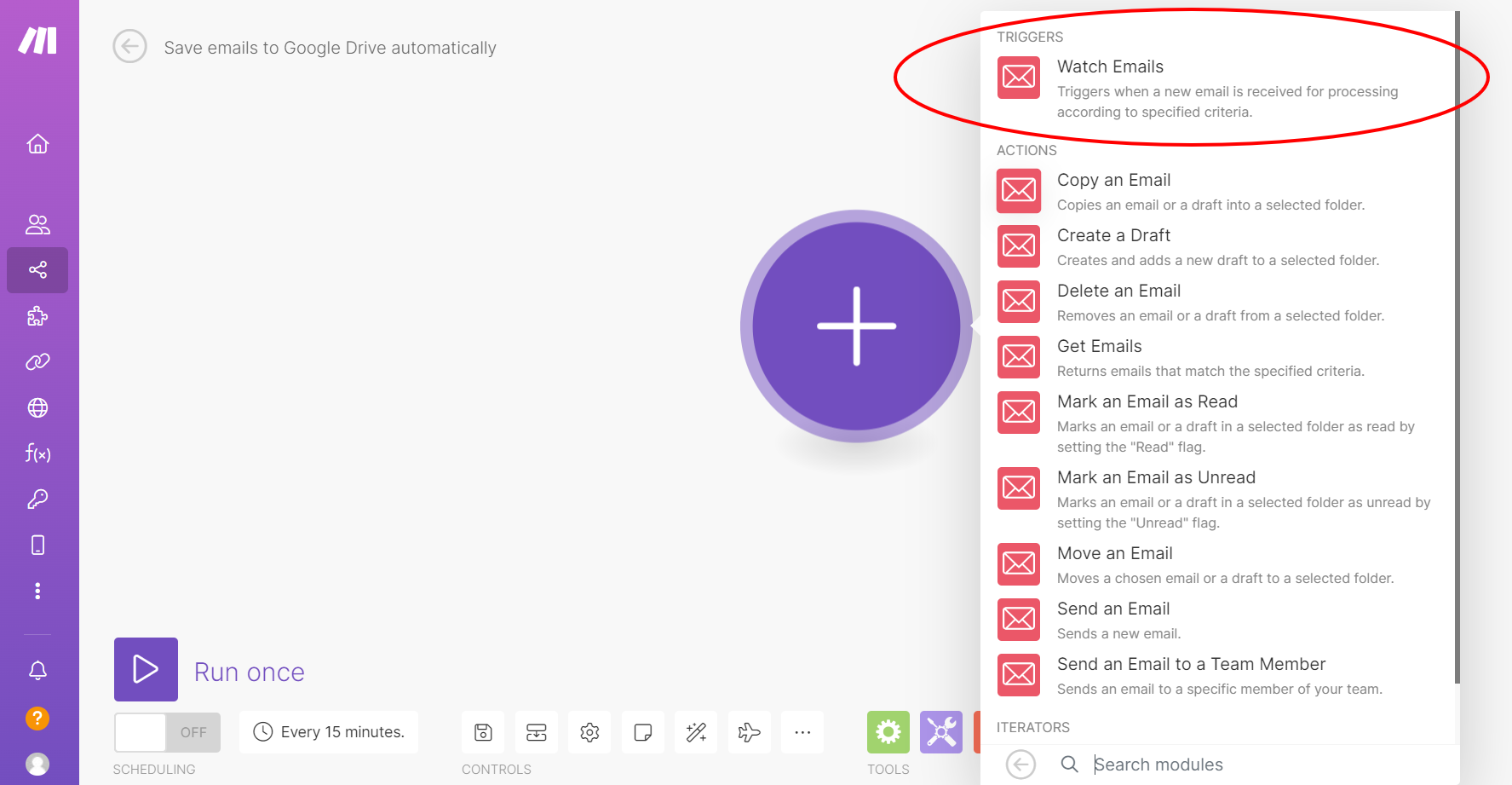
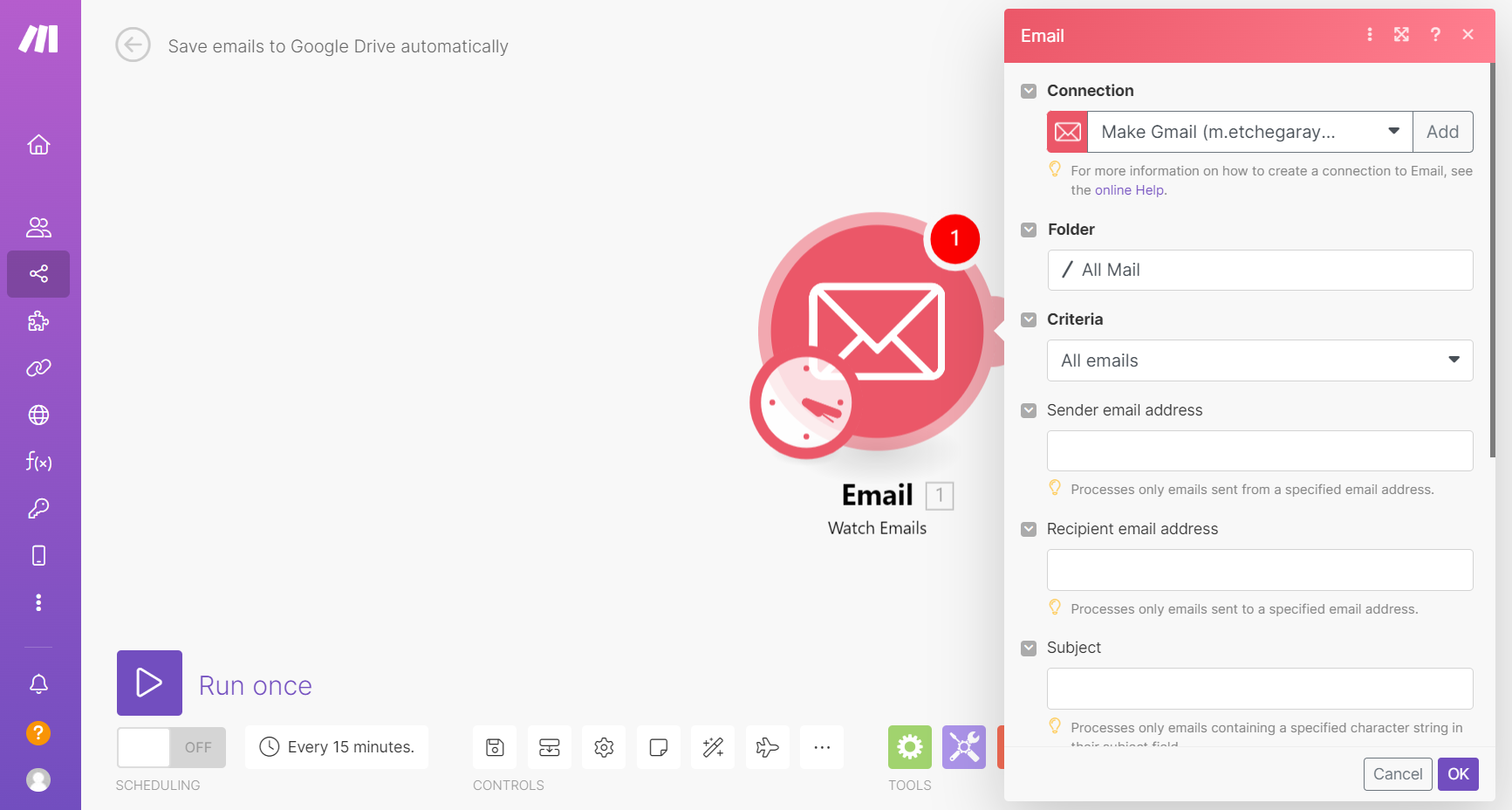
- Add Email Module: Search for the "Email" app and select the "Watch Emails" module. Connect your email account and specify the folder you wish to monitor (e.g., Inbox, Important). Set the maximum number of results to fetch per run.
- Define Monitoring Start: A dialog will appear asking when to start monitoring emails. Choose "From now on" or a specific date/time based on your needs.
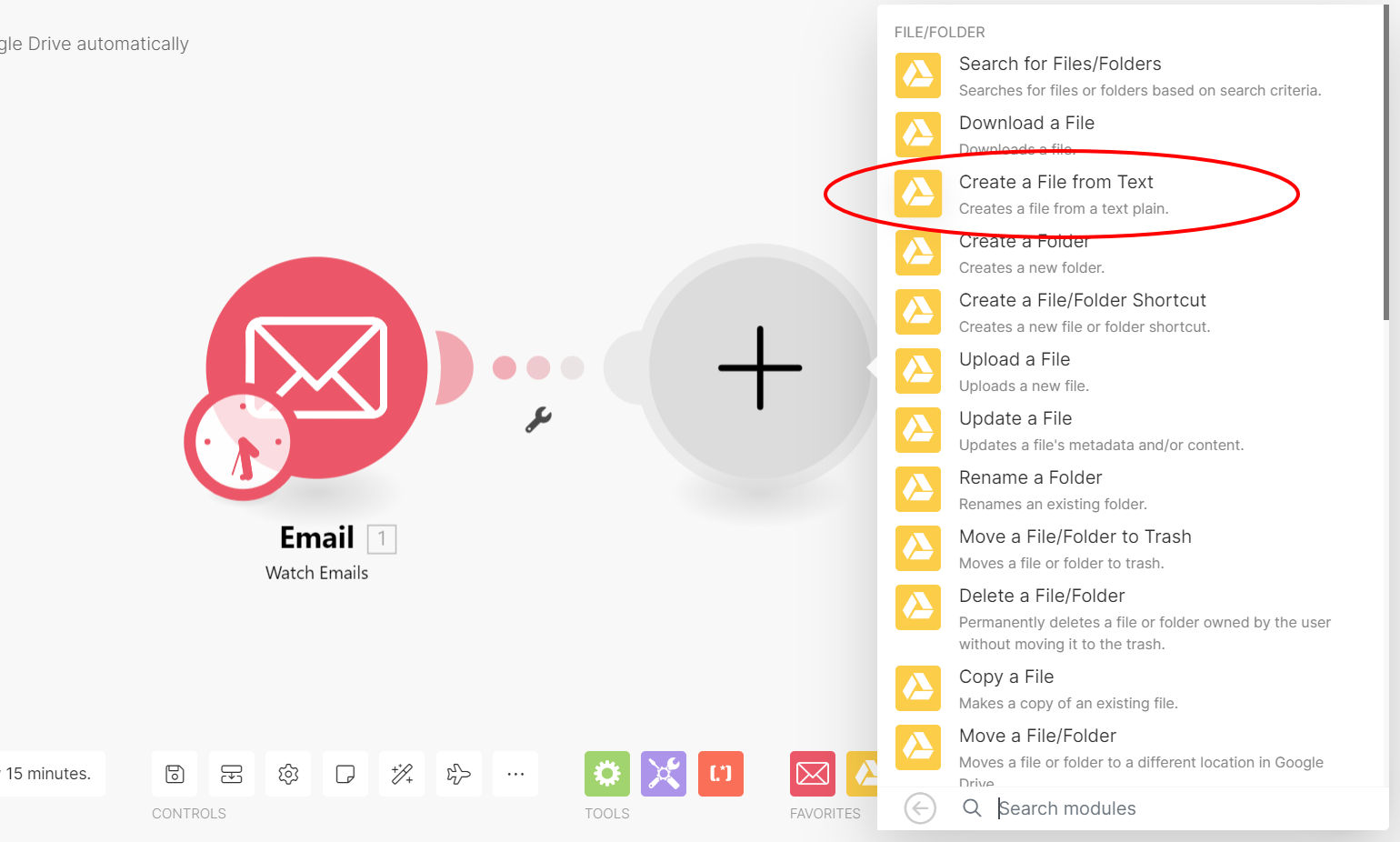
- Add Google Drive Module: Click the "+" icon next to the Email module, search for "Google Drive," and select the "Create a File from Text" module.
- Configure Google Drive Module: Connect your Google account. Select the destination Google Drive and the specific folder where you want to save the emails. Map the "Subject" and "Sender Name" fields from the email module to the "File Name" field in Google Drive for easy identification. Map the "Text content" from the email module to the "File Content" field. Ensure "Convert the File to Google Docs document" is set to "Yes."
- Test the Scenario: Turn the scenario on and click "Run once." Send a test email to yourself to verify that a Google Doc is created in your specified Google Drive folder.
- Schedule the Automation: Click the "Clock" icon on the email module to set a schedule for how often the scenario should run automatically (e.g., daily, every few hours).
- Save and Activate: Save your scenario. Your emails will now be automatically archived to Google Drive!
Key Benefits
Implementing this email-to-Google Drive automation brings several significant advantages to your business:
Enhanced Data Security: Automatically backing up emails to Google Drive creates a redundant copy of critical communications, safeguarding against accidental deletion, email server issues, or cyber threats. Your important data is always secure and recoverable.
Improved Organization & Accessibility: Emails are converted into searchable Google Docs and stored in a structured folder system. This makes it incredibly easy for you and your team to find specific information quickly, reducing time spent searching through cluttered inboxes.
Significant Time Savings: Eliminate the manual, repetitive task of saving individual emails and their attachments. This automation works silently in the background, freeing up valuable employee time to focus on higher-value, strategic tasks that drive business growth.
Streamlined Collaboration: With emails stored as Google Docs, sharing and collaborating on important communications becomes effortless. Team members can access, comment on, and edit documents directly in Google Drive, fostering better teamwork and project coordination.
Better Compliance & Audit Trails: Maintain a comprehensive and organized archive of all relevant communications, which is crucial for regulatory compliance, internal audits, and legal discovery processes. This ensures your business is always prepared and reduces potential risks.
Reduced Inbox Clutter: By automatically moving or archiving processed emails, your primary inbox stays cleaner and more manageable. This improves focus and ensures that your inbox is reserved for active communications, not long-term storage.
Universal Access: Google Docs can be accessed from any device, anywhere, with an internet connection. This provides unparalleled flexibility for remote teams and ensures that critical information is always within reach, promoting business continuity.